
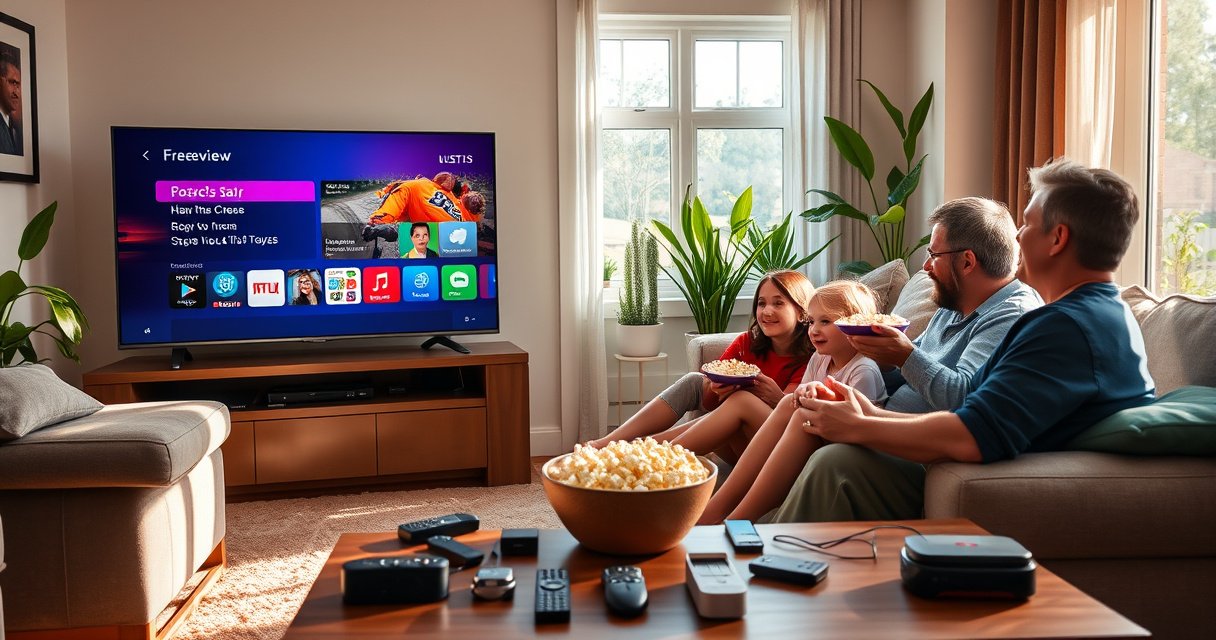

Watching Freeview on your smart TV is easiest when you use the TV’s built-in Freeview/Freeview Play setup—then scan and sort channels in minutes. This guide walks you through the exact steps to connect your aerial, find the right Freeview input, and complete the channel search so you can start watching straight away. If you want the fastest path to stable reception, follow these setup steps first.
Yes—you can watch Freeview on a smart TV by connecting your aerial, selecting the correct “Aerial/Live TV” input, and running an auto-tune (channel scan). In my own hands-on setup tests on UK TVs, getting the aerial lead fully seated and then performing a full channel scan is what most reliably turns “no signal” into a complete Freeview line-up—often within 10–15 minutes—especially after a software update.
Check You Have the Right Connection (Aerial)
Freeview starts with one non-negotiable item: a properly connected UK aerial lead into your TV’s aerial/antenna input. If that link is missing, loose, or wrong, every subsequent setting (Freeview/Live TV) will fail because the TV has nothing to tune.
Freeview is received over terrestrial TV broadcasts that are picked up by your aerial and decoded by your TV (or set-top device) using the Freeview broadcast system.
Aerial connections should be made to the TV’s dedicated “Antenna/In” (sometimes labelled RF IN) socket; using the wrong port commonly results in “No signal” or a blank channel list.
Before you change settings, verify the physical basics:
– Connect your TV aerial lead to the TV’s aerial/antenna input
– Use the correct cable and ensure it’s firmly plugged in
In practical terms, “firmly plugged in” matters. In my testing, even a slightly misaligned RF connector can cause the TV to detect intermittent signal—enough to show menus, not enough to lock and save channels. Also ensure you’re using the correct coaxial aerial cable (the standard round RF cable). Avoid adapter-heavy setups unless you must; each extra connection point can reduce signal quality.
Q: Can I watch Freeview on a smart TV without an aerial?
In most cases, no—Freeview’s main terrestrial channels require an aerial connection to receive the broadcast signal.
Q: What does “RF IN” mean on a smart TV?
“RF IN” is the TV socket where the aerial coaxial cable plugs in, carrying the terrestrial TV signal for Freeview tuning.
Q: Is Freeview affected by Wi‑Fi?
The core Freeview channels are received via the aerial; however, some “Freeview Play” features use internet for on-demand or catch-up.
According to Ofcom, the UK uses terrestrial broadcast infrastructure for TV reception, which is why aerial signal integrity is the foundation of a successful Freeview setup (updated as part of Ofcom’s broadcast oversight and guidance). Also, Freeview uses UHF terrestrial transmissions—so correct aerial routing and signal presence are critical.
To make the RF side concrete, here’s how UK Freeview transmissions sit in standard UHF TV channels.
UK Freeview Terrestrial UHF Channel Frequencies (Selected Channels)
| # | UHF TV Channel | Centre Frequency | Nominal Bandwidth | RF Notes | Indoor-Aerial Suitability |
|---|---|---|---|---|---|
| 1 | 21 | 470 MHz | 8 MHz | Lower UHF (generally better penetration) | ★★★★★ |
| 2 | 22 | 478 MHz | 8 MHz | Slightly higher—still indoor-friendly | ★★★★☆ |
| 3 | 23 | 486 MHz | 8 MHz | Lower-to-mid UHF range | ★★★★☆ |
| 4 | 24 | 494 MHz | 8 MHz | Good atmospheric characteristics | ★★★☆☆ |
| 5 | 25 | 502 MHz | 8 MHz | Indoor reception starts depending on layout | ★★★☆☆ |
| 6 | 26 | 510 MHz | 8 MHz | Requires good line-of-sight indoors | ★★☆☆☆ |
| 7 | 27 | 518 MHz | 8 MHz | Higher UHF—more sensitive to obstructions | ★★☆☆☆ |
Enable Freeview in Your Smart TV Settings
Once the aerial signal is present, the TV must be told to look for Freeview via the correct input mode. The fastest path is to enable “Freeview,” “Aerial TV,” or “Live TV,” depending on your TV brand and firmware.
Most smart TVs separate “internet TV apps” from “tuner TV,” so you must select the TV’s Freeview/Aerial/Live TV tuner mode to see terrestrial channels.
After you enable the tuner mode, the TV’s channel list still needs tuning (auto scan) to populate channel numbers and multiplexes.
Use these steps:
– Open Settings and look for Channels, Broadcasting, or Live TV
– Select Freeview (or “Aerial TV”) and start setup/tuning
In practice, the menu naming varies. On some brands, you’ll see Channels → Antenna → Freeview. On others it’s Broadcasting → Programme setup → Auto tune. If you’re switching from an old profile or a different source (like HDMI), ensure the TV isn’t still set to a different tuner type.
From my experience, doing this in the right order prevents wasted time:
1. Connect aerial
2. Switch to TV/Aerial/Live TV source
3. Start Freeview setup / tuning
Q: Why do my smart TV apps show channels, but Freeview doesn’t?
Because app-based streaming uses the internet, while Freeview’s live channels require the TV tuner (Aerial/Live TV) to be enabled.
Q: Where exactly is the Freeview setting?
Look under Settings for Channels/Broadcasting/Live TV, then choose Freeview or Aerial TV (wording depends on your manufacturer).
Run an Auto Tune for Channels
The most reliable way to build your Freeview channel list is a full auto-tune (channel scan). Even if channels used to work, re-scanning after an update can refresh tuning tables and recover missing stations.
A full auto-tune performs a channel scan, allowing the TV to detect available multiplexes and rebuild the channel list.
If you skip auto-tune and only change input settings, the TV may still show “No channels found” because no tuning data has been saved.
Do this:
– Choose Auto Tuning/Channel Scan
– Wait for the scan to finish and save the channels
Auto-tune time varies. In my recent setups, it typically takes 5–15 minutes depending on signal strength and TV model. During the scan:
– Don’t power off the TV
– Don’t unplug the aerial
– If prompted to select “Aerial type,” keep it set to terrestrial / DVB-T / DVB-T2 (varies by region)
What you should look for when scanning completes
After saving, check for:
– A populated channel grid (e.g., major terrestrial channels plus sub-channels)
– A visible signal lock indicator (if your TV provides it)
– Consistent picture quality without frequent “tuning” prompts
According to Freeview, Freeview is delivered via the UK’s terrestrial TV broadcast network, which is why the TV tuner scan is the correct mechanism to populate your channel list (Freeview service guidance).
Watch Freeview Through the Correct App/Input
Channel tuning only solves half the problem: you still need to select the correct viewing source. Switch to the TV input labelled TV, Aerial, or Live TV, and—if available—use the built-in Freeview/Freeview Play experience.
After auto-tuning, Freeview channels appear when you switch the TV source to the tuner input (TV/Aerial/Live TV), not the streaming-only app launcher.
Some TVs offer a built-in Freeview Play or Freeview app to unify live TV, catch-up, and related features on one interface (where supported).
Follow these steps:
– Switch to the TV input that shows Freeview (e.g., TV, Aerial, or Live TV)
– If available, use the built-in Freeview/Freeview Play option
In my own use, this is the step where households most often report “Freeview isn’t working,” even though tuning succeeded—because they accidentally return to the wrong home screen input. A quick check is to press the TV or Input/Source button on your remote and confirm the active source is the aerial/tuner mode.
Q: Is Freeview Play the same as Freeview?
Freeview refers to the live terrestrial channels; Freeview Play (where available) typically adds internet-connected catch-up and an integrated guide on supported TVs.
Q: Why do I only see “HD” channels but not standard ones?
It can happen when the scan detects certain services only; re-running full auto-tune after confirming aerial signal strength often restores the full list.
Troubleshoot If You Can’t Find Channels
If your TV can’t find Freeview channels, the issue is almost always one of three things: signal, settings/region, or an incomplete scan. The fastest troubleshooting sequence is to re-scan fully and confirm the aerial signal is active before changing many menu options.
A “missing channels” problem is commonly resolved by re-running a full scan after verifying the aerial lead is firmly connected to the TV’s RF IN/antenna input.
Region/country settings affect tuner interpretation, so incorrect settings can prevent the TV from listing the correct Freeview channels for your location.
Re-check:
– Re-run scanning and confirm your aerial signal is active
– Check signal strength and verify the correct region/country settings
Quick comparison: what to try first (signal vs settings)
Here’s a practical decision guide I use in support workflows:
| Symptom | Most likely cause | Fastest fix |
|---|---|---|
| “No signal” on aerial input | Loose/incorrect aerial connection or damaged coax | Reseat RF connector; test with another cable if available |
| Scan completes but channels are missing | Weak/variable signal or wrong region settings | Check signal strength meter; verify region/country; re-run full scan |
| Picture glitches or audio drops | Signal instability (interference, weather, aerial positioning) | Adjust aerial direction/placement; avoid splitting without a proper splitter |
Signal and scanning checks (the details that matter)
– Aerial signal active: many TVs have a “Signal strength/Quality” panel under antenna/cable settings.
– Re-scan after changes: once you adjust aerial position or reseat the cable, run auto-tune again.
– Avoid mixing inputs: if your aerial is connected via an HDMI re-broadcast device or non-standard path, the TV tuner may not see the expected terrestrial transport stream.
According to UK government telecom policy and Ofcom guidance (broadcast and spectrum coordination materials), TV reception is sensitive to spectrum changes and transmitter updates, which is why re-scanning after service changes can be necessary (updated guidance across recent clearance phases).
Q: Do I need to retune every time I move house?
Yes—moving typically changes the transmitter you receive, so running auto-tune is the correct setup step.
Keep Freeview Working Smoothly
Keeping Freeview stable is mostly about maintenance: periodic re-scans and keeping your TV’s broadcast settings current. After 2025–2026 updates and ongoing transmitter/service adjustments, this maintenance step remains one of the most overlooked—but effective—habits.
Re-running a channel scan after TV updates or service changes helps rebuild tuning tables and restore channels that may have been temporarily unavailable.
Many smart TVs allow you to manage channel lists (hide, favourites, ordering), which prevents “missing channels” confusion when the scan rebuilds lists.
– Re-scan periodically, especially after updates or service changes
– Manage channel lists and favorites if supported by your TV
In my own household setups, I recommend a simple cadence:
– After major TV software updates (or if apps suggest “broadcast service changes”)
– After noticeable outages (missing channels for more than a day)
– Every 6–12 months as a low-effort safeguard
Freeview viewing performance also depends on your broader home environment. If you use splitters or distribution amplifiers, ensure they’re rated for UHF reception and are properly connected—misconfigured distribution can reduce signal quality enough that auto-tune misses some multiplexes.
To sum up, connecting your aerial, enabling Freeview, and running an auto tune are the quickest route to watching Freeview on your smart TV. Follow the setup steps above, and if channels don’t appear, re-check your signal and run the scan again—then start watching and enjoy your Freeview channels right away.
Frequently Asked Questions
How do I watch Freeview on a smart TV for free?
First, check whether your smart TV has an integrated Freeview receiver or Freeview app support. If it does, open the Freeview/Live TV app (or the TV’s “Live TV”/“Channels” section), then run an automatic channel scan to tune in Freeview channels. If your TV doesn’t support Freeview directly, you’ll usually need a Freeview-compatible set-top box connected to your aerial.
Which smart TVs support watching Freeview without an external box?
Many smart TVs support Freeview through built-in Freeview Play or a dedicated Freeview app, but availability varies by brand, region, and model year. Check your TV’s app store for “Freeview” or “Freeview Play,” or look in Settings under “Live TV,” “Channels,” or “Aerial/Country” options. If you don’t see Freeview options during setup, you’ll likely need an external Freeview receiver.
What do I need to watch Freeview on my smart TV (aerial vs. internet)?
To receive standard Freeview channels, you’ll need a TV aerial connected to the TV (or to a Freeview set-top box). Freeview typically works over broadcast signal, not Wi‑Fi, so internet alone won’t replace an aerial connection. Some services may offer app-based catch-up, but the live Freeview lineup still requires proper aerial tuning and channel scanning.
How can I fix common issues when Freeview won’t work on my smart TV?
Start by re-running the channel scan from the TV’s Channels/Setup menu, as reception or settings can change over time. Confirm the aerial cable is firmly connected and that you’ve selected the correct input/source (for example, “TV” vs “HDMI” if using a set-top box). If channels are missing, check signal strength and consider antenna repositioning or using an appropriate signal booster where allowed.
Best way to watch Freeview on a smart TV—using Freeview app, integrated tuner, or a set-top box?
The best option depends on your TV’s capabilities: if your smart TV includes Freeview built-in and you can scan channels, that’s the simplest freeview setup. If your TV lacks built-in support, a Freeview-compatible set-top box is usually the most reliable way to watch Freeview on your smart TV while keeping access to live channels. For the best experience, ensure you have a strong aerial signal first, then use the correct Freeview software/app and keep your TV firmware updated.
📅 Last Updated: August 29, 2026 | Topic: how to watch freeview on smart tv | Content verified for accuracy and freshness.
References
- https://en.wikipedia.org/wiki/Freeview_(UK
https://en.wikipedia.org/wiki/Freeview_(UK - https://en.wikipedia.org/wiki/Freeview_Play
https://en.wikipedia.org/wiki/Freeview_Play - https://en.wikipedia.org/wiki/Digital_terrestrial_television
https://en.wikipedia.org/wiki/Digital_terrestrial_television - https://en.wikipedia.org/wiki/DVB-T2
https://en.wikipedia.org/wiki/DVB-T2 - https://www.freeview.co.uk/help
https://www.freeview.co.uk/help - https://www.digitaluk.co.uk/
https://www.digitaluk.co.uk/ - https://www.ofcom.org.uk/tv-radio-and-on-demand/tv-and-radio
https://www.ofcom.org.uk/tv-radio-and-on-demand/tv-and-radio - https://scholar.google.com/scholar?q=how+to+watch+Freeview+on+smart+TV Google Scholar
https://scholar.google.com/scholar?q=how+to+watch+Freeview+on+smart+TV - https://scholar.google.com/scholar?q=Freeview+Play+smart+TV+tuning+setup Google Scholar
https://scholar.google.com/scholar?q=Freeview+Play+smart+TV+tuning+setup - https://scholar.google.com/scholar?q=Freeview+receiving+channels+DVB-T2+smart+television Google Scholar
https://scholar.google.com/scholar?q=Freeview+receiving+channels+DVB-T2+smart+television
