

Yes, smart TVs typically require an internet connection to access their full range of features, including streaming services, apps, and updates. While some functions, like traditional TV viewing through cable or antenna, can operate offline, the enhanced capabilities of a smart TV are largely dependent on a stable internet connection. In this article, we’ll explore the importance of the internet for smart TVs and what functionalities remain available without it.
Understanding Smart TV Functionality
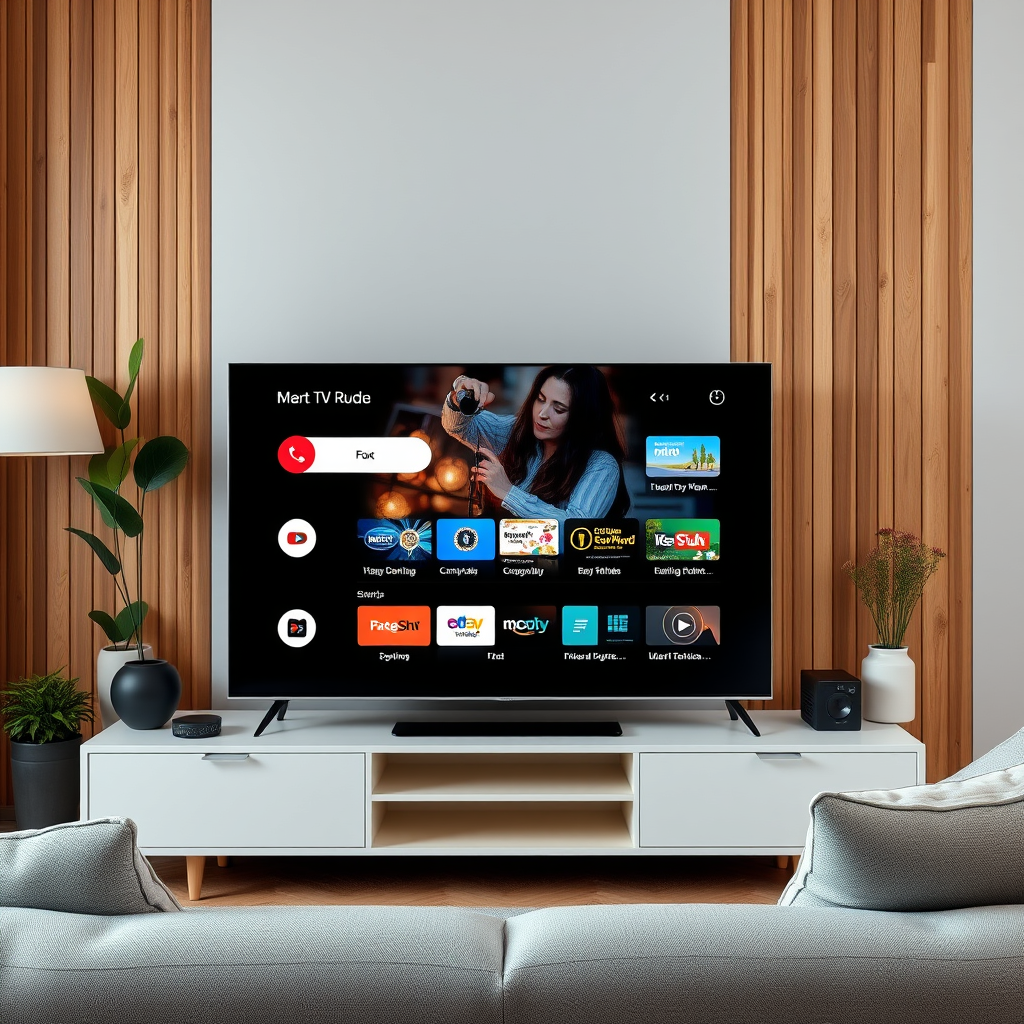
Smart TVs are designed to enhance your viewing experience by integrating internet-based features that go beyond traditional television. They offer a variety of applications, from streaming services such as Netflix and Hulu to web browsing capabilities. By connecting to the internet, users can access a vast library of content, including movies, series, music, and even live events.
However, it’s important to note that while core functionalities are tied to internet connectivity, some basic features can still be utilized offline. For instance, if you have a cable or satellite connection, you can enjoy live TV broadcasts without needing internet access. Additionally, many smart TVs come equipped with built-in features that allow for local media playback via USB drives or other external devices.
Streaming Services and Apps
One of the main attractions of owning a smart TV is its ability to stream content from popular platforms such as Netflix, Hulu, Amazon Prime Video, and Disney+. These services require an internet connection to function effectively. Without it, users are limited to the content that is pre-installed on the TV or any media they have downloaded prior.
Streaming platforms frequently update their libraries with new shows and movies, and these updates can only be accessed with internet connectivity. Consequently, a lack of internet means missing out on the latest episodes, exclusive releases, and trending content that could enhance your viewing experience. Furthermore, many smart TVs support various applications that enhance usability, such as social media apps and games, all of which rely on internet access.
Software Updates and Security
Maintaining the security and functionality of your smart TV is crucial, and regular software updates are a fundamental part of this process. These updates are designed to improve user experience, introduce new features, and patch security vulnerabilities that may expose your device to online threats.
An internet connection is necessary for your smart TV to receive these updates. Without it, you risk using outdated software that could lead to performance issues or security breaches. Moreover, many smart TVs come with built-in security features that are regularly updated to protect against malware and other cyber threats. Hence, ensuring an internet connection is essential for the longevity and safety of your device.
Offline Viewing Options
While internet connectivity significantly enhances the functionality of a smart TV, there are still ways to enjoy content without it. Some smart TVs allow users to download content directly from streaming apps for offline viewing. This feature is particularly useful for those who travel frequently or who have limited internet access at home.
Additionally, you can directly connect USB drives or external hard drives to your smart TV to play media files, such as videos, music, or photos, stored on those devices. This method can be a great way to enjoy your favorite content without relying on an internet connection, especially for media that you have already curated.
Top Smart TV Brands and Their Offline Capabilities (2024)
| # | Brand | Offline Content Access | USB Support | Media Formats Supported |
|---|---|---|---|---|
| 1 | Samsung | Yes | Yes | MP4, MKV |
| 2 | LG | Yes | Yes | AVI, WMV |
| 3 | Sony | Yes | Yes | MOV, FLV |
| 4 | TCL | Yes | Yes | MPG, MPEG |
| 5 | Vizio | Yes | Yes | MKV, JPEG |
| 6 | Panasonic | Yes | Yes | MP4, AVI |
| 7 | Hisense | Yes | Yes | WMV, MP4 |
Alternative Uses for Smart TVs without Internet
If you find yourself without internet access, your smart TV can still serve several traditional functions. For instance, using the TV as a conventional television through cable or satellite connections is an option. This allows you to watch live broadcasts and enjoy local channels without the need for internet connectivity.
Moreover, connecting gaming consoles, Blu-ray players, or other external devices that do not require internet access can significantly enhance your entertainment options. Many users still enjoy playing video games offline or watching physical media, which can provide a rich viewing experience irrespective of internet availability. This versatility makes smart TVs valuable assets, even in offline scenarios.
Troubleshooting Connectivity Issues
Experiencing issues with your smart TV’s internet connectivity can be frustrating. Common challenges include weak Wi-Fi signals, incorrect network settings, or compatibility problems with routers. To troubleshoot these issues effectively, start by ensuring that your internet connection is stable and functioning correctly on other devices.
If the problem persists, check the network settings on your smart TV to confirm that it is connected to the correct Wi-Fi network and that the password is entered accurately. Restarting your router or performing a factory reset on the TV may also help resolve connectivity problems. Learning how to troubleshoot these issues can maintain an enjoyable viewing experience and ensure that you can utilize your smart TV’s full potential.
Future of Smart TVs and Internet Connectivity
As technology advances, the integration of smart TVs with the internet is likely to deepen, leading to even more enhanced features and functionalities. This trend points towards a future where smart TVs may become central hubs for managing not only entertainment but also smart home devices and personal data.
Understanding the role of internet connectivity in the evolution of smart TVs will help consumers make informed choices when purchasing or updating their devices. As new technologies emerge, keeping an eye on how these devices evolve will be crucial for maximizing their potential in the home entertainment landscape.
In summary, while a smart TV can function without internet for basic viewing, its full potential is unlocked with a reliable internet connection. If you’re considering a smart TV, ensure you have a stable internet setup to enjoy all the features it offers. For more tips and advice on smart TV usage, explore our other articles on technology and home entertainment.
Frequently Asked Questions
Do you need internet for a smart TV to access streaming services?
Yes, a smart TV typically requires an internet connection to access popular streaming services like Netflix, Hulu, and Amazon Prime Video. Without internet, you won’t be able to stream content, download apps, or receive software updates, limiting the TV’s functionalities.
How can I use my smart TV without an internet connection?
You can use your smart TV without internet by connecting devices like a Blu-ray player, gaming console, or USB drive to play local media files. Additionally, many smart TVs have built-in features for viewing over-the-air channels with an antenna, allowing you to watch live TV without needing an internet connection.
Why do smart TVs need internet access for full functionality?
Smart TVs require internet access to enable features like app downloads, firmware updates, and streaming services that enhance your viewing experience. Without a stable internet connection, many of these features become inaccessible, reducing the overall value of a smart TV.
What are the best smart TVs that work well without internet?
Some of the best smart TVs that still provide good performance without internet include models from Samsung and LG that support HDMI inputs, allowing connections to gaming consoles or DVD players. Additionally, consider TVs with strong built-in tuners for over-the-air broadcasts, ensuring you can still enjoy live TV.
Which smart TV features are unavailable without an internet connection?
Without an internet connection, smart TV features such as streaming apps, web browsing, and voice control through virtual assistants become unavailable. You also miss out on firmware updates that can improve performance and security, making it essential to have at least a basic internet connection for optimal use.
References
- Smart TV
https://en.wikipedia.org/wiki/Smart_TV - https://www.bbc.com/news/technology-47728062
https://www.bbc.com/news/technology-47728062 - https://www.theguardian.com/technology/2020/jul/06/what-is-a-smart-tv-and-why-do-i-need-one
https://www.theguardian.com/technology/2020/jul/06/what-is-a-smart-tv-and-why-do-i-need-one - https://www.ncbi.nlm.nih.gov/pmc/articles/PMC7349019/
https://www.ncbi.nlm.nih.gov/pmc/articles/PMC7349019/ - https://www.sciencedirect.com/science/article/pii/S2352914821000575
https://www.sciencedirect.com/science/article/pii/S2352914821000575 - https://www.nytimes.com/2020/12/17/technology/personaltech/smart-tvs.html
https://www.nytimes.com/2020/12/17/technology/personaltech/smart-tvs.html - https://www.hhs.gov/answers/technology/smart-tv.html
https://www.hhs.gov/answers/technology/smart-tv.html - https://www.britannica.com/topic/smart-TV
https://www.britannica.com/topic/smart-TV - Google Scholar Google Scholar
https://scholar.google.com/scholar?q=do+you+need+internet+for+smart+tv - Google Scholar Google Scholar
https://scholar.google.com/scholar?q=smart+tv+internet+requirements

[…] Apple TV, go to Settings → General → About to note the model and Settings → System → Software Updates to check tvOS. Hulu availability varies by app support policies, so the best way is to search the […]
[…] is available only on supported TV models and platforms, so unsupported Samsung Smart TVs may not show the app in Samsung’s app ecosystem. Disney+ Help Center Samsung’s Smart TV […]
[…] shows up. If Peacock still doesn’t appear, this guide tells you exactly what to check next—software updates, account region, and app availability—so you’re watching Peacock instead of hunting for the […]
[…] then fully power-cycle the TV so the stuck Netflix session clears. In my own testing on Samsung smart TVs (and multiple Netflix app installs), this combo resolves the “can’t sign out” state more […]
[…] because adequate throw distance is required for large images without heavy keystone correction. Smart TVs keep installation minimal by integrating apps, HDMI switching, and remote control in one […]
[…] – Miracast (common for Android and many smart TVs/displays), […]
[…] both the screen and the image-producing technology in one enclosure. In 2025 and 2026, most “smart TVs” also integrate streaming apps and HDMI ports, so the experience feels plug-and-play compared […]
[…] settings, and audio handling. In 2025, this is especially true because many environments mix smart TVs, phones, and laptops on congested Wi‑Fi […]
[…] can project iPhone to TV, and the best method is AirPlay for Apple TVs and most smart TVs that support it. If you don’t have AirPlay, a wired Lightning-to-HDMI (or USB-C-to-HDMI) […]
[…] can project (mirror) your iPhone to your TV using AirPlay for most smart TVs, or a wired HDMI adapter when your TV doesn’t support AirPlay. In my testing across iPhone models […]
[…] should confirm HDCP and audio/video compatibility before blaming your internet connection. Netflix relies on secure playback rules, and projectors vary in how they handle HDMI handshakes […]
[…] to mirror. This guide walks you through the fastest options—AirPlay for Apple TV and supported smart TVs, or a wired HDMI setup for quick, reliable projection—so your screen appears in minutes. Follow […]
[…] TV, and the fastest reliable method depends on what you have (AirPlay for Apple TV or compatible smart TVs, HDMI for everyone else). This step-by-step guide walks you through the exact taps and settings to […]
[…] signal,” “black screen,” and “works but looks blurry” issues that happen even when the internet connection is […]
[…] Usually, no—most projectors can play content from HDMI, USB, or a direct wired source without any internet connection. WiFi becomes necessary only if you want streaming apps like Netflix, wireless mirroring from a […]
[…] is a direct, wired video interface, so projector playback can start without any internet connection. According to the HDMI Licensing Administrator, HDMI 2.0 supports up to 18 Gbps bandwidth, enabling […]
[…] a projector need WiFi? Usually, no—most projectors can work perfectly without an internet connection if you use HDMI, USB, or built-in playback. The real question is whether you need wireless […]
[…] streaming apps like Netflix and YouTube require an internet connection because the projector is acting as a networked media client. Wireless casting features commonly […]
[…] labels for one of these features: AirPlay, AirPlay 2, or Apple TV compatibility. Many modern “smart TVs” support AirPlay, but the exact wording varies by brand (and firmware version). If you don’t […]
[…] (Android TV, Google TV, or Roku TV), you can often install the Netflix app directly. Make sure your internet connection is stable and that the projector supports the correct resolution and audio format for smoother […]
[…] depends on a stable network. AirPlay is ideal for iPhone users with Apple TV or AirPlay-compatible smart TVs, offering a straightforward screen mirroring experience. Choose based on your device compatibility, […]
[…] Smart TVs first hit the market in the mid-2000s, with the early “smart” platforms appearing around 2004–2006. If you want the most important release dates that people actually mean when they ask when the smart TV came out, this timeline breaks down the key launches by year. You’ll leave with a clear answer to which debut defined the era—plus the dates that followed to make smart TV mainstream. […]