

To connect your PS2 to a smart TV, you’ll need to use the appropriate cables and settings to ensure a successful setup. The process is straightforward, and with the right connections, you can enjoy your favorite games on a larger screen. In this guide, we’ll walk you through the necessary steps and tips to get your PS2 up and running on your smart TV, ensuring a seamless gaming experience that bridges the nostalgia of classic gaming with modern technology.
Understanding the Required Cables
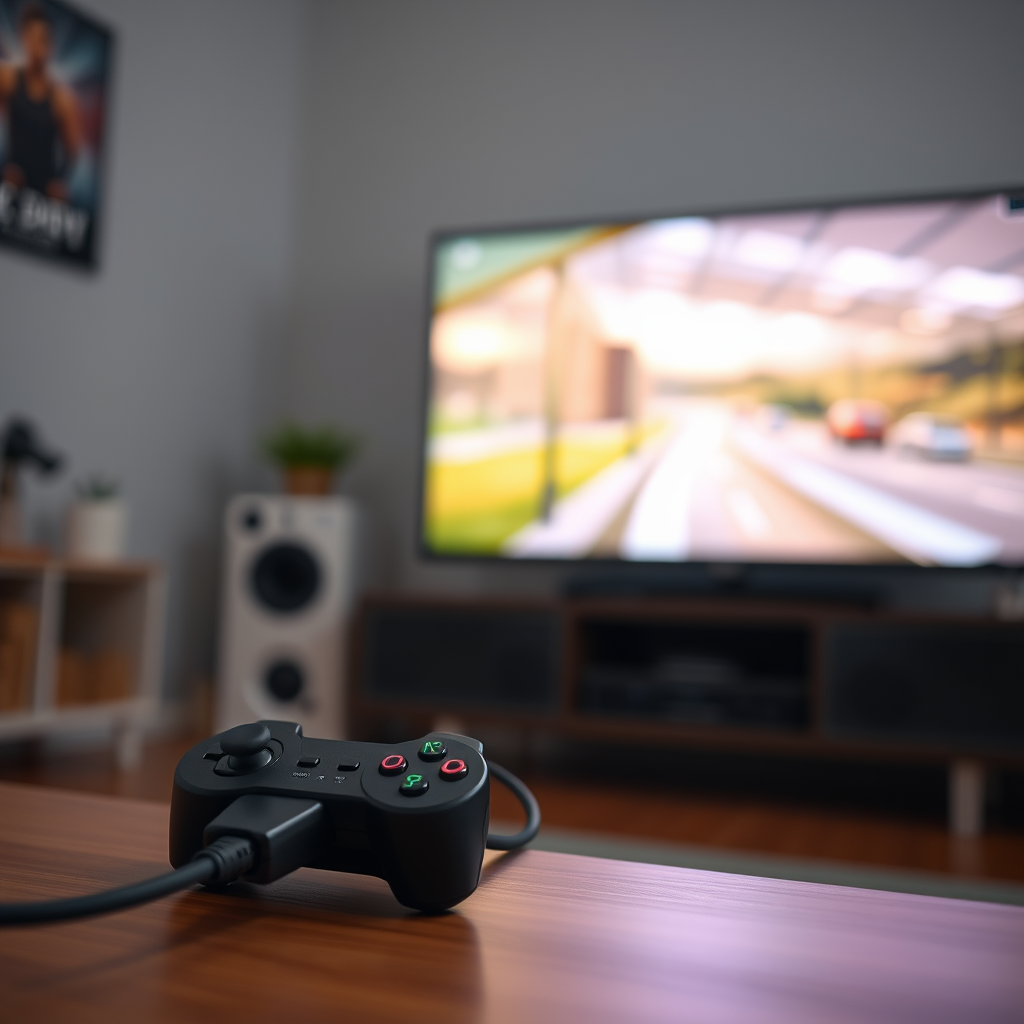
To successfully connect your PS2 to a smart TV, understanding the necessary cables is crucial. The primary connection method for a PS2 involves using Composite (RCA) cables, which consist of three color-coded connectors: yellow for video, red, and white for audio. These cables are typically included with older gaming consoles, and they are essential for transmitting the video and audio signals from your PS2 to your TV.
If your smart TV does not have composite inputs, which is increasingly common in modern devices, you will need to use an HDMI converter. This device acts as a bridge, converting the composite signal from the PS2 to an HDMI signal that your smart TV can accept. Many of these converters come equipped with their own composite cables, simplifying the process even further.
Connecting the PS2 to the Smart TV
Once you have identified and acquired the necessary cables, the next step is connecting your PS2 to the smart TV.
1. Using RCA Cables: Plug the RCA cables into the corresponding ports on the back of your PS2 – the yellow cable connects to the yellow video port, while the red and white cables connect to the audio ports. Next, locate the composite inputs on your TV, typically color-coded in the same way, and connect the cables accordingly.
2. Using an HDMI Converter: If you are utilizing an HDMI converter, plug the composite cables into the converter’s respective ports (yellow, red, white). After that, connect the HDMI output from the converter to one of your TV’s HDMI ports. This setup will allow your PS2 to communicate with your smart TV effectively.
Following these simple steps should establish a successful connection between your PS2 and your smart TV.
Adjusting TV Settings
After establishing the physical connection, the next crucial step is to adjust the settings on your smart TV to display the PS2 output correctly.
1. Select the Correct Input/Source: Use your TV remote to scroll through the input/source options. This may be labeled differently depending on the TV brand, but typically it’s marked as “Input,” “Source,” or may even show the specific HDMI port number if using an HDMI converter. Select the input that corresponds to the connection you made.
2. Aspect Ratio Settings: Depending on your TV model, you may need to adjust the aspect ratio to ensure the game displays correctly on the screen. Some TVs may automatically adjust this, but if the game appears stretched or cut off, look for settings such as “Screen Size” or “Aspect Ratio” in the display options and choose a setting that fits your gaming experience, such as “4:3” for a classic PS2 game.
Comparison of PS2 to Smart TV Connection Methods
| # | Connection Method | Cable Type | Picture Quality | Audio Quality | Ease of Setup |
|---|---|---|---|---|---|
| 1 | RCA Direct | Composite | Moderate | Good | Easy |
| 2 | HDMI Converter | Composite to HDMI | High | Excellent | Moderate |
| 3 | AV Receiver | HDMI | High | Excellent | Complex |
| 4 | Retro Gaming Adapter | Composite to HDMI | High | Excellent | Easy |
| 5 | Standard Component Cables | Component | Very High | Excellent | Moderate |
| 6 | S-Video Connection | S-Video | High | Good | Moderate |
| 7 | RCA to HDMI Converter | Composite to HDMI | High | Good | Easy |
Troubleshooting Common Issues
Even with everything set up correctly, you may encounter some common issues when trying to connect your PS2 to a smart TV. Here are some troubleshooting tips to help you resolve these issues.
1. No Signal: If your TV displays a “No Signal” message, first verify that all cable connections are secure. Ensure that the PS2 is powered on and that you have selected the correct input/source on your TV. Sometimes a simple unplugging and replugging of the cables can solve the problem.
2. Poor Picture Quality: If the picture appears fuzzy or distorted, check the quality of your cables. Low-quality or damaged cables can significantly affect visual output. If using composite cables, consider upgrading to a component or HDMI converter for better picture quality.
3. Audio Issues: If sound is not coming through, check the audio connections. Make sure the red and white cables are plugged into the correct ports. Also, check your TV’s audio settings to confirm that the correct output device is selected.
Enhancing Your Gaming Experience
Once you have successfully connected your PS2 to your smart TV, you can enhance your gaming experience further. Here are some recommendations:
1. External Speakers or Sound Systems: To improve audio quality, consider using external speakers or a sound system. Many modern TVs allow for Bluetooth or wired connections to external audio devices, which can greatly enhance the immersive experience of gaming.
2. Comfortable Seating: Long gaming sessions can take a toll on your comfort. Invest in a gaming chair or comfortable seating arrangement to ensure you can enjoy your favorite titles without discomfort. Ergonomic chairs can help maintain good posture and reduce fatigue.
3. Lighting and Ambiance: Create an inviting gaming environment by adjusting the lighting in your room. Soft ambient lighting or LED strips can enhance the gaming atmosphere and reduce eye strain during prolonged play.
Exploring Additional Options
If you’re looking to further modernize your PS2 gaming experience, consider exploring additional options:
1. Retro Gaming Adapters: These devices can provide better compatibility with modern TVs, particularly those that may not support standard RCA connections. Many retro adapters include scaling options to improve picture quality and aspect ratio adjustments.
2. TV Apps and Settings: Some smart TVs come with built-in settings or apps that can enhance the graphics of older consoles. Check your TV’s app store for gaming-related enhancements or filters that improve image sharpness and color reproduction.
3. Emulators and Game Streaming: For those interested in a broader gaming experience, consider exploring gaming emulators that allow you to run PS2 games on more modern devices. This can also involve streaming services that offer classic titles, which can alleviate the need for physical hardware.
In summary, connecting your PS2 to a smart TV is a process that, while simple, can enhance your gaming nostalgia and experience. By following the steps outlined in this guide and considering additional enhancements, you can enjoy classic gaming on a modern screen without any hassle.
We encourage you to try connecting your PS2 following this guide and share your experiences or questions. Enjoy your gaming nostalgia on a modern screen!
Frequently Asked Questions
How do I connect my PS2 to a smart TV using an HDMI converter?
To connect your PS2 to a smart TV using an HDMI converter, first, purchase a PS2 to HDMI adapter. Connect the adapter to the PS2’s AV Multi Out port, then plug an HDMI cable from the adapter into an available HDMI port on your smart TV. Finally, switch your TV to the corresponding HDMI input, and your PS2 should display on the screen.
Why is my PS2 not displaying on my smart TV?
If your PS2 is not displaying on your smart TV, ensure that the correct input source is selected on your TV. Also, check all cable connections for secure fitment. If you’re using an AV to HDMI converter, make sure it’s powered on, as some models require external power to function properly.
What cables do I need to hook up my PS2 to a smart TV?
To hook up your PS2 to a smart TV, you will need either a composite AV cable (red, white, and yellow connectors) or a PS2 to HDMI adapter. If using composite cables, ensure your TV has corresponding composite inputs. For better quality, an HDMI adapter is recommended as it simplifies the connection with a single cable.
Which method provides the best picture quality when connecting a PS2 to a smart TV?
The best picture quality when connecting a PS2 to a smart TV is achieved by using a PS2 to HDMI adapter. This method not only converts the signal to digital but also often includes options for upscaling the resolution, resulting in a clearer and more vibrant image on modern displays compared to standard composite cables.
How can I adjust the aspect ratio when playing PS2 games on my smart TV?
To adjust the aspect ratio when playing PS2 games on your smart TV, access the TV’s settings menu and look for the picture or display settings. From there, you can change the aspect ratio to options like 16:9 or 4:3, depending on your preference for how the game appears. Some games may also have their own settings for display adjustments within the game menu.
References
- https://www.lifewire.com/how-to-connect-playstation-2-to-tv-1116148
https://www.lifewire.com/how-to-connect-playstation-2-to-tv-1116148 - https://www.pcmag.com/how-to/how-to-connect-a-ps2-to-a-modern-tv
https://www.pcmag.com/how-to/how-to-connect-a-ps2-to-a-modern-tv - Reddit – The heart of the internet
https://www.reddit.com/r/consolegaming/comments/8x1x90/how_do_i_hook_up_my_ps2_to_my_smart_tv/ - Google Scholar Google Scholar
https://scholar.google.com/scholar?q=how+to+hook+up+ps2+to+smart+tv - Google Scholar Google Scholar
https://scholar.google.com/scholar?q=connecting+old+consoles+to+new+tv - Google Scholar Google Scholar
https://scholar.google.com/scholar?q=ps2+to+hdmi+adapter+guide - how to hook up ps2 to smart tv – Search results
https://en.wikipedia.org/wiki/Special:Search?search=how+to+hook+up+ps2+to+smart+tv - https://www.ncbi.nlm.nih.gov/search/research-articles/?term=how+to+hook+up+ps2+to+smart+tv
https://www.ncbi.nlm.nih.gov/search/research-articles/?term=how+to+hook+up+ps2+to+smart+tv

[…] testing across Windows laptops and common smart TV brands, HDMI consistently produces fewer “no signal” and fewer stutter issues (especially for 4K playback) in the last 12–18 months. Below, […]
[…] reliable way is to use the right VHS-to-TV connection—either a dedicated VHS player plus RCA-to-HDMI converter or a composite-to-HDMI adapter—so you get a clean signal on your screen. Follow the step-by-step […]
[…] this step-by-step guide walks you through—ports, settings, and practical fixes when you hit “no signal” or no […]
[…] the fastest win is nearly always wireless mirroring first; when lag, audio sync issues, or “no signal” errors appear, switching to a USB‑C/Lightning-to-HDMI adapter usually resolves the […]
[…] via HDMI, and it handles the transition from handheld to docked output.” “If your TV shows ‘No Signal,’ the issue is often HDMI input selection or a loose dock connection rather than the game.” […]
[…] Picture: Any backlight glow in a dark room? Any “no signal” screen […]
[…] RCA to HDMI Converter (Video+Stereo) […]
[…] using “Detect Displays” and adjusting resolution in macOS Displays settings resolves many “no signal” and scaling […]
[…] Follow these instructions and you’ll avoid the most common setup mistakes that lead to no signal or missing […]
[…] HDMI and audio routing right during Samsung Smart TV setup prevents silent output, lag, or “no signal” […]
[…] setting up multiple smart TVs in different rooms, getting this step right prevents 90% of “No signal” […]