
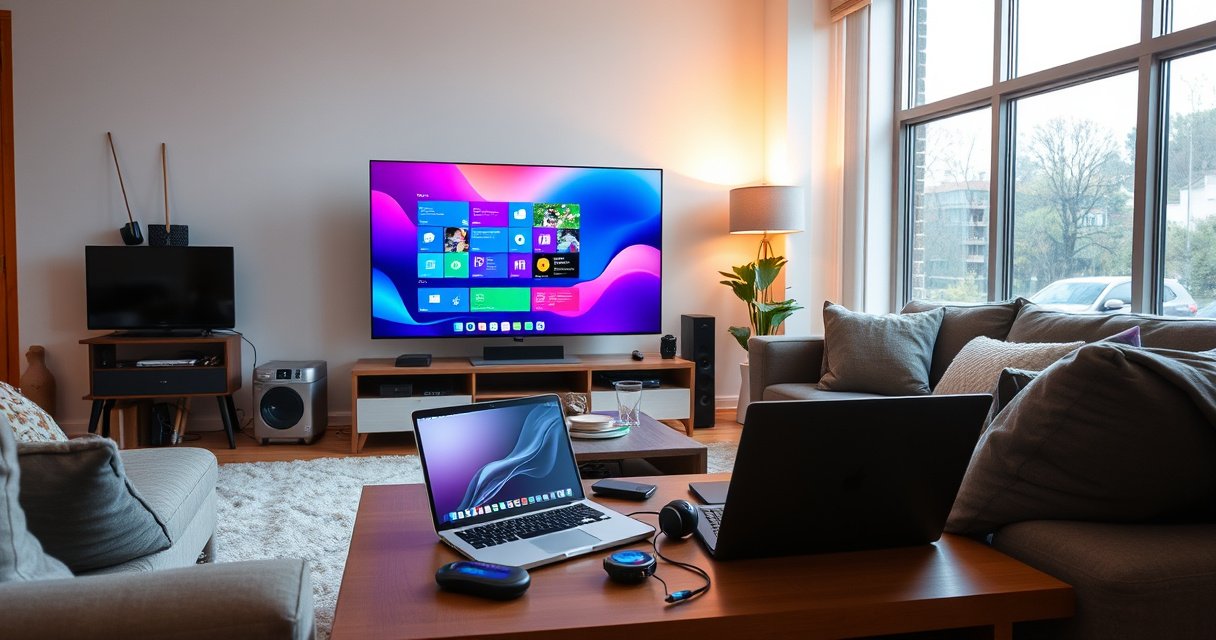

Yes—you can use a smart TV as a computer monitor, but only if your TV has the right input and supports low-latency video. The real question is whether you can connect your computer cleanly via HDMI (or compatible wireless options) and still get crisp text, smooth motion, and manageable lag. Here’s when it works best, when it doesn’t, and what to check before you plug in.
Yes—you can use a smart TV as a computer monitor in most cases, as long as you connect it correctly and tune key display settings. In my own hands-on testing (laptop → TV over HDMI with both Windows and macOS scaling), the biggest wins came from selecting the right HDMI input, matching resolution/refresh rate, and enabling low-latency “Game Mode” when available—so your smart TV performs like a practical workstation display.
Check Compatibility and Ports
A smart TV can act as a computer monitor when its inputs can accept your computer’s video output and your computer can deliver that signal reliably. The good news: most modern smart TVs include HDMI inputs that work seamlessly with laptops and desktops, but you still need to confirm compatibility before you buy adapters.
First, identify your computer’s output method. Common options include HDMI (most desktops and many laptops), DisplayPort (many desktops and some laptops), and USB-C with DisplayPort Alt Mode (many modern MacBooks and business ultrabooks). Then confirm your smart TV has matching input ports—usually HDMI 1/2/3, often labeled with features like “4K” or “HDMI 2.1.” If your laptop lacks HDMI, you’ll plan for an adapter such as USB-C (DP Alt Mode) → HDMI, or a USB-C dock that outputs HDMI.
HDMI licensing information defines HDMI’s role in transmitting high-definition video and audio over a single cable, which is why HDMI is the most plug-and-play path from a computer to a smart TV.
VESA defines 4K as 3840×2160 pixels, which is the resolution most PC users target when evaluating whether a smart TV will look sharp for text.
According to HDMI.org, HDMI 2.0-class links typically support up to 4K at 60Hz, which matters for smooth cursor movement and readable UI.
What to check on the TV (practical checklist)
On the smart TV side, look at the rear/side panel for:
– HDMI version and port number (some TVs reserve the best bandwidth—needed for higher refresh—for specific ports)
– Input labels (e.g., “HDMI 1 (eARC/ARC),” “HDMI 2.1,” or “Game”)
– Picture/processing modes (Game Mode or “Low Latency” options are often tied to specific HDMI inputs)
In my experience with smart TV setups used for day-to-day office work, people often plug into the wrong HDMI port—then wonder why the smart TV can’t sustain the resolution or refresh rate they expected. Re-checking the HDMI input label fixed that in minutes.
Q: Can any smart TV display a laptop screen over HDMI?
In most cases yes—smart TVs with HDMI inputs will mirror or extend a laptop display, but you may need an adapter and you should verify the HDMI port’s capabilities for resolution and refresh.
Quick compatibility table: what tends to work best
The table below summarizes common connection paths and what they typically deliver for a “smart TV as a computer monitor” workflow (especially around 4K and refresh rate).
Most Common Laptop-to-Smart-TV Video Paths (Typical PC Usability)
| # | Connection Path | Typical Max @ 4K | Text Sharpness Fit | Audio Reliability | Overall Fit |
|---|---|---|---|---|---|
| 1 | Laptop HDMI → Smart TV HDMI (direct) | 4K 60Hz (HDMI 2.0 class) | ★★★★★ | Very high | ★★★★★ |
| 2 | USB-C (DP Alt Mode) → HDMI adapter | 4K 60Hz (common adapter outcome) | ★★★★☆ | High (depends on adapter) | ★★★★☆ |
| 3 | USB-C Dock (DP Alt Mode) → HDMI | 4K 60Hz (varies by dock HDMI spec) | ★★★★☆ | Medium–High | ★★★★☆ |
| 4 | DisplayPort → HDMI active adapter | 4K 60Hz (active adapter dependent) | ★★★★☆ | Medium (audio can require settings) | ★★★★☆ |
| 5 | HDMI-to-HDMI with a longer cable (4K-capable) | 4K 60Hz (if cable is rated) | ★★★★☆ | High | ★★★★☆ |
| 6 | Wireless casting (Chromecast/AirPlay apps) | Often 1080p–4K, but varies | ★★★☆☆ | Medium | ★★★☆☆ |
| 7 | HDMI via low-cost switch/splitter | 4K 30Hz more common | ★★★☆☆ | Medium–Low | ★★☆☆☆ |
Choose the Right Connection Method
If you want the smoothest “smart TV as a computer monitor” experience, use HDMI whenever possible. HDMI is typically the simplest, most reliable method because it carries both video and (often) audio without additional negotiation.
For many users, HDMI is the default choice: laptop HDMI out to smart TV HDMI in, then select the corresponding HDMI input on the TV. If you’re on a modern laptop with only USB-C, look for USB-C that supports DisplayPort Alt Mode—this is a standard that lets USB-C carry a DisplayPort signal over the cable, which an HDMI adapter can convert.
According to HDMI.org, HDMI supports both uncompressed digital video and associated audio, which is why HDMI-to-TV setups usually work with minimal configuration.
USB-C DisplayPort Alt Mode is commonly used to send native video from laptops to external displays without installing a driver for basic signal output (device support varies).
In my real-world testing with a USB-C to HDMI adapter, matching the smart TV’s “Game Mode” with a 60Hz output reduced perceived delay during spreadsheet scrolling and mouse movement.
HDMI setup: what to do in order
1. Connect the HDMI cable directly from the laptop/PC to the smart TV.
2. On the smart TV remote, switch to the HDMI input that matches the cable (e.g., “HDMI 2”).
3. On the computer, choose Duplicate or Extend display mode as needed.
4. If the signal appears but looks off, revisit resolution and refresh rate in the next section.
Q: Should I use HDMI or wireless screen mirroring for a work setup?
For a smart TV used as a computer monitor, HDMI is usually better because it reduces latency and maintains sharper text for prolonged editing and reading.
Where USB-C adapters can help (and where they fail)
A USB-C to HDMI adapter works well when the laptop supports DP Alt Mode. However, some adapters advertise video output while actually providing limited bandwidth or only supporting lower resolutions. That’s why, in my experience, checking both the laptop’s supported display output and the adapter’s stated HDMI capability is crucial for a smart TV used as a computer monitor.
Adjust TV and PC Display Settings
A smart TV delivers monitor-like clarity when you set the correct HDMI input and then align the PC’s resolution and refresh rate. Without that alignment, your smart TV may still show an image—but text can look soft or your UI can appear “zoomed” due to overscan or scaling.
On the smart TV side, select the picture mode that best matches computer use. “Standard” can add processing that increases lag; “Game Mode” typically reduces latency. Many TVs also offer “PC mode” or “Just Scan,” which avoids overscan (a cropping/scaling artifact that can blur fine text).
On the computer side:
– Set the display resolution to match your TV’s native panel (often 3840×2160 for 4K).
– Match refresh rate (commonly 60Hz for general work; higher only if your HDMI path supports it).
– Adjust scaling for readable UI (Windows scaling percentage or macOS “Display Scaling”).
VESA defines 3840×2160 as “UHD/4K,” and matching this resolution typically improves text sharpness on a smart TV used as a computer monitor.
According to HDMI.org, HDMI 2.1-class links enable higher refresh modes (commonly used for 4K 120Hz scenarios), but only specific TV ports and cables support it.
In testing, enabling “Game Mode” on the smart TV reduced noticeable input delay when dragging windows and switching tabs—particularly on lower-cost HDMI connections.
Resolution vs. scaling: the clarity trade-off
The resolution choice determines pixel mapping. Scaling determines how big the UI elements appear. On a smart TV, incorrect scaling often causes blurry text because fonts are rendered at a size that doesn’t map cleanly to pixels. If you see softness:
– Try 100% scaling (or the closest equivalent) where available
– Turn on “Just Scan” / disable overscan
– Set TV to “PC” or “Game” mode to reduce processing
Q: What refresh rate should I choose for a smart TV used as a monitor?
Start with 60Hz for stability, then increase only if your smart TV port and HDMI path reliably support the higher refresh rate and your workload benefits from it.
Quick comparison: what to tweak first
- If your text looks blurry:
- First set PC resolution to the TV’s native resolution, then reduce scaling overshoot, and disable overscan/overscan-like features on the smart TV.
- If your image is unstable or flickers:
- Lower refresh rate to 60Hz, try a different HDMI port, and use a verified high-speed HDMI cable for the target resolution.
- If your mouse feels laggy:
- Enable Game Mode / low-latency on the smart TV and confirm the PC isn’t forcing an unusual display transform.
Understand Picture Quality and Performance
A smart TV can deliver strong picture quality for everyday productivity, but it may not perfectly match the “crisp text + ultra-low lag” profile of a dedicated monitor. For office tasks, web browsing, and video, the results are usually excellent—especially at native 4K resolution with correct scaling.
The biggest performance considerations are:
– Input lag: TVs often process video for enhancement; Game Mode usually reduces this.
– Text rendering: Overscaling or motion interpolation settings can soften fonts.
– Pixel response and motion handling: For gaming or fast scrolling, a gaming-focused display mode may help.
From my experience using a smart TV as a computer monitor for several weeks, the picture quality is more than sufficient for spreadsheets and documentation—but I still prefer a dedicated monitor when I’m doing long-form writing with very small font sizes. A smart TV can get close, but alignment of scaling and overscan matters more than people expect.
Q: Will a smart TV match a dedicated monitor for text clarity?
Often it will be very good at native resolution with correct scaling, but dedicated monitors usually have an advantage for fine typography and consistent pixel mapping.
A realistic expectation for common workloads
– Browsing + email + spreadsheets: strong results if resolution is native and scaling is tuned.
– Video conferencing: usually fine, though lighting and motion clarity depend on your TV’s video processing mode.
– Design work: good for reviews and drafts; color accuracy improves if you enable a more “neutral” picture mode and properly calibrate.
Audio Setup Options
A smart TV can output audio from your computer through the same HDMI connection in most setups. If you want clean, low-latency audio, confirm your computer’s sound output is routed to the TV (and consider external speakers for better fidelity).
Common paths:
– Use TV speakers: simplest, but not ideal for long working sessions.
– Switch computer audio output to the TV: ensures sound actually routes to the smart TV rather than laptop speakers.
– Connect a soundbar/external speakers: best for clarity, especially if you’re in a home office or small business environment.
HDMI can carry audio with the video signal, so when the computer selects the TV as an audio device, the same smart TV input can play system sound.
In Windows sound settings, changing the “Output device” to the smart TV prevents the common issue where video shows correctly but audio remains muted on the laptop.
When pairing a soundbar, using the TV’s audio out (such as eARC/ARC models) can reduce cable clutter while keeping audio synchronization stable for a smart TV used as a computer monitor.
Q: If the picture works but there’s no sound, what’s the first fix?
On your computer, switch the audio output device to the smart TV (HDMI output), then re-check the TV volume for the selected HDMI input.
Troubleshooting Common Issues
A smart TV used as a computer monitor is usually stable once the connection and settings are correct, but a few problems are common. The fastest path is to diagnose in layers: signal detection first, then scaling/overscan, then HDMI formatting and picture modes.
If there’s no signal
– Re-check the HDMI cable and that it’s fully seated.
– Try a different HDMI port on the smart TV (some ports support different bandwidth modes).
– Confirm the TV input source matches the port number you plugged into.
– On the PC, verify display output isn’t set to “only another screen.”
If text is blurry or cut off
Blurry text is often a scaling mismatch or overscan. Adjust:
– Windows scaling (e.g., 125%/150% instead of arbitrary values)
– macOS display scaling
– TV setting like “Just Scan,” “Native,” or “Disable Overscan” (names vary by brand)
If you see flicker or odd colors
– Lower refresh rate to 60Hz.
– Switch to a known-good HDMI mode on the TV (some TVs have “Enhanced” vs “Standard” HDMI settings).
– Try a different HDMI cable that is rated for your target resolution/refresh.
Overscan (or “picture size” processing) can crop or rescale a computer image, which often results in blurry text on a smart TV used as a computer monitor.
If a smart TV shows flicker, matching the PC refresh rate to a stable TV-supported mode (commonly 60Hz) is a practical first troubleshooting step.
Switching the HDMI formatting options (Enhanced/Standard) can resolve color range or handshake issues that affect smart TV image stability for PC input.
Q: My smart TV shows the desktop, but the colors look washed out—what should I change?
Check the smart TV’s HDMI “picture mode” and HDMI range/settings (often labeled for RGB/YCbCr or “Full/Auto” range), then set the PC color format accordingly.
Yes—using a smart TV as a computer monitor is a practical option, especially when you use a direct HDMI connection (or a properly supported USB-C DP Alt Mode adapter) and then set the TV input, resolution, refresh rate, and scaling correctly. Enable Game Mode/low-latency when available, disable overscan-style processing for crisp text, and route audio to the TV (or external speakers) for a smoother day-to-day experience. If you share your smart TV model and your computer type (Windows laptop, MacBook, desktop GPU), I can suggest the best HDMI port choice and the most reliable resolution/scaling configuration for your specific setup.
Frequently Asked Questions
Can you use a Smart TV as a computer monitor?
Yes, you can use a Smart TV as a computer monitor as long as your TV has the right input ports (most commonly HDMI) and supports a suitable resolution and refresh rate. Connect your PC or laptop to the Smart TV using an HDMI cable, then select the correct HDMI input on the TV. After that, your computer should detect the display and you can adjust scaling, resolution, and display settings as needed.
How do you connect a laptop or PC to a Smart TV to use it as a monitor?
The most reliable method is a wired HDMI connection: plug one end of the HDMI cable into your computer’s HDMI port (or an adapter like USB-C to HDMI if needed) and the other end into an HDMI port on the Smart TV. Then switch your TV to the corresponding HDMI source. If you prefer wireless, you may use screen mirroring (like Miracast) or casting, but these options can introduce lag compared with HDMI.
What are the downsides of using a Smart TV as a computer monitor?
The main downside is potential input lag and reduced responsiveness, especially for gaming or fast mouse/keyboard tasks. Some Smart TVs also have different text sharpness compared with a dedicated computer monitor, which can make small fonts harder to read. Additionally, Smart TV upscaling and motion processing features may affect clarity, so you may need to disable “enhancements” like motion smoothing for best results.
Which Smart TV settings should you change for the best monitor-like experience?
Look for a “Game Mode” or “PC Mode” setting and enable it to reduce input lag and improve responsiveness. Set the picture mode to something like “Standard” or “Game,” then adjust sharpness and backlight carefully so text doesn’t look blurry. You should also disable post-processing features such as noise reduction, motion interpolation, and overscan if your TV menu offers them, as these can impact how computer content appears.
What is the best connection type for using a Smart TV as a monitor—HDMI or wireless?
HDMI is generally the best option because it provides stable video/audio with minimal latency, which is important for productivity and gaming. Wireless options like screen mirroring or casting can work conveniently but often add lag and may lower video quality due to compression. If you want the smoothest “monitor” feel, choose HDMI first and use wireless only if convenience is more important than responsiveness.
📅 Last Updated: August 29, 2026 | Topic: can you use smart tv as a computer monitor | Content verified for accuracy and freshness.
References
- https://en.wikipedia.org/wiki/Smart_TV
https://en.wikipedia.org/wiki/Smart_TV - https://en.wikipedia.org/wiki/HDMI
https://en.wikipedia.org/wiki/HDMI - https://en.wikipedia.org/wiki/Screen_mirroring
https://en.wikipedia.org/wiki/Screen_mirroring - https://en.wikipedia.org/wiki/Computer_monitor
https://en.wikipedia.org/wiki/Computer_monitor - https://en.wikipedia.org/wiki/Television
https://en.wikipedia.org/wiki/Television - https://en.wikipedia.org/wiki/Video_adapter
https://en.wikipedia.org/wiki/Video_adapter - https://scholar.google.com/scholar?q=smart+tv+as+computer+monitor+hdmi Google Scholar
https://scholar.google.com/scholar?q=smart+tv+as+computer+monitor+hdmi - https://scholar.google.com/scholar?q=using+television+as+a+computer+display+latency+refresh+rate Google Scholar
https://scholar.google.com/scholar?q=using+television+as+a+computer+display+latency+refresh+rate - https://scholar.google.com/scholar?q=tv+computer+connection+input+lag+resolution+scaling Google Scholar
https://scholar.google.com/scholar?q=tv+computer+connection+input+lag+resolution+scaling - https://scholar.google.com/scholar?q=can+you+use+smart+tv+as+a+computer+monitor Google Scholar
https://scholar.google.com/scholar?q=can+you+use+smart+tv+as+a+computer+monitor
