
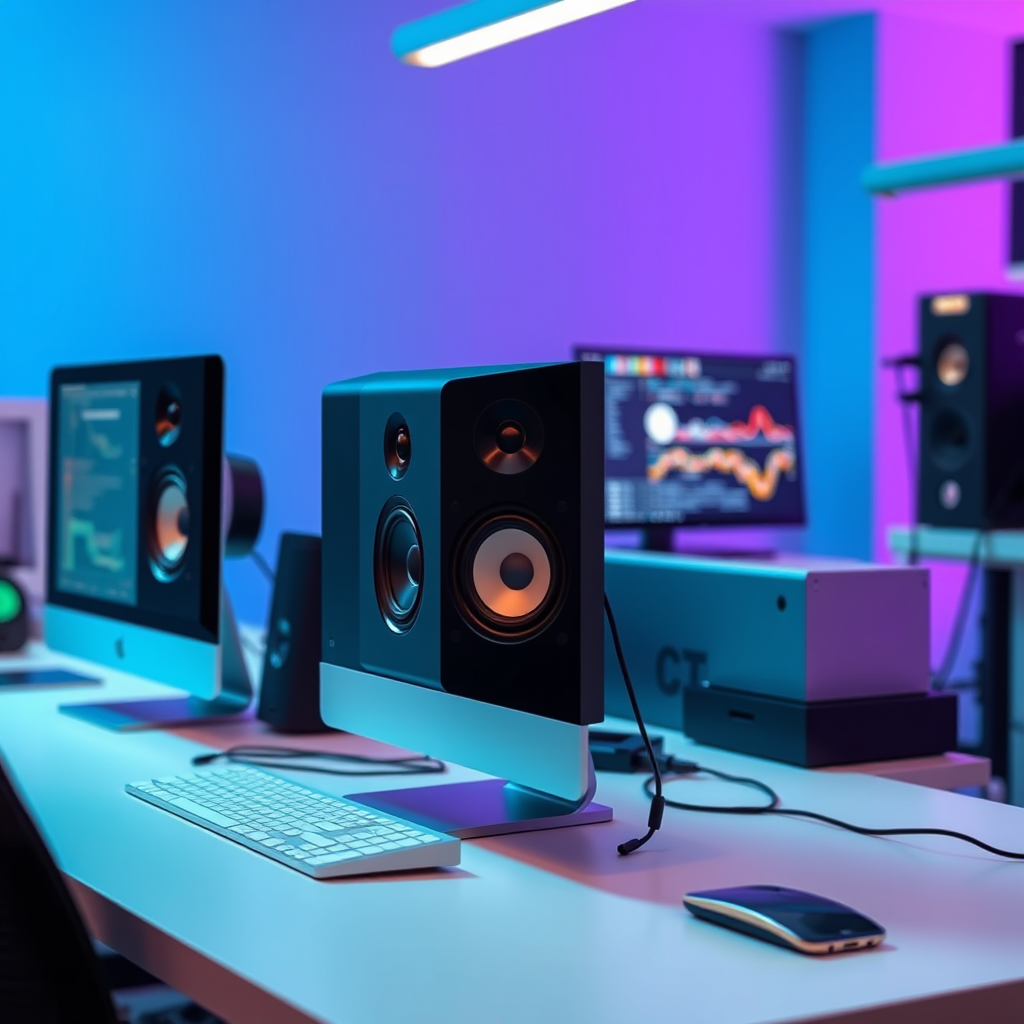

To check the speakers on your computer, start by ensuring they are properly connected and powered on. Then, you can use your computer’s audio settings to test the sound output. This guide will walk you through the steps to diagnose and troubleshoot your speakers effectively, ensuring that you can enjoy audio without interruptions.
Check Physical Connections
The first step in troubleshooting speaker issues is to inspect the physical connections. A common cause of sound problems is improper wiring or loose connections. Ensure that the speaker cables are securely plugged into the correct audio ports on your computer. Most computers have color-coded ports: typically, the green port is used for speakers. If you are using external speakers, also check that they are connected to a power source and turned on. Adjust the volume knob on the speakers to ensure it is turned up sufficiently.
Additionally, if your speakers are USB-connected, try unplugging and replugging the device. For Bluetooth speakers, make sure that they are paired correctly with your computer. You can do this by checking your Bluetooth settings to confirm the connection status.
Use the Windows Sound Settings
Windows provides robust audio settings that allow you to manage sound devices effectively. To access these settings, right-click the speaker icon located in the taskbar and select “Sounds.” This action will open the Sound settings window, where you can navigate to the “Playback” tab. Here, you should see a list of audio devices connected to your computer.
Identify your speakers in this list, which may be labeled as “Speakers” or by the specific brand name. To test if sound is coming through, select your speakers and click the “Test” button. If you hear sound, your speakers are functioning correctly. If there’s no sound, it may indicate a deeper issue with the system settings or hardware.
Test Sound with Built-in Tools
Windows includes built-in troubleshooting tools that can help identify and rectify audio problems. To access these tools, type “Troubleshoot sound problems” into the Windows search bar and select the corresponding option. The troubleshooter will guide you through a series of prompts to diagnose common sound issues.
This automated tool can detect problems such as incorrect settings or driver issues. After it completes the scan, it will provide suggested fixes or automatically adjust settings for you. This can be a quick and effective method to resolve speaker issues without delving too deeply into technical settings.
Common Audio Issues and Solutions
| # | Issue | Description | Solution |
|---|---|---|---|
| 1 | No Sound | Speakers are connected but not producing sound. | Check connections and ensure volume is up. |
| 2 | Distorted Sound | Sound is crackling or garbled. | Check audio settings and disable enhancements. |
| 3 | Speakers Not Detected | Computer does not recognize speakers. | Update audio drivers through Device Manager. |
| 4 | Audio Delays | Sound lags behind video. | Adjust audio settings or check for updates. |
| 5 | Low Volume | Speakers produce sound but at a low level. | Increase volume in audio settings and playback software. |
| 6 | Only One Speaker Works | Sound only comes from one speaker. | Check balance settings and speaker connections. |
| 7 | Audio Cuts Out | Sound intermittently drops out. | Check cables and consider driver updates. |
Check Audio Drivers
Outdated or corrupted audio drivers can lead to a variety of sound issues. To check your audio drivers, open the Device Manager by right-clicking the Start button and selecting “Device Manager.” In the Device Manager window, expand the “Sound, video and game controllers” section. Here, you will see your audio devices listed.
Right-click on your audio device and select “Update driver.” You can choose to automatically search for updated driver software. If the driver is up to date, but you are still experiencing issues, consider uninstalling the driver. After uninstalling, restart your computer; Windows will automatically reinstall the appropriate drivers.
Keeping your drivers updated is essential for optimal performance, as they ensure compatibility with the latest software updates and applications.
Use Audio Playback Software
Testing sound through specific audio playback software can also provide insight into the performance of your speakers. Open a media player, such as Windows Media Player or VLC, and play a media file or stream audio from a platform like YouTube.
While the audio is playing, check the volume levels within the playback software settings. Sometimes, the playback application may have its volume settings muted or set to a low level, which can cause confusion if the system settings appear correct. Additionally, ensure that no other applications are monopolizing the audio output.
Inspect Speaker Settings
Sometimes, speaker settings can be the cause of sound issues. Within the sound settings window (accessed via the taskbar), you can adjust various parameters that affect audio output. Here, you can check and adjust the balance of left and right speakers.
Additionally, explore the “Enhancements” tab, where you can enable or disable sound effects and enhancements. While these features can improve audio quality, they may also interfere with sound playback. Temporarily disabling enhancements can help identify whether they are contributing to any sound problems.
Try External Speakers or Headphones
If you’ve followed the previous steps and still experience audio issues, it may be time to test with different hardware. Connect a different set of speakers or headphones to your computer. This will help you determine whether the problem lies with the original speakers or with the computer itself.
If the sound works through external speakers or headphones, the issue may be hardware-related, indicating that your original speakers might need repair or replacement. Conversely, if you still experience sound problems with different devices, the issue could be software-related, necessitating further troubleshooting.
In summary, the process of checking your speakers involves a systematic approach that includes inspecting physical connections, using system settings and tools, updating drivers, testing playback software, adjusting speaker settings, and trying alternative devices. If you continue to experience issues, consider seeking professional assistance to ensure your audio setup is functioning effectively. Sharing this guide with others who might encounter similar problems can help them navigate the troubleshooting process efficiently.
Frequently Asked Questions
How can I check if my computer speakers are working properly?
To check if your computer speakers are functioning correctly, first ensure they are plugged in and powered on. Then, navigate to your computer’s sound settings by right-clicking the speaker icon in the taskbar and selecting “Open Sound settings.” From there, play a test sound to verify if the speakers produce audio.
What should I do if my computer speakers are not producing any sound?
If your computer speakers are silent, start by checking the volume levels both on your computer and the speakers themselves. Ensure that they are not muted. If the issue persists, you can run the built-in audio troubleshooter by going to Settings > Update & Security > Troubleshoot > Additional troubleshooters > Playing Audio.
Why are my computer speakers making a crackling sound?
Crackling sounds from your computer speakers can be caused by various issues, such as loose connections, outdated drivers, or interference from other electronic devices. To troubleshoot, check all connections for security, update your audio drivers through Device Manager, and try relocating the speakers away from potential interference sources.
Which software can I use to test my computer speakers?
You can use various audio testing software to check your computer speakers, such as VLC Media Player, which allows you to play different sound formats. Alternatively, websites like AudioCheck.net provide sound tests that can help you evaluate speaker quality and performance through various frequency ranges.
How do I configure my computer to use external speakers instead of internal ones?
To configure your computer to use external speakers, connect them to the appropriate audio output port on your computer. Then, right-click the speaker icon in the taskbar, select “Open Sound settings,” and under “Output,” choose your external speakers from the list. This will set your computer to use the external speakers for audio playback.
References
- https://en.wikipedia.org/wiki/Audio_output
https://en.wikipedia.org/wiki/Audio_output - Geek Uninstaller v1.5.2.165 Review (A Free Uninstaller)
https://www.lifewire.com/how-to-test-speakers-on-windows-10-2626190 - https://www.lifewire.com/how-to-test-your-speakers-on-a-mac-2260278
https://www.lifewire.com/how-to-test-your-speakers-on-a-mac-2260278 - Use AirPlay to stream audio – Apple Support
https://support.apple.com/en-us/HT202809 - Google Scholar Google Scholar
https://scholar.google.com/scholar?q=how+to+check+speakers+on+computer - Google Scholar Google Scholar
https://scholar.google.com/scholar?q=test+computer+speakers - https://scholar.google.com/scholar?q=how+to+troubleshoot+audio+issues+on+computer Google Scholar
https://scholar.google.com/scholar?q=how+to+troubleshoot+audio+issues+on+computer - how to check speakers on computer – Search results
https://en.wikipedia.org/wiki/Special:Search?search=how+to+check+speakers+on+computer - https://www.ncbi.nlm.nih.gov/search/research-articles/?term=how+to+check+speakers+on+computer
https://www.ncbi.nlm.nih.gov/search/research-articles/?term=how+to+check+speakers+on+computer

[…] In Windows sound settings, choose your earbuds under […]