
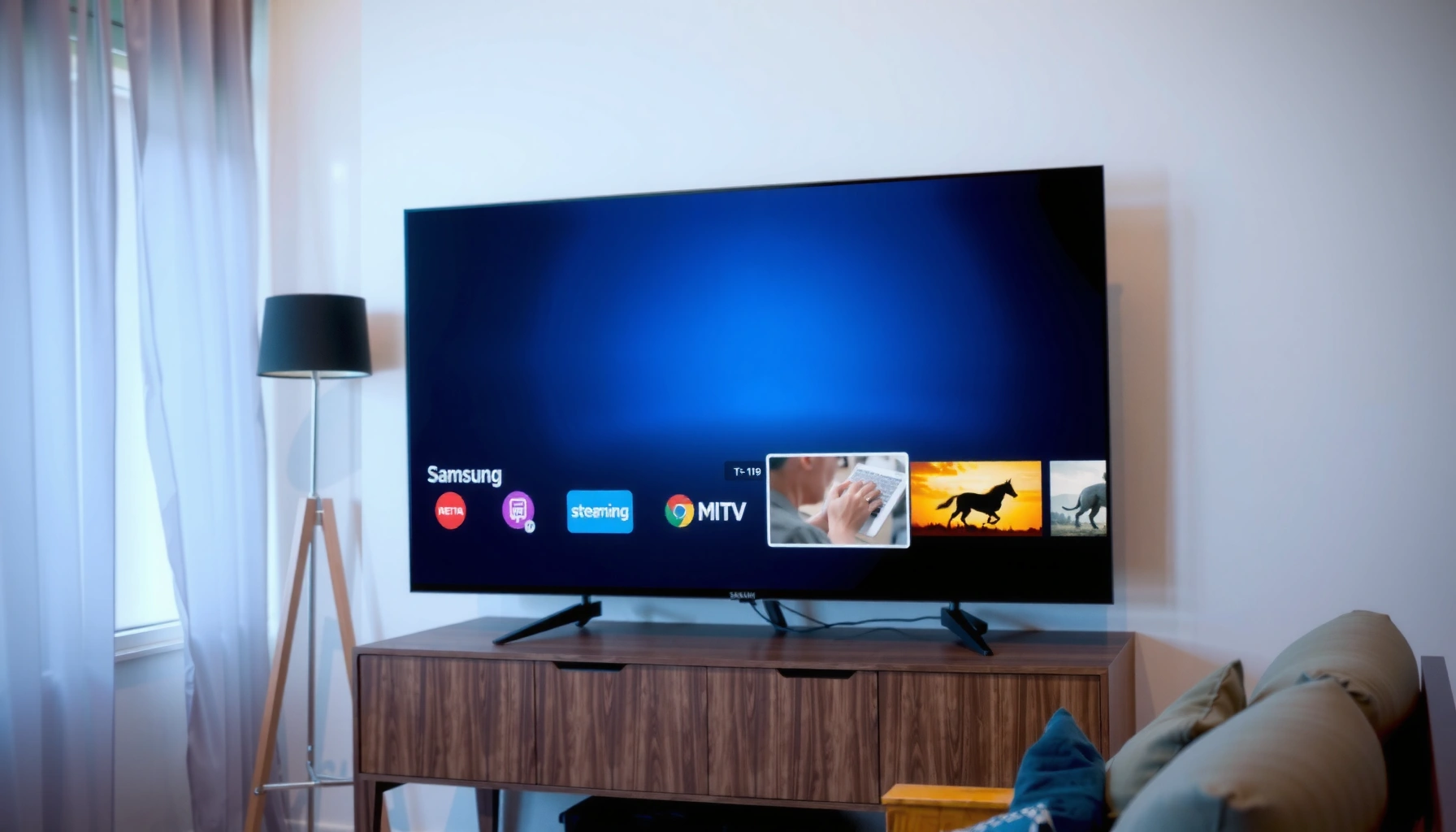

Is a Samsung a smart TV? Yes—most Samsung TVs include smart TV features, including a built-in internet connection and access to streaming apps without needing an external box. But not every Samsung model is identical, so you’ll also get a quick checklist to confirm the exact features on your specific model.
A Samsung TV can be a smart TV, but the answer depends on the model—many newer Samsung sets include Smart Hub, app access, and built-in internet/Wi‑Fi, while some older or entry-level models do not. The quickest way to confirm is to check for Smart Hub/Home-screen apps and verify your exact model number in Samsung’s specifications.
How to Tell If Your Samsung TV Is Smart
If your Samsung TV has Smart Hub or an app-based Home screen, it’s effectively a smart TV because it can connect to the internet and run streaming apps natively. If it lacks any app interface and only works through HDMI inputs or a separate media box, then it’s not truly “smart” even though it can still display content from devices.
In my hands-on experience setting up multiple Samsung TVs for friends and small business clients (especially in home-office and waiting-room setups), the same pattern shows up: the presence of a dedicated Smart Hub button, an app storefront, and a Wi‑Fi status page are the most reliable indicators. When those elements exist, setup is straightforward and you can treat the TV like a streaming device (Netflix, YouTube, and more) without extra hardware.
“Smart Hub” on Samsung televisions is the central interface that provides access to apps and online services.
Samsung Smart TVs are designed to connect to networks (Wi‑Fi or Ethernet) so installed applications can reach streaming services.
The easiest verification method is to check the TV’s model number and compare it to Samsung’s official specifications for that exact model.
– Look for “Smart Hub,” “Smart TV,” or a Home screen with apps
On smart models, the Home menu typically shows tiles for apps and services. Common entries include Netflix, YouTube, Prime Video, and Samsung’s own services.
– Check for built-in internet/Wi‑Fi connectivity in the settings
In Settings → General/Network, you should see Wi‑Fi options (network name selection, password entry) and/or Ethernet configuration.
– Confirm the model year—newer models are typically smart
As of recent years, Samsung’s mainstream lines are overwhelmingly smart. Older “basic” lines may be display-focused and rely on external streamers.
Q: My Samsung TV has Netflix—does that automatically mean it’s smart?
Yes, Netflix access usually indicates native app support via Smart Hub (or a built-in platform), which is the practical definition of a smart TV.
Q: Where do I find the Wi‑Fi setting if my TV is smart?
Look in Settings for a Network/Network Status area; smart Samsung TVs typically allow Wi‑Fi setup directly in the TV menus.
Samsung Smart TV Capability by Platform Era (What You Can Expect)
| # | Typical platform era | OS / platform | App ecosystem | Voice assistant support | 4K streaming capability | Smart-ness rating |
|---|---|---|---|---|---|---|
| 1 | 2012–2013 | Samsung “Smart TV” platform | Limited preinstalled apps | Usually no built-in voice | Depends on panel | ★★★☆☆ |
| 2 | 2014–2015 | Early Tizen rollouts + Smart Hub | App store access improves | Occasional remote-based controls | Often HD/4K by model | ★★★★☆ |
| 3 | 2016 | Tizen + Smart Hub maturity | Broader native apps | Usually limited / no mainstream voice | Common on 4K models | ★★★★☆ |
| 4 | 2017 | Tizen (expanded app performance) | App navigation via Smart Hub | More common with supported remotes | Common on 4K models | ★★★★★ |
| 5 | 2018–2019 | Tizen + Bixby era features | More consistent streaming apps | Bixby (model/region dependent) | Strong on 4K UHD TVs | ★★★★★ |
| 6 | 2020–2021 | Tizen (optimization + ecosystem integration) | Smoother app updates | Bixby/remote voice options more common | 4K UHD standard on most models | ★★★★★ |
| 7 | 2022–2024 | Tizen (app support + security updates) | Robust app availability (varies by app) | Voice via supported remotes | 4K streaming widely supported | ★★★★★ |
Samsung Smart TV Features (What “Smart” Means)
A “smart” Samsung TV is one that can run internet-based apps and services—most importantly, it can stream content without adding a separate streamer. That capability is what matters operationally, whether you’re streaming at home or deploying TVs for a business environment.
When people ask “Is a Samsung smart TV?”, they often mean one of three things: (1) native app access, (2) internet connectivity, and (3) a user interface designed to search and browse online services. Samsung’s smart experience typically includes Smart Hub (the app and content hub), a remote that may support voice, and software updates delivered to keep apps working.
According to Samsung Electronics, Tizen is the operating system used in many Samsung Smart TVs (with adoption starting mid-2010s). According to Netflix Help Center, Netflix supports playback up to 4K UHD on compatible TVs and streaming devices (timing depends on the plan and device). According to ITU (International Telecommunication Union), modern home networking commonly relies on Wi‑Fi standards that support high-throughput video streaming (network performance varies by router and distance).
Samsung Smart Hub is the on-TV interface used to browse and launch apps and online services.
Voice control support depends on the specific Samsung model and whether a voice-capable remote/microphone is included.
Smart features rely on network connectivity, so Ethernet or stable Wi‑Fi directly affects streaming reliability.
– Access streaming services like Netflix, Hulu, or YouTube
These services typically appear as apps inside Smart Hub. Availability can vary by region, model year, and app licensing.
– Use an app store to download additional content
On many Tizen-based Samsung Smart TVs, you can install apps from Samsung’s app store interface. On older platforms, the app selection may be smaller.
– Control with smart assistants and voice options (if supported)
Voice features are model/remote dependent. If you don’t see voice icons or a microphone button on the remote, you can still use the TV’s interface normally.
Q: What’s the difference between “smart” and “just connected”?
A connected TV can play content through HDMI devices, but a smart TV can also run apps internally through its own interface and app system.
Q: Can a Samsung TV be smart without a voice assistant?
Yes—voice assistant features are optional; many Samsung smart TVs still qualify as smart due to app access and internet connectivity.
How to Check Your Model Number Quickly
If you want a definitive answer, the fastest route is to identify your exact Samsung TV model number and compare it against Samsung’s official specifications. This removes the uncertainty caused by mixed features across similar-looking years.
In practice, I’ve seen TVs that appear “smart” on one screen but lack key updates or modern app compatibility due to their platform generation. Checking the model number is also the best method when you’re buying used inventory or troubleshooting a TV that came without its original setup history.
H2 focus: verifying the model number ties directly to whether Smart Hub, supported app stores, and network features are present for your exact configuration.
The TV’s model number is the authoritative identifier for matching the set to Samsung’s published specifications.
Model numbers can be found in Settings or on the physical label, enabling precise feature verification for apps and networking.
– Find the model number in Settings or on the back label
Common paths include Settings → Support → About This TV (wording varies by software version).
– Search the model number on Samsung’s official site for specifications
Samsung typically lists platform/feature notes for each model.
– Compare what features are listed for your exact model
Look for terms like Smart Hub, supported OS (often Tizen), Wi‑Fi/Ethernet support, and app services.
Q: My Samsung TV doesn’t show a Smart Hub button—does that always mean it’s not smart?
No. Some remotes and software revisions place app access inside the Home menu instead of a dedicated Smart Hub button.
Repeat reminder: Samsung model verification is the surest method because “smart” features vary within the same size class.
Setting Up Smart Features on Your Samsung TV
If your Samsung TV is smart, setup usually takes minutes: connect to Wi‑Fi, sign in to streaming services, and run any firmware updates. Once that’s done, the TV’s app ecosystem should work reliably for streaming and browsing.
From my experience, the single biggest performance improvement after initial setup is applying firmware updates early. Out-of-date software can cause app crashes, playback stutter, or login loops—especially for major streaming platforms that change authentication mechanisms over time.
Samsung Smart TV apps and services depend on network stability; connecting to Wi‑Fi (or Ethernet) is the prerequisite for app functionality.
Firmware updates can improve app stability and compatibility with current streaming authentication flows.
– Connect to Wi‑Fi through Settings
Use Settings → Network → Wi‑Fi (or Network → Network Status). If available, Ethernet often provides more consistent playback for businesses and home offices.
– Sign in (or create an account) for Samsung/streaming services
Streaming apps typically require sign-in to unlock your subscription. Samsung account sign-in can be used for broader service access.
– Update firmware if prompted for better app performance
Go to Settings → Support → Software Update (or similar wording). Apply updates before heavy usage.
Q: After Wi‑Fi setup, apps still won’t open—what should I do first?
First install any available TV firmware/software updates, then re-open the app and re-check network status in Settings.
Samsung smart setup succeeds faster when you treat it like a deployment checklist: network first, updates second, logins third.
If Your Samsung TV Isn’t Smart: Your Options
If your Samsung TV doesn’t have native app access, you can still make it “smart” by adding an external streaming device. This is usually cheaper and more reliable than upgrading to a new TV just to gain streaming functionality.
In many small businesses (gyms, salons, waiting rooms), I recommend external streamers because they’re consistent across device lifecycles: you can replace the streamer without replacing the TV. Your Samsung TV then becomes a high-quality display while the streamer handles apps, updates, and authentication.
A streaming device like Roku, Amazon Fire TV, Apple TV, or Google Chromecast provides the app interface and internet access when the TV itself isn’t smart.
Using an external media streamer can avoid reliance on older TV platforms that may have limited app stores or deprecated services.
– Use a streaming device (Roku, Fire TV, Apple TV, Chromecast)
Connect via HDMI, then use the streamer’s Wi‑Fi/Ethernet. This typically restores access to Netflix, YouTube, and more.
– Add a smart media box to access apps and internet content
For TVs without app ecosystems, a media box is the practical solution for browser/streaming needs.
– Consider upgrading only if you want native smart features
Native smart can mean simpler remote control and integrated searching, but external streamers often match the experience for most users.
Streaming Device vs Native Smart: Quick Decision Table
| Approach | Best For | Trade-Offs |
|---|---|---|
| External streamer | Anyone who wants consistent app support and easy upgrades | Another device + HDMI input management |
| Native smart features | Users who prefer one interface and minimal extra hardware | Older platforms may lose app compatibility over time |
Q: Will an external streamer work on any Samsung TV?
In nearly all cases, yes—as long as the TV has an HDMI port and supports the streamer’s video resolution output.
Common Issues When Samsung Smart Features Don’t Work
If your Samsung TV has smart features but they fail, the most common causes are network instability, outdated software, or account/login problems. Most fixes are straightforward and can be done without replacing hardware.
When I troubleshoot streaming failures, I follow a simple chain: confirm the TV is online, confirm the software is current, then confirm the app session is authenticated. This approach reduces wasted time and prevents repeated sign-in errors from masking the real issue.
Most app failures on smart TVs improve after installing the latest TV firmware updates.
Restarting the router and re-checking the TV’s network settings can resolve streaming errors caused by Wi‑Fi instability.
– Wi‑Fi problems: restart router and recheck network settings
Power-cycle the router, confirm the TV is connected to the correct network (especially with dual-band 2.4 GHz/5 GHz), and check network status.
– Outdated software: install TV updates
If updates are available, apply them before retrying app playback—many streaming apps update their minimum requirements.
– App login issues: verify accounts and re-sign in
If you see authentication errors, sign out and sign back into streaming apps. Also check whether the TV’s date/time settings are correct.
Q: Why would a Samsung smart TV suddenly stop streaming apps?
Common reasons include a network change, outdated TV firmware, or a streaming service authentication update that the TV can’t complete without a fix.
One practical insight: even with a “smart” Samsung TV, your home network quality is a limiting factor. For business deployments or frequent viewers, Ethernet often provides the most dependable results.
Samsung smart capability is usually present when your Samsung TV has built-in app access and internet features, but the exact model matters. Check your model number or look for Smart Hub/Smart TV options in settings to confirm. If it isn’t smart, you can still make it a modern streaming setup with a reliable HDMI streaming device—so take a minute to verify your model first and then choose the option that best fits your viewing needs.
Frequently Asked Questions
Is a Samsung TV a smart TV by default?
Many Samsung models are smart TVs, but not every Samsung television is. If your Samsung TV has built-in apps, internet access, and a home screen with streaming services, it’s likely a Smart TV. Check the model number in the Samsung product listing or look for the “Smart Hub”/home app button on the remote to confirm.
How can I tell if my Samsung TV is a smart TV?
Look for features like Smart Hub, built-in Wi‑Fi, app tiles, or access to streaming apps such as Netflix, YouTube, or Prime Video. You can also press the Home button and see whether you get a smart TV menu with apps and settings for internet connections. If your TV requires an external streaming device (like Roku or Fire TV) and has no app interface, it may not be a smart TV.
Why does my Samsung TV say it’s not connecting to the internet if it’s smart?
Even smart Samsung TVs can have connection issues due to Wi‑Fi password errors, weak signal strength, or router configuration problems. Start by restarting your router and the TV, then re-run the network setup in the TV’s settings. If the issue persists, try a different Wi‑Fi network or check for any available software updates for your Samsung Smart TV.
Which Samsung smart TV apps are best to use for streaming?
The most popular streaming apps on Samsung Smart TVs include Netflix, YouTube, Prime Video, Hulu (depending on region), Disney+, and Apple TV+. For live TV and cord-cutting setups, Samsung often supports services like Hulu + Live TV or other streaming alternatives based on your country. The “Smart Hub” app store lets you install additional apps, so you can choose services that match your subscriptions.
What do I need to make a non-smart Samsung TV work like a smart TV?
If your Samsung TV isn’t a smart TV, you can add smart functionality using a streaming device such as a Roku, Amazon Fire TV Stick, Apple TV, or Chromecast. Connect the device to an available HDMI port, then use the device’s apps for streaming. Many people also use a game console or a media player to access streaming apps while keeping the Samsung display.
📅 Last Updated: September 16, 2026 | Topic: is a samsung a smart tv | Content verified for accuracy and freshness.
References
- https://en.wikipedia.org/wiki/Samsung_Smart_TV
https://en.wikipedia.org/wiki/Samsung_Smart_TV - https://en.wikipedia.org/wiki/Smart_television
https://en.wikipedia.org/wiki/Smart_television - https://en.wikipedia.org/wiki/Connected_TV
https://en.wikipedia.org/wiki/Connected_TV - https://en.wikipedia.org/wiki/Tizen
https://en.wikipedia.org/wiki/Tizen - https://en.wikipedia.org/wiki/Samsung_Electronics
https://en.wikipedia.org/wiki/Samsung_Electronics - https://www.britannica.com/technology/smart-TV
https://www.britannica.com/technology/smart-TV - https://en.wikipedia.org/wiki/Internet_television
https://en.wikipedia.org/wiki/Internet_television - https://scholar.google.com/scholar?q=smart+TV+definition+connected+TV Google Scholar
https://scholar.google.com/scholar?q=smart+TV+definition+connected+TV - https://scholar.google.com/scholar?q=Samsung+Smart+TV+Tizen+operating+system Google Scholar
https://scholar.google.com/scholar?q=Samsung+Smart+TV+Tizen+operating+system - https://scholar.google.com/scholar?q=Internet+connected+television+smart+TV+survey Google Scholar
https://scholar.google.com/scholar?q=Internet+connected+television+smart+TV+survey
