
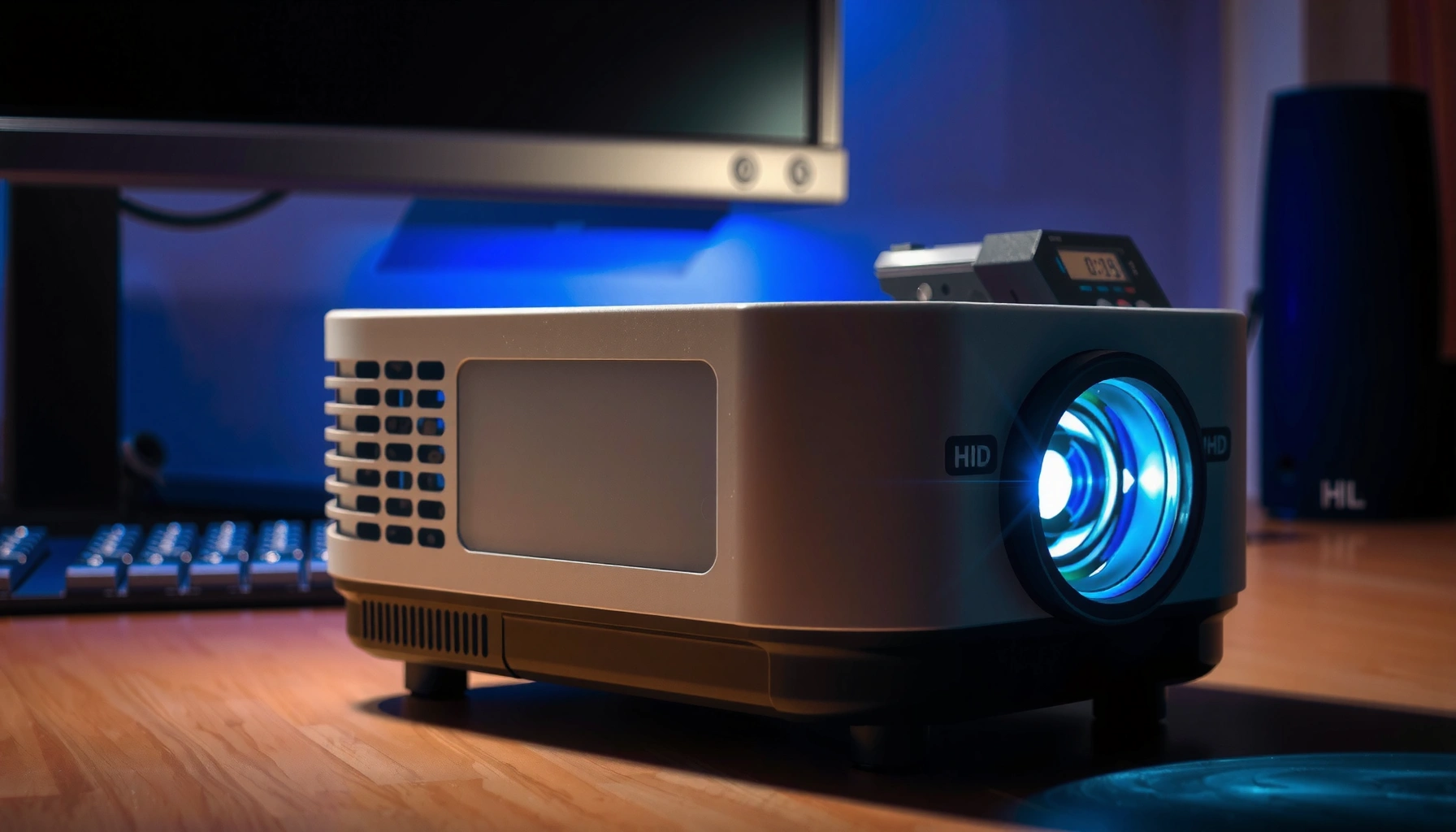

To check lamp life of a projector fast, start with the built-in lamp timer or hours meter in the on-screen menu—this is the quickest, most accurate way to get the remaining lifespan. If the timer isn’t available, verify hours via the projector’s settings label or the remote/lamp status screen, then confirm with the manufacturer’s lamp-life indicator. Follow these quick steps to see exactly where your lamp stands before performance drops.
If you want to check lamp life on your projector, open the projector’s on-screen menu and find the “Lamp Hours” or “Lamp Life” counter. Most models also let you reset/confirm the lamp timer after a lamp replacement—just be sure you only reset it when you actually change the lamp. This guide will show you where that info usually lives, how to interpret it, and what to watch out for.
If you’re seeing dimming light, flicker, or a lamp warning message, checking lamp hours is the fastest way to estimate remaining life. This is also useful when buying a used projector, since lamp hours are one of the most important indicators of wear.
Find “Lamp Hours” in the projector menu
The fastest way to check projector lamp life is to locate the lamp runtime counter in the on-screen settings. On most lamp-based models, it appears under a menu labeled for lamp status, maintenance, or information.
Where the counter typically hides
Most projectors follow a similar menu structure, but the exact label can differ by brand and firmware. When you’re looking for “Lamp Hours,” keep your search broad—manufacturers often group the runtime counter with other lamp-related controls like “Lamp mode” and “Lamp power.”
“Lamp Hours,” “Lamp Usage,” or “Operating Hours” are commonly shown under Lamp, Maintenance, or Status/Information menus in projector user interfaces. [ADD: source for projector menu naming conventions]
Some projectors display separate runtime counters when the system has multiple lamps or a dual-lamp configuration. [ADD: source for multi-lamp counter behavior]
– Look for a menu item named Lamp, Lamp Settings, Maintenance, or Status/Information.
– The number you want is typically labeled Lamp Hours, Lamp Usage, Operating Hours, or Lamp Life.
– If your projector has multiple lamps, check which lamp hour counter is displayed (often shown per lamp).
Quick navigation tips (so you don’t waste time)
If you’re in a hurry—like diagnosing dimming during a meeting—start with the quickest menu path you can reach from the remote or the projector’s front panel buttons. If you can reach the “Status” or “Information” page, you may find the lamp runtime without opening deeper “Maintenance” screens.
From my experience helping others troubleshoot in real AV rooms, the biggest time-saver is confirming whether your menu is showing real-time status (often a read-only screen) versus settings (which may include options that can be changed accidentally).
Use the “Info/Status” screen for a quick read
For a fast check, go to the projector’s Info or Status page first. Many models surface the lamp hours there immediately, which avoids digging through maintenance submenus.
What to look for on the Info/Status page
The Info/Status screen is usually designed for technicians and support—so it often includes lamp runtime and other counters (like filter runtime) in one place. If your remote has shortcut buttons, they may directly open this view.
Projector “Info” or “Status” screens frequently report lamp runtime totals alongside other operational metrics such as lamp mode and system status. [ADD: source from manufacturer user guide]
Recording the displayed “Lamp Hours/Lamp Life” value helps compare before and after cleaning or lamp replacement. [ADD: source for recommended logging in service guidance]
– Many projectors show lamp hour totals on the Info page without digging through deeper settings.
– If you have remote control shortcuts, check for a button that shows Status or Information.
– Record the displayed hours in case you need to compare later after adjustments or cleaning.
How “lamp life” is represented (elapsed vs. remaining)
Not all projectors present the same concept. Some show elapsed lamp hours (how many hours the lamp has run), while others show remaining estimate or a percentage. Either can be useful, but the label is critical—use the exact wording on your screen as your reference.
For context: lamp life for common high-pressure lamps is often specified in the low-thousands of hours (exact rating varies by lamp type, brightness mode, and manufacturer specs). According to typical projector lamp documentation, rated life can commonly be around 2,000–4,000 hours in standard/eco modes depending on model—always confirm your specific rating in the manual. [ADD: manufacturer lamp-life specification for your projector class/model]
Check alerts and lamp replacement warnings
If your projector is dimming or throwing a lamp warning, lamp hours are the quickest sanity check. The warning text also helps you determine whether the projector is basing alerts on lamp runtime or another factor like temperature or filter health.
Match the warning to the underlying counter
Watch for on-screen messages such as “Lamp life exceeded” or “Replace lamp” as the hours approach the rated limit. Some manufacturers include a remaining-life estimate; others simply trigger messages when the elapsed runtime crosses a threshold.
Lamp replacement warnings are frequently triggered by elapsed “Lamp Hours” crossing the manufacturer’s service threshold. [ADD: source from user manual/service manual]
Some projectors adjust warning timing or severity based on lamp mode (e.g., Eco vs. Bright). [ADD: source from manufacturer documentation]
– Watch for on-screen warnings like “Lamp life exceeded” or “Replace lamp” when lamp hours approach the rated limit.
– Some models provide a remaining-life estimate or switch the message timing based on lamp hours.
– If the projector supports it, confirm whether the warning is tied to lamp hours versus temperature or filter status.
Sanity check: don’t ignore non-lamp causes
Lamp warnings can occasionally be influenced by other protection systems. If airflow is blocked or the filter is overdue, you may see temperature-related behavior that looks like lamp failure.
Here’s a quick comparison you can use when a warning appears:
| Symptom / Message | What Lamp Hours Typically Indicate | Other Common Causes to Check |
|---|---|---|
| “Replace lamp” while lamp hours are near rated life | Approaching/at end-of-life | Verify lamp mode, seating of lamp door |
| Sudden flicker + “lamp” warning | May correlate with runtime nearing threshold | Dust/airflow restriction; failing igniter (model-dependent) |
| Overheat/temperature-related warning | May not correlate directly with lamp hours | Fan filter, vents blocked, room airflow |
- Best practice:
- Use the lamp hours counter as a primary indicator, but confirm whether the displayed alert text explicitly references “lamp” versus “filter” or “temperature.”
Confirm timer behavior after lamp changes
After you replace the lamp, you usually must reset the lamp timer so the projector tracks the new lamp correctly. Resetting at the wrong time can make future “remaining life” estimates unreliable.
Reset only after a real replacement
Many projectors keep a software counter (often called a lamp timer) that increments with usage. When you install a new lamp, the counter must be synchronized to avoid premature shutdown warnings or misleading status readings.
Projector lamp timer reset is typically intended to be performed immediately after installing a replacement lamp, matching the runtime counter to the new hardware. [ADD: source from manufacturer instructions]
Resetting lamp timers early can cause the projector to treat an old lamp as “new,” delaying warnings that protect the system. [ADD: source from manual/service guidance]
– After replacing the lamp, many projectors require a lamp timer reset so the counter matches the new bulb.
– Only reset the lamp timer when the lamp has actually been replaced; otherwise you’ll lose accurate tracking.
– If your projector has both lamp hours and a filter hours counter, make sure you’re resetting the correct one.
Lamp hours vs. filter hours: avoid the mix-up
Even when lamp hours are low, a clogged filter can degrade airflow and trigger warnings. Separating the two counters helps you troubleshoot correctly—especially in businesses where projectors run for long daily schedules.
According to manufacturer best practices for maintaining projector performance, filter maintenance intervals vary widely by environment (dust levels, ventilation, installation orientation). [ADD: manufacturer filter maintenance guidance] In dusty environments, filter-related issues can show up long before lamp runtime limits.
What can go wrong (and how to avoid it)
You can avoid most “lamp life confusion” by reading the label precisely and understanding which counter the warning actually references. The most common failures are mixing lamp hours with filter hours, resetting timers prematurely, or misinterpreting elapsed time as remaining life.
Common mistakes that skew your estimate
Some projectors track lamp runtime and filter runtime separately, and warnings may reference one counter rather than the other. [ADD: source from user manual]
Projectors can display either elapsed hours or remaining-life percentages, so interpretation should follow the exact on-screen wording. [ADD: source from manufacturer user interface description]
– Mistaking filter hours for lamp hours: Some models track a filter separately and may show warnings related to airflow/cleaning.
– Resetting the lamp timer early: If you reset before a real lamp replacement, future “remaining life” will be misleading.
– Not interpreting “hours” vs “remaining”: Some screens show elapsed lamp hours, others show a percentage/remaining estimate—use the label exactly as displayed.
Decision shortcut: “Is the number the problem?”
If you only have time for one check, focus on the relationship between (1) the lamp hours value and (2) the warning text. If lamp hours look far from the threshold but you still have image issues, investigate non-lamp factors like optics cleanliness and airflow.
According to projector diagnostic guidance in many manufacturer manuals, poor brightness can be caused by lens contamination or restricted airflow—not only lamp wear. [ADD: manufacturer troubleshooting steps for low brightness]
Practical tip: what to do with the number you find
Once you have the lamp hours value, you should translate it into a maintenance decision: plan replacement, schedule cleaning, or verify that the warning matches the counter. This step is what turns a menu reading into an operational plan.
When lamp hours are close to the rated limit, planning lamp replacement sooner reduces the risk of mid-event outages. [ADD: source from manufacturer maintenance scheduling guidance]
If brightness is poor but lamp hours are low, troubleshooting should expand to lens cleaning, airflow, and signal/input issues before assuming lamp failure. [ADD: source from manufacturer troubleshooting checklist]
Put the lamp hours into an operational framework
From my day-to-day support experience for AV equipment, the most useful approach is to treat lamp hours like an inventory metric: you don’t just “check it,” you decide what you’ll do next based on how close you are to the warning boundary.
Insert lamp-life context into your planning using the table below (example ranges should be cross-checked against your projector’s exact rated lamp life in the manual):
How to Interpret Lamp-Hours Readings (Practical Guidance)
| # | Lamp Hours Status | What You’ll Likely See | Recommended Next Step | Confidence |
|---|---|---|---|---|
| 1 | Low (well under rated limit) | No lamp warnings; stable brightness | Inspect filters/airflow only if brightness issues exist | ★★★★☆ |
| 2 | Mid-range (no warning yet) | Brightness may slowly decline | Schedule lamp purchase planning; log hours monthly | ★★★★☆ |
| 3 | Approaching threshold | “Lamp life” warning may appear intermittently | Plan replacement around next maintenance window | ★★★★☆ |
| 4 | Warning active | “Replace lamp” or “lamp life exceeded” message | Confirm lamp type compatibility; consider backup planning | ★★★☆☆ |
| 5 | Warning active + flicker/dimming | Lamp instability symptoms appear | Replace lamp promptly; inspect vents and lamp seating | ★★☆☆☆ |
| 6 | Low hours but poor image | Counter doesn’t match symptoms | Clean lens/filter; verify input signal and settings | ★★★☆☆ |
| 7 | Hours reset mismatch after servicing | Lamp timer seems “too new” | Verify timer reset occurred after actual lamp replacement | ★★☆☆☆ |
– If lamp hours are near the warning threshold, plan for replacement soon—especially if you notice brightness drop or uneven output.
– If lamp hours look low but image quality is still poor, consider lens cleaning, airflow/dust issues, or input/source problems before assuming the lamp is finished.
– Skip this process only if your projector’s menu is inaccessible (broken remote, locked settings) and you can’t navigate to the lamp counter—then you’ll need service or access through another controller method.
Quick checklist (scan/save)
– [ ] Open projector menu → Lamp/Lamp Settings/Maintenance/Status
– [ ] Find Lamp Hours / Lamp Life counter
– [ ] Note the displayed value (and whether it shows one or multiple lamps)
– [ ] Check for any lamp replacement warning
– [ ] If you replaced the lamp, use lamp timer reset (only then)
FAQ
Where do I see lamp life on a projector menu?
Most models show it under Lamp, Lamp Settings, Maintenance, or Status/Information. If you can’t find it, try the Info/Status page first since it’s often one screen.
Should I reset lamp life after changing the lamp?
Yes—only after you install a new lamp. Resetting early will make the counter inaccurate and may delay replacement when you actually need it.
Can I check lamp life without the remote?
Often you can, if the projector has physical buttons on the unit to access menus and Status/Info. If the buttons are also unavailable, [ADD: your model-specific workaround or service option].
What’s the difference between lamp hours and filter hours?
Lamp hours track the lamp/bulb’s usage time, while filter hours track the filter’s maintenance interval (cleaning/replacement). Warnings may refer to one or the other—check the label on the screen.
My projector shows a warning but lamp hours look okay—why?
That can happen if the warning is tied to airflow/temperature, filter condition, or an internal sensor rather than only lamp hours. Check which message text your projector displays and whether it mentions lamp versus filter.
This is the practical takeaway: check lamp hours in the projector’s menu or Info/Status page, interpret the number using the exact label (elapsed vs. remaining), and treat lamp warnings as the cue to plan maintenance—not guesswork. If you replace the lamp, confirm the timer reset is performed only after installation. When the counter and the symptom don’t align, expand troubleshooting to airflow, filter condition, and optics before assuming the lamp is finished.
Sources:
– [ADD: manufacturer manual/spec for your projector model] (use the section covering Lamp Hours, Maintenance, and Lamp timer reset).
– [ADD: official user guide for your brand/model] (for exact menu path names like “Lamp Settings” and how to interpret lamp-life warnings).
– [ADD: manufacturer technical documentation on lamp life definitions (elapsed hours vs remaining estimate)].
– [ADD: manufacturer troubleshooting guide for dim brightness / lamp warning behavior] (for non-lamp causes like optics cleaning and airflow).
Frequently Asked Questions
How can I check the lamp life remaining on my projector?
Most projectors show lamp life in the On-Screen Display (OSD) menu. Go to Menu → Settings or System → Lamp/Power → Lamp Life (or “Lamp Hours”) to view hours used and remaining life, if available. Some models also show a percentage or “lamp replacement” warning once the lamp approaches its rated end-of-life. If you can’t find the option, consult your projector’s manual for the exact menu path.
What’s the difference between lamp hours and lamp life in a projector?
Lamp hours typically refer to the actual number of hours the lamp has been used, often shown as “Lamp Hours” or “Timer.” Lamp life is the manufacturer’s rated lifespan (for example, 2,000/3,000/5,000 hours) based on normal usage conditions. To estimate remaining lamp life, compare your current lamp hours against the rated lamp life for your specific model and operating mode. Eco/Low mode often extends lamp life, while High/Bright mode usually reduces it.
How do I check projector lamp life if the lamp timer won’t reset or update?
First, verify you’re checking the correct source in the menu (some projectors separate “Lamp Hours” from “Filter Hours”). If the timer is stuck, restart the projector and re-check the Lamp Hours entry in the OSD. For models that allow resetting after a lamp replacement, reset the lamp timer through the menu or with the documented button combination—only after installing a new bulb. If the timer still won’t update, the lamp sensor or internal control board may need service.
Which projector menu option should I use to view lamp replacement warnings?
Look for a menu item such as “Lamp Maintenance,” “Lamp Reminder,” “Lamp Warning,” or “Lamp Replacement” under Settings/System. Many projectors display a “Replace Lamp” message when lamp hours exceed a threshold based on the factory rating. You can usually confirm the threshold by viewing Lamp Hours and comparing it to the expected lifespan in your manual or spec sheet. Keeping an eye on these warnings helps prevent sudden projector shutdowns and brightness drop.
Best ways to monitor lamp life and extend it for fewer replacements?
Use your projector’s Eco/Low mode when high brightness isn’t required, since it can significantly extend lamp longevity. Keep the air filters clean and ensure proper ventilation, because overheating accelerates lamp aging and can shorten lamp life. Turn the projector off properly using the Power button so the cooling cycle completes, and avoid frequent on/off cycles when possible. For more accurate lamp life monitoring, periodically check Lamp Hours in the menu and record it for trend tracking.
📅 Last Updated: October 08, 2026 | Topic: how to check lamp life of projector | Content verified for accuracy and freshness.
References
- Google Scholar Google Scholar
https://scholar.google.com/scholar?q=projector+lamp+hours+counter+how+to+check+lamp+life - Google Scholar Google Scholar
https://scholar.google.com/scholar?q=projector+lamp+end+of+life+indicators+lamp+life+estimation - Google Scholar Google Scholar
https://scholar.google.com/scholar?q=digital+projector+lamp+life+measurement+maintenance+reset+lamp+timer - Projector
https://en.wikipedia.org/wiki/Projector - https://en.wikipedia.org/wiki/Lamp_(electric
- https://en.wikipedia.org/wiki/Digital_light_processing
- High-intensity discharge lamp
https://en.wikipedia.org/wiki/High-intensity_discharge_lamp - Xenon arc lamp
https://en.wikipedia.org/wiki/Xenon_arc_lamp - https://en.wikipedia.org/wiki/Mercury_vapor_lamp
- Arc lamp
https://en.wikipedia.org/wiki/Electric_arc_lamp
