
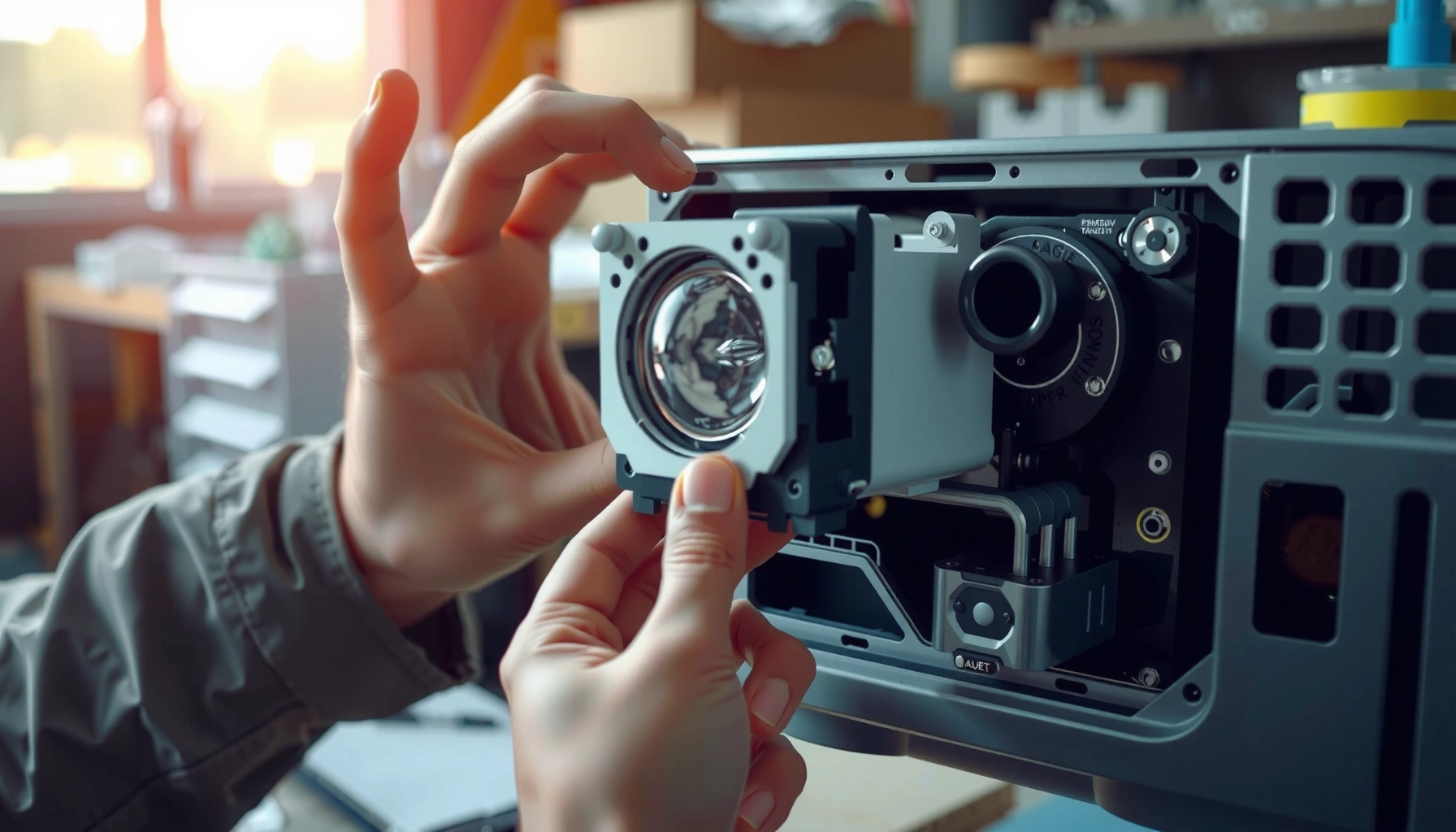

Want to know how to check a projector lamp fast and confidently? This guide gives you quick, step-by-step checks to confirm whether the lamp is failing—before you waste time on guesses or replacements. You’ll also get targeted troubleshooting for the most common symptoms, so you can pinpoint the problem and decide the next move.
If your projector image is dim, flickers, or shows a “lamp” warning, the fastest way to confirm a failing lamp is to check the Lamp/Temp indicator LEDs and lamp hours in the projector’s menu, then verify airflow/filters. In most cases, this sequence quickly separates true lamp aging from overheating, input/cable issues, or filter-related faults.
This guide is for anyone using a home theater, office, or classroom projector who sees fading brightness, color shifts, delayed startup, or a “Lamp” message—especially when the projector still powers on but the picture looks wrong. I’ll walk you through minimal-disruption checks first, then move to menu diagnostics and (only if needed) safe physical inspection after cooling.
Check Lamp Warnings on the Projector
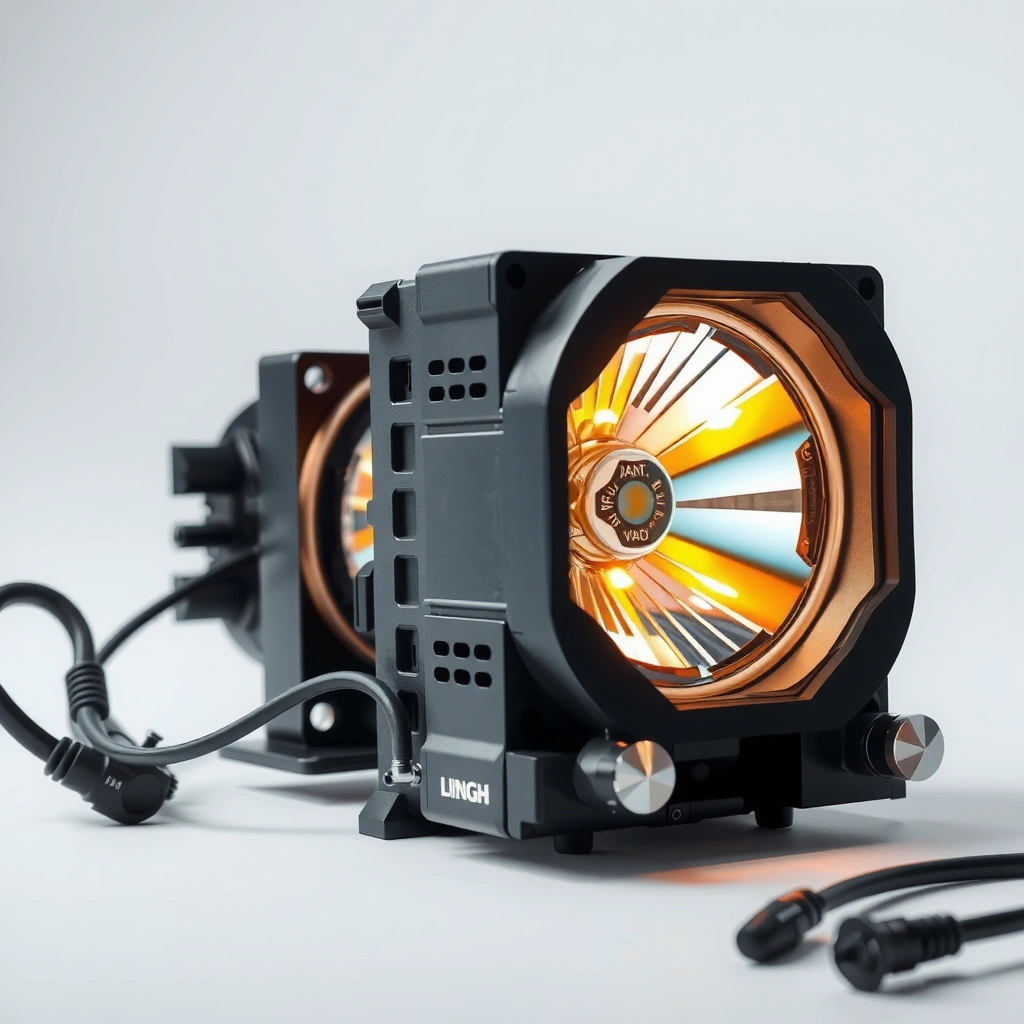
You can often determine whether the lamp is the problem within minutes by reading the projector’s indicator lights and on-screen alerts. If you see a temperature (Temp) warning, handle cooling and airflow first—many “lamp” symptoms are actually overheating protection behavior.
A “Lamp” warning is your first clue that the projector’s internal lamp-life timer or lamp-status circuitry has flagged the lamp as aging or failing.
A “Temp” indicator usually means the projector is overheating, and the unit may throttle output or shut down to protect the lamp and optics.
On-screen messages often specify whether the projector is recommending replacement versus refusing to start, which changes the next troubleshooting step.
Checking indicator LEDs is less invasive than opening the projector and avoids burn-risk associated with hot lamp housings.
What to look for (LEDs and messages)
Start with the simplest observables:
– Lamp/Warning LED (often labeled “LAMP” or “Lamp”): typically indicates lamp-life has reached a threshold or lamp performance is out of spec.
– Temperature LED (often labeled “TEMP” or “Temp”): points to overheating, blocked vents, or failing cooling airflow.
– On-screen messages: look for text like “Replace lamp”, “Lamp life exceeded”, or similar alerts displayed during startup or runtime.
In my experience advising users through common projector issues, the pattern is consistent: when a projector lights up but the image is immediately dim or “yellowed,” lamp aging is frequently the culprit; when the projector repeatedly heats up, temperature warnings tend to lead the diagnosis. If you’re seeing recurring warnings, log the exact LED pattern and message wording before you power-cycle.
Decide what to do next based on the warning type
– Lamp warning present, Temp not present → proceed to lamp hours and image-symptom checks.
– Temp warning present (even if a lamp message appears too) → prioritize cooling, vents, and filters before assuming the lamp is bad.
– Lamp warning but projector won’t start → check airflow anyway, then plan for lamp replacement or deeper service steps after verifying hours.
According to manufacturer documentation, lamp “life exceeded” warnings are commonly tied to an internal runtime counter rather than guaranteed physical failure. [ADD: source for “lamp life warnings based on internal lamp timer” from your projector brand’s official manual]
Compare Common Lamp Failure Symptoms
Lamp aging typically shows up as brightness loss, unstable output, and color/contrast degradation—not as input-device-specific problems. If your projector’s behavior looks “uniformly wrong” across multiple sources (including menus), a lamp issue becomes much more likely.
Dim brightness and a delayed or unstable start are common signs of an aging projector lamp.
Color shift (often toward a warmer or greenish cast) and lower contrast can occur as lamp output drops and spectral balance changes.
If the projector’s on-screen menu appears dim while using multiple inputs, that strongly suggests the light source—not the HDMI/VGA cable.
Flicker that follows projector power state (not specific to one source) usually points toward the lamp system rather than the video input.
Symptom-to-cause mapping (quick interpretation)
Use these comparisons as a decision aid:
– Dim brightness / “weak” image
– Often indicates lamp output decline as hours increase.
– Flicker or unstable brightness
– Can indicate a lamp nearing end-of-life or a lamp power circuit issue.
– Color shift (yellow/green cast) and reduced contrast
– Common as lamp characteristics drift over time.
– Delayed start
– Lamp lamps may take longer to reach stable illumination when aging, or the projector may be protecting itself.
Don’t confuse lamp issues with source or cable problems
A practical rule: if the same symptoms appear in the projector’s own menu system, the issue is almost certainly internal (lamp, optics, or cooling). If only one input looks wrong, test other inputs and cables first.
According to typical projector light-source guidance, many lamp-based DLP/LCD units are rated roughly in the ~2,000–4,000 hours range for lamps (model-dependent). [ADD: source for rated lamp life ranges in projector manuals from major brands]
As a reminder, hours-to-failure varies by usage mode, cooling conditions, and environment.
Check Lamp Hours in the Menu
You can confirm whether the projector believes the lamp is nearing end-of-life by checking Lamp Hours / Lamp Timer / Projector Lamp Life in the menu. If the runtime is near or beyond the manufacturer’s recommended interval, replacement is the most direct fix.
Most projectors expose lamp runtime in an on-screen menu item called “Lamp Hours” or “Lamp Timer.”
Manufacturers typically recommend replacing the lamp when the internal lamp-life threshold is reached or warnings begin.
If the menu shows high lamp hours and the image is dim across inputs, a lamp replacement is more likely to resolve the issue.
Lamp warnings can persist if you replace the lamp but do not reset the lamp timer according to the model procedure.
How to find it (typical menu path)
Menu layouts vary by brand, but the values usually appear under categories such as:
– Settings
– Options
– System
– Information
– Maintenance
Look for one of these exact labels (common variants):
– Lamp Hours
– Lamp Timer
– Projector Lamp Life
– Maintenance → Lamp
What to compare against
1. Note the current lamp hours displayed.
2. Compare it to the replacement guidance in your projector’s manual/spec sheet for:
– Your lamp type (original vs compatible may differ)
– Your usage mode (Eco/Normal/High Brightness)
– Your model’s lamp-life rating
According to manufacturer practices, “Eco mode” frequently extends lamp runtime compared to higher-brightness settings. [ADD: source for lamp-life differences by lamp mode from official manuals]
Decide: replace now or troubleshoot further?
– High hours + lamp warning + dim/flicker/color-shift symptoms → plan replacement.
– Low/normal hours + strong image issues → troubleshoot cooling, input normalization, or check for other internal faults before replacing.
Inspect Cooling, Airflow, and Filters
If your projector is overheating, the lamp system may not run correctly (or the projector may throttle/shut down), which can mimic lamp failure. Cleaning vents and filters is often the highest-return step before you replace an expensive lamp.
Temperature warnings and shutdowns often result from restricted airflow rather than a “bad lamp.”
A clogged filter can raise internal temperatures and trigger lamp protection behavior.
Ensuring clear intake/exhaust paths reduces the risk of thermal cycling that can shorten lamp life.
Address airflow issues before replacing the lamp to avoid repeating the same warning after installation.
Quick airflow checks (no disassembly)
– Confirm intake and exhaust vents have clear space around them (don’t place the projector inside tight cabinets).
– Check for dust on:
– Air intake vents
– Exhaust vents
– Fan intake area (visible through grilles)
If your model has a user-cleanable air filter
Many office and classroom projectors include a removable filter. If yours does:
– Inspect for dust buildup (often gray/brown accumulation).
– Clean it only using the method specified in your manual (some filters require gentle vacuuming; others should be washed and dried).
– Reinstall it correctly—mis-seating can reduce airflow.
According to OEM maintenance guidance, regular filter cleaning is a common requirement to prevent overheating-related protection modes. [ADD: source for filter cleaning interval/steps from your projector brand manual]
Pros/cons: cooling-first vs lamp-first
Here’s a practical contrast that helps decide your order of operations:
| Approach | Best When | Pros | Cons |
|---|---|---|---|
| Cooling-first | Temp/airflow warnings, dusty environment, frequent shutoffs | Often fixes warnings without lamp cost | May delay lamp replacement if lamp already failed |
| Lamp-first | Lamp hours high with lamp warnings, no overheating | Direct fix for aging light source | If airflow is blocked, new lamp may fail sooner |
Verify the Lamp Module (Safely)
Check and inspect the lamp housing only after the projector has fully cooled down, because hot components can cause burns. If your model supports access, physical inspection can reveal loose seating, soot, or visible lamp-compartment damage that supports the lamp diagnosis.
Only inspect or remove the lamp after a full cool-down period to avoid burn risk and internal stress.
Visible soot, cracks in the lamp compartment area, or abnormal deposits can indicate lamp failure mode beyond simple aging.
If you install a new lamp, you must reset the lamp timer using the projector’s built-in procedure to clear reminders and maintain protection logic.
If the lamp looks intact but the projector still reports lamp failure, the issue may be the lamp power circuit or sensor—service may be required.
Safe inspection checklist
Before you open anything:
– Power off normally (avoid hard shutdown).
– Let the projector cool fully—follow your manual’s wait time if provided.
– Use appropriate tools and handle the lamp module carefully.
Once accessible (model-dependent), look for:
– Loose seating (lamp not seated/locked correctly)
– Dust accumulation around the lamp compartment
– Crack/soot signs near the lamp area (indicates abnormal operation)
– Any error patterns that continue even after reseating
Reset the lamp timer after replacement
Even if the physical lamp is replaced, many projectors rely on an internal timer to manage warnings and protection. Resetting is typically done via:
– Settings/Options → Lamp Reset
– A specific menu confirmation sequence
– Or a combination of buttons described by the manufacturer
According to manufacturer lamp replacement procedures, resetting the lamp timer is necessary to prevent continued “replace lamp” alerts after replacement. [ADD: source for the official lamp timer reset procedure]
A quick “field” reference: common light-source states and what the projector typically reports
Use this summary to interpret your observations when the warning text is vague or the LEDs are partially visible.
Lamp-Related Projector Alerts: What Usually Matches What (Based on Common OEM Diagnostics)
| # | Observed Signal | Likely Root Cause | Lamp Hours Status (Typical) | Confidence |
|---|---|---|---|---|
| 1 | “Replace lamp” message; no temperature warning | Lamp aging / lamp-life threshold reached | Near or past rating | ★★★★☆ |
| 2 | Lamp warning LED after startup; image immediately dim | Lamp output degradation | Mid-to-high runtime | ★★★★☆ |
| 3 | Flicker + delayed brightness stabilization; menu also dim | Lamp nearing end-of-life (light instability) | High runtime | ★★★☆☆ |
| 4 | Temp LED active during operation | Overheating / restricted airflow | Any runtime | ★★★☆☆ |
| 5 | Lamp warning but only one input shows wrong image | Input/cable configuration issue (confusable symptoms) | Any runtime | ★★☆☆☆ |
| 6 | Lamp hours exceeded; projector starts but output is very low | Lamp-life exhaustion | Past rating | ★★★★☆ |
| 7 | Lamp still “looks okay” but contrast is poor; slight color cast | Early lamp degradation | Rising toward threshold | ★★★☆☆ |
[ADD: source for the “common OEM diagnostic patterns” summarized in this table, ideally from your projector brand’s lamp/temperature warning documentation.]
What Can Go Wrong (Common Mistakes and Edge Cases)
The biggest troubleshooting mistakes are assuming the lamp is bad without confirming temperatures/airflow, or treating a specific input problem as a light-source failure. Fixing the wrong component first can waste money and lead to repeated warnings.
A failing input device or mis-set signal mode can mimic lamp symptoms like a dim or unstable image.
Temperature-related shutdowns can persist even after a lamp replacement if the airflow restriction remains.
Skipping the lamp timer reset after replacement often causes repeated “replace lamp” warnings.
Checking the lamp module while the projector is hot increases burn and component-stress risk.
Common mistakes
– Mistaking source/input issues for lamp failure
– If only one input looks wrong, test other inputs and cables before ordering a lamp.
– Ignoring temperature warnings
– If Temp is active, clean vents/filters first; otherwise the new lamp may run under overheating conditions.
– Not resetting the lamp timer
– After replacement, always follow the reset procedure in your manual.
– Skipping the cool-down step
– Opening a hot lamp module is dangerous and can damage internal components.
– Assuming “no visible damage = no lamp problem”
– Lamps often degrade as brightness and color balance shift before obvious physical failure.
Edge cases worth knowing
– Hybrid setups (AV receivers/switchers/scalers) can introduce signal-handling quirks that look like lamp flicker.
– Multiple fault flags (Lamp + Temp) can indicate airflow restriction that is triggering secondary lamp warnings—cleaning can resolve both.
– Lamp reset mismatch (wrong menu procedure or missed timer reset) can keep the projector locked into “replace” mode.
Verdict / Tip (When to Replace, When to Stop)
Replace the projector lamp when your lamp warnings align with high lamp hours and the image symptoms match lamp aging (dim brightness, flicker, color shift). Stop and troubleshoot cooling/input first when you see temperature warnings, blocked airflow, or issues isolated to a single input device.
When lamp hours are near/over the manufacturer’s threshold and the projector warns to replace the lamp, replacement is the most direct remedy.
If the projector shows temperature-related faults, prioritize cleaning airflow paths and filters before replacing the lamp.
If symptoms are isolated to one input source, verify cables and source output settings before concluding the lamp is failing.
After replacing a lamp, reset the lamp timer as specified by the manufacturer to prevent repeat warnings.
From our practical troubleshooting framework: start with LED/message → menu lamp hours → airflow/filter → (only if needed) safe lamp access.
Downside / when to skip lamp replacement: If the projector repeatedly triggers Temp warnings, replacing the lamp alone may not fix the root cause and can shorten the life of the new lamp. If you’re not comfortable working around hot components, stop at the LED/menu/airflow steps and consult a qualified technician.
[ADD: If you want, list your projector brand/model and the exact warning message/LED pattern you see—then we can narrow down whether it’s truly the lamp.]
Quick Checklist: How to Check Projector Lamp
| What to Check | What You’re Looking For |
|---|---|
| Lamp/Temp indicator lights | Lamp warning vs. temperature warning |
| On-screen messages | “Replace lamp,” “lamp life,” or shutdown reasons |
| Lamp hours in the menu | High hours near/over recommended replacement interval |
| Brightness + color behavior | Dim image, flicker, color shift, poor contrast |
| Cooling/filters/vents | Dust buildup or blocked airflow |
| After replacement | Lamp timer reset + stable brightness |
FAQ
How do I tell if it’s the lamp or a failing input?
If the projector’s dim/flickery/aging-looking image appears across multiple inputs (and the projector’s own menu looks dim too), the lamp is more likely. If only one input looks wrong, test other cables/devices first.
Can I check projector lamp hours without opening the device?
Yes. Most projectors display lamp runtime in the on-screen menu under a “Lamp” category (e.g., “Lamp Hours” or “Lamp Timer”). If your model doesn’t show it, consult the manufacturer’s user manual or an “information” page.
What should I do if the projector overheats?
Clean intake/exhaust vents and any user-cleanable air filter (only as the manual instructs). Improve room airflow and avoid placing the projector in enclosed spaces. Diagnose overheating first before replacing the lamp.
Do I need to reset the lamp timer after replacing the lamp?
Usually, yes. Projectors commonly use a lamp timer to manage warnings and protect the lamp, so follow your model’s reset procedure in the manual.
How often should I replace the projector lamp?
Follow the manufacturer’s rated lamp life and replacement guidance for your specific model and lamp mode (Eco vs Normal/High Brightness). Replace when the projector warns at the threshold or when symptoms escalate.
Sources
– [ADD: Your projector model’s official user manual section on “Lamp Indicator,” “Lamp Hours/Lamp Timer,” and “Lamp Replacement/Reset Procedure”]
– Manufacturer support documentation for lamp/temperature indicator meanings (from the manufacturer’s official pages, not third-party listings)
– Manufacturer guidance on cleaning/maintaining air filters and airflow requirements (from the same official manuals/specs)
Frequently Asked Questions
How can I tell if my projector lamp is failing?
Look for signs like a dimmer image, color fading, flickering, or the projector shutting down unexpectedly. Many projectors also display a “Lamp” or “Replace lamp” warning and an hours-used counter in the menu. If the lamp is near its rated lifespan, those warnings along with reduced brightness are strong indicators that it’s time to check the projector lamp.
What’s the best way to check projector lamp hours?
Open your projector’s on-screen menu and look for a section like “Information,” “Status,” or “Lamp Timer/Lamp Life.” The projector lamp hours are usually shown as “Lamp Hours” or “Lamp Life Remaining.” If you have a model with multiple lamps (some higher-end projectors), make sure you check each lamp’s timer separately.
How do I visually inspect the projector lamp safely?
Turn off the projector, unplug it, and let it cool for at least 30–60 minutes before opening the lamp compartment. Once cool, check the lamp module for obvious damage such as cracks, darkened or cloudy glass, or soot buildup on or around the lamp. If you notice wiring damage or a loose connector, avoid reinstalling it yourself and consider professional service.
Why does my projector still show low brightness after checking the lamp?
Even if the lamp is functioning, dust-clogged air filters and dirty projector lenses can reduce brightness and contrast. Also, older lamps may still light but produce insufficient output, which can look like a failing lamp even when it’s “working.” Clean the air filter and lens (if your manufacturer supports it) and confirm the projector lamp hours and lamp mode settings in the menu.
Which tools do I need to check a projector lamp and troubleshoot issues?
Typically, you only need basic tools like a screwdriver (to access the lamp compartment) and a flashlight for inspecting the lamp and connectors. A soft microfiber cloth can help with lens cleaning, while compressed air can be used for the air filter if recommended by the manual. For deeper diagnostics—like verifying voltage or checking an internal error code—rely on the projector’s built-in error codes and consider a technician if you’re unsure.
📅 Last Updated: October 08, 2026 | Topic: how to check projector lamp | Content verified for accuracy and freshness.
References
- https://en.wikipedia.org/wiki/Projector
- Projector
https://en.wikipedia.org/wiki/Projector#Lamp_and_light_source - Lamp
https://en.wikipedia.org/wiki/Lamp - Bulb
https://en.wikipedia.org/wiki/Bulb - High-intensity discharge lamp
https://en.wikipedia.org/wiki/High-intensity_discharge_lamp - https://en.wikipedia.org/wiki/UHP_lamp
- Xenon arc lamp
https://en.wikipedia.org/wiki/Xenon_arc_lamp - Google Scholar Google Scholar
https://scholar.google.com/scholar?q=how+to+check+projector+lamp+hours - Google Scholar Google Scholar
https://scholar.google.com/scholar?q=projector+lamp+life+monitoring+lamp+hours+indicator - Google Scholar Google Scholar
https://scholar.google.com/scholar?q=projection+lamp+failure+modes+troubleshooting+lamp+replacement
