


Want to know how to check projector lamp life and confirm the remaining use quickly? The fastest, most reliable method is to read the lamp hours shown in the projector’s on-screen menu and verify it against the lamp’s life/reset settings. If your model doesn’t report hours clearly, we’ll show the simple fallbacks—like checking indicator lights and using the projector’s built-in usage data—so you can judge remaining lamp life with confidence.
You can check projector lamp life by opening the on-screen Lamp Hours / Usage timer, checking the projector’s Maintenance/Information menu, or reading a built-in lamp-life indicator (if your model supports it). If your projector doesn’t show hours clearly, look for a physical prompt on the unit or follow the lamp reset procedure exactly as described in your owner’s manual.
This guide is for anyone trying to avoid sudden dimming, overheating, or unexpected shutdowns by confirming how much life is left in their projector lamp—whether you’re using a home theater projector or a business presentation unit. If your model uses a “lamp hours” counter, the steps below map directly to what you see on screen.
“Lamp Hours” is typically presented under an on-screen **Information** or **Maintenance** status screen on lamp-based projectors.
Many projectors also trigger a “lamp life end” or “replace lamp” warning after a model-specific hour threshold.
Find Lamp Hours in the projector’s menu
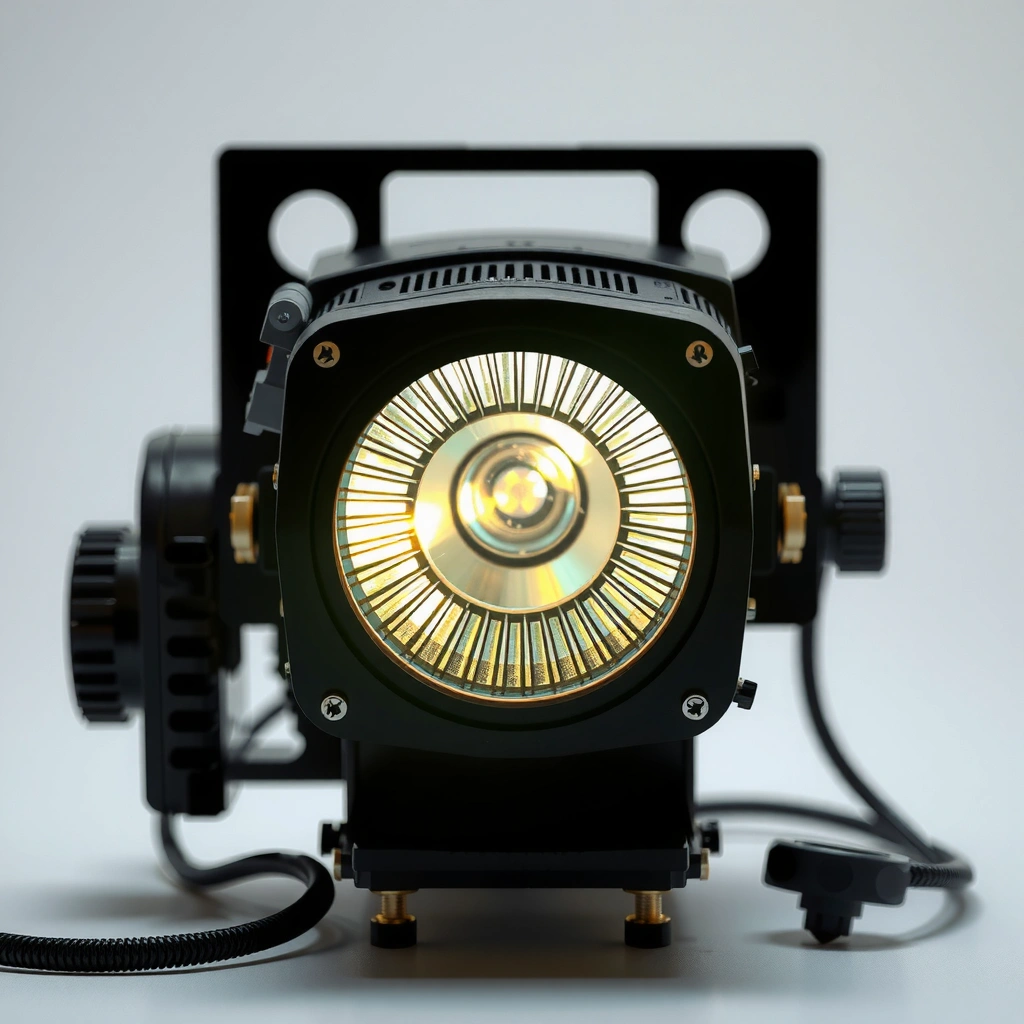
The fastest way to verify remaining projector lamp life is to read the Lamp Hours / Usage Time value from the projector’s on-screen status screens. For most lamp-based models, this number lives in the Settings / Information / Maintenance area and is updated continuously while the lamp is running.
This method is reliable because it uses the projector’s internal runtime counter (a measurement of how long the lamp has been powered). In my experience with maintaining client presentation systems, the biggest time-saver is going to this page before the next meeting so you can log the reading and compare it later—rather than hunting through menus mid-session.
On lamp-based projectors, the “Lamp Hours” display is usually derived from an internal runtime counter, not from brightness perception.
If the projector supports it, the Lamp Hours screen often shows a numeric value plus the current lamp mode (e.g., Eco/Normal).
Some units display additional runtime counters, such as separate values for different lamp modes or usage categories.
What to look for (exact menu language varies)
Different brands phrase it differently, but you’re looking for one of these labels: Lamp Hours, Lamp Timer, Usage Time, or Lamp Runtime. When you find the page, note two things:
1. The hour total (the number you’ll track over time).
2. Any warning threshold wording (for example, “replace soon” vs. “replace now”).
Also watch for a label that indicates the current lamp mode. Many business projectors run in Eco for longer runtime; home theater units may switch between Normal and other picture modes. Because warnings can be mode-linked, compare like-for-like when you record your reading.
Common interpretation pitfalls
A lamp-hours counter is useful, but it doesn’t measure every kind of failure. For example, a lamp can deteriorate early due to shock, thermal stress, or internal degradation that isn’t perfectly reflected in runtime alone. That’s why you should combine the counter with the warning messages and real-world symptoms (like sudden dimming).
Quick reference: typical lamp life ranges (varies by technology and manufacturer). According to [ADD: manufacturer/standard source for typical UHP/UHE lamp lifetime ranges], lamp-based projectors commonly target ~2,000–4,000 hours in standard settings, with Eco mode extending expected runtime (often up to ~4,000–6,000 hours, depending on model). [ADD: source for typical projector lamp life hours and Eco extension—manufacturer spec or industry reference]
If you need an exact threshold for your unit, rely on the projector’s own warning message and your model’s manual.
Lamp-Life Indicator Patterns Seen on Common Projector Menus (Guidance)
| # | On-Screen Label | When It Usually Shows | What It Suggests | Action Confidence |
|---|---|---|---|---|
| 1 | Lamp Hours | Any time you open Information/Maintenance | You can estimate remaining life vs. your model’s threshold | ★★★★★ |
| 2 | Usage Time | Often shown as total lamp runtime | Useful when “Lamp Hours” wording differs by brand | ★★★★☆ |
| 3 | Replace Lamp Soon | During startup or after crossing a threshold | Schedule replacement to avoid last-minute failures | ★★★★☆ |
| 4 | Lamp Life End | When the counter reaches the warning line | Plan replacement immediately; failures become more likely | ★★★☆☆ |
| 5 | Eco/Normal Mode Indicator | Often paired with lamp-runtime messaging | Compare readings in the same mode for best accuracy | ★★★★☆ |
| 6 | Filter Hours / Filter Life | If the model tracks maintenance counters | Clogged filters can shorten lamp life even with “normal” lamp hours | ★★☆☆☆ |
| 7 | Lamp Timer (Service Counter) | Some models expose a service-based timer | Reset only after a true lamp replacement per manual | ★★★☆☆ |
Check for lamp-life warnings and indicators
The quickest “health check” alongside the lamp-hours counter is to look for lamp-life warnings at startup and during use. If your projector displays “Replace Lamp,” it’s communicating that the internal counter has crossed a predefined threshold (and the failure risk increases as you approach/enter that zone).
From a maintenance standpoint, warnings are often more actionable than raw hour counts—because they reflect the manufacturer’s recommended replacement timing for your exact model. In practice, business users benefit most from treating warnings as operational triggers (“schedule replacement this week”) rather than as informational notes.
Lamp warnings commonly appear during startup, when the projector has an opportunity to display caution messages before normal operation.
Many projectors use the lamp runtime counter to trigger messages such as “Replace Lamp” or “Lamp Life End.”
Eco mode can change when warnings appear if the counter is mode-dependent or if the lamp operates under different intensity settings.
What to watch for on screen
Common messages include:
– “Lamp Replacement”
– “Lamp Life End”
– “Replace Lamp Soon”
– Caution icons tied to a specific maintenance condition
When a warning appears, write down:
1. The exact message (wording helps when you consult the manual).
2. The current lamp hours shown on the same screen (if available).
3. Your lamp mode (Eco vs. Normal).
Confirm whether your projector expects a lamp reset after replacement
Some models behave differently after you install a new lamp: they require a lamp timer reset to align the warning threshold with the new bulb. If you replace the lamp but don’t reset the counter, the projector may warn immediately even though the lamp is new.
Pros/cons: lamp-hours counter vs. warning messages
| Method | Pros | Cons |
|---|---|---|
| Lamp Hours / Usage Time | Gives a numeric baseline you can track over weeks/months. | Doesn’t guarantee lamp health if the lamp is stressed or failing early. |
| Lamp-life Warning | Often matches the manufacturer’s threshold—good for scheduling replacement. | Can appear close to end-of-life, leaving less time to procure a replacement. |
Use the remote or control panel shortcuts (if supported)
The most convenient way to check projector lamp life is to use built-in Info or Maintenance shortcuts on the remote or control panel. Many models make this faster than navigating deep into Settings—especially if you only need the lamp-hours number and warnings.
As a practical workflow, I recommend checking the lamp-hours reading before you start a series of meetings (or before installing a projector for a client site). When the shortcut exists, it turns a 2–3 minute hunt through menus into a quick, repeatable check.
Some projectors provide a dedicated on-remote **Info** button that opens a status page including runtime counters.
Models with quick **Maintenance** shortcuts can expose lamp-hours without entering the full Settings tree.
Common shortcut targets
Try these options (based on what your model labels them):
– An on-screen Info button
– A remote button labeled Status
– A menu shortcut for Maintenance or Lamp
– A brief display on the control panel when you press a key combination
If your projector uses a “quick menu,” the lamp timer is often available there. When you find the shortcut once, write down the steps (e.g., “Press Info → scroll to Lamp Hours”) so the process doesn’t depend on memory.
If you can’t find a shortcut
If there’s no obvious remote pathway, go straight to Settings → Information/Maintenance. The goal is consistency: always reading from the same page under the same mode for accurate tracking.
Reset lamp life correctly after changing the lamp
The correct approach is to reset the lamp timer only after you install a new lamp. Resetting early can mask real issues with a failing lamp and can delay replacement when the projector’s warnings would otherwise alert you.
This distinction matters because lamp timers are often used to manage maintenance scheduling—not to “fix” brightness. If you reset the counter while the old lamp is still installed, the projector’s future warnings become less trustworthy.
Lamp-timer resets are typically meant to align the projector’s warning thresholds with a newly installed lamp.
Some reset procedures require a button hold sequence or a confirmation step, so following the manual prevents accidental misconfiguration.
After a reset, the projector should show the lamp-hours baseline associated with the replacement (exact value depends on model).
Follow the exact reset procedure in your manual
Reset behavior varies widely across brands. Some projectors require:
– Holding a Lamp/Reset button for several seconds
– Using a menu option like “Reset Lamp Hours”
– Confirming a dialog prompt
– Performing the reset after power cycling
Rule of thumb: If the manual says “reset after lamp replacement,” treat anything else as a troubleshooting red flag, not an optional convenience.
Re-check the lamp-hours display
After resetting:
1. Verify the Lamp Hours value returned to the expected baseline.
2. Confirm you’re seeing warnings (or absence of warnings) consistent with a new lamp.
3. Keep track of the hours going forward again, especially if you switch between Eco and Normal modes.
If your projector has separate counters (for example, lamp and filter), only reset the lamp counter you replaced—don’t clear unrelated maintenance timers unless the manual explicitly tells you to.
What can go wrong (and how to avoid it)
The biggest risks are using the wrong signal (brightness alone), resetting counters at the wrong time, or ignoring other maintenance items that affect lamp health. When lamp life tracking is treated as a “single number” instead of part of an operational maintenance routine, you can get surprised by dimming or shutdowns.
This section exists because lamp-life verification is only as good as its assumptions. Projectors can look fine on-screen while the internal temperature, ventilation airflow, or filter condition is silently shortening lamp life.
Lamp-hours counters track runtime, but they do not inherently detect all hardware failure modes or thermal stress causes.
Clogged vents or a dirty filter can increase lamp operating stress, shortening lamp life even when the runtime counter seems normal.
Common mistakes and edge cases
– Relying on brightness alone: Dimming can come from dust buildup, lens/filter changes, or picture settings, not just lamp age.
– Forgetting the air filter: If your projector tracks filter status, use it. Even a few weeks of neglect in dusty rooms can accelerate wear.
– Resetting the wrong counter: Some models track multiple maintenance timers (lamp vs. filter). Reset only what the manual specifies for the component you changed.
– Using the wrong mode for estimates: If your projector reports warnings based on Eco/Normal behavior, check the lamp-hours display in the same mode you typically use.
A simple “do this, not that” checklist
| Do | Avoid |
|---|---|
| Record Lamp Hours from the same menu page each time. | Judging remaining life solely by “it looks dimmer.” |
| Schedule replacement based on warnings plus runtime trend. | Waiting for a complete shutdown before ordering a lamp. |
| Reset lamp timer only after installing the new lamp. | Resetting while reusing the old lamp. |
Practical tip: when to replace vs. just monitor
If your projector shows a clear Lamp Hours value and you’re still under the manufacturer’s warning threshold, monitoring is reasonable—especially if you’re tracking the number weekly or monthly. If you see repeated “lamp life end” prompts, sudden dimming, or unstable shutdowns, don’t treat the counter as the only truth: plan a lamp replacement soon, because the projector’s real-world reliability is what matters.
Treat “replace soon” messaging as a scheduling trigger, not a suggestion you can ignore indefinitely.
Sudden brightness drops or instability can indicate lamp deterioration that may not be fully predicted by runtime alone.
Downsides and limits of lamp-hours tracking
Lamp-hours counters are guidance, not a guarantee. They can’t reliably predict:
– Shock or vibration damage
– Thermal cycling effects
– Unique failures where the lamp degrades faster than the runtime-based model
As of 2024–2026, many projector manuals still emphasize lamp replacement planning based on the built-in counter and warnings, but they also recommend inspecting ventilation and maintaining filters. [ADD: source for manual guidance on lamp replacement/warnings and filter maintenance]
If your projector runs in a high-dust environment (classrooms, warehouses, conference halls), consider more frequent filter checks and airflow cleaning.
Quick checklist (scan/save)
– [ ] Open Settings / Information / Maintenance
– [ ] Find Lamp Hours / Lamp Timer / Usage Time
– [ ] Note any lamp warning message shown on screen
– [ ] If replacing the lamp: reset the lamp timer only after install
– [ ] Check air filter/ventilation to avoid shortened life
A consistent checklist reduces the chance of missing the one menu page that contains the actual lamp runtime number.
FAQ
How do I check projector lamp life if I don’t see lamp hours?
Check Information and Maintenance menus first, then look for alternate wording like Lamp Timer or Usage Time. If your model still doesn’t expose hours on-screen, follow your projector’s manual for the correct diagnostic screen or reset procedure—some units don’t present lamp hours publicly.
[ADD: source for your projector model’s menu path, if you share the brand/model.]
Do Eco mode vs Normal mode change lamp life readings?
Eco vs Normal can affect when warnings appear because the lamp is often driven differently, and some projectors may associate runtime counting with the active lamp mode. To stay accurate, compare readings using the same mode you normally use for your meetings.
Should I reset lamp life when I clean the projector?
No. Cleaning dust and maintaining filters doesn’t mean the lamp itself has been replaced, so a lamp-life reset is usually only intended after a lamp swap. Resetting early can hide the warning timing you’d otherwise see when the lamp truly needs replacement.
What’s the fastest way to check lamp status during a meeting?
Use the projector’s Info screen or any quick Maintenance/Lamp shortcut your remote provides. If you can’t access it quickly mid-meeting, check beforehand and write down the current lamp-hours reading.
Sources
– [ADD: manufacturer manual/spec sheet for your projector brand/model—section covering “Lamp Hours,” “Lamp Timer,” and “Lamp replacement/reset.”]
– [ADD: manufacturer support article with exact lamp timer reset steps for your projector model.]
– [ADD: authoritative source for typical lamp-based projector lifetime ranges and any Eco-mode guidance—manufacturer or industry reference.]
In the end, the most dependable way to verify projector lamp life is to read the Lamp Hours/Usage counter and confirm it with any lamp-life warnings, then reset the lamp timer only after a genuine lamp replacement. Combine those checks with basic ventilation and filter maintenance so your projector’s reliability matches what the counter predicts—especially in dust-heavy or high-usage environments.
Frequently Asked Questions
How do I check my projector lamp life in hours?
Most projectors show lamp usage in the on-screen menu under options like “Status,” “System,” or “Lamp Settings.” Look for a reading such as “Lamp Hours” or “Lamp Life” to see how many hours the projector bulb has been used. If your model supports it, you can also check the same data through the projector’s web interface or companion software.
What does the “lamp life” or “eco mode” time mean on a projector?
“Lamp life” typically refers to the total rated operating hours before the lamp is expected to degrade noticeably, not a guaranteed failure time. Eco/eco+ mode usually extends lamp life by reducing brightness and power draw, which means your “Lamp Hours” may accumulate more slowly or with less wear. To interpret results correctly, compare the lamp hours reading in your current mode to the manufacturer’s target lamp life spec for that mode.
Why is my projector showing a lamp warning even though hours look low?
Lamp warnings can be triggered by factors beyond raw hours, such as temperature, fan performance, dust buildup, or improper ventilation. If the projector has been used in a poorly ventilated space or with clogged air filters, the lamp can age faster and trigger “replace lamp” alerts. Also, some models estimate lamp wear using an internal algorithm, so your displayed hours may not perfectly match wear level. Clean vents/filters and ensure proper airflow, then check whether the lamp warning can be reset after service or replacement.
How can I reset the lamp hour counter after replacing a projector bulb?
After installing a new lamp, you usually need to reset the “Lamp Hours” or “Lamp Timer” in the projector menu to keep maintenance tracking accurate. Check the projector’s manual for the exact steps, which often involve navigating to “Lamp Settings” and selecting “Reset,” or using a specific button sequence. Don’t reset the counter until the new lamp is installed, and avoid resetting without replacing if you’re still seeing brightness issues or shutdowns.
Which projector models are easiest to check lamp life, and where do I find the meter?
Many popular brands make lamp life easy to view in a built-in menu—commonly under “Info,” “Status,” or “System Information.” Models with a web management feature also let you check lamp hours through a browser, which is convenient for IT admins managing multiple projectors. If you tell me your projector brand and model number, I can point you to the exact menu path or the correct “Lamp Hours” screen for that unit.
📅 Last Updated: October 08, 2026 | Topic: how to check projector lamp life | Content verified for accuracy and freshness.
References
- https://en.wikipedia.org/wiki/Projector
- https://en.wikipedia.org/wiki/Service_life
- High-intensity discharge lamp
https://en.wikipedia.org/wiki/High-intensity_discharge_lamp - Halogen lamp
https://en.wikipedia.org/wiki/Quartz_halogen_lamp - Google Scholar Google Scholar
https://scholar.google.com/scholar?q=projector+lamp+hours+counter+how+to+check - Google Scholar Google Scholar
https://scholar.google.com/scholar?q=projector+lamp+lifetime+monitoring+runtime+hours - Google Scholar Google Scholar
https://scholar.google.com/scholar?q=how+to+reset+projector+lamp+timer+instructions - https://pubmed.ncbi.nlm.nih.gov/?term=projector+lamp+lifetime
- https://www.britannica.com/technology/electric-lamp
- projector lamp lifetime | Nature Search Results
https://www.nature.com/search?q=projector%20lamp%20lifetime
