
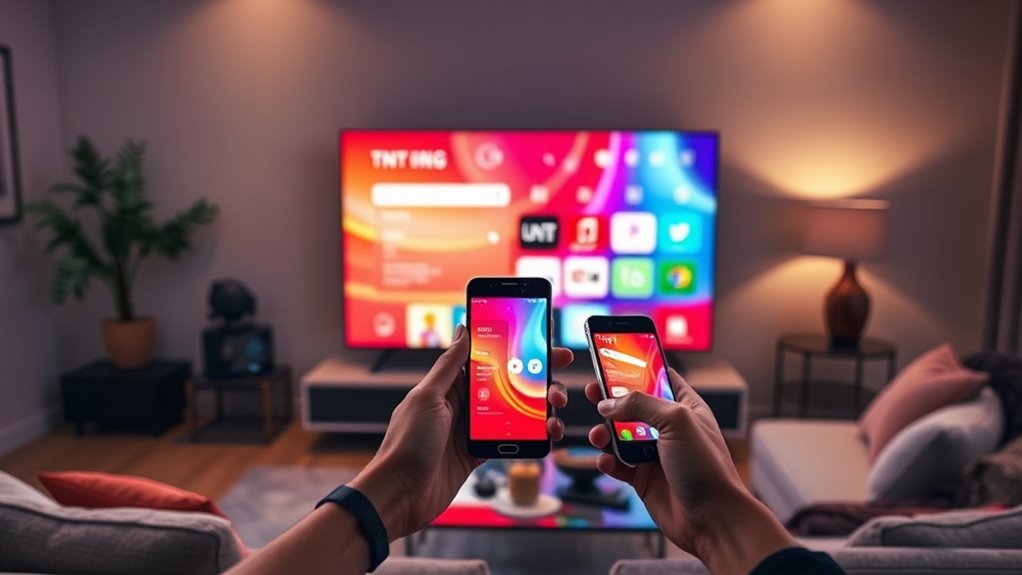

To cast the TNT app to your Samsung Smart TV, make sure both your TV and mobile device are on the same Wi-Fi network. Install the TNT app on your mobile device and open it. Tap the casting icon, then select your Samsung Smart TV from the list. Wait for the connection to establish, and enjoy your content! If you run into any issues, there are handy tips available to enhance your experience.
Checking Compatibility of Your Devices
Before you plunge into casting the TNT app to your Samsung Smart TV, have you checked if your devices are compatible? It’s essential to verify the device specifications of both your TV and the streaming device you plan to use. The TNT app has specific app requirements that need to be met for smooth operation. Check if your Samsung Smart TV is updated to the latest firmware version, as outdated software can hinder compatibility. Additionally, guarantee your casting device, like a smartphone or tablet, supports the app. By confirming these factors, you can avoid frustration later. Once you’re confident your devices align with the necessary specifications and requirements, you can enjoy casting your favorite shows seamlessly.
Setting Up Your Samsung Smart TV
Now that you’ve confirmed your devices are compatible, it’s time to set up your Samsung Smart TV for casting. Begin by turning on your TV and ensuring it’s connected to the same Wi-Fi network as your mobile device. Navigate to the Smart TV settings by pressing the Home button on your remote. Explore the Samsung TV features, focusing on “Network” to verify your connection. If needed, adjust the settings to optimize your streaming experience. Additionally, check for any software updates under “Support” to enhance performance. By ensuring your Smart TV is properly configured, you’ll enjoy seamless casting with the TNT App. Embrace the freedom of watching your favorite shows on a larger screen!
Installing the TNT App on Your Mobile Device
To get started with the TNT app, you’ll first need to download it on your mobile device. Once installed, you can set up your account to access all the features. After that, maneuvering the interface will be a breeze, allowing you to enjoy your favorite shows seamlessly.
Downloading the App
If you want to enjoy the TNT app on your mobile device, downloading it is the first step. Start by heading to your device’s app store—Google Play for Android or the App Store for iOS. In the search bar, type “TNT” and locate the official app. Tap on it to view the app details, where you can explore the TNT app features, like live sports, on-demand shows, and exclusive content. Once you’re ready, hit the “Download” or “Install” button and wait for the downloading process to complete. After installation, you’ll see the TNT app icon on your home screen. Now you’re one step closer to enjoying your favorite shows and live events on the go!
Setting Up Account
Once you’ve downloaded the TNT app, setting up your account is a straightforward process that allows you to access all its features. Start with account creation by opening the app and selecting the option to sign up. You’ll need to provide some basic information, like your email address and a secure password. After that, check your email for a verification link; this step is essential for account verification. Click the link to confirm your email, and your account will be activated. Once that’s done, you can log in and explore the app’s offerings. Remember, a verified account guarantees you have full access to all content and live streams, giving you the freedom to enjoy your favorite shows anytime, anywhere.
Navigating the Interface
Maneuvering the interface of the TNT app on your mobile device is a breeze, thanks to its user-friendly design. With intuitive interface features, you’ll find it easy to dive right in. Here are some key aspects that enhance your user navigation:
- Home Screen: Quick access to live TV and on-demand content.
- Search Bar: Easily find your favorite shows or movies.
- Menu Options: Navigate through categories like Favorites and Settings.
- Playback Controls: Simple buttons for play, pause, and rewind.
- Notifications: Stay updated on new episodes and alerts.
These features guarantee that you can effortlessly enjoy your streaming experience without any hassle, giving you the freedom to watch what you love, when you want.
Connecting to the Same Wi-Fi Network
To successfully cast the TNT app to your Samsung Smart TV, you’ll first need to guarantee that both your TV and the device you’re using are connected to the same Wi-Fi network. Start by checking your Wi-Fi signal on both devices; they should show strong connectivity. If you’re experiencing issues, consider rebooting your router to enhance network stability. Make sure your mobile device or tablet is on the same network as your TV. This is essential for seamless casting. If you have multiple networks, confirm that you’re not accidentally connected to a guest or alternative network, as this could prevent successful casting. Once both devices are aligned on the same network, you can move on to casting the TNT app.
Casting the TNT App to Your Samsung Smart TV
Now that you’re connected to the same Wi-Fi network, let’s explore how to cast the TNT app to your Samsung Smart TV. You’ll need to check if your devices are compatible, follow a step-by-step casting guide, and be prepared to troubleshoot any common issues that may arise. This process will guarantee you enjoy your favorite shows on a bigger screen.
Compatible Devices Overview
While casting the TNT app to your Samsung Smart TV can enhance your viewing experience, it’s essential to verify that both your devices are compatible. The TNT app features a range of options, but you need to ascertain your Samsung TV meets the necessary specifications.
Here are some key compatibility points to evaluate:
- Your Samsung Smart TV should support screen mirroring or casting.
- Verify the TV’s firmware is updated to the latest version.
- Confirm the TNT app is available on your device.
- Your mobile device needs to be on the same Wi-Fi network as the TV.
- Check for compatibility with your specific Samsung model (2016 or newer is often ideal).
Step-by-Step Casting Guide
Once you’ve confirmed your devices are compatible, casting the TNT app to your Samsung Smart TV is straightforward. First, verify both your TV and smartphone are connected to the same Wi-Fi network. Open the TNT app on your device and sign in to access all app features. Look for the casting icon, usually located in the upper right corner of the screen. Tap it, and select your Samsung Smart TV from the list of available devices. Within seconds, your content should appear on the big screen. If you prefer, there are casting alternatives like using Chromecast or Amazon Fire Stick. Enjoy your favorite shows in a larger format, enhancing your viewing experience with the app’s robust features.
Troubleshooting Common Issues
If you’re experiencing issues while trying to cast the TNT app to your Samsung Smart TV, don’t worry—there are several common problems and solutions to contemplate. Here are a few things to check:
- Confirm your TV and casting device are on the same Wi-Fi network.
- Verify that you’ve granted the app permissions for casting.
- Restart both your TV and the casting device to refresh the connection.
- Check your casting quality settings; sometimes, lowering them can resolve lag.
- Update the TNT app and your TV’s software to the latest versions.
Troubleshooting Common Casting Issues
When you encounter issues while trying to cast the TNT app to your Samsung Smart TV, it can be frustrating. First, check for any casting errors; these often arise from outdated app versions. Make certain both your TV and casting device are updated to the latest software. If you’re still having trouble, network issues could be the culprit. Verify both devices are connected to the same Wi-Fi network. Restarting your router might help as well. Sometimes, a simple reboot of both the TV and your casting device can resolve lingering problems. If these steps don’t work, consider reinstalling the TNT app to eliminate any potential glitches. Staying connected shouldn’t be a hassle—try these tips for a smoother experience!
Frequently Asked Questions
Can I Cast TNT App From a Laptop to Samsung Smart TV?
Yes, you can cast the TNT app from your laptop to a Samsung Smart TV. Just make sure your laptop’s compatible and use methods like Chromecast or Miracast for seamless streaming, giving you freedom to enjoy your shows.
Is There a Casting Limit for the TNT App?
Yes, there are casting limitations for the TNT app. Device compatibility can vary, so check if your devices support casting. Confirm you’re using supported versions to avoid interruptions while enjoying your favorite shows.
Do I Need a Subscription to Use the TNT App?
Yes, you’ll need a subscription to enjoy the TNT app features fully. The benefits include access to exclusive content and live events, so it’s worth considering for a more enriching viewing experience.
Can I Cast TNT App While Using Mobile Data?
Yes, you can cast the TNT app using mobile data. Just keep in mind that using mobile data might affect casting quality. However, the freedom of streaming on-the-go is worth it! Enjoy your viewing experience!
What Should I Do if the Video Lags While Casting?
If your video’s lagging, check your network stability first. A strong connection improves video quality. Try reducing the stream quality or closing background apps to enhance performance. Sometimes, restarting your devices helps too.

[…] visible fingerprints/smudges, this is for you—especially for hobbyist laser pointers and class-compatible devices where the lens coating can be sensitive to […]