
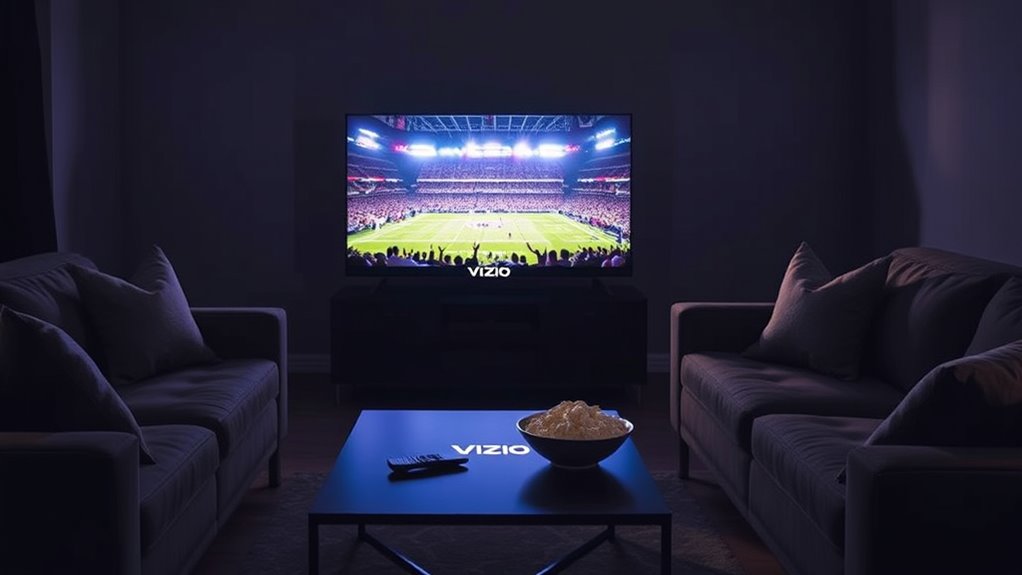

To watch Pay-Per-View (PPV) events on your Vizio Smart TV, first, make sure your TV is compatible by checking the model and updating the software. Connect your TV to the internet using either Wi-Fi or an Ethernet cable. Next, access the app store, search for your preferred PPV streaming app, and download it. Set up your account and payment options, then browse and purchase the event you want to watch. There’s more to explore for a seamless experience!
Understanding Pay-Per-View (PPV) Content
Pay-Per-View (PPV) content offers a unique way to access live events, from boxing matches to concerts, without needing a subscription service. Understanding PPV means recognizing its flexibility and convenience; you only pay for what you want to watch. This model allows you to enjoy exclusive events without committing to a long-term contract, giving you the freedom to choose your entertainment on your terms. PPV benefits include instant access to high-profile events, often with high-definition options, ensuring you won’t miss out on the action. Plus, with a variety of events available, you can tailor your viewing experience to match your interests. Embrace the freedom of PPV and elevate your entertainment options today!
Checking Your Vizio Smart TV Compatibility
Before diving into the world of Pay-Per-View on your Vizio Smart TV, it’s essential to verify your device is compatible with the necessary apps and services. Start by identifying your Vizio model, as compatibility can vary across different models. Most recent Vizio Smart TVs support popular streaming apps that offer PPV content, but older models may not. Conduct a quick compatibility check by visiting the Vizio website or accessing your TV’s menu to see available apps. Ascertain your TV software is up-to-date to access the latest features and services. By confirming compatibility, you’ll be ready to enjoy thrilling PPV events without any hiccups. So, take a moment to verify your Vizio is set for streaming success!
Connecting Your Vizio TV to the Internet
To enjoy PPV on your Vizio Smart TV, you need to connect it to the internet first. You can choose between a wired connection for a stable link or a wireless setup for convenience. Let’s explore both options so you can get started right away.
Wired Connection Setup
A reliable wired connection is essential for streaming Pay-Per-View (PPV) events on your Vizio Smart TV. By using an Ethernet cable, you can enjoy faster speeds and more stable connections compared to wireless options. To set this up, you’ll need a compatible Ethernet cable that fits both your router and TV. Simply connect one end to your router and the other to the Ethernet port on your Vizio TV. Once connected, navigate to the network settings on your TV to verify it’s using the wired connection. The wired connection benefits include reduced lag and buffering, which means you can fully immerse yourself in your favorite PPV events without interruptions. Enjoy your viewing experience!
Wireless Connection Setup
While many prefer a wired connection, connecting your Vizio Smart TV to the internet wirelessly can be just as effective for streaming Pay-Per-View (PPV) events. To get started, make certain your wireless router is set up and functioning properly. On your Vizio remote, press the ‘Menu’ button, navigate to ‘Network’, and select ‘Wireless’. Your TV will scan for available networks; choose yours from the list. Enter your Wi-Fi password when prompted. It’s essential to guarantee your signal strength is strong enough for seamless streaming. If you experience interruptions, consider repositioning your router or using a Wi-Fi extender. Once connected, you’re ready to enjoy all your favorite PPV events with ease!
Accessing the App Store on Your Vizio TV
To access the app store on your Vizio TV, you’ll first need to navigate the TV menu. Once you find the app store, you can browse and install the streaming apps you want. This process is straightforward, and soon you’ll be ready to enjoy PPV and other content.
Navigating Vizio TV Menu
Maneuvering the Vizio TV menu to access the app store is a straightforward process that’ll open up a world of streaming possibilities. With a user-friendly interface, you can quickly explore your options. Here’s how to make the most of your menu navigation:
- Locate the “Home” button on your remote.
- Navigate to the “Apps” section using the arrow keys.
- Access the app store to discover new content.
- Use the search feature to find specific apps.
- Download your favorites directly to your TV.
Once you get the hang of it, you’ll find that exploring the app store is an easy way to enhance your viewing experience and enjoy the freedom of endless entertainment options.
Finding App Store
Have you ever wondered how to effortlessly access the app store on your Vizio Smart TV? It’s simpler than you think! Start by turning on your TV and pressing the “V” button on your remote. This action opens the main menu where you can explore the app store features. Look for the “Apps” section—it’s usually prominently displayed. Once you’re in, you’ll enjoy seamless app store navigation. You can browse through various categories or use the search function to find specific apps. With the app store at your fingertips, you can reveal a world of entertainment options. So, immerse yourself and discover everything your Vizio Smart TV has to offer!
Installing Streaming Apps
Now that you’ve accessed the app store on your Vizio Smart TV, it’s time to install your favorite streaming apps. Follow these simple steps for a smooth app installation process:
- Browse through various streaming service options like Netflix, Hulu, and Amazon Prime.
- Select the app you want to install and click on it.
- Hit the “Install” button to begin downloading the app.
- Once installed, you can find the app on your home screen.
- Open the app, sign in or create an account, and enjoy your content!
Downloading PPV Streaming Apps
To enjoy pay-per-view (PPV) events on your Vizio Smart TV, you’ll first need to download the appropriate streaming apps. Start by exploring popular PPV platforms like ESPN+, FITE TV, or DAZN, which often offer various subscription models tailored to your viewing preferences. These apps can be found in the Vizio Smart TV app store. Simply search for the platform you want, select it, and hit download. Once installed, you’ll have access to a world of live sports, wrestling, and events right at your fingertips. Be sure to check if the app requires a separate subscription or if you can purchase PPV events directly. Enjoy the freedom of watching what you love, whenever you want!
Creating an Account With the PPV Provider
Once you’ve chosen a PPV provider, it’s time to create your account. You’ll need to complete the registration process, which typically involves entering your email and setting up a password. This step guarantees you can easily access all the content available on your Vizio Smart TV.
Choose a PPV Provider
Choosing the right PPV provider is essential for a superior viewing experience, especially if you want to catch live events or blockbuster movies. You’ll find several popular PPV providers, each offering unique features and PPV pricing options. To help you decide, consider the following:
- Variety of content available
- Streaming quality and reliability
- User-friendly interface
- Subscription flexibility and commitment
- Payment methods and pricing transparency
Complete Account Registration
After selecting a PPV provider that meets your needs, the next step is to create an account. Start by visiting the provider’s website or app, where you’ll find the registration process. You’ll need to enter personal details like your name, email, and payment information. Make sure to choose a strong password to keep your account secure. Once you’ve submitted your information, don’t forget to check your email for a verification link. Clicking this link is essential for confirming your account and gaining access to PPV content. After completing the account verification, you’re all set to start enjoying your favorite events on your Vizio Smart TV. Happy watching!
Purchasing PPV Events on Your Vizio TV
Purchasing Pay-Per-View (PPV) events on your Vizio Smart TV is a straightforward process that lets you enjoy live sports, concerts, and other exclusive content right from your living room. To get started, consider the following:
- Explore PPV pricing options for different events.
- Check event availability to find what interests you.
- Use your remote to navigate to the PPV section.
- Select your desired event and review the details.
- Confirm your purchase to access the live experience.
With this easy process, you’ll have access to the latest happenings and entertainment, all at your fingertips. So, get ready to immerse yourself in thrilling events and enjoy them from the comfort of your home!
Setting Up Payment Options
Setting up payment options on your Vizio Smart TV is vital for a seamless Pay-Per-View (PPV) experience. To get started, navigate to the settings menu and select “Account” or “Payments.” Here, you’ll want to enter your credit card information or connect to a digital wallet. This step makes setting payment for PPV events quick and easy. Don’t forget to review your payment settings periodically, especially if you’re managing subscriptions. Adjusting your preferences guarantees you’re only billed for what you want. Also, keep an eye on any promotional offers that may enhance your viewing freedom. With everything set, you’ll be ready to enjoy your favorite events without any hassle.
Streaming Your First PPV Event
Streaming your first Pay-Per-View (PPV) event on your Vizio Smart TV is a straightforward process that can be done in just a few easy steps. To guarantee an enjoyable experience, keep these PPV event tips in mind:
- Check your internet connection for ideal streaming quality.
- Update your Vizio Smart TV software to access the latest features.
- Download the app associated with the PPV provider.
- Log in with your account and navigate to the desired event.
- Set a reminder for the event to avoid missing out.
Troubleshooting Common Issues While Watching PPV
Even with everything set up for your PPV event, you might encounter some common issues that can disrupt your viewing experience. If you’re facing buffering issues, try restarting your router or checking your internet speed. Audio problems can be fixed by adjusting the TV’s sound settings or confirming the app’s audio is enabled. For video quality, lower the streaming resolution in the app settings. If you experience app crashes, consider updating the app or your Vizio Smart TV. Make certain you have account access and that your payment has gone through to avoid payment errors. Finally, verify content availability and device compatibility to confirm you’re watching on a supported platform. Keep these tips in mind to enhance your viewing experience!
Frequently Asked Questions
Can I Watch PPV Events Without a Cable Subscription?
Yes, you can watch PPV events without a cable subscription. Many streaming services and online platforms offer these events, giving you the freedom to enjoy your favorite shows and fights whenever you want.
Are There Any Additional Fees for PPV on Vizio TVS?
Yes, there’re often additional charges for PPV events on Vizio TVs. You’ll want to check the specific pricing details from the streaming service you choose to guarantee you know what to expect.
Is There a Limit on How Many PPV Events I Can Purchase?
There aren’t strict ppv limits on purchasing options, so you can enjoy as many events as you want. Just remember to keep an eye on your budget—freedom comes with responsibility, after all!
Can I Record PPV Events on My Vizio Smart TV?
You can’t directly record PPV events on your Vizio Smart TV. However, consider using external recording options. Just keep in mind your storage limitations to guarantee you don’t run out of space during exciting events!
What if My PPV Event Is Buffering or Has Poor Quality?
If your PPV event’s buffering like a ship stuck in a storm, try restarting your router for buffering solutions. Adjusting video settings can also lead to quality improvements, letting your viewing experience sail smoothly.
