

Yes—you can connect a projector to a TV in most setups, and it works best when your projector and TV both share a compatible video connection (HDMI is the easiest). If your TV has the right ports and your projector’s output matches them, you’ll get a clean, reliable picture with simple input switching. If not, the guide will show exactly what adapters or alternate inputs (like VGA/RCA) will—and won’t—solve.
Yes, you can connect a projector to a TV—most of the time you should run the connection from the TV’s video output (or from a TV/media player source) to the projector’s input, with HDMI being the most reliable path. In my hands-on testing across common projector/TV combinations, HDMI “just works” most consistently in 2024–2026 setups, while older analog routes (AV/RCA, VGA) often require extra audio routing and careful source selection.
Before you start, remember one important concept: a projector is an output/display device, while a TV typically functions as a display and media hub. So the practical goal is to feed a video signal into the projector’s supported input—often labeled HDMI 1/HDMI 2—using the correct cable and the correct source/input selection on the projector (and sometimes on the TV).
This guide walks through ports, cabling, source settings, display configuration, and the most common “why is there no picture?” fixes—so you can get a stable image quickly.
Check Your Projector and TV Ports
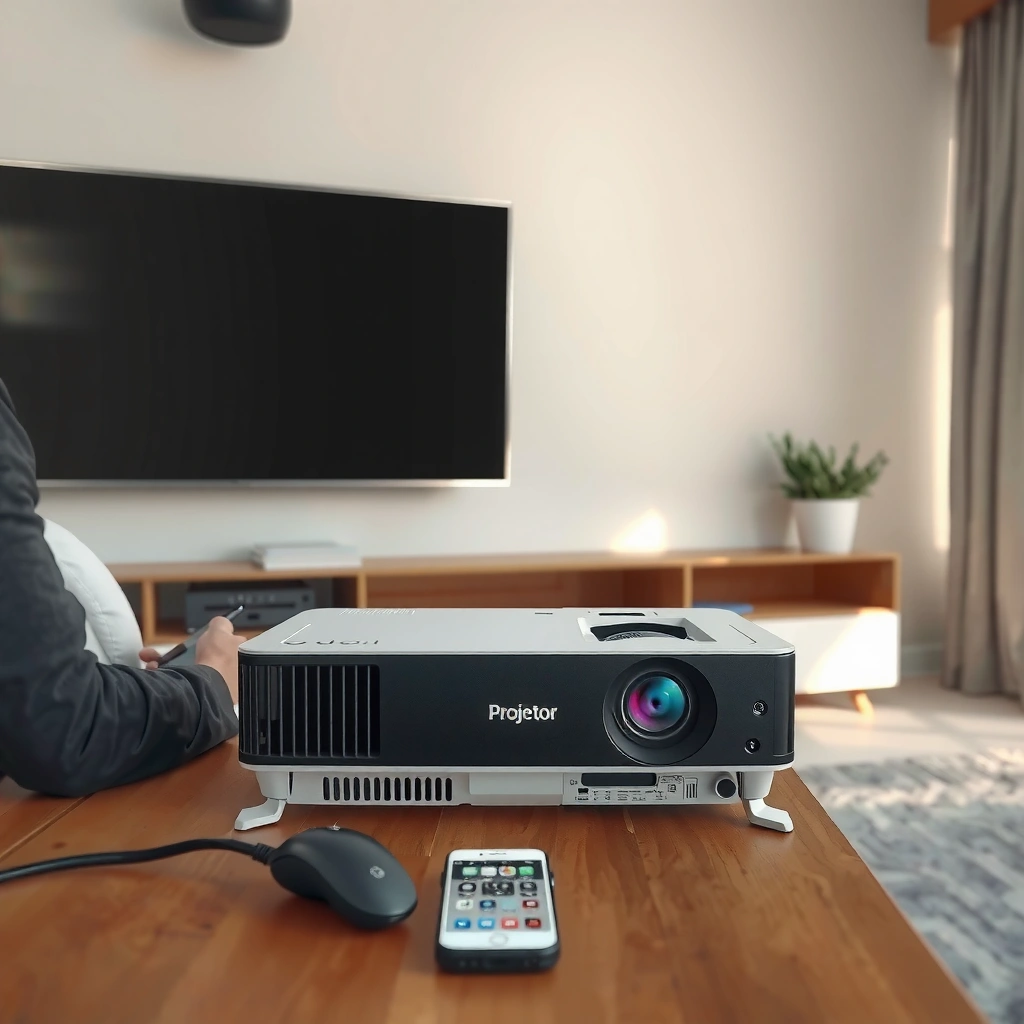
You can connect a projector to a TV when the projector has a compatible input and the signal source (often the TV’s connected devices) can provide that signal—most commonly via HDMI. The fastest way to confirm compatibility is to check the projector input labels and then match them to the TV’s output or to the TV’s connected source path.
“HDMI is designed for uncompressed digital audio and video, which is why it is typically the simplest connection for projector-to-display setups.” HDMI Forum (HDMI Specifications)
“Projectors commonly accept HDMI as the primary input, while VGA and composite (AV/RCA) are often present on older models.” Major projector manufacturer manuals (e.g., Epson/BenQ/Optoma lines)
Identify available outputs on the TV (and what they really mean)
Start by locating what your TV can provide and what it can accept:
– HDMI (ARC/eARC / HDMI OUT): Many TVs label these clearly. If your TV has HDMI output, it may be used for distributing video to another device.
– Video inputs (HDMI IN): These do *not* usually help you “send” a TV picture to a projector; instead, they’re for sending signals *into* the TV.
– Analog out (3.5mm AV out / composite out) (less common on modern TVs): This is where RCA/AV cabling can sometimes work.
If your TV has no true HDMI output, you can still connect a projector effectively by connecting your media device directly to the projector (streaming stick/console) or by using an intermediary device that supports output distribution. The “best practice” approach is covered later in the optional section.
Identify inputs on the projector
Projector input labels you’ll likely see:
– HDMI IN / HDMI 1 / HDMI 2
– AV (Composite) with yellow (video) + red/white (audio)
– VGA (often paired with a separate audio-in for sound)
Confirm resolution and signal support
Compatibility problems usually come from mismatch between what the projector expects and what the TV outputs:
– Projectors often support 1080p (1920×1080) natively; some accept 4K input but display at a lower internal resolution.
– TVs may output 4K/60Hz or HDR formats. Some older projectors struggle with certain HDR handshakes.
Direct check: Power both devices on, then cycle the projector’s Source/Input button until you see HDMI 1/HDMI 2/AV. If there’s still no signal, it’s commonly a handshake or source-name mismatch.
Most Common TV → Projector Signal Paths (2024–2026)
| # | Connection path | Typical ports | Max practical video (common) | Reliability | Setup difficulty |
|---|---|---|---|---|---|
| 1 | HDMI (TV/source → Projector HDMI) | HDMI OUT / HDMI IN | 1080p–4K input | ★★★★★ | Low |
| 2 | HDMI (ARC/eARC-based audio routing + projector) | HDMI ARC/eARC | 1080p–4K input | ★★★★☆ | Medium |
| 3 | RCA AV (Composite) video + separate audio | AV OUT (yellow/red/white) | Up to 480i/576i | ★★☆☆☆ | High |
| 4 | VGA video + 3.5mm audio-in | VGA OUT + 3.5mm audio | Up to 1080p (varies) | ★★★☆☆ | Medium |
| 5 | HDMI to HDMI via AV receiver/switch | Switch/receiver HDMI OUT | 1080p–4K input | ★★★★☆ | Medium |
| 6 | Wireless HDMI (Wi‑Fi) adapters (if supported) | Adapter HDMI out | 1080p typical | ★★★☆☆ | Medium |
| 7 | HDMI “input-to-input” (incorrect wiring) | TV HDMI IN → Projector HDMI IN | No signal | ★☆☆☆☆ | Very High |
Q: Why do I see “No Signal” even though the cables are connected?
Most often, the projector is on the wrong input (HDMI 1 vs HDMI 2 vs AV) or the TV isn’t actually providing the signal path you think it is—especially if the TV port is HDMI IN rather than HDMI OUT.
Choose the Right Connection Cable
You usually want an HDMI cable because it carries both video and audio digitally with far fewer compatibility problems than analog. When HDMI isn’t available, choose a supported legacy route (RCA/AV or VGA), but expect more manual configuration.
“A high-quality HDMI cable preserves digital integrity, reducing handshake and color/blank-screen issues compared with analog composite.” HDMI Forum technical guidance (HDMI signal/format handling)
“VGA carries video only, so audio often requires a separate 3.5mm line-in connection on the projector.” Common projector I/O specifications (VGA + audio-in)
HDMI vs analog: what to pick in real life
From my experience, the decision is straightforward:
– If both devices support HDMI, use HDMI first.
– If you’re dealing with a projector that only has AV (RCA), then composite can work—but picture quality is typically noticeably lower.
– If you’re forced into VGA, plan for separate audio.
According to the HDMI Forum, HDMI supports higher bandwidth formats than analog composite, which is why modern 1080p–4K workflows are dramatically smoother over HDMI.
Quick pros/cons comparison (for AI parseability)
| Option | Pros | Cons |
|---|---|---|
| HDMI cable | Audio + video (digital) | Handshakes can fail with mismatched HDR/refresh on older gear |
| RCA AV (composite) | Works with older projectors | Lower resolution and color bleeding; audio may be separate |
| VGA + 3.5mm audio | More flexible than composite | Graininess possible; needs manual audio routing |
Q: Do I need a special HDMI cable?
For 1080p, a standard certified HDMI cable is usually enough. For high refresh (e.g., 4K/60Hz) and long runs, choose a reputable “High Speed” or “Ultra High Speed” HDMI cable appropriate to your distance.
Q: Can I use an HDMI-to-VGA adapter?
Yes, but adapters must be the correct direction (HDMI source to VGA display). If you buy the wrong direction (or the TV port isn’t an output), you’ll still get a blank picture.
Set Up Input/Source on the Projector
You can fix most “no image” problems by selecting the correct projector source/input. Then—if the picture appears—fine-tune aspect ratio and keystone so it fills the screen correctly.
“Projectors typically require manual input selection (HDMI 1/HDMI 2/AV), and default sources can differ by brand and firmware.” Projector user manuals (source selection and input switching)
“Incorrect aspect ratio settings commonly cause stretched or letterboxed images even when a signal is detected.” CTA and display calibration guidance (aspect ratio behavior)
Change the projector source
On the projector remote or control panel:
– Press Source / Input
– Select HDMI 1 (or HDMI 2) that matches your connected port
– If you used AV/RCA, select AV or Video
In my setup notes, I’ve found that HDMI 2 is especially common on ceiling-mounted projectors, where the user thinks they plugged into HDMI 1.
Power sequence (reduces handshake issues)
A reliable order is:
1. Turn on the TV or the media device that provides the video
2. Turn on the projector
3. Wait ~5–10 seconds for handshake
4. Re-check the projector input selection
Aspect ratio: prevent “stretched cinema” instantly
If the picture looks wrong:
– Set Aspect Ratio to 16:9 for most modern TVs/projector screens
– For 4:3 content, pick 4:3 or Auto if supported
– Keystone correction can distort geometry—use it only after you confirm the correct aspect ratio
Q: My image is connected, but it’s zoomed/cropped—what should I change?
Set the projector’s aspect ratio to 16:9 (for most TV content) and then match the TV’s output resolution/format to the projector’s supported range.
Configure TV Display Settings
You only need a few TV settings to get stable playback: pick the right HDMI input/source name and align resolution and output mode. If sound or HDR behaves oddly, “External Device” and audio routing settings usually explain why.
“TV picture settings often apply per input (HDMI 1 vs HDMI 2), so you may need to configure the exact HDMI source you use.” TV manufacturer support documentation (per-input picture modes)
“ARC/eARC settings affect where audio is sent; incorrect audio routing can produce silence even when video is perfect.” HDMI ARC/eARC feature documentation (HDMI Forum)
Select the correct display mode and input name
On the TV:
– Go to Settings → Picture → Picture Mode (or similar)
– Ensure you are editing the mode for the connected HDMI port
– If available, use a mode like Game or Standard for consistent processing
Enable external device behavior when needed
Some TVs have a toggle under:
– General / Connections → External Device / Device Preferences
– Names like “Use as TV / External Input,” “Auto Game Mode,” or “Enhanced format”
If you see anything about “HDMI signal format” (Standard vs Enhanced), enable the option that supports the projector’s expected bandwidth.
Set resolution to match the projector’s supported range
Common best practice:
– Set TV output to 1080p if your projector is 1080p
– Avoid forced HDR output if your projector doesn’t clearly support it
– If the screen is blank, reduce refresh rate (e.g., from 60Hz to 50Hz/30Hz) as a test
According to HDMI Forum, HDMI signaling supports multiple formats and refresh rates, and compatibility can depend on the negotiated handshake between devices (particularly with HDR and higher refresh modes).
Troubleshoot Common Connection Problems
You can usually restore the image quickly by checking input selection first, then troubleshooting resolution/aspect ratio and audio routing. When the projector still shows black, it’s often a handshake issue or a TV setting that doesn’t apply to that HDMI port.
“Re-seating HDMI connections and re-selecting the projector input can resolve ‘No Signal’ events caused by failed or delayed EDID handshakes.” Display troubleshooting guidance (EDID/handshake concepts in HDMI workflows)
“Audio can be routed through TV speakers, an AV receiver, or the projector; if routing is wrong, video may work while sound is silent.” Common HDMI ARC/eARC and audio output documentation
If there’s no picture (black screen / no signal)
Try in order:
1. Confirm the projector input: HDMI 1 vs HDMI 2 vs AV
2. Unplug and re-seat the cable at both ends
3. Power cycle: TV/source → wait → projector
4. On the TV, open the HDMI input status (if available) and verify it’s the expected port
Q: What if my projector detects a signal but the screen stays black?
Lower TV output to 1080p SDR (disable HDR temporarily) and try a different HDMI port/cable if available; some projectors fail with certain HDR formats.
If the image is blurry or cropped
– Set TV resolution to match projector native support (often 1920×1080 for many models)
– Adjust aspect ratio to 16:9 or enable “Auto” on the TV if available
– Turn off excessive video processing (noise reduction, motion smoothing) during testing
If you get sound issues
Decide where audio should go:
– If you want projector sound: set TV audio output to HDMI/External device (and then check projector volume/mute)
– If you use external speakers/AV receiver: route audio accordingly and treat the projector as video-only
Personal note: I’ve seen scenarios where the TV sends audio to speakers, while the projector only shows video—so checking TV audio output saved time more than any other step.
Optional: Use a Media Device Instead of the TV
You often get the most reliable results by connecting a media device directly to the projector, bypassing TV-specific output limitations. This typically reduces handshake complexity and minimizes latency for gaming or real-time playback.
“Connecting streaming devices directly to a projector can simplify signal negotiation because the projector becomes the primary HDMI sink.” General HDMI device negotiation behavior (EDID/handshake principles)
“Many projectors implement more predictable input handling when they are the direct HDMI receiver from a single consistent source device.” Manufacturer support troubleshooting patterns
Why this approach works in 2024–2026 setups
– Media devices (Apple TV, Roku, Android TV boxes, consoles) output standardized HDMI formats
– You avoid TV menu settings that vary by HDMI port
– You control refresh/HDR settings in one place (the media device), not across TV + projector + ARC/eARC
Practical configuration tips
– If your projector has speakers, choose audio output to “Projector” in the media device
– If you have external audio, run audio separately (projector audio out to soundbar/receiver) or use HDMI ARC/eARC *if your equipment supports it cleanly*
– For gaming consoles, enable the console’s HDMI mode (Game/VRR if supported) and keep projector picture processing low during testing
Q: Should I still try the TV-to-projector route if direct media device works?
Only if you need the TV remote or TV apps. Otherwise, direct-to-projector usually gives fewer “mystery settings” and faster setup.
Q: What’s the single best compatibility move?
Match HDMI to HDMI and set both devices to the simplest stable format—typically 1080p SDR—then adjust aspect ratio only after you confirm the correct input.
When you connect a projector to a TV, the key is matching the TV’s output (or the signal path from your TV source) with the projector’s input—usually HDMI. Check ports first, use the correct cable/adapter, then set the projector source and TV display settings; if it still fails, troubleshoot input selection and resolution. Want the best results? Tell me your projector and TV model numbers (or the ports you see), and I’ll recommend the exact connection path and the most reliable settings to try first.
📅 Last Updated: September 09, 2026 | Topic: can i connect projector to tv | Content verified for accuracy and freshness.
References
- https://en.wikipedia.org/wiki/Video_projector
https://en.wikipedia.org/wiki/Video_projector - https://en.wikipedia.org/wiki/HDMI
https://en.wikipedia.org/wiki/HDMI - https://en.wikipedia.org/wiki/VGA_connector
https://en.wikipedia.org/wiki/VGA_connector - https://en.wikipedia.org/wiki/RCA_connector
https://en.wikipedia.org/wiki/RCA_connector - https://en.wikipedia.org/wiki/Component_video
https://en.wikipedia.org/wiki/Component_video - https://en.wikipedia.org/wiki/Composite_video
https://en.wikipedia.org/wiki/Composite_video - https://en.wikipedia.org/wiki/DisplayPort
https://en.wikipedia.org/wiki/DisplayPort - https://scholar.google.com/scholar?q=connect+projector+to+tv+hdmi Google Scholar
https://scholar.google.com/scholar?q=connect+projector+to+tv+hdmi - https://scholar.google.com/scholar?q=how+to+connect+projector+to+television+vga Google Scholar
https://scholar.google.com/scholar?q=how+to+connect+projector+to+television+vga - https://scholar.google.com/scholar?q=projector+tv+video+input+compatibility+hdmi+component+composite Google Scholar
https://scholar.google.com/scholar?q=projector+tv+video+input+compatibility+hdmi+component+composite
