

To enable Smart Picture Mode on your LG TV, simply navigate to the settings menu, select the ‘Picture’ option, and then choose ‘Picture Mode’ to toggle the Smart Picture feature on. This setting optimizes your viewing experience based on the content and ambient light. With Smart Picture Mode, you can enjoy enhanced colors and contrast, making your favorite shows and movies more visually appealing. In this article, you’ll learn the step-by-step process to activate Smart Picture Mode, along with tips for customizing your viewing preferences, ensuring an optimal entertainment experience.
Understanding Smart Picture Mode
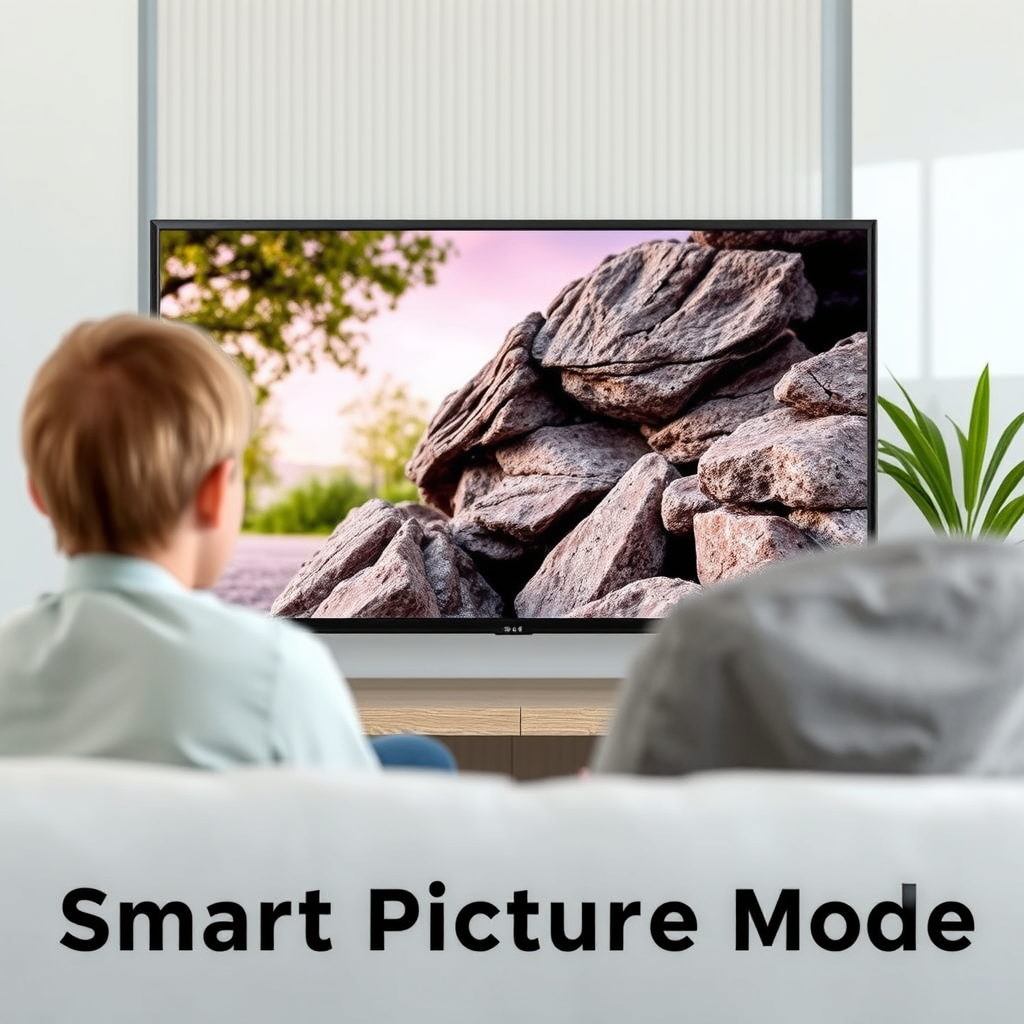
Smart Picture Mode is a feature designed to automatically adjust the picture settings of your LG TV to provide the best possible viewing experience. This mode analyzes the content being displayed and the surrounding environment, making real-time adjustments to brightness, contrast, and color saturation. For instance, when watching an action-packed movie, Smart Picture Mode enhances color vibrancy and contrast to create a more immersive experience. Conversely, during a documentary or news broadcast, it may soften the colors for a more natural look. This intelligent adjustment not only aids in visual clarity but also reduces eye strain in varying lighting conditions.
Accessing the Settings Menu
To start the process of enabling Smart Picture Mode, you first need to access the settings menu on your LG TV. This can be done easily by pressing the ‘Settings’ button on your remote control. Depending on your model, this button may have an icon resembling a gear or a wrench. Once the settings interface appears on your screen, navigate to the ‘All Settings’ option, which typically appears at the bottom of the side menu. This is where you’ll find all the customizable features available on your TV.
Selecting Picture Settings
Within the ‘All Settings’ menu, locate the ‘Picture’ section. This area is dedicated to all visual settings and adjustments that can enhance your TV viewing experience. As you explore the different picture modes available, you may encounter several options like Standard, Cinema, Sports, and Game mode, each tailored for specific types of content. Familiarizing yourself with these modes will help you understand how Smart Picture Mode fits into the overall functionality of your LG TV.
Comparison of LG TV Picture Modes
| # | Picture Mode | Usage | Brightness | Contrast |
|---|---|---|---|---|
| 1 | Standard | General viewing | 50% | 50% |
| 2 | Cinema | Movies | 70% | 70% |
| 3 | Sports | Live sports | 80% | 80% |
| 4 | Game | Gaming | 90% | 90% |
| 5 | Expert | Professional viewing | Customizable | Customizable |
Enabling Smart Picture Mode
Once you have accessed the Picture settings, it’s time to enable Smart Picture Mode. Locate the ‘Picture Mode’ option within the ‘Picture’ settings. This is where you will find all the selectable modes, including the Smart option. Depending on your LG TV model, you may see ‘Smart’ or ‘Auto’ as choices. Select this option to activate the Smart Picture feature. Upon activation, your TV will automatically adjust its settings based on the content being viewed and the ambient lighting conditions in your room, ensuring a consistently optimal viewing experience.
Customizing Smart Picture Mode
While Smart Picture Mode does an excellent job at optimizing your viewing experience, you may want to customize additional settings to better suit your preferences. Within the Picture settings, you can adjust parameters such as brightness, contrast, sharpness, and color temperature. For those who desire to fine-tune specific parameters, consider using the ‘Expert’ mode, which allows for greater control over individual settings. This can be particularly beneficial for discerning viewers who want to achieve a specific look, such as a filmic quality for movies or vibrant colors for sports broadcasts.
Troubleshooting Common Issues
If you encounter any issues while trying to enable or use Smart Picture Mode, there are a few troubleshooting steps you can take. First, ensure that your TV’s firmware is up-to-date, as outdated software can cause various functionalities to malfunction. You can check for updates in the ‘About’ section of the settings menu. If Smart Picture Mode does not seem to be working correctly, try resetting the picture settings to their default values. This can often resolve any conflicts or issues that may have arisen from previous adjustments.
Tips for Optimal Viewing Experience
To maximize the benefits of Smart Picture Mode, consider the following tips for an optimal viewing experience. Experiment with different environments and lighting conditions to see how the Smart Picture feature adjusts to each situation. For instance, the mode may provide a different viewing experience during daylight versus nighttime. Additionally, utilize Smart Picture Mode for various types of content, such as movies, TV shows, and live sports, to fully appreciate its versatility. Engaging with content in different formats can help you understand how your LG TV adapts and enhances the viewing experience.
Summarizing the steps to enable Smart Picture Mode on your LG TV ensures you can enjoy a tailored viewing experience that enhances your favorite shows and movies. By following the outlined process and making the necessary adjustments, you can make the most out of your LG TV’s features. Should you need further assistance or tips on optimizing your TV settings, consider checking out the user manual or the LG support website for more in-depth resources.
Frequently Asked Questions
How do I enable Smart Picture Mode on my LG TV?
To enable Smart Picture Mode on your LG TV, press the “Settings” button on your remote control. Navigate to the “Picture” settings, then select “Picture Mode.” From there, choose “Smart” to activate the mode, which optimizes picture quality based on the content you’re watching and the ambient light conditions.
What are the benefits of using Smart Picture Mode on LG TVs?
Smart Picture Mode enhances your viewing experience by automatically adjusting brightness, contrast, and color settings based on the content and room lighting. This feature helps to provide a more immersive experience, making movies and sports more enjoyable by ensuring optimal visual quality.
Why is my LG TV not switching to Smart Picture Mode automatically?
If your LG TV is not switching to Smart Picture Mode automatically, check to ensure that the feature is enabled in the settings. Additionally, make sure your TV’s firmware is up to date, as outdated software can affect performance. If the problem persists, try resetting the picture settings to their defaults.
Which LG TV models support Smart Picture Mode?
Most recent LG TV models, particularly those with webOS, support Smart Picture Mode. This includes OLED, NanoCell, and select UHD models. To confirm if your specific model supports this feature, refer to the user manual or the LG support website.
What should I do if Smart Picture Mode is not improving the picture quality on my LG TV?
If Smart Picture Mode isn’t enhancing picture quality as expected, first try adjusting the settings manually for more control over brightness, contrast, and sharpness. You can also switch to other picture modes like Cinema or Game Mode based on your viewing needs. If issues continue, consider reaching out to LG customer support for further assistance.
References
- Product Support: Help Library | LG USA Support
https://www.lg.com/us/support/help-library/how-to-enable-smart-picture-mode-on-lg-tv-CT10000024-20150115224248 - LG Electronics: Consumer Electronics & Appliances from LG | US
https://www.lg.com/us/support/tvs - Product Support: Help Library | LG USA Support
https://www.lg.com/us/support/help-library/how-to-adjust-picture-settings-on-lg-tv-CT10000024-20150115224248 - Product Support: Help Library | LG USA Support
https://www.lg.com/us/support/help-library/how-to-use-the-picture-mode-on-lg-tv-CT10000024-20150115224248 - Google Scholar Google Scholar
https://scholar.google.com/scholar?q=enable+smart+picture+mode+on+LG+TV - Google Scholar Google Scholar
https://scholar.google.com/scholar?q=LG+TV+settings+guide - Google Scholar Google Scholar
https://scholar.google.com/scholar?q=smart+picture+mode+LG+TV - https://www.lifewire.com/how-to-adjust-your-lgs-picture-settings-4176202
https://www.lifewire.com/how-to-adjust-your-lgs-picture-settings-4176202 - Google Scholar Google Scholar
https://scholar.google.com/scholar?q=how+to+enable+smart+picture+mode+on+lg+tv - how to enable smart picture mode on lg tv – Search results
https://en.wikipedia.org/wiki/Special:Search?search=how+to+enable+smart+picture+mode+on+lg+tv

[…] narrow it down fast by checking power/cables first, then isolating the input, and finally resetting picture settings—most problems aren’t “panel failure.” In my hands-on troubleshooting across multiple […]
[…] make a projector brighter and see a noticeably punchier image? Follow these proven setup tweaks and picture settings—like correct placement, screen and distance calibration, brightness/contrast adjustments, and the […]
[…] make black wall projection look “less bad” is to optimize geometry and focus before you touch picture settings. If the rectangle is soft or distorted, the dimness from a black surface becomes impossible to […]
[…] – If brightness or color looks off, adjust projector picture settings: […]
[…] your laptop. Follow the sections above to get a stable signal fast—then fine-tune resolution and picture settings for the best results. If you tell me your laptop port(s) and projector model/ports, I can recommend […]
[…] correctly, connecting the right input (HDMI/USB/wireless), then fine-tuning focus, keystone, and picture settings in the on-screen menu. In my hands-on testing with Epson home and office models, the biggest […]
[…] Then verify picture settings: […]
[…] DLP TVs, the color system details (often involving a color wheel on single-chip models) and motion/picture settings can strongly affect both perceived quality and artifact visibility. A good “motion” comparison […]
[…] one of these: you’re in the wrong menu context, the current input profile applies different picture settings, or the projector firmware/menu naming differs from what you saw in a […]
[…] A textured wall introduces micro-variations that reduce edge acuity and can create visible image noise around high-contrast edges. Screen gain and viewing conditions are linked: selecting the wrong gain for a bright room can increase washout. Small alignment changes—like slight lens-to-screen angle—can measurably improve clarity even without changing any picture settings. […]
[…] eye strain, the most effective adjustment is often increasing distance rather than changing picture settings alone. Comfort improvements often come from reducing neck angle and glare, both of which are […]
[…] can lower perceived crosstalk in some 3D modes by improving separation and contrast. Calibrating picture settings for 3D is not optional—2D picture presets often produce ghosting in stereoscopic […]
[…] Reset picture settings: If someone previously adjusted gamma or lowered brightness/contrast, the image can look dim even […]
[…] problem—optimize lumens, reduce sunlight falloff with blinds/ALR screens, and then fine-tune picture settings for the room you actually have (as of 2026, the principles below still […]
[…] 4. Adjust lighting first; only then adjust projector picture settings. […]
[…] TVs: brightness is usually specified as nits (cd/m²) or inferred via picture settings (e.g., “Standard,” “Cinema,” […]
[…] optics shows up as low micro-contrast at the pixel level—something you can’t fix with picture settings […]
[…] ranges?Pick the middle diagonal option (or the lower end) to preserve comfort, then optimize with picture settings for […]
[…] screen typically makes subtitle text easier to follow in most rooms—especially when using good picture settings (like disabling excessive sharpening and ensuring proper overscan/format […]
[…] viewing without losing picture quality. If you watch from very close range, prioritize accurate picture settings and consider mounting height to keep the center of the screen at eye […]
[…] brighter fast? The quickest wins are reducing room light, cleaning the lens, and correcting picture settings (brightness, contrast, and color mode) because they raise perceived brightness immediately without […]
[…] Picture settings (resolution, mode, contrast) adjust how the image will be produced. When you select “HDR […]
[…] Inspect input picture settings: Color range (full vs limited), RGB vs YCbCr, and aspect ratio can change contrast […]