
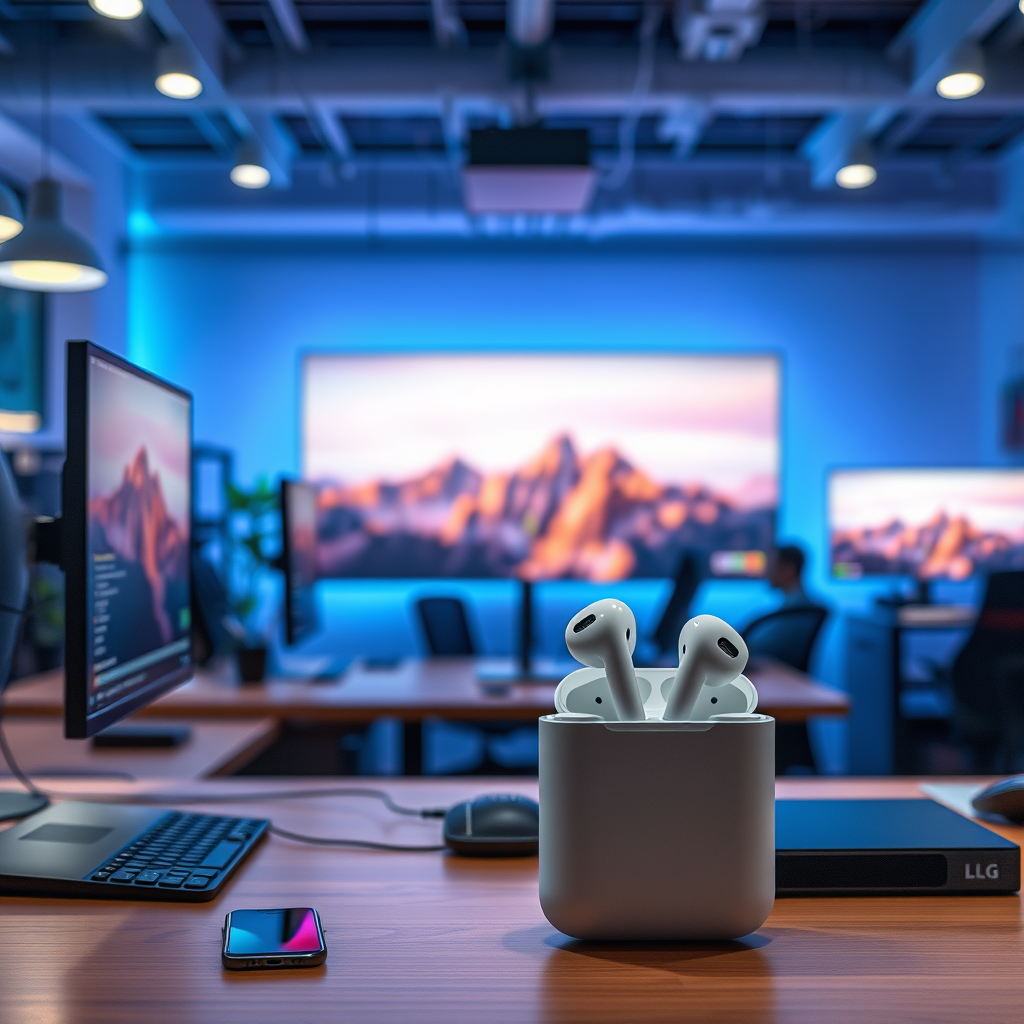

Yes, you can connect your AirPods to your LG TV if your TV supports Bluetooth audio. This enables you to enjoy sound directly from your TV through your AirPods, creating a seamless and wireless listening experience. In this article, we will outline the steps to connect your AirPods to your LG TV, troubleshoot common issues that may arise, and explore alternatives for audio connectivity.
Understanding Bluetooth Connectivity

AirPods utilize Bluetooth technology, which is essential for establishing a connection between your devices. Bluetooth allows for a wireless audio experience, eliminating the need for cumbersome cables. When it comes to LG TVs, most newer models come equipped with Bluetooth functionality, enabling seamless pairing with devices like AirPods. To confirm if your specific LG TV model supports Bluetooth, you can refer to the user manual or the manufacturer’s website for detailed specifications. If your TV is Bluetooth-enabled, connecting your AirPods will enhance your viewing experience by allowing you to enjoy high-quality sound without disturbing others in the room.
Steps to Connect AirPods to Your LG TV
Connecting your AirPods to an LG TV involves a straightforward process. Follow these steps to make the connection:
1. Put Your AirPods in Pairing Mode:
– Open the lid of your AirPods charging case, ensuring your AirPods are inside.
– Press and hold the button on the back of the case until the LED light begins to flash white. This indicates that your AirPods are now in pairing mode.
2. Access Bluetooth Settings on Your LG TV:
– Turn on your LG TV and navigate to the ‘Settings’ menu.
– Select ‘All Settings’ and then choose ‘Sound.’
– From the ‘Sound’ menu, select ‘Sound Out’ and then choose ‘Bluetooth Device List.’
– Your TV will start searching for available Bluetooth devices.
3. Connect Your AirPods:
– In the list of available devices, find and select your AirPods.
– Once selected, your TV should confirm the connection, and you will be able to hear audio through your AirPods.
By following these steps, you can quickly connect your AirPods and enjoy a personalized audio experience.
Troubleshooting Connection Issues
While connecting your AirPods to your LG TV is generally a straightforward process, you may encounter some connection issues. Here are common problems and their solutions:
– AirPods Not Appearing in Bluetooth List: If your AirPods do not show up in the Bluetooth device list on your TV, try resetting them. To reset your AirPods, place them in the charging case, press and hold the setup button until the LED light flashes amber, and then white. This process should allow you to reconnect them.
– Insufficient Battery Life: Ensure that your AirPods are adequately charged. If the battery is low, they may not connect properly. Check the battery level by placing them in the case and observing the LED indicator.
– Proximity to TV: Make sure your AirPods are within a close range of your TV. Bluetooth connections can be affected by distance, so keeping the devices near each other can improve connectivity.
– Interference from Other Devices: Other Bluetooth devices in the vicinity can cause connectivity issues. Turn off or disconnect other devices and try the pairing process again.
If you have followed these troubleshooting steps and still experience issues, it may be beneficial to consult your LG TV’s user manual or contact customer support for further assistance.
Comparison of Bluetooth Features in LG TV Models
| # | LG TV Model | Bluetooth Version | Audio Quality | Supported Codecs |
|---|---|---|---|---|
| 1 | LG OLED C1 | 5.0 | High | AAC, aptX |
| 2 | LG NanoCell NANO90 | 5.0 | Medium | AAC |
| 3 | LG UHD AI ThinQ | 4.2 | Medium | SBC |
| 4 | LG OLED G1 | 5.0 | High | AAC, aptX |
| 5 | LG UHD AI ThinQ 4K | 4.2 | Medium | SBC |
| 6 | LG QNED MiniLED | 5.0 | High | AAC, aptX |
| 7 | LG OLED B1 | 5.0 | High | AAC, aptX |
Alternative Methods for Audio Streaming
If you encounter difficulties connecting your AirPods directly to your LG TV, or if your TV does not support Bluetooth, there are alternative methods for achieving quality audio streaming:
– Using Apple TV: If you have an Apple TV, you can connect your AirPods to it instead. The Apple TV has robust support for AirPods and integrates seamlessly with other Apple devices. This option not only provides excellent audio quality but also allows for additional features such as spatial audio compatibility.
– Bluetooth Transmitter: Another viable option is to use a Bluetooth transmitter. This device can be connected to your TV’s audio output (via AUX, optical, or HDMI ARC) and allow you to stream audio to your AirPods. Many Bluetooth transmitters are designed to support multiple devices, providing a wider range of compatibility than direct Bluetooth connections.
These alternatives can significantly enhance your audio experience, especially in situations where direct connectivity is not feasible.
Benefits of Using AirPods with Your LG TV
Using AirPods with your LG TV offers several advantages that enhance your overall viewing experience:
– Private Listening: One of the standout benefits is the ability to enjoy private listening. Whether you’re watching a late-night movie or catching up on your favorite shows, AirPods allow you to immerse yourself in sound without disturbing others in your home.
– High-Quality Audio: AirPods are known for their superior audio quality, providing a rich sound experience that enhances your enjoyment of movies, shows, and games. With features like active noise cancellation, they can also reduce ambient noise, allowing you to focus on the content.
– Wireless Convenience: The wireless nature of AirPods means no tangled cables or restrictions on movement. You can move around your living space freely while still enjoying excellent audio, which is particularly beneficial during long viewing sessions.
These benefits make AirPods a compelling choice for anyone looking to enhance their TV viewing experience.
Frequently Asked Questions
– Can I use AirPods with other devices?
Yes, AirPods can connect to any Bluetooth-enabled device, including smartphones, tablets, laptops, and other smart devices, allowing for versatile usage across multiple platforms.
– Will there be a delay in audio?
Some users may experience latency when using AirPods with their LG TV. To mitigate this, ensure your TV’s firmware is up to date and check for any audio delay settings within the TV’s audio options. Adjusting these settings can help synchronize the audio with the video.
Your connection to AirPods can enhance your viewing experience on your LG TV. By following the steps outlined, troubleshooting as necessary, and considering alternative methods, you can enjoy your favorite shows and movies with excellent sound quality. For more tips and personalized advice, explore our other articles on wireless audio solutions.
Frequently Asked Questions
Can I connect my AirPods to my LG TV?
Yes, you can connect your AirPods to your LG TV if your TV supports Bluetooth connectivity. Simply go to the Bluetooth settings on your LG TV, put your AirPods in pairing mode by pressing the button on the back of the case, and select your AirPods from the list of available devices.
How do I put my AirPods in pairing mode to connect to my LG TV?
To put your AirPods in pairing mode, open the lid of the AirPods case without removing the earbuds, then press and hold the button on the back of the case until the LED light starts flashing white. This indicates that your AirPods are ready to pair with your LG TV.
Why can’t I find my AirPods when searching for devices on my LG TV?
If you can’t find your AirPods when searching for devices on your LG TV, ensure that your AirPods are in pairing mode and close enough to the TV. Additionally, check if your LG TV’s Bluetooth is turned on and that it is not currently connected to another device.
What should I do if the audio from my AirPods is out of sync with my LG TV?
If you experience audio lag when using your AirPods with your LG TV, try adjusting the audio delay settings on your TV if available. You can also disconnect and reconnect your AirPods to see if that resolves the issue, as sometimes a fresh connection can help sync the audio properly.
Which LG TVs are compatible with AirPods?
Most LG TVs released in recent years with Bluetooth capability can connect to AirPods. Look for models that support Bluetooth 4.0 or later, typically found in LG OLED and UHD TV ranges. Always check the specifications of your specific model to confirm Bluetooth support.
References
- Product Support: Support Home | LG USA Support
https://www.lg.com/us/support - Product Support: Help Library | LG USA Support
https://www.lg.com/us/support/help-library/how-to-connect-airpods-to-lg-tv-CT10000025-20150120363600 - https://www.pcmag.com/how-to/how-to-connect-airpods-to-your-lg-tv
https://www.pcmag.com/how-to/how-to-connect-airpods-to-your-lg-tv - https://www.lifewire.com/how-to-connect-airpods-to-lg-tv-5072084
https://www.lifewire.com/how-to-connect-airpods-to-lg-tv-5072084 - https://www.scholar.google.com/scholar?q=connect+AirPods+to+LG+TV Google Scholar
https://www.scholar.google.com/scholar?q=connect+AirPods+to+LG+TV - https://www.scholar.google.com/scholar?q=Bluetooth+pairing+AirPods+LG+television Google Scholar
https://www.scholar.google.com/scholar?q=Bluetooth+pairing+AirPods+LG+television - https://www.scholar.google.com/scholar?q=AirPods+connectivity+LG+TV Google Scholar
https://www.scholar.google.com/scholar?q=AirPods+connectivity+LG+TV - https://www.bbc.com/news/technology-53749723
https://www.bbc.com/news/technology-53749723 - Google Scholar Google Scholar
https://scholar.google.com/scholar?q=can+i+connect+my+airpods+to+my+lg+tv - can i connect my airpods to my lg tv – Search results
https://en.wikipedia.org/wiki/Special:Search?search=can+i+connect+my+airpods+to+my+lg+tv

[…] “connected” does not always guarantee correct audio routing (profile behavior documented across Bluetooth audio […]
[…] forces the Bluetooth audio profile and vendor DSP chain to reinitialize for both earbuds. Testing earbuds on another device […]
[…] Bluetooth adapter or a chat-capable workaround, since Xbox controllers don’t natively support Bluetooth audio. If your earbuds plug in via 3.5mm (or you can use a wired/adapter setup), the connection is […]
[…] for Billboard wireless earbuds is: pairing mode → Android scan → tap device name → verify the Bluetooth audio profile is selected. Now let’s walk through that path step by step, so you can get sound quickly […]
[…] Confirm your earbuds support Bluetooth pairing with computers: Most Samsung earbuds support Bluetooth audio profiles required for music playback (commonly A2DP for audio). If you’re using older earbuds […]