

Yes, you can connect your Sonos system to your TV, and doing so can significantly enhance your audio experience, providing crisp, immersive sound that elevates your viewing of movies and shows. This blog post will guide you through the various methods to link your Sonos speakers to your TV, ensuring you fully enjoy your entertainment with superior sound quality.
Understanding Sonos and TV Compatibility
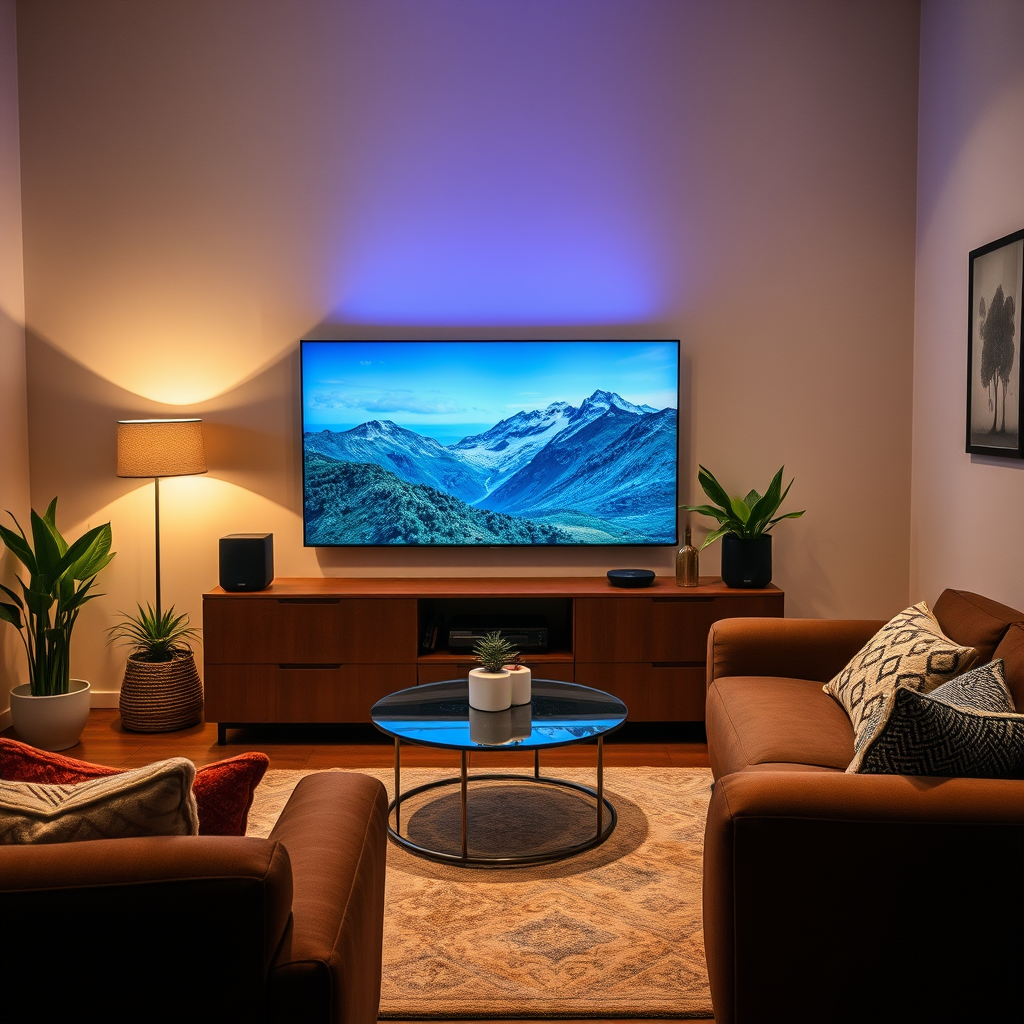
To effectively connect Sonos speakers to your TV, it’s essential to understand which Sonos products are compatible and the connection options available. Popular Sonos models like the Sonos Beam, Sonos Arc, and Sonos One are designed to pair seamlessly with modern TVs, especially those that support advanced audio protocols.
The primary connection options include HDMI ARC (Audio Return Channel) and optical audio connections. HDMI ARC is becoming the standard for most contemporary televisions, allowing for easy control of both the TV and the Sonos speakers using a single remote. Optical audio connections are also widely supported but may require more manual adjustments for syncing audio and video. Understanding these compatibility factors will ensure a smoother setup process.
Connecting Sonos via HDMI ARC
Connecting your Sonos speakers using HDMI ARC is one of the most straightforward methods. Here’s a step-by-step guide on how to do it:
1. Check TV Compatibility: Ensure your TV has an HDMI ARC port. It is usually labeled as such on the back of the TV.
2. Connect the Sonos Speaker: Use an HDMI cable to connect the HDMI ARC port on your TV to the corresponding HDMI port on your Sonos speaker (e.g., Sonos Beam or Sonos Arc).
3. Enable HDMI ARC: Go to your TV’s settings menu and enable HDMI ARC.
4. Adjust Audio Settings: Set the audio output of your TV to the connected Sonos speaker.
5. Control via Remote: You can now use your TV remote to control volume and playback.
The benefits of using HDMI ARC include simplified wiring, as you need only one cable, and enhanced audio quality, supporting advanced audio formats like Dolby Atmos, which provides a more immersive sound experience.
Connecting Sonos via Optical Cable
If your TV does not support HDMI ARC, you can still connect your Sonos speaker using an optical cable. Here’s how to do it:
1. Locate the Optical Output: Find the optical audio output on your TV, usually a square-shaped port.
2. Connect the Optical Cable: Insert one end of the optical cable into the TV’s optical audio output and the other end into the optical port on your Sonos speaker.
3. Adjust TV Settings: Go to your TV audio settings and select the optical audio output as the audio source.
4. Configure Sonos: Open the Sonos app and follow the prompts to set it up.
While optical connections can deliver high-quality sound, they have some limitations compared to HDMI. For instance, optical cables do not support advanced audio formats like Dolby Atmos, which may affect the overall audio quality. Additionally, you will not be able to control the Sonos speaker with your TV remote unless you also set up a universal remote.
Using Sonos with Smart TVs
Smart TVs have transformed how we consume media, and when paired with Sonos, they can create a more integrated experience. Many smart TVs come with built-in streaming services, allowing you to use apps directly on your TV. Here’s how to utilize these services with Sonos:
– Streaming Apps: Use your smart TV’s built-in streaming services (like Netflix, Hulu, etc.) and route the audio through your Sonos speakers by selecting them as the audio output.
– Controlling Audio: Some smart TVs allow you to control Sonos speakers through the TV remote. Additionally, voice assistants like Amazon Alexa or Google Assistant can also be used to manage playback and volume through Sonos.
To maximize your experience, ensure that your Sonos app is updated and compatible with your TV’s audio system. This integration allows for seamless transitions between TV and other media sources without the hassle of switching connections.
Troubleshooting Common Connection Issues
While connecting Sonos to your TV is generally straightforward, you may encounter some common issues. Here are a few problems and solutions:
– No Sound: If you’re not getting sound, check that the TV audio output is set correctly to the Sonos speaker. Ensure that the HDMI ARC or optical cable is securely connected.
– Desynchronized Audio: If the audio is out of sync with the video, this can often be corrected through your TV’s audio delay settings, allowing for adjustments to match the audio with the video playback.
– Speaker Not Recognized: If your Sonos speaker isn’t recognized, try restarting both the TV and the Sonos speaker. This can resolve communication issues between devices.
To ensure optimal sound quality, regularly check and update your Sonos system and TV firmware. This ensures that you benefit from the latest features and fixes that enhance your audio experience.
Exploring Alternative Connection Methods
In addition to HDMI ARC and optical cable connections, there are wireless options available for connecting Sonos to your TV. These include AirPlay and Bluetooth, providing flexibility in how you choose to enjoy audio.
– AirPlay: If you have an Apple device and a Sonos speaker that supports AirPlay 2, you can stream audio wirelessly from your devices directly to the speaker, allowing for easy control from your phone or tablet.
– Bluetooth: Some Sonos models have Bluetooth capabilities, enabling a simple connection with your TV. However, it’s essential to note that wireless methods may introduce latency, potentially causing audio to be slightly out of sync with video.
While wireless methods offer convenience, they often come with trade-offs in audio quality and potential connection stability. Therefore, for critical viewing experiences, wired connections may still be preferable.
Enhancing Your Sonos Setup
To optimize your Sonos setup with your TV, consider implementing the following strategies:
– Room Calibration: Use the Sonos Trueplay feature to calibrate your speakers according to your room’s acoustics. This helps achieve the best sound quality based on the unique characteristics of your space.
– Surround Sound Configuration: If you have multiple Sonos speakers, consider setting them up in a surround sound configuration. Pairing a Sonos Sub with your Sonos speakers can provide deep bass, enriching your movie-watching experience.
Taking the time to adjust these settings can significantly enhance your overall audio experience, providing depth and clarity that standard TV speakers simply cannot match.
Sonos Speakers Comparison for TV Connectivity (2024)
| # | Sonos Model | Connection Type | Audio Format Support | Best For |
|---|---|---|---|---|
| 1 | Sonos Arc | HDMI ARC, Optical | Dolby Atmos | Home Theater |
| 2 | Sonos Beam | HDMI ARC, Optical | Dolby Digital | Compact Spaces |
| 3 | Sonos One | Optical (via Sonos Beam) | Stereo | Multi-room Audio |
| 4 | Sonos Playbar | Optical | Dolby Digital | Legacy Systems |
| 5 | Sonos Sub | Wireless | N/A | Enhanced Bass |
| 6 | Sonos Move | Bluetooth, Wi-Fi | Stereo | Portable Use |
| 7 | Sonos Five | Wi-Fi | Stereo | High-fidelity Audio |
In summary, connecting your Sonos system to your TV is not only feasible but also highly beneficial for enhancing your audio experience. By utilizing methods like HDMI ARC, optical cables, or even wireless connections, you can achieve superior sound quality that elevates your entertainment. Consider your specific needs and setup to choose the best connection method for your situation. With the right configurations, your Sonos system can transform how you enjoy your favorite content, making every viewing experience memorable.
Frequently Asked Questions
Can I connect Sonos to my TV wirelessly?
Yes, you can connect Sonos to your TV wirelessly if your Sonos system supports Wi-Fi connectivity. Many Sonos speakers can be paired with a compatible TV using a wireless connection, allowing you to stream audio without the need for physical cables. Ensure your TV and Sonos system are on the same Wi-Fi network for seamless integration.
How do I connect my Sonos speaker to my TV?
To connect your Sonos speaker to your TV, you can use the optical audio cable from the TV to the Sonos Playbar, Playbase, or Beam. If you have a Sonos home theater system, simply follow the setup instructions in the Sonos app, which will guide you through pairing your Sonos speaker for optimal sound quality.
Why is my Sonos not connecting to my TV?
If your Sonos is not connecting to your TV, check that both devices are on the same Wi-Fi network and ensure the correct input is selected on your TV. Additionally, verify all cables are securely connected and troubleshoot by restarting both the Sonos speaker and the TV. If issues persist, consult Sonos support for further assistance.
What is the best way to connect Sonos to a smart TV?
The best way to connect Sonos to a smart TV is by using the HDMI ARC (Audio Return Channel) or optical audio output, depending on your Sonos model. HDMI ARC provides a convenient single-cable connection that allows for easy control of both devices. For models without HDMI, an optical connection is also effective for delivering high-quality audio from your smart TV to your Sonos system.
Which Sonos speaker is best for connecting to a TV?
The Sonos Beam is often considered the best speaker for connecting to a TV due to its compact size, powerful sound, and built-in voice assistant capabilities. It features HDMI ARC support, allowing for easy connectivity and control with your TV remote. Additionally, the Beam supports surround sound setups when paired with other Sonos speakers, enhancing your home theater experience.
References
- Google Scholar Google Scholar
https://scholar.google.com/scholar?q=connect+sonos+to+tv - https://www.bbc.com/news/technology-51312345
https://www.bbc.com/news/technology-51312345 - https://www.theguardian.com/technology/2020/jan/21/sonos-arc-review
https://www.theguardian.com/technology/2020/jan/21/sonos-arc-review - Google Scholar Google Scholar
https://scholar.google.com/scholar?q=sonos+smart+speaker+tv+connection - https://www.reuters.com/article/us-tech-sonos-idUSKBN1ZV2YI
https://www.reuters.com/article/us-tech-sonos-idUSKBN1ZV2YI - https://www.pcmag.com/how-to/how-to-connect-sonos-to-a-tv
https://www.pcmag.com/how-to/how-to-connect-sonos-to-a-tv - Google Scholar Google Scholar
https://scholar.google.com/scholar?q=can+i+connect+sonos+to+tv - can i connect sonos to tv – Search results
https://en.wikipedia.org/wiki/Special:Search?search=can+i+connect+sonos+to+tv - https://www.ncbi.nlm.nih.gov/search/research-articles/?term=can+i+connect+sonos+to+tv
https://www.ncbi.nlm.nih.gov/search/research-articles/?term=can+i+connect+sonos+to+tv
