

If you’re wondering whether you can get Roku on your Samsung Smart TV, the answer is yes, but with some nuances. While there’s no dedicated Roku app for Samsung TVs, you can access Roku content through other means, such as screen mirroring or using a Roku streaming device. This article will explore your options for enjoying Roku on your Samsung Smart TV, ensuring you make the most of your viewing experience.
Understanding Roku and Samsung Smart TV Compatibility
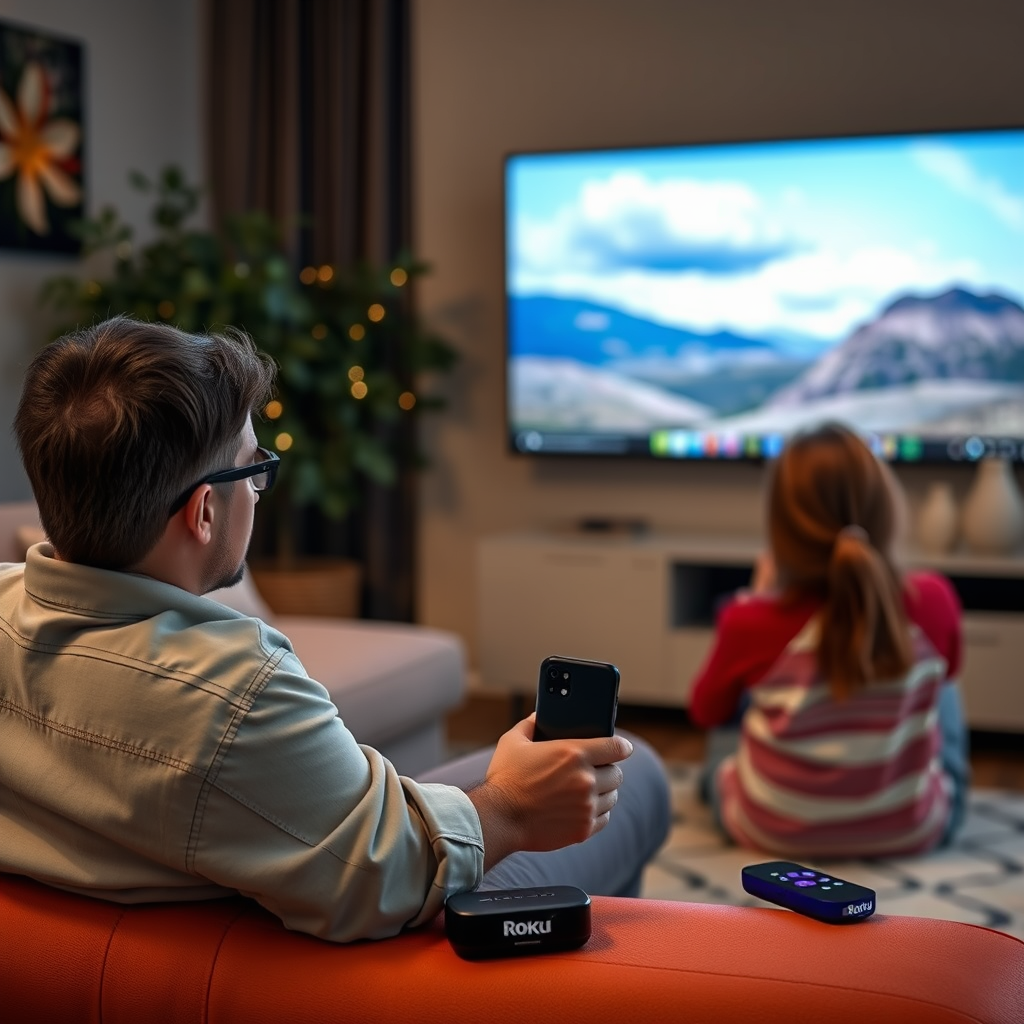
Roku is primarily a streaming device, not an app, which means that you cannot install it directly on Samsung Smart TVs. Instead, Roku operates as an independent platform that provides users with access to a plethora of streaming channels and content, including movies, TV shows, and live programming. Samsung Smart TVs, on the other hand, come with their own suite of applications and streaming services, but they currently do not support the Roku channel natively. However, there are alternative methods available to access Roku content on your Samsung Smart TV, which we will discuss in detail.
Using Screen Mirroring to Access Roku
Both Roku devices and Samsung Smart TVs support screen mirroring, which allows you to stream content from your mobile device directly to your TV. This feature can be particularly useful if you already have a Roku app installed on your smartphone or tablet. To utilize screen mirroring, you need to ensure that both your mobile device and Samsung TV are connected to the same Wi-Fi network.
To initiate screen mirroring, follow these steps:
1. Enable Screen Mirroring on Your Samsung TV: Go to the settings menu on your Samsung TV, navigate to the “Network” section, and enable the “Screen Mirroring” option.
2. Use Your Mobile Device: On your mobile device, open the Roku app and look for the option to cast or mirror your screen. Select your Samsung TV from the list of available devices.
3. Start Streaming: Once connected, you can start streaming your favorite Roku content from your mobile device to the TV screen.
This method may not offer the same experience as using a dedicated Roku device, but it allows you to access a wide range of content conveniently.
Streaming with a Roku Device
The simplest way to enjoy Roku on your Samsung TV is by purchasing a Roku streaming stick or box, which connects via HDMI. This option provides full access to the Roku interface and all available channels without additional setup or complications. Here are the key benefits of using a Roku device:
1. User-Friendly Interface: The Roku interface is designed for ease of use, allowing you to navigate between channels and content effortlessly.
2. Access to All Roku Channels: With a Roku device, you gain access to thousands of channels, including popular streaming services like Netflix, Hulu, Amazon Prime Video, and, of course, the Roku Channel.
3. Regular Updates: Roku devices receive regular software updates, ensuring you get the latest features and security enhancements.
4. Remote Control Features: Roku remotes often come with features such as voice search, shortcut buttons for popular channels, and private listening capabilities, enhancing your overall viewing experience.
Investing in a Roku device might be the best option for those who want a seamless and comprehensive streaming experience on their Samsung Smart TV.
Top Roku Streaming Devices Available (2024)
| # | Device | Resolution | Key Features | Price (USD) |
|---|---|---|---|---|
| 1 | Roku Streaming Stick 4K | 4K UHD | Voice Remote, Private Listening | $49.99 |
| 2 | Roku Ultra | 4K UHD | Ethernet Port, 4K HDR | $99.99 |
| 3 | Roku Express 4K+ | 4K UHD | HDMI Cable Included, No Monthly Fees | $39.99 |
| 4 | Roku Streaming Stick+ | 4K UHD | Long-Range Wi-Fi, Voice Remote | $59.99 |
| 5 | Roku Express | HD | Affordable Streaming, Easy Setup | $29.99 |
| 6 | Roku Smart Soundbar | HD | Built-in Streaming, Dolby Audio | $179.99 |
| 7 | Roku Premiere | 4K UHD | Affordable 4K Streaming, Simple Setup | $39.99 |
Exploring Third-Party Apps
In addition to the options mentioned above, there are several third-party apps that can facilitate streaming Roku content to your Samsung Smart TV. For instance, the Roku app available for iOS and Android devices allows you to control your Roku device remotely and access its features. While using these apps may not provide a direct streaming experience like a dedicated Roku device, they do offer a workaround for accessing content.
Here are a few notable third-party apps:
– AllCast: This app allows you to cast content from your mobile device to various platforms, including Samsung Smart TVs. You can stream videos, photos, and music directly from your device.
– LocalCast: Similar to AllCast, LocalCast enables users to stream content from their device to a TV. It supports a variety of file formats, making it highly versatile.
– Miracast: If your Samsung TV supports Miracast, you can use it to mirror your device’s screen directly to the TV, giving you access to the Roku interface if you have it open on your mobile device.
Although these options may not be as seamless as using a Roku device, they provide valuable alternatives for accessing Roku content.
Troubleshooting Common Issues
When attempting to connect or stream content using the methods discussed, you may encounter some common issues. Here are some troubleshooting tips to ensure a smoother experience:
1. Software Updates: Ensure that both your Samsung TV and the Roku device (if applicable) are updated to the latest software version. This can resolve connectivity or performance issues.
2. Network Connection: Confirm that both devices are connected to the same Wi-Fi network. If the connection is unstable, consider restarting your router.
3. Screen Mirroring Issues: If screen mirroring isn’t working, try toggling the feature off and on again on both devices. Additionally, keep your mobile device close to the TV to improve the connection.
4. Roku App Performance: If the Roku app is lagging or not functioning, try closing the app and reopening it, or uninstalling and reinstalling it.
By following these troubleshooting tips, you can enhance the performance of your streaming and screen mirroring efforts.
Additional Features of Samsung Smart TVs
Samsung Smart TVs come loaded with a variety of built-in apps and features that can complement your streaming experience. For example, the Samsung Smart Hub allows users to access all their favorite streaming services from a single interface, making it easier to find and watch content.
Moreover, Samsung TVs often include features such as:
– Voice Control: With built-in voice assistants like Bixby, you can control your TV and search for content using voice commands, making navigation more convenient.
– SmartThings Integration: This allows your Samsung TV to connect with other smart devices in your home, enabling a more integrated smart home experience.
– Ambient Mode: When not in use, your Samsung TV can display artwork or personal photos, transforming it into a decorative piece in your living room.
Exploring these features can greatly enhance your overall viewing experience beyond just accessing Roku content.
Alternatives to Roku on Samsung Smart TVs
While Roku offers a diverse range of content, there are many other streaming services available on Samsung TVs that may meet your entertainment needs. Popular alternatives include:
– Amazon Prime Video: Offers a wide selection of movies, TV shows, and original content.
– Hulu: Known for its vast library of on-demand content, including current season TV episodes.
– Netflix: A leading streaming service with a large variety of films, documentaries, and original series.
– Disney+: Features a library of beloved films and series from Disney, Marvel, Star Wars, and Pixar.
When considering alternatives, evaluate the content offered by each service to determine if it aligns with your viewing preferences.
By following these insights, you can effectively access Roku content on your Samsung Smart TV through screen mirroring or by using a Roku device. Explore these options to enhance your viewing experience and enjoy a wide range of streaming content. Whether you choose to invest in a Roku device or utilize screen mirroring, you have multiple pathways to access your favorite shows and movies on your Samsung Smart TV.
Frequently Asked Questions
Can I get Roku on my Samsung Smart TV?
Yes, you can access Roku content on your Samsung Smart TV by using the Roku Channel app, which is available for download from the Samsung Smart Hub. Additionally, if you have a Roku streaming device, you can connect it to your Samsung TV via HDMI for a more comprehensive Roku experience.
How do I install the Roku app on my Samsung Smart TV?
To install the Roku app on your Samsung Smart TV, navigate to the Smart Hub and search for “Roku Channel” in the apps section. Once you find the app, select it and click on “Install.” After installation, you can log in with your Roku account to start streaming.
Why can’t I find the Roku app on my Samsung Smart TV?
The Roku app may not be available on all Samsung Smart TVs, particularly older models. If you cannot find the Roku Channel app, consider using a Roku streaming device or casting from a mobile device to your TV as alternative options to access Roku content.
What is the best way to watch Roku on a Samsung Smart TV?
The best way to watch Roku on a Samsung Smart TV is by using the Roku Channel app if your model supports it. Alternatively, you can connect a Roku device directly to the HDMI port of your TV for a seamless streaming experience, which can provide a wider selection of channels and features.
Which Samsung Smart TV models support the Roku app?
Most recent Samsung Smart TV models that run on Tizen OS support the Roku Channel app. To ensure compatibility, check your TV’s specifications or the Samsung Smart Hub for available apps, as older models may not have access to the latest app offerings.
References
- https://www.roku.com/support/what-is-roku
https://www.roku.com/support/what-is-roku - Google Scholar Google Scholar
https://scholar.google.com/scholar?q=Roku+on+Samsung+Smart+TV - Google Scholar Google Scholar
https://scholar.google.com/scholar?q=installing+Roku+Samsung+smart+TV - Google Scholar Google Scholar
https://scholar.google.com/scholar?q=smart+TV+streaming+services - https://www.bbc.com/news/technology-51024543
https://www.bbc.com/news/technology-51024543 - Google Scholar Google Scholar
https://scholar.google.com/scholar?q=can+i+get+roku+on+samsung+smart+tv - can i get roku on samsung smart tv – Search results
https://en.wikipedia.org/wiki/Special:Search?search=can+i+get+roku+on+samsung+smart+tv - https://www.ncbi.nlm.nih.gov/search/research-articles/?term=can+i+get+roku+on+samsung+smart+tv
https://www.ncbi.nlm.nih.gov/search/research-articles/?term=can+i+get+roku+on+samsung+smart+tv
