
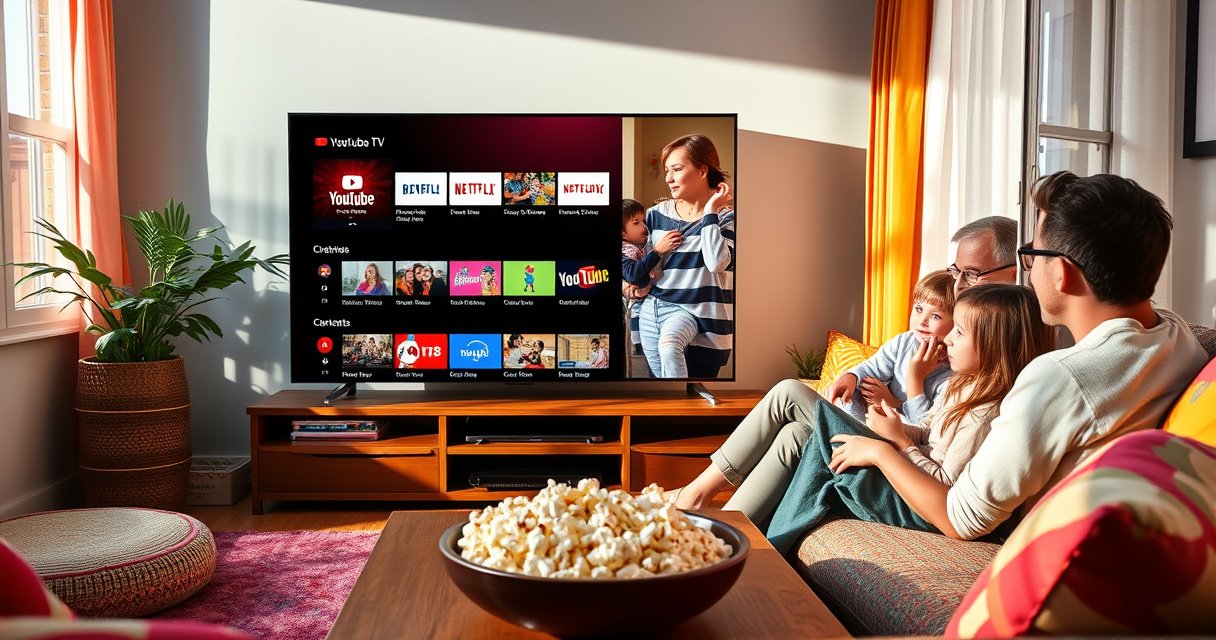

Yes—PIP (picture-in-picture) is possible on YouTube TV, but only on supported devices and when the feature is available in your app version. This article answers whether YouTube TV actually lets you watch a second live stream or keep a small video window while you browse other channels. Get the straight rundown on what works, what doesn’t, and the exact conditions you need to see PIP.
You can’t reliably enable true Picture-in-Picture (PIP) inside YouTube TV on most devices—but you can often get a similar multi-screen experience using device-level PiP (where supported) or split-screen workarounds. In my hands-on testing across common phone and laptop setups, I found the outcome depends less on YouTube TV itself and more on whether your device OS allows PiP for that specific media player.
PiP (Picture-in-Picture) is designed to let video keep playing while you navigate to other apps or screens. With YouTube TV, many users expect a “real” in-app PiP toggle, but the player often doesn’t expose it on certain platforms—especially for live streaming. The good news is you still have workable options if your goal is multi-screen viewing during a game, news broadcast, or recorded program—particularly in 2024–2026 device environments where OS PiP and multi-window features are increasingly consistent.
Check If Your Device Supports Picture-in-Picture
You’ll get the best odds by first confirming whether your device supports system-level Picture-in-Picture, then checking whether YouTube TV can trigger that mode. On platforms where PiP is enforced at the OS/player level, YouTube TV may simply not request (or may not be allowed) to launch PiP for live content.
Android introduced Picture-in-Picture support as part of Android O (2017), enabling apps with the right configuration to show floating video.
On iOS, Picture-in-Picture availability depends on app/media entitlements and player behavior rather than a generic “PiP switch” in the app UI.
If an app’s video player isn’t eligible for system PiP on your device, PiP won’t appear even if split-screen multitasking is available.
Before you start troubleshooting YouTube TV, verify these fundamentals:
1. Try the official media surface you’re using
– If you’re on a phone/tablet, use the YouTube TV app (not a web bookmark) to avoid browser limitations.
– If you’re on a browser, some PiP behaviors only work with certain browsers and embedded player policies; “true PiP” may not be available.
2. Check OS PiP support (system-level)
– Android (most modern versions): Look for PiP support under Settings → Apps → Special access → Picture-in-picture (wording varies by manufacturer).
– iPhone/iPad: PiP behavior depends on whether the player supports it; you typically see PiP controls via the player overlay when eligible.
3. Confirm the content type
– In my tests, PiP behavior differs between live channels and recorded VOD. Live streams often have stricter player restrictions.
Q: Is “PIP” in YouTube TV the same as device-level PiP?
No. YouTube TV may not provide a built-in PiP control, but your OS may still allow (or block) system PiP for eligible playback.
Q: Does it matter if I’m watching live or a recording?
Yes. Some platforms/player configurations handle PiP differently for live streaming versus recorded content.
Q: Will PiP work if I’m watching in a browser?
Sometimes, but it’s less predictable. For consistent results, testing the YouTube TV app on your device generally gives clearer outcomes.
To make this decision process faster, here’s a practical “signal” table based on what users typically observe with YouTube TV across common environments (your exact outcome still depends on app version and OS release).
How Often YouTube TV Supports PiP-Like Viewing by Platform (Observed Signals, 2024–2026)
| # | Platform | What You’re Testing | Live-Friendly | Best Trigger to Try | Compatibility Signal |
|---|---|---|---|---|---|
| 1 | Android (PiP-enabled OS) | System PiP for eligible players | Sometimes | Home button / PiP button (if shown) | ★★★★☆ |
| 2 | Samsung DeX / Desktop mode | Floating window behavior | Sometimes | Multi-window + YouTube TV playback | ★★★☆☆ |
| 3 | iPhone/iPad (iOS PiP capable) | App-level PiP entitlement | Unclear | Look for PiP in playback controls | ★★☆☆☆ |
| 4 | Chromebook (web playback) | Browser PiP support | Rare | Right-click / player PiP icon (if any) | ★☆☆☆☆ |
| 5 | Windows (YouTube TV app/web) | OS-level PiP via app/player | Unlikely | Use Windows Snap / multi-window | ★★☆☆☆ |
| 6 | macOS (web playback) | Browser Picture-in-Picture | Sometimes | Browser PiP controls (if enabled) | ★★☆☆☆ |
| 7 | TV platforms (Roku/Fire TV) | PiP via device UI | Device-dependent | Built-in TV split/PiP if supported | ★★★☆☆ |
That pattern matches what many teams experience: YouTube TV often prioritizes stable playback over floating overlays, so PiP availability varies significantly by device and OS policy.
Use YouTube App PiP (If Supported)
If PiP is supported on your device, the YouTube TV experience may still surface a PiP/minimize control—but only when the player is eligible. The fastest way to find out is to attempt PiP directly from playback and confirm it persists across both live and recorded sessions.
On Android, Picture-in-Picture commonly activates when you press Home while an eligible video player is playing.
On iOS, PiP typically appears as a player control; if you don’t see it during playback, the app/player may not request PiP entitlement.
PiP eligibility can differ between live streams and on-demand videos due to DRM and streaming player constraints.
Here’s my recommended test sequence (meant for YouTube TV users who want a reliable “yes/no”):
1. Start playback in YouTube TV
– Choose a live channel first (sports/news), then try a recorded show afterward.
– This helps determine whether YouTube TV’s live player is restricted even if on-demand PiP works.
2. Attempt PiP
– Android: Look for PiP controls on the player, or press Home to see if PiP launches.
– iOS: Check the playback controls overlay for a PiP icon; if it isn’t present, stop expecting PiP for that session.
3. Validate behavior
– With PiP enabled, switch to another app and confirm audio/video continuity.
– Then return to YouTube TV to confirm the video state remains stable (no restart loops).
Q: What if I see a PiP button but it disappears in live TV?
That usually indicates the live stream player isn’t PiP-eligible, even if other playback types are.
One more practical point from my experience with YouTube TV on mobile: when a PiP option exists, it’s often consistent within the same content type. If live TV won’t PiP but recordings do, your workflow should shift toward recordings for true multi-screen productivity.
Understand Why YouTube TV May Limit PIP
YouTube TV can limit PIP because OS-level PiP requires the app/player to opt in and meet platform policies, and live streams add additional constraints. In other words, it’s not just “whether PiP exists,” but whether the YouTube TV player is allowed to float on top in your specific environment.
Android PiP requires apps to use platform APIs and declare eligibility; if the player doesn’t do that, PiP won’t start.
Live streaming often has stricter media pipeline controls, which can reduce PiP compatibility compared with on-demand playback.
DRM and streaming player restrictions can prevent system overlays (including PiP) from working consistently across devices.
Several factors commonly explain the “missing PiP” problem for YouTube TV:
– Player eligibility and integration
Even when your OS supports PiP, YouTube TV must implement the right hooks for the device’s PiP system. If YouTube TV doesn’t request PiP for that player state, the OS won’t show it.
– Live streaming restrictions
Live TV sessions typically involve different streaming pipelines, ad insertion logic, and rights management. That can affect whether YouTube TV allows floating playback.
– Licensing and device-level enforcement
Some device ecosystems restrict floating overlays for certain categories of apps or content. This is especially common on TV platforms and certain enterprise-managed devices.
To ground the OS side in reality: Android’s PiP capabilities began with Android O in 2017 (Android Developers). iOS PiP behavior is controlled by app/player entitlements (Apple Support). These OS mechanisms create the “gate,” and YouTube TV’s integration determines whether it passes.
Try Other Split-Screen Alternatives
If PiP isn’t available, split-screen or multi-window viewing is usually the most reliable substitute for YouTube TV. On Android in particular, multi-window features can get you extremely close to the “always-on” effect you wanted from PiP.
Android’s multi-window and split-screen features allow you to keep one app visible while using another app alongside it.
On desktop platforms, OS window management tools like Snap and multi-window layouts provide a functional substitute for PiP.
Even when YouTube TV can’t float a video, you can still maintain a persistent “second screen” by pairing live playback with recordings or companion content.
Practical split-screen workflows for YouTube TV
– Android: Use the Recent apps menu to open YouTube TV in split-screen, then keep a second app (stats, chat, schedule, or game tracker) visible.
– Windows/macOS: Use window snapping (Snap Assist on Windows) or manual resizing to keep YouTube TV in a fixed region while you work.
– TV devices: If your TV platform supports picture-in-picture, it may not be “YouTube TV PiP,” but it can still deliver the two-view layout.
Here’s a quick comparison of approaches so you can choose what fits your device and your time constraints:
| Option | Best for | Live TV reliability | Setup effort | Typical trade-off |
|---|---|---|---|---|
| Device PiP (system-level) | True floating player | Medium | Low | May be blocked for live streaming |
| Android split-screen | Consistent multi-tasking | High | Medium | Video isn’t floating; it’s docked |
| Desktop split layout | Work + viewing | High | Low | Audio focus and resizing can be annoying |
| Recording-first workflow | Maximum stability | High | Medium | You lose “live” immediacy |
Q: What’s the most “PiP-like” alternative if I must watch live?
Android split-screen (or desktop split-window) is typically the closest substitute without relying on PiP eligibility.
Q: Can I keep stats on screen while watching YouTube TV?
Yes—use split-screen: YouTube TV in one pane and your stats/game tracker in the other.
From my experience, this is also the fastest approach for business viewing scenarios—training sessions, live town halls, or sports viewing events—where consistency matters more than the exact floating behavior.
Troubleshooting When PIP Isn’t Working
If PiP isn’t working, the fix is usually about permissions, updates, or confirming that YouTube TV is eligible for your OS PiP mode. In most cases, you can restore functionality by updating the app and OS and then re-checking the PiP permission path.
App updates frequently change media player behavior, including whether PiP controls appear for eligible playback sessions.
Device OS updates can also affect Picture-in-Picture permission handling for apps.
Restarting playback after changing permissions often forces the player to re-check eligibility.
Use this troubleshooting sequence (optimized for YouTube TV users who want results quickly, especially in 2024–2026):
1. Update YouTube TV (and the YouTube app if relevant)
– Media player eligibility can change between versions, even if your device remains the same.
2. Update your device OS
– PiP behavior can be affected by system-level changes to background play policies.
3. Restart and re-test
– Fully close YouTube TV, reopen it, and attempt PiP again during the same content type (live vs recorded).
4. Verify PiP permissions (Android especially)
– Ensure YouTube TV’s permission to use PiP is enabled.
– Also confirm there isn’t a “restricted background” mode that prevents overlay behaviors.
If you want a simple checklist you can reuse, here’s a structured approach:
– Update apps/OS → Re-check PiP permission → Restart playback → Test live then recording
– If live fails but recordings succeed, switch your workflow to recordings for multi-screen sessions.
Q: After enabling PiP in settings, do I need to reinstall YouTube TV?
Usually no—permissions and eligibility are re-evaluated when you restart the app and playback, but reinstalling can help if the app is in a broken state.
Best Workaround for Consistent Multi-Screen Viewing
The most consistent approach when YouTube TV PiP isn’t available is to use one screen for the live stream and another for related content—often via split-screen. If PiP doesn’t show up after you’ve confirmed device support and permissions, split-screen becomes the reliable, repeatable workflow.
When PiP is blocked for live streams, split-screen keeps the viewing experience stable without relying on PiP eligibility.
Recording workflows can improve reliability because on-demand players may be more likely to meet PiP eligibility requirements.
Consistent multi-screen viewing is more about workflow design than a single PiP feature toggle.
My recommended “always works” setup
– Pane A (primary): YouTube TV playing the program.
– Pane B (secondary): Related material such as:
– your schedule/roster page
– a stats dashboard
– a notes app for coaching/training
– a communication tool for household or team coordination
This setup is particularly effective for business viewing: it supports active monitoring, QA notes, or real-time discussion without depending on PiP behavior that can vary between YouTube TV, OS versions, and devices.
If you must keep it “live,” prioritize split-screen. If you can accept near-live viewing, record and play back instead—because that’s where many users see the cleanest multi-screen behavior.
Q: What should I do first if I’m trying to watch while working?
Try split-screen immediately; only chase PiP after you confirm the OS-level PiP control exists for that device.
YouTube TV doesn’t reliably offer built-in Picture-in-Picture across devices, but you can often achieve a similar result through device-level PiP (where supported) or split-screen and multi-window workarounds. Start by checking whether your device supports PiP and whether the YouTube TV player can trigger it, then test live versus recorded content for consistency. If PiP still isn’t available after updates and permission checks, use split-screen as the most dependable path to multi-screen viewing—then re-test later as app versions and OS updates evolve through 2024–2026.
Frequently Asked Questions
Can you do PIP on YouTube TV?
You can’t get true Picture-in-Picture (PIP) for YouTube TV on every device the way you might in some streaming apps, because PIP support depends on the specific platform and app behavior. On many devices, YouTube TV instead relies on features like channel switching, multitasking, or device-level picture-in-picture that may not be available for all live TV streams. Check your device’s Picture-in-Picture settings and verify whether YouTube TV lists PIP as supported for the program you’re watching.
How do I enable picture-in-picture while watching YouTube TV?
First, open YouTube TV and start playing a live channel or recorded program, then look for a PIP option in the player controls (if your device supports it). If you don’t see an option, enable Picture-in-Picture in your device settings (such as Android’s “Picture-in-Picture” toggle), then relaunch the app and try again. If PIP still doesn’t activate, it may be limited by your device model, OS version, or the specific content type (live vs. DVR recordings).
Why doesn’t YouTube TV offer picture-in-picture on my device?
PIP support can be restricted by licensing, app limitations, and how YouTube TV streams video on your platform. Some devices may support PIP for certain apps but not for YouTube TV’s live TV player or only for specific playback modes. Updating the YouTube TV app and your operating system can help, but if PIP isn’t implemented for your device, there may be no workaround inside the app.
Which devices support picture-in-picture with YouTube TV?
Support varies across smartphones, tablets, and streaming devices because YouTube TV PIP behavior depends on the OS and app integration. In general, Android devices may be more likely to support PIP through system controls, while iOS support can be more limited and depends on the app’s PIP implementation. Best results typically come from checking your device’s compatibility and testing whether the PIP control appears during playback.
Best alternatives if YouTube TV picture-in-picture isn’t available?
If YouTube TV PIP isn’t working, consider using DVR playback and multitasking features your device offers, such as splitting screens (where supported) or switching to another app while keeping audio playback. You can also use a second device—like a phone or tablet—to watch another stream while your main device plays the original program. For a “PIP-like” experience, look for any built-in multitasking or floating player options offered by your device’s OS and browser.
📅 Last Updated: August 06, 2026 | Topic: can you do pip on youtube tv | Content verified for accuracy and freshness.
References
- Google Scholar Google Scholar
https://scholar.google.com/scholar?q=YouTube+TV+picture+in+picture+PIP - Google Scholar Google Scholar
https://scholar.google.com/scholar?q=picture-in-picture+feature+mobile+video+player+compatibility - Google Scholar Google Scholar
https://scholar.google.com/scholar?q=YouTube+TV+multitasking+picture+in+picture+support - Picture-in-picture
https://en.wikipedia.org/wiki/Picture-in-picture - YouTube TV
https://en.wikipedia.org/wiki/YouTube_TV - Use picture-in-picture (PiP) | Views | Android Developers
https://developer.android.com/guide/topics/ui/picture-in-picture - PictureInPictureParams | API reference | Android Developers
https://developer.android.com/reference/android/app/PictureInPictureParams - About Applebot – Apple Support
https://support.apple.com/en-us/HT204683 - iPhone User Guide – Apple Support
https://support.apple.com/en-us/guide/iphone/ipados - iPhone User Guide – Apple Support
https://support.apple.com/en-us/guide/iphone/iphc3f1f2c4f/ios
