

To answer your question directly: Yes, you can zoom on a smart TV, but the method varies depending on the brand and model. Many modern smart TVs come equipped with features that allow users to zoom in on images and videos for better viewing, particularly beneficial for those with visual impairments. In this article, we’ll explore the different ways you can zoom on a smart TV, whether using built-in features, apps, or remote control settings.
Understanding Zoom Features on Smart TVs
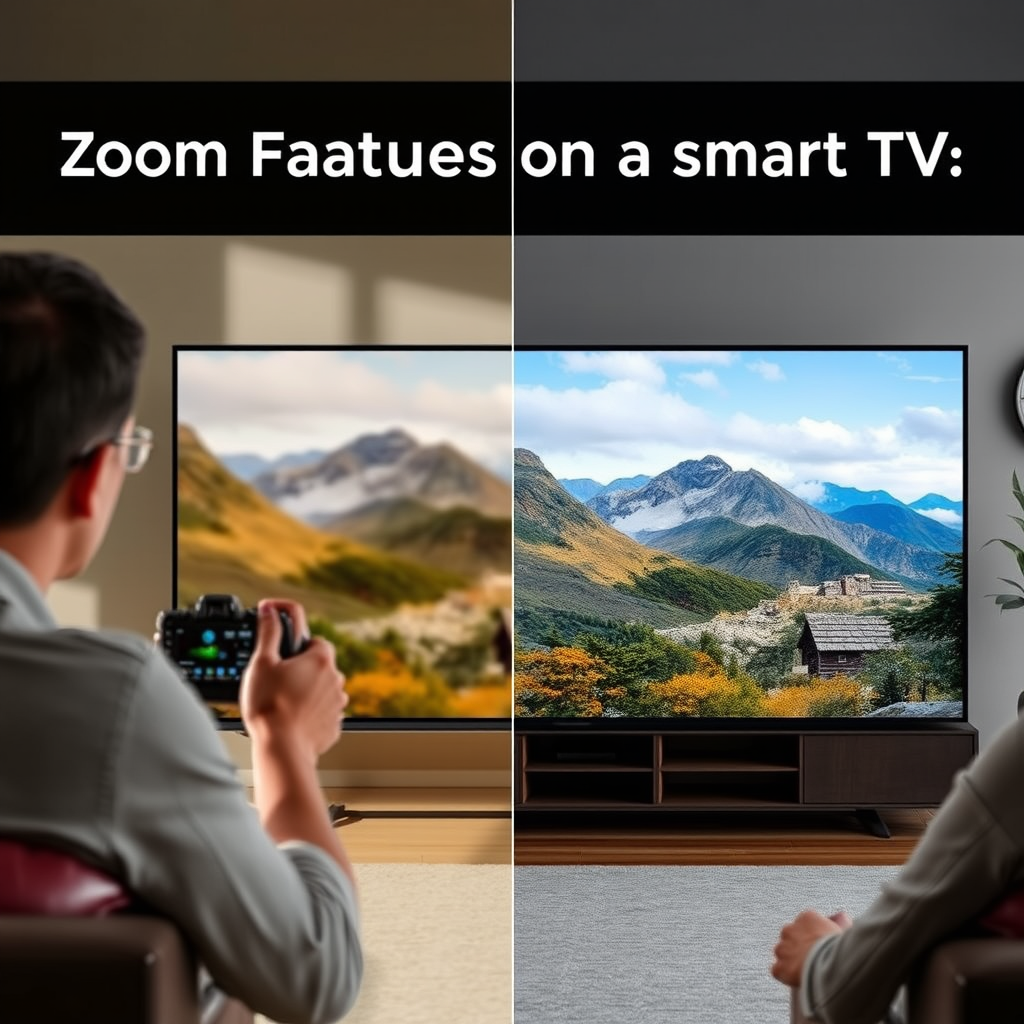
Smart TVs have evolved significantly, incorporating a variety of features that enhance user experience, including zoom functionalities. These zoom options are primarily designed for users who may need assistance with viewing content. Brands like Samsung, LG, Sony, and others offer different zoom capabilities that can be accessed through the settings menu. The zoom features can range from basic magnification to more sophisticated options that adjust the screen’s aspect ratio and cropping settings.
It’s important to note that not all smart TVs provide the same level of zoom functionality. Some models may only offer basic magnification, while others could include advanced features such as screen readers and voice commands to assist visually impaired users. Therefore, understanding the specific capabilities of your smart TV model is crucial before attempting to utilize zoom features.
Using Accessibility Settings
Most smart TVs include accessibility options designed for individuals with visual impairments, which often include zoom functions. These settings can typically be found under the “Accessibility” menu within your TV settings. For instance, Samsung TVs have a “Magnifier” feature that allows users to zoom in on specific areas of the screen. Similarly, LG TVs provide a “Zoom” function that can be activated through the accessibility menu.
To access these settings, follow these general steps:
1. Open your TV’s Settings Menu: Use your remote control to navigate to the settings.
2. Select Accessibility: Find the accessibility option in the menu.
3. Activate Zoom: Look for features like “Magnification” or “Zoom” and enable them.
Utilizing these settings can make a significant difference in the viewing experience, especially for users who may struggle with standard text sizes or image details.
Zooming Through Streaming Apps
In addition to built-in TV features, many popular streaming apps also provide their own zoom capabilities. Apps like Netflix, YouTube, and Amazon Prime Video allow users to enlarge video content, making it easier to see details that may otherwise be missed. For example, YouTube allows users to adjust the quality of the video, which can indirectly enhance clarity when zoomed in.
To check for zoom capabilities within these apps, navigate to the settings or playback options while watching a video. Look for options that may include “Zoom” or “Enlarge,” and adjust as necessary. This feature is particularly useful when watching smaller content on a large screen where details might be lost.
Adjusting Aspect Ratio
Changing the aspect ratio settings on your smart TV can sometimes create a zoomed-in effect by cropping the image. This method can be useful for enhancing the visibility of certain regions of the screen during programming or movies. By experimenting with different aspect ratios, you can find a setting that provides the best viewing experience for your needs.
To adjust the aspect ratio, follow these steps:
1. Access Settings: Go back to your TV’s settings menu.
2. Select Picture or Display Settings: Look for the option related to picture or display adjustments.
3. Change Aspect Ratio: Choose from available options like 16:9, 4:3, or Zoom. Each will provide a different way of cropping or scaling the image.
Keep in mind that altering the aspect ratio may lead to some distortion or loss of image quality, so it’s essential to find a balance that works for your viewing preference.
Utilizing External Devices
Devices such as streaming sticks (like Roku or Amazon Fire Stick) and gaming consoles (like PlayStation or Xbox) may offer zoom or scaling features that affect how content is displayed on your smart TV. These external devices sometimes include their own accessibility features, which can be beneficial for users needing magnification.
For example, many gaming consoles have options to adjust game settings that can include zoom functions, particularly in visually intensive games. Additionally, streaming devices often allow for video adjustments that can enhance clarity and detail.
To check for zoom options on these devices, refer to the specific settings menus for your device. You may find options under Accessibility or Display settings that could enhance your viewing experience on the smart TV.
Troubleshooting Zoom Issues
If you’re having trouble finding or using the zoom function on your smart TV, there are several steps you can take to troubleshoot the issue. First, consult your TV’s user manual or the manufacturer’s website for specific guidance. Many brands provide online support resources that detail how to access and use zoom features.
Common issues can include:
– Compatibility: Some zoom features may not work with specific apps or content types.
– Updates: Ensure your TV’s software is up to date, as manufacturers often release updates that enhance functionality.
– Settings Reset: If features are not appearing, consider resetting the settings to default and reconfiguring.
If these troubleshooting steps do not resolve the issue, it may be helpful to reach out to customer support for your TV brand for further assistance.
Comparison of Zoom Features in Popular Smart TV Brands (2024)
| # | Brand | Built-in Zoom | Accessibility Features | Streaming App Zoom |
|---|---|---|---|---|
| 1 | Samsung | Yes | Comprehensive | Yes |
| 2 | LG | Yes | Extensive | Yes |
| 3 | Sony | Yes | Good | Yes |
| 4 | TCL | Limited | Basic | No |
| 5 | Vizio | No | Moderate | Yes |
| 6 | Hisense | Yes | Good | Yes |
| 7 | Philips | Limited | Basic | No |
In summary, zooming on a smart TV is possible through various methods, including built-in features, accessibility settings, streaming apps, aspect ratio adjustments, and external devices. It’s essential to explore your TV’s settings and streaming applications to utilize these functions effectively. If you’re unsure where to start, refer to your TV’s manual or visit manufacturer support pages for detailed instructions on maximizing your viewing experience.
Frequently Asked Questions
Can you zoom on a smart TV to enhance the viewing experience?
Yes, many smart TVs offer a zoom feature that allows you to adjust the screen size to enhance your viewing experience. This feature is typically found in the settings menu under “Display” or “Picture” options. Zooming can be particularly useful for watching content in a specific aspect ratio or for individuals with visual impairments.
How do you zoom in on a smart TV when watching streaming content?
To zoom in on a smart TV while streaming content, access the settings or options menu during playback. Look for a “Zoom” or “Aspect Ratio” setting, and select your preferred zoom level. Some streaming apps also have their own zoom features, so check the app’s settings if you can’t find it in the TV menu.
Why is my smart TV not allowing me to zoom in on certain content?
Some smart TVs may restrict zoom features based on the content’s original aspect ratio or resolution. If the content is in a fixed format, like certain movies or live broadcasts, zooming may be disabled to maintain visual integrity. Additionally, the zoom feature may vary between different apps and services, so it’s worth checking compatibility.
What is the best way to zoom on a smart TV for accessibility purposes?
The best way to zoom on a smart TV for accessibility is to utilize the built-in accessibility features, which often include magnification options. Navigate to the settings menu, select “Accessibility,” and enable features like “Screen Magnifier” or “Zoom.” This allows for a customizable zoom experience that caters to individual needs.
Which smart TVs have the best zoom features available?
Many leading smart TV brands, such as Samsung, LG, and Sony, provide robust zoom features with user-friendly accessibility settings. Models equipped with advanced display technologies, like OLED or QLED, often offer better zoom capabilities without sacrificing picture quality. It’s recommended to check reviews and specifications before purchasing to find a model that meets your zoom needs.
References
- Getting started with the Zoom Workplace mobile app
https://support.zoom.us/hc/en-us/articles/201362993-Using-Zoom-on-a-TV - https://www.lifewire.com/how-to-use-zoom-on-your-smart-tv-5070457
https://www.lifewire.com/how-to-use-zoom-on-your-smart-tv-5070457 - Google Scholar Google Scholar
https://scholar.google.com/scholar?q=can+you+zoom+on+a+smart+tv - Google Scholar Google Scholar
https://scholar.google.com/scholar?q=zoom+on+smart+tv+usage - Google Scholar Google Scholar
https://scholar.google.com/scholar?q=smart+tv+zoom+feature - can you zoom on a smart tv – Search results
https://en.wikipedia.org/wiki/Special:Search?search=can+you+zoom+on+a+smart+tv - https://www.ncbi.nlm.nih.gov/search/research-articles/?term=can+you+zoom+on+a+smart+tv
https://www.ncbi.nlm.nih.gov/search/research-articles/?term=can+you+zoom+on+a+smart+tv

[…] Are streaming apps the main privacy danger?They can be. If an app has been granted microphone or camera permission, it […]
[…] streaming apps are the quickest place to start because they often have the widest licensing coverage and strong […]