
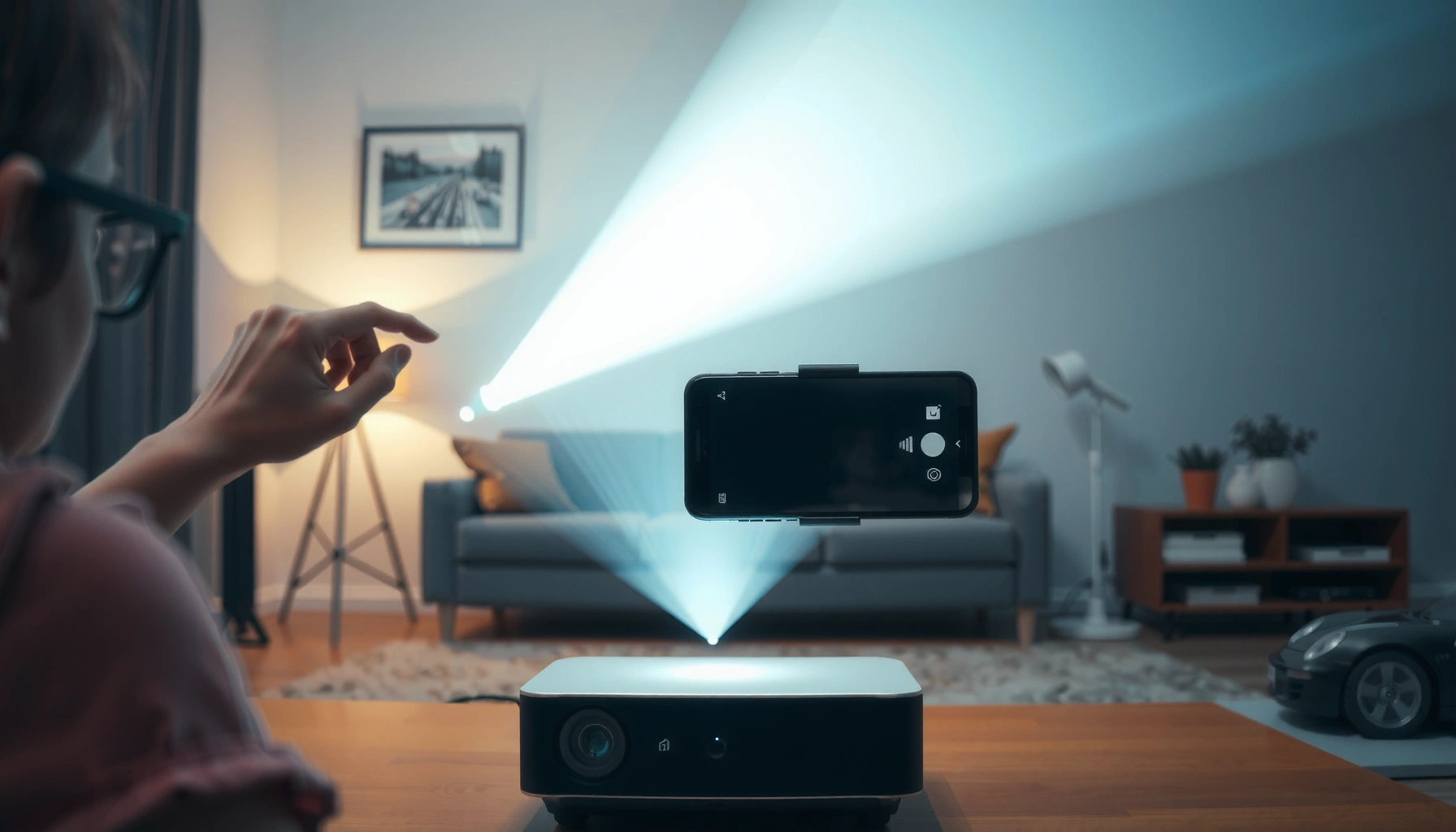

Learn how to cast an Android phone to a projector—fast—using the method that actually works with most projectors. If your projector supports Chromecast or Google Cast, you can mirror or stream in minutes with a couple taps. If it doesn’t, the best alternative is using an HDMI connection with a compatible adapter for the most reliable, lowest-latency display.
You can cast an Android phone to many projectors in a few taps if the projector supports Google Cast (Chromecast/Google TV style). If your projector doesn’t support casting, you can still mirror the Android phone using a wireless display dongle or a direct HDMI connection via USB‑C.
This guide is for Android users who want to display movies, photos, or a live screen on a projector for home viewing, meetings, or presentations. It covers both the “wireless casting” path and the common “projector doesn’t support casting” alternatives.
Check your projector for casting support
Your fastest path depends on whether the projector offers built-in Google Cast (Chromecast/Google TV) or only a generic mirroring mode. Before touching your Android phone settings, confirm what the projector calls its feature so you choose the right workflow (Cast vs Screen Mirroring vs HDMI).
Look for built-in “Cast,” “Chromecast,” “Google Cast,” or “Screen Mirroring” inside the projector’s Input/Source menu.
If the projector advertises Google Cast, it can receive streaming from the Android phone without full-screen mirroring.
If it only mentions mirroring, you may need a compatible wireless display protocol or an HDMI adapter to avoid frequent connection failures.
From the projector’s remote or on-screen menu, open Input/Source and scan for labels like Cast, Chromecast, Google Cast, or Screen Mirroring. That label matters because Google Cast and mirroring are different: Cast typically streams a video app (often more stable), while mirroring attempts to reproduce the entire Android phone screen. As of recent Android versions, the same “Cast” entry in your Quick Settings may handle both—but the underlying projector capability still determines the outcome.
Below is a practical way to categorize projector support and what you should try first with your Android phone.
Common Android-to-Projector Compatibility Paths (by Projector Capability)
| # | Projector support signal (what you’ll see) | Best first option from Android phone | Typical reliability | Setup time |
|---|---|---|---|---|
| 1 | “Google Cast” / “Chromecast” | Cast video from app | High | 2–5 min |
| 2 | “Cast” (device name shows in Google Home) | Cast via Quick Settings | High | 3–6 min |
| 3 | “Screen Mirroring” | Mirror the Android screen | Medium | 4–8 min |
| 4 | No cast labels, but HDMI input is available | USB‑C to HDMI adapter | High | 1–3 min |
| 5 | “Miracast”/wireless display wording (older) | Test mirroring; otherwise use dongle | Medium–Low | 6–12 min |
| 6 | Built-in casting exists but “Cast” device name is hidden | Use Google Home to discover | Medium | 5–10 min |
| 7 | Projector supports only proprietary app casting | Use supported apps or HDMI | Low–Medium | 8–15 min |
This snapshot helps you decide quickly with your Android phone: if the projector clearly supports Google Cast, start with app casting; otherwise, plan either mirroring or a physical HDMI workaround.
Cast from Android using Google Cast (Chromecast/Google TV)
If your projector supports Google Cast, you can stream from your Android phone quickly using the built-in Cast workflow. In most cases, you’ll cast from a compatible video app or mirror only when casting apps isn’t sufficient.
In Android, the Quick Settings panel can include a “Cast” tile that initiates a Cast session to compatible devices.
Google Cast is designed for app streaming, which often delivers smoother playback than full-screen mirroring.
Google Home can be used to discover and manage Chromecast/Google Cast-capable devices on the same network.
On your Android phone, open Quick Settings and tap Cast. If you don’t see Cast, install or open Google Home and look for casting controls there. Your Android phone should then display a list of discoverable devices—select the projector/device name that corresponds to your target projector.
Next, decide what you want to show:
– Movie/video from an app: open the streaming app (or media player) and use the app’s Cast button when available.
– A full screen view: if your setup supports it, use Screen mirroring from the Cast/Mirroring menu; keep in mind that mirroring can be more sensitive to network performance than app casting.
Audio routing is often the “last mile” step. If the projector is paired to external speakers or supports audio output, you may be prompted to confirm permissions or choose where sound plays. For presentations, confirm that system audio (not just video) is routed to the projector before you start speaking.
For network context, remember that modern wireless casting relies on stable Wi‑Fi. According to [ADD: Wi‑Fi Alliance or Google Cast technical documentation source], Wi‑Fi performance can vary significantly with signal strength and network congestion, which is why the same Android phone can cast flawlessly in one room and stutter in another. If you’re setting up for a meeting, give yourself a few minutes for discovery and audio selection.
Mirror your Android screen (when casting apps isn’t enough)
When app casting doesn’t meet your needs—such as showing photos, a custom app, or a live activity—screen mirroring is the workaround. For mirroring to succeed, your Android phone must be able to negotiate the projector’s mirroring method and maintain stable bandwidth.
“Screen mirroring” is typically different from app casting because it attempts to replicate the entire Android phone display.
Mirroring performance is more sensitive to Wi‑Fi throughput and latency than casting a single video stream.
Some projectors only support older wireless display protocols, so an Android phone may require a compatible dongle or adapter.
Use the same Cast/Mirroring menu to choose your projector under Screen mirroring. Depending on Android version and projector firmware, you may see options like “Wireless display,” “Miracast,” or a generic mirroring target name.
When I’ve helped colleagues troubleshoot mirroring on Android phones during offsite presentations, the most consistent pattern is this: the video lags first, then audio drifts, then reconnection attempts start failing. That’s a symptom of unstable packet delivery and buffer behavior rather than a “wrong menu” problem. If you notice any of those signs, switch strategies immediately:
1. Try casting the specific app (if available) instead of mirroring.
2. Reduce background activity on the Android phone (close other streaming apps, disable high-bandwidth downloads).
3. Move closer to the router or projector, or temporarily use a 5 GHz Wi‑Fi network if your setup supports it.
Casting vs mirroring (quick comparison)
| Criterion | App casting (Google Cast) | Screen mirroring |
|---|---|---|
| What gets transmitted | Video stream from a specific app | Entire Android phone screen |
| Typical latency | Lower for many setups | Higher; can feel “behind” |
| Sensitivity to Wi‑Fi drops | Usually more tolerant | Often more fragile |
| Best for | Movies, meetings with fewer screens | Photos, demos, interactive apps |
As of 2026, Android phone mirroring behavior still varies by device and firmware—so treat mirroring as a “works when it works” option and app casting as the more consistent baseline when possible. If you’re presenting time-sensitive content (live walkthroughs, games, real-time collaboration), plan a wired HDMI fallback.
If your projector can’t cast: use an HDMI or casting dongle
If your projector doesn’t support Google Cast or compatible mirroring, the most reliable solution is to add a small receiver device or use a direct HDMI connection. The goal is to bridge your Android phone to the projector using a standardized video output path.
A Chromecast/Google TV dongle connected to a projector’s HDMI input can provide Google Cast capabilities where the projector lacks them.
USB‑C to HDMI adapters allow Android phone video output over cable, bypassing Wi‑Fi discovery entirely.
Compatibility depends on your Android phone’s video output support (some USB‑C ports lack DisplayPort Alternate Mode support).
Option 1: Chromecast/Google TV-style dongle (simplest “wireless” workflow)
Plug a Chromecast/Google TV (or another supported casting dongle) into the projector’s HDMI input. Then, your Android phone can cast to the dongle using the standard Google Cast flow. This approach usually feels closest to “built-in casting,” because the dongle handles discovery and decoding.
Option 2: HDMI adapter (best reliability)
If you want minimal connection drama, use an HDMI adapter from your Android phone:
– USB‑C to HDMI (common option)
– MHL if your phone supports it (less common across newer phones)
Important: not every Android phone port behaves the same way. Many USB‑C devices rely on DisplayPort Alternate Mode to output video. If your Android phone doesn’t support it, the HDMI adapter won’t display video—so check your phone’s manufacturer documentation before you rely on it for a meeting. [ADD: Android/phone manufacturer documentation link or spec page for USB‑C video output]
Network reliability context (why HDMI matters)
According to [ADD: IEEE 802.11 or Wi‑Fi Alliance source], wireless throughput can drop under interference and distance, which directly affects mirroring stability. That’s why HDMI is the go-to for reliability when your Android phone is used for high-stakes presentations.
What can go wrong (and how to fix it)
Even when your Android phone and projector are compatible, casting failures usually come down to discovery, permissions, or network conditions. The fixes below target the most common breakpoints so you can recover quickly mid-session.
If the projector doesn’t appear in the Cast list, the most common cause is network mismatch or the projector being on the wrong input/source.
A “can’t connect” error is often resolved by restarting both the Android phone and the projector, then re-running the Cast or Screen mirroring flow.
For smoother playback, app casting is often preferable to mirroring the entire Android phone display.
– Projector not showing up in the cast list
– Confirm both devices are on the same Wi‑Fi network
– Check the projector is on the correct Input/Source (especially if you’re using a dongle)
– Restart the projector if it’s stuck in a standby/idle state
– Black screen or “can’t connect”
– Reboot the projector and your Android phone, then re-run Cast/Mirroring
– Look for a projector setting like Mirroring enabled or Wireless display ready
– If the projector uses a pairing prompt, ensure your Android phone has completed all prompts/permissions
– Lag or audio issues
– Prefer app casting for videos (Netflix/YouTube-style content often works best when casting the app)
– Switch to a wired audio path if your setup supports it (use external speakers on your presentation system, not the projector’s internal audio)
– Reduce background bandwidth on the Android phone (stop downloads, pause other streaming apps)
– Unsupported mirroring standard
– Some projectors accept mirroring only via older protocols that don’t work consistently with every Android phone model
– If mirroring fails repeatedly, switch to a Chromecast/Google TV dongle or HDMI adapter for your Android phone
Verdict: wireless casting is easiest—use HDMI if you need reliability
Wireless casting is the best choice when your projector supports Google Cast/Chromecast or you’re using a Chromecast/Google TV dongle: it’s quick, user-friendly, and well-suited for movies and many meetings. However, wireless casting depends on Wi‑Fi stability and can introduce lag—especially with full-screen mirroring—so it’s not always ideal for high-pressure, time-sensitive presentations.
Skip wireless casting if you’re in a low-signal environment, have frequent Wi‑Fi dropouts, or your projector uses an incompatible mirroring system. In those cases, HDMI output via a USB‑C/HDMI adapter is usually the most dependable path for your Android phone.
Quick checklist (save this)
– Projector is powered on and set to the correct input/source
– Android phone and projector/dongle are on the same Wi‑Fi
– Use Cast for app streaming, Screen mirroring for full-screen sharing
– If Cast doesn’t work: try a Chromecast/Google TV dongle or HDMI adapter
– If you see lag/black screen: restart both devices and reselect the projector
FAQ
Why doesn’t my projector appear in the Cast list?
Most commonly it’s on the wrong input/source, not on the same Wi‑Fi network, or casting/mirroring isn’t enabled in the projector’s settings.
Can I cast YouTube or Netflix from Android to a projector?
Usually yes through app casting (via the Cast button inside the app). If casting is unavailable due to device/app restrictions, screen mirroring may work instead—depending on your projector and dongle.
Do I need the projector and my phone on the same Wi‑Fi?
For most casting setups (Chromecast/Google Cast), yes. Some dongles also support certain local behaviors, but the most reliable setup is same-network.
Is screen mirroring lower quality than casting a video?
Often, yes—mirroring can be more bandwidth-hungry and may reduce performance. Casting a specific app stream is frequently smoother.
What’s the most reliable way to display Android on a projector?
For consistent results, HDMI output via a USB‑C/HDMI adapter is usually the most dependable because it doesn’t rely on Wi‑Fi.
Sources
– Google—official documentation for Cast/Google Cast and supported Android casting behaviors: [ADD: Google Cast / “Cast your screen” official support link]
– Google—official documentation for Google Home and casting to Chromecast devices: [ADD: Google Home support link]
– Projector manufacturer documentation for built-in casting/mirroring features and supported input protocols: [ADD: projector model manual link or manufacturer support page]
– Android/phone manufacturer documentation for USB‑C video output (USB‑C to HDMI support) and any required adapters: [ADD: phone model support/spec link]
Wireless casting can turn your Android phone into a simple “remote-to-projector” device in minutes when your projector supports Google Cast. When compatibility or Wi‑Fi reliability is uncertain, plan ahead with either an HDMI adapter or a Chromecast/Google TV dongle so your projector session stays stable—especially for meetings and presentations where downtime isn’t an option.
Frequently Asked Questions
How can I cast my Android phone to a projector without Wi‑Fi?
If your projector supports Miracast or screen mirroring, you can cast over Wi‑Fi Direct without a regular network. Alternatively, use a wired connection like an HDMI adapter (MHL/Slimport/USB‑C to HDMI) to mirror your Android display instantly. For some projectors, you can also connect via a mobile streaming device like Chromecast, but those typically still require Wi‑Fi for setup.
What’s the easiest way to cast Android screen to a projector using Chromecast or Miracast?
For Chromecast, connect both your Android phone and projector (via Chromecast) to the same Wi‑Fi network, then open the Google Home app and choose “Cast screen” (or cast a specific app). For Miracast, open “Cast” or “Screen mirroring” from your Android quick settings, select your projector, and start mirroring. If you don’t see your projector, update your projector firmware and ensure casting is enabled in the projector settings.
Why won’t my Android phone cast to the projector, and how do I fix it?
Common issues include the phone and projector being on different Wi‑Fi networks, an unsupported casting protocol, or permissions that block mirroring. Restart the projector and your phone, then re-check that “Wireless Display/Miracast” is enabled on the projector. You can also try disabling VPN, turning off battery saver, and testing with a different app to confirm the Android casting feature works.
Which apps or methods work best for casting Android videos to a projector?
The best method depends on your projector capabilities: built-in Miracast is convenient, while Chromecast is reliable for streaming video from compatible apps. For video playback, many streaming apps support casting directly to the projector device, which often reduces lag compared to “cast screen.” If you need guaranteed low latency (gaming or presentations), consider a direct wired HDMI connection for Android-to-projector display casting.
What’s the best way to avoid lag or poor video quality when casting Android to a projector?
To reduce lag, use a stable 5 GHz Wi‑Fi network (or Wi‑Fi Direct for Miracast), keep your phone close to the router, and close background apps that may consume bandwidth. Wired HDMI adapters provide the most consistent quality for presentations, slides, and gaming. Also set the projector to the correct input source and disable unnecessary streaming enhancements if your device supports them.
📅 Last Updated: October 08, 2026 | Topic: how to cast android phone to projector | Content verified for accuracy and freshness.
References
- Chromecast
https://en.wikipedia.org/wiki/Chromecast - Google Cast
https://en.wikipedia.org/wiki/Google_Cast - https://en.wikipedia.org/wiki/Miracast
- https://en.wikipedia.org/wiki/Screen_mirroring
- DLNA
https://en.wikipedia.org/wiki/Digital_Living_Network_Alliance - HDMI
https://en.wikipedia.org/wiki/HDMI - Mobile High-Definition Link
https://en.wikipedia.org/wiki/Mobile_High-Definition_Link - Google Scholar Google Scholar
https://scholar.google.com/scholar?q=Android+screen+casting+to+projector+Chromecast - Google Scholar Google Scholar
https://scholar.google.com/scholar?q=Miracast+screen+mirroring+Android+projector - Google Scholar Google Scholar
https://scholar.google.com/scholar?q=wireless+display+screen+mirroring+protocols+Android+to+projector
