
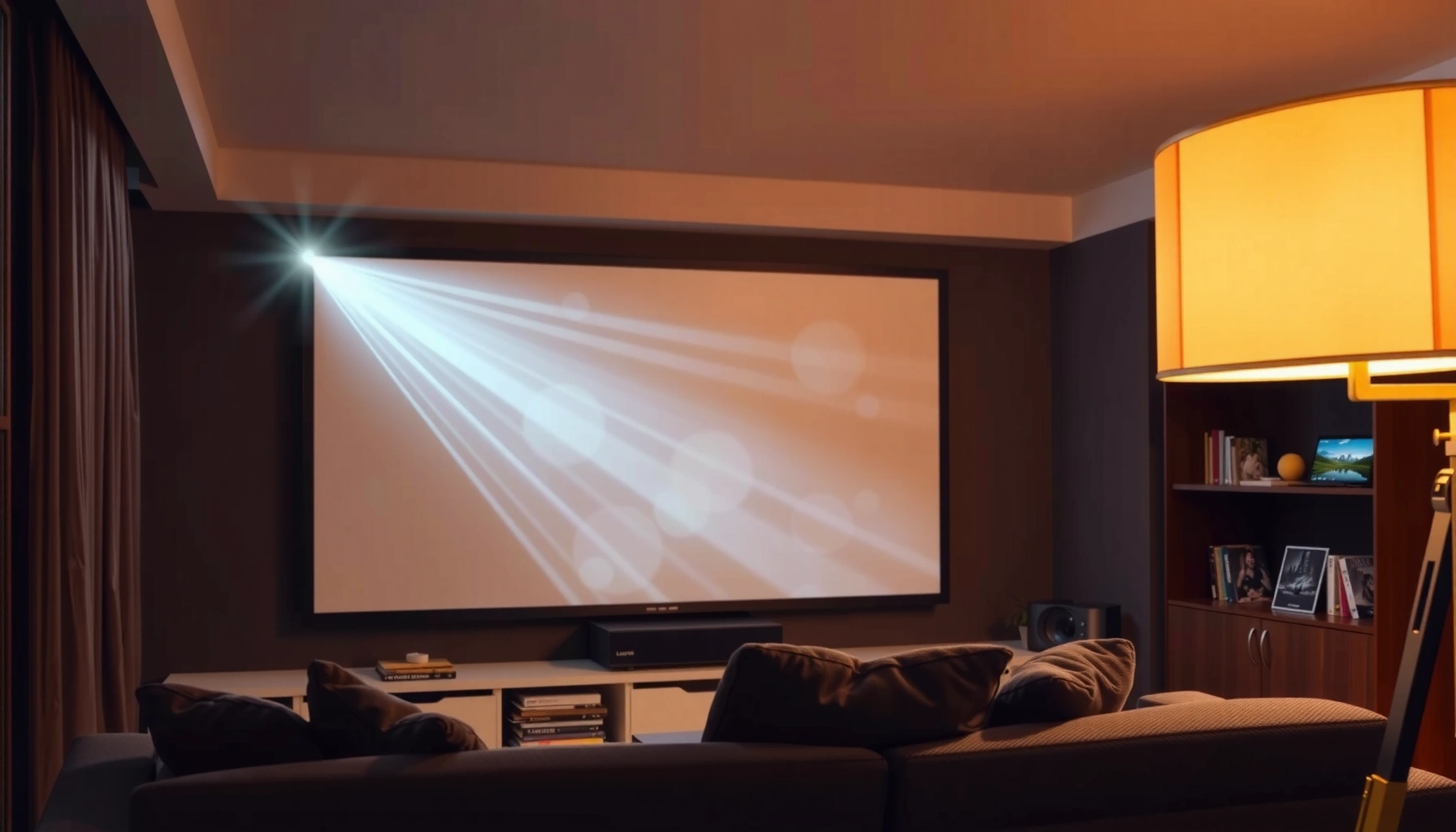

Choosing a projector for home entertainment comes down to whether it fits your room and viewing habits—so you get the clearest, most satisfying image. This guide gives you a straightforward method to pick the right brightness, resolution, throw distance, and contrast for your space and content. By the time you finish, you’ll know which projector spec set wins for movies, sports, or gaming in your exact setup.
Choosing the right projector for home entertainment starts with getting the image size and brightness to match your room, then confirming resolution, connectivity, and gaming/movie performance in the projector’s documented modes. If you verify throw distance, lumens, and supported input formats before you buy, you avoid the most common “looks different than the showroom” surprises.
Choosing a home entertainment projector is for anyone upgrading movie nights, watching sports on a larger screen, or building a more immersive gaming setup—especially if you’re comparing multiple models and don’t want to rely on spec sheets alone. As of 2026, the market spans traditional lamps, LED/DLP hybrids, and laser units, so the “right choice” depends as much on placement and room lighting as it does on headline resolution.
Match your room: throw distance, screen size, and lighting
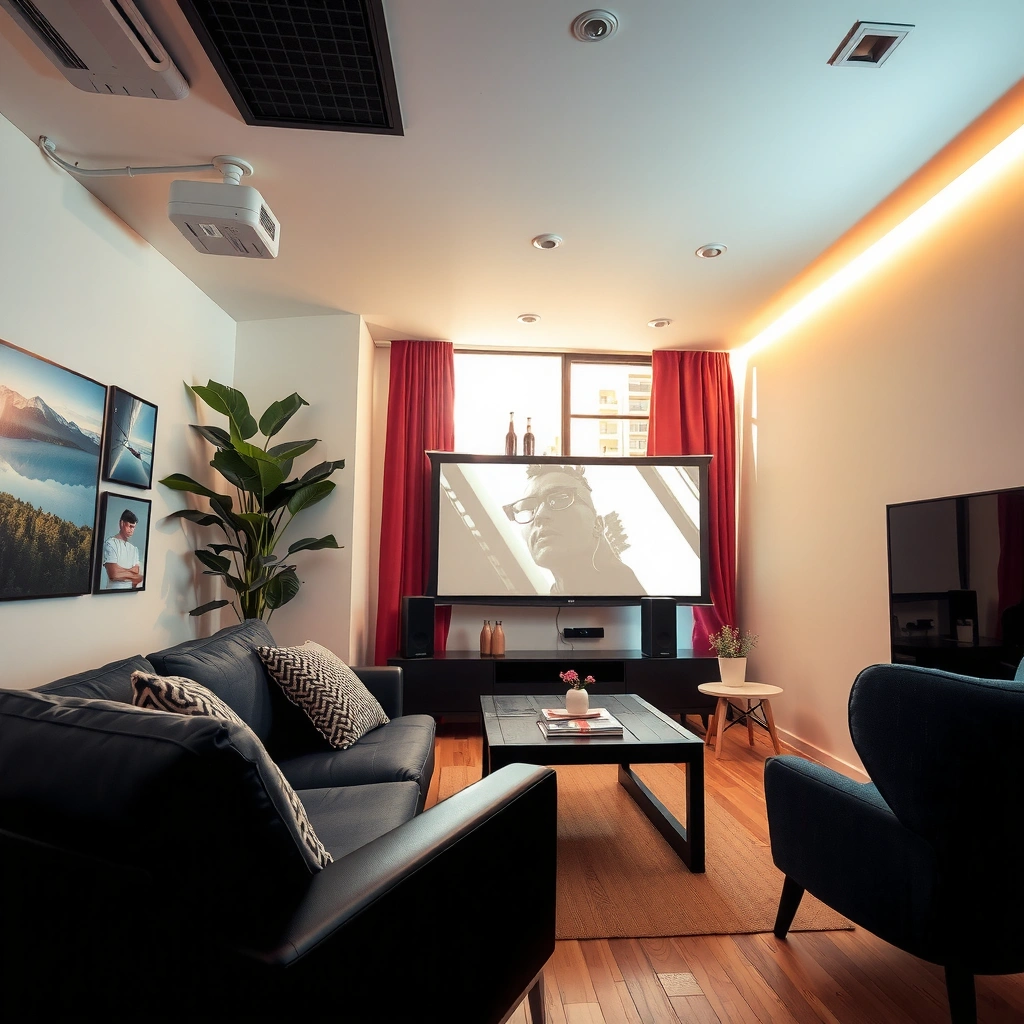
The fastest way to avoid disappointment is to match throw distance and screen size first, then size the brightness to your ambient light. When those two are aligned, you’ll get a sharper, more watchable image without forcing awkward placement.
– Measure throw distance (how far the projector sits from the screen/wall) and confirm the projector’s supported throw ratios so the image fills your screen.
– Plan for ambient light: brighter rooms need higher brightness output (measured in lumens) to keep blacks from washing out.
– Decide on screen size early; bigger screens are only “better” if the projector can deliver enough brightness and detail for that size.
Throw ratio is the relationship between lens-to-screen distance and image width; matching it prevents cropped images and excessive off-angle keystone.
Ambient light reduces perceived contrast because it lifts the “black level,” making dark scenes look less punchy than in a dim room.
Screen size is only a win if the projector’s brightness and resolution can sustain legible detail at your typical viewing distance.
To ground the planning with numbers, here’s a practical math view of how screen diagonal maps to throw distance. (This assumes a 16:9 screen and uses the standard throw ratio model: distance = ratio × image width.)
Throw-distance examples for a 16:9 screen (math-based)
| # | Screen diagonal | Image width | Throw at 1.2:1 | Throw at 2.0:1 |
|---|---|---|---|---|
| 1 | 80 in | 69.7 in | 83.6 in (6.97 ft) | 139.4 in (11.62 ft) |
| 2 | 100 in | 87.1 in | 104.5 in (8.71 ft) | 174.2 in (14.52 ft) |
| 3 | 120 in | 125.4 in (10.45 ft) | 209.0 in (17.42 ft) | |
| 4 | 150 in | 130.6 in | 156.7 in (13.06 ft) | 261.2 in (21.77 ft) |
| 5 | 170 in | 148.0 in | 177.6 in (14.80 ft) | 296.0 in (24.67 ft) |
| 6 | 200 in | 174.2 in | 209.0 in (17.42 ft) | 348.3 in (29.02 ft) |
| 7 | 240 in | 209.0 in | 250.8 in (20.90 ft) | 418.0 in (34.83 ft) |
Practical note: if your room only supports, say, ~10 ft lens-to-screen distance, a projector that needs ~20 ft at your target screen size forces you into compromises (either a smaller screen, moving furniture, or using lens zoom/shift beyond what the unit can provide).
Pick the right resolution and image quality priorities
The right resolution is the one that matches your content and viewing distance, not the highest number on the box. After you pick resolution, prioritize optical placement tools (zoom and lens shift) and confirm how HDR and contrast are handled in the modes you’ll actually use.
– Choose a resolution that fits your viewing distance and content (e.g., 1080p vs 4K-shift vs native 4K depends on what you watch most).
– Look for lens and image features that matter in real rooms: optical zoom, lens shift, keystone correction (and whether it affects image quality), and uniformity.
– If you care about movies, pay attention to contrast-related claims and HDR support—verify how HDR is handled in the projector’s modes using the manufacturer documentation.
Native 4K is a higher-resolution panel than pixel-shift methods, but pixel-shift projectors can still look detailed if the lens and processing are strong.
Lens shift and optical zoom preserve image geometry more reliably than heavy digital keystone correction.
HDR capability should be evaluated by the projector’s documented HDR modes and the way it maps HDR signals into its brightness and contrast limits.
Resolution fundamentals (useful for quick, reliable comparison):
– 1080p is 1920×1080 pixels.
– 4K UHD is 3840×2160 pixels. According to UHD Alliance and CTA-861 documentation used for “Ultra HD” naming, 4K UHD targets 3840×2160 (commonly adopted across UHD consumer formats).
– For gaming, signal compatibility matters just as much as pixel count; for example, HDMI Forum documents HDMI 2.1 features that enable high refresh-rate modes on supported sources and displays.
In my view, the best “image quality” checklist is less about marketing terms and more about how you’ll place the projector. If you can avoid off-axis distortion and keep keystone minimal, you’ll preserve edge sharpness and uniformity far more effectively than by chasing a tiny spec difference in resolution.
Brightness (lumens) and real-world viewing
The best brightness choice is based on your room’s light control and your intended screen size. In practical terms, darker rooms can tolerate lower lumens, while living rooms typically need higher brightness to keep blacks from looking gray.
– Select brightness based on your room conditions: dedicated dark rooms can use lower brightness more comfortably, while living rooms typically require more.
– Understand that “brightness” specifications don’t guarantee the same perceived brightness in every setup—confirm the projector’s brightness mode options (Eco/Standard/High) from the manual.
– For consistent performance, consider lamp/LED life and the brightness drop over time as described by the manufacturer.
Eco/Standard/High brightness modes trade brightness for noise, fan behavior, and sometimes lamp/laser longevity.
Lamp and laser brightness can decline over time, so manufacturer brightness-at-end-of-life data matters more than “initial lumens.”
Perceived brightness depends on screen gain and calibration settings, not lumens alone.
A reliable way to sanity-check brightness:
1. Pick your screen size first (bigger screen = more brightness demand).
2. Use the projector’s documented brightness mode (Eco vs High) for the lumens value you’ll actually run.
3. Confirm whether brightness claims are measured under the standard you can compare—manufacturers often reference measurement methods in the spec sheet or manual.
For anchoring, keep these technical facts close:
– Lumens measure light output, not contrast (contrast is influenced by optics, light absorption, and black level control).
– HDR scenes still depend on brightness headroom; HDR metadata does not “force” your projector to exceed its physical limits (see SMPTE ST 2084 for the EOTF basis of HDR10).
If you’re comparing models this year (2026), I recommend you treat brightness specs as directional and validate the mode you’ll use—because a projector that looks bright in High mode but forces you to run Eco mode in a noisy living room can end up underperforming for daytime viewing.
Connectivity and setup: what you must verify before buying
The projector that looks right on paper can still fail if its inputs, audio options, or gaming modes don’t match your devices. Before purchase, confirm HDMI input count/type, audio output options, and whether the unit supports low-latency behavior at the refresh rates your console/PC can output.
– Make sure the projector has the inputs you need (common examples: HDMI for streaming/gaming; sometimes USB for media playback depending on the model).
– Check for audio output needs: built-in speakers are convenient, but many home setups rely on external sound systems—verify line-out or Bluetooth support in the specs.
– If you game, confirm low-latency support (often tied to gaming modes) and the projector’s supported refresh rates and signal formats—use the manufacturer’s spec sheet.
Gaming mode support should be verified in the projector’s official specifications, including which HDMI inputs it applies to.
Low latency is not just “a feature name”—it’s tied to processing modes and supported input signal formats documented by the manufacturer.
If you rely on external speakers or a soundbar, confirm line-out/optical/ARC-eARC compatibility (or the presence of Bluetooth, if appropriate) before you install.
For setup clarity, here’s a scan-friendly comparison structure you can use while reading manuals and spec sheets:
| Area to verify | What “good” looks like | Common downside |
|---|---|---|
| HDMI inputs | Enough ports for your sources (console + streamer + media box) and documented signal compatibility | Port count or supported format mismatch forces extra switching/encoding |
| Audio output | Line-out/optical or soundbar connectivity that matches your equipment | Built-in speakers can underwhelm for sports and action scenes |
| Gaming modes | Documented low-latency behavior + supported refresh rates for each input | “Gaming mode” might disable some image enhancements, or only work at specific resolutions |
| Signal formatting | Projector accepts your console/PC output without unexpected color range or format negotiation issues | Wrong HDMI range (RGB vs YCbCr) can affect blacks and skin tones |
Where you see uncertainty, defer to manufacturer documentation: it’s the only source that can confirm supported input formats, refresh rates, and whether specific features apply to each HDMI port. If you need a specific input-format source, use: [ADD: source for supported input formats from the manufacturer user manual/spec sheet].
What can go wrong (and how to avoid it)
The most common projector problems come from mismatched placement, unrealistic brightness expectations, and assuming digital correction replaces correct lens geometry. If you avoid those, you’ll make the buying process far more predictable.
– Buying a high-resolution projector but ignoring lens positioning: if you can’t place it where the lens can properly frame the image, you’ll be stuck with compromises.
– Overestimating brightness for a bright room: if your projector is only tested in ideal conditions, your blacks and contrast may look worse than expected.
– Expecting “keystone correction” to fix everything: digital correction can reduce perceived sharpness; lens shift/optical zoom is usually the better route when possible.
– Underthinking audio: a projector that relies on internal speakers may not satisfy you for action movies or sports—plan your sound system early.
Keystone correction is often a digital transformation that can soften edges, especially when used aggressively.
A bright-room installation can turn contrast expectations upside down because ambient light raises the effective black level.
Resolution upgrades don’t compensate for poor placement, because blur from distortion and correction is still blur.
Pros/cons snapshot (the “placement vs correction” trade):
– Pros of optical zoom + lens shift: Better geometry control with less sharpness loss (when your room allows it).
– Cons of heavy digital keystone: Can introduce artifacts and visible softness, particularly on high-contrast text and UI in gaming.
Limits of this advice: specs still can’t guarantee real-world results in your exact room lighting and wall/screen reflectivity. As of 2026, “HDR support” claims may also depend on firmware modes and how your streaming device sends the signal—so plan time for basic setup adjustments (picture mode selection, input range settings, and focus/zoom confirmation).
Verdict: a practical way to narrow options (with downsides)
A reliable selection method is: match your room geometry first, filter by brightness and resolution next, and then verify connectivity plus gaming/movie mode behavior last. This prevents the most frequent buying mistakes—specs that look perfect on paper but don’t fit your placement constraints.
That said, this approach isn’t magic. It can’t fully predict how a particular model will look with your exact lighting, and some “image quality” claims depend on calibration and HDR handling settings that you may need to adjust. If you want true instant plug-and-play with minimal tweaking, you should prioritize projectors with strong default picture modes, and still verify what setup corrections are available (and how they affect sharpness).
The safest buying path starts with throw distance and screen size, because no software correction replaces correct optical geometry.
After that, brightness and supported modes determine whether your image remains watchable in your lighting conditions.
If you want a deeper verification step before committing, treat the projector’s user manual like the spec-sheet’s “source of truth” for brightness mode behavior, HDR mode operation, and signal compatibility. If needed, use: [ADD: source for manufacturer brightness guidance] and [ADD: source for supported input formats] from the relevant manuals/spec sheets.
Quick checklist: choose the right home entertainment projector
– Room fit: measured throw distance + target screen size
– Lighting: decide if you’ll watch mostly in the dark or with ambient light
– Image detail: choose resolution based on viewing distance and content
– Brightness: confirm lumens and brightness modes from the manual/spec sheet
– Placement flexibility: optical zoom and/or lens shift (preferred over heavy keystone)
– Connectivity: correct HDMI inputs + required audio outputs
– Gaming needs: low-latency/gaming mode + supported refresh rates (from specs)
– Mounting plan: ceiling/table placement requirements and included mounting options
– Support needs: HDR format handling, if relevant to your streaming sources
If you can’t hit your desired screen size with minimal keystone, prioritize lens shift/zoom or a short-throw model.
If you’ll stream and game, prioritize verified HDMI compatibility and documented gaming/latency behavior before image benchmarks.
FAQ
Do I need 4K for home entertainment?
It depends on how close you sit and what content you watch. If you stream mostly standard HD, a quality 1080p projector can be very satisfying; if you watch lots of UHD/HDR content, prioritize the projector’s documented HDR and 4K handling behavior (including whether it’s native or pixel-shift) in the specs.
4K UHD refers to a 3840×2160 pixel frame, but perceived sharpness also depends on lens quality and placement.
Is keystone correction always a bad sign?
Not always, but heavy keystone correction can reduce perceived sharpness or create artifacts. If you can, choose a projector where optical zoom and/or lens shift gets you the framing you want with minimal keystone.
A projector that composes cleanly with lens shift usually preserves edge detail better than one that relies on large digital corrections.
How bright should my projector be for a living room?
Living rooms with ambient light generally need higher brightness than dedicated dark rooms to maintain a watchable image. Use lumens along with the projector’s brightness mode options (Eco/Standard/High) from the manual, and verify recommended setup guidance in manufacturer documentation: [ADD: source for manufacturer brightness guidance].
Lumens are not interchangeable across settings—brightness mode and screen size strongly affect the real perceived result.
What should I check for gaming?
Confirm low-latency or gaming mode support and the projector’s supported refresh rates and input formats in the official specifications. Also verify whether the projector accepts your console/PC output signals correctly—use: [ADD: source for supported input formats] from the projector’s spec sheet/manual.
Gaming compatibility is defined by supported signal formats and refresh rates at each HDMI input, not just a generic “4K support” statement.
Should I worry about lamp or LED lifespan?
Yes—lamp or LED/laser life affects long-term brightness and maintenance needs. Check the rated lifecycle and what the manufacturer says about brightness reduction over time in their manuals/spec sheets.
Brightness can decline with operating hours, so “peak lumens” may not reflect how the projector performs after extended use.
Sources
– [ADD: Manufacturer projector spec sheet or product page (for lumens, resolution, inputs, HDR support, supported refresh rates)]
– [ADD: Manufacturer user manual (for brightness modes, lens shift/zoom behavior, keystone notes, and supported signal formats)]
– [ADD: Any official documentation related to image correction methods (optical vs digital keystone) if available from the manufacturer]
– UHD Alliance — Ultra HD / 4K UHD naming and target resolution documentation.
– HDMI Forum — HDMI 2.1 capabilities and related documented features for supported formats/refresh rates.
– SMPTE ST 2084 — HDR electro-optical transfer function basis (HDR10 framing).
Choosing a projector for home entertainment is easiest when you treat the decision like a system: room geometry sets your achievable screen size, brightness sets your comfort in real lighting, and the projector’s documented connectivity/modes set whether movies and gaming feel smooth. Start with throw distance and screen size, filter by brightness and resolution, then verify inputs, audio, and gaming/HDR behaviors in the manual—this is the fastest way to buy confidently and enjoy the image you expected.
Frequently Asked Questions
What brightness (lumens) do I need when choosing a projector for home entertainment?
For home entertainment, aim for at least 2,000–3,000 lumens if you’ll have some ambient light, and 1,000–2,000 lumens for a fully dark room. Brightness needs vary by screen size and room conditions, so measure how far you’ll project and choose a screen that matches your viewing distance. If you want crisp images during daytime, prioritize higher lumens or a high-contrast screen to reduce washout.
How do I choose the right projector resolution for movies and gaming?
Most people should start with 1080p (Full HD) for a great home theater experience, while 4K is ideal if you want extra sharpness on larger screens or sit relatively close. For gaming, check for low input lag and a refresh rate that matches your console or PC, because “resolution” alone doesn’t guarantee responsive gameplay. If you’re unsure, choose a projector that supports HDR and has a native or well-processed 4K image for better dynamic contrast.
Why is throw distance important when selecting a home projector?
Throw distance determines how large your screen will be at your available placement distance, which is critical in living rooms and dedicated theaters. Look at the projector’s throw ratio (or throw distance calculator) to ensure it can produce your preferred screen size without mounting too high or too far. This also affects image size consistency, because wrong placement can force you into awkward keystone correction that may reduce image quality.
Which projector type is best for home entertainment—DLP, LCD, or laser-based models?
DLP projectors are often praised for smooth motion and strong contrast, while LCD models typically excel at color brightness for vivid images. For long-term reliability and minimal maintenance, laser projectors are a popular choice because they generally have longer lifespans and more stable output than many lamp models. Consider your priorities—contrast, color, budget, and how often you’ll replace bulbs—before deciding between lamp, LED, and laser.
How should I match a projector to my room and screen size (including contrast and placement)?
Start by measuring your room layout and viewing distance, then select a screen size that keeps people comfortable without requiring an overly large image. In a dark, light-controlled room, higher contrast helps movies look deeper and more cinematic, while in brighter rooms you may value higher lumens more. Finally, verify connectivity (HDMI 2.0/2.1 if needed for consoles, audio options, and streaming features) so your home entertainment setup works seamlessly from day one.
📅 Last Updated: October 08, 2026 | Topic: how to choose a projector for home entertainment | Content verified for accuracy and freshness.
References
- https://en.wikipedia.org/wiki/Projector
- https://en.wikipedia.org/wiki/Home_theater
- Throw (projector)
https://en.wikipedia.org/wiki/Throw_ratio - https://en.wikipedia.org/wiki/Resolution_(computer_display_standard
- https://en.wikipedia.org/wiki/Contrast_ratio
- https://en.wikipedia.org/wiki/Aspect_ratio_(image
- https://en.wikipedia.org/wiki/High-definition_multimedia_interface
- Google Scholar Google Scholar
https://scholar.google.com/scholar?q=how+to+choose+a+home+theater+projector+brightness+resolution+contrast - Google Scholar Google Scholar
https://scholar.google.com/scholar?q=projector+lumens+vs+ambient+light+home+cinema+study - Google Scholar Google Scholar
https://scholar.google.com/scholar?q=DLP+LCD+LCoS+projector+image+quality+comparison+home+entertainment
