
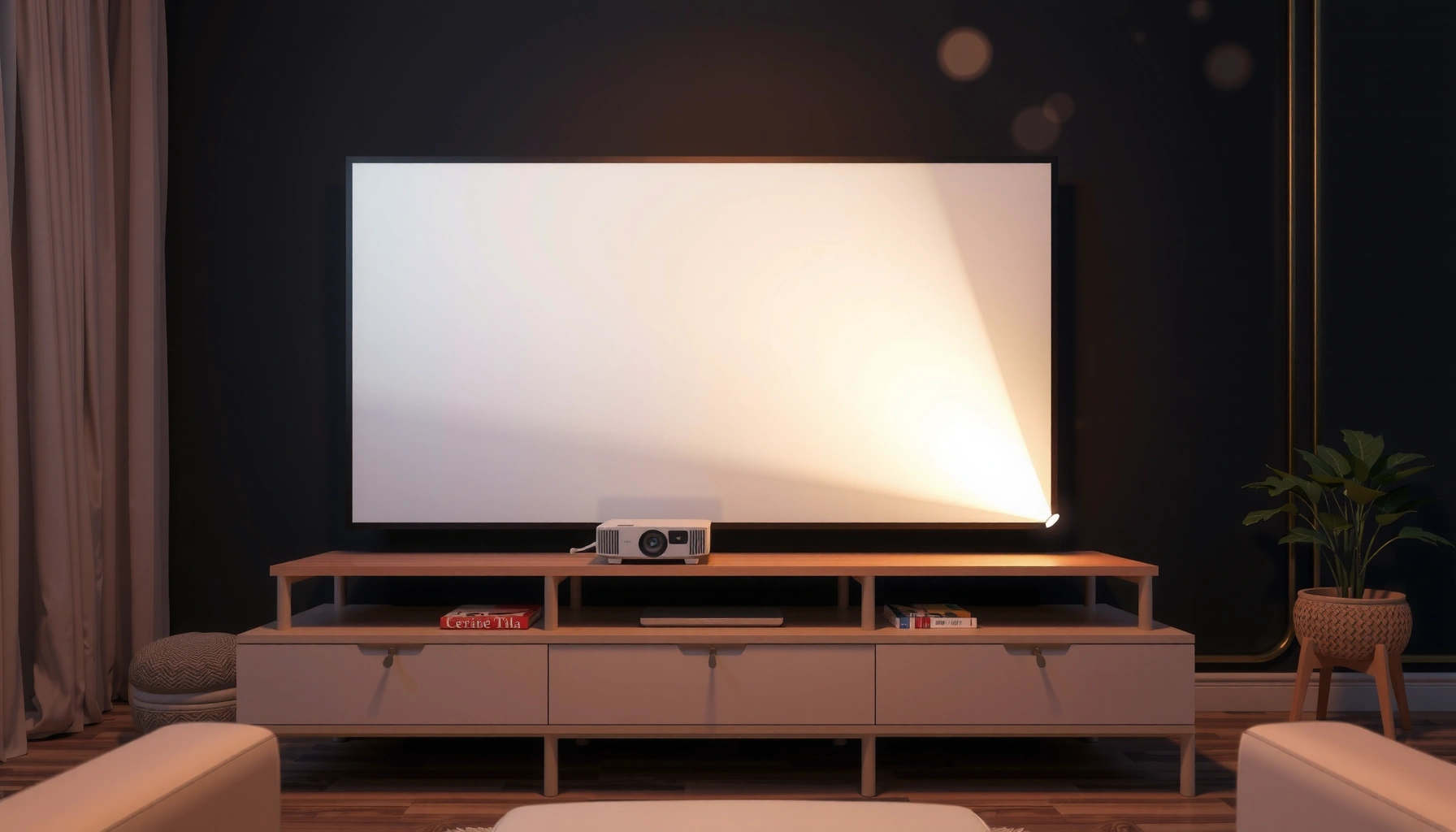

Choosing a projector for home comes down to one question: what model will actually deliver the right picture size, brightness, and inputs for how you’ll watch. Use this buying checklist to pick the clear winner based on your room lighting, throw distance, screen size goal, and device connections—without guessing or overspending. By the end, you’ll know exactly what specifications to prioritize for your setup and which common features to ignore.
Choose a home projector by matching lumens (brightness) and resolution to your room and viewing distance, then verify it physically fits your throw distance and screen size. After that, confirm the inputs you need (HDMI/streaming), decide whether you want lamp or LED/laser, and check audio and (if gaming) input lag so you don’t end up with an impressive spec sheet and a frustrating setup.
If you’re setting up a home theater, gaming area, or even a casual movie room—this guide is built for the moment you’re comparing models and realizing terms like throw ratio, lumens, and input lag don’t automatically translate into “will this work in my space?”
To make this actionable, we’ll move in the same order that prevents the most common mismatches: room → image size → distance → connectivity and playback → placement/mounting → light source and audio. As of 2026, most manufacturer catalogs still list the same critical specs, so the checklist below stays reliable even as models change.
Know your room: brightness, screen size, and lighting
The quickest way to avoid a disappointment is to start with your room’s ambient light and set a realistic screen size goal before you compare projectors. Bright rooms need more lumens to hold onto contrast; dark rooms can often get away with less, especially if you can control glare.
Here’s why room lighting matters: projector brightness is usually rated in lumens, but real perceived brightness depends on screen gain, seating distance, and how much stray light hits the screen. According to the CIE (Commission Internationale de l’Éclairage), ambient illuminance is typically measured in lux, which strongly affects contrast perception ([ADD: CIE standard/source for lux/ambient measurement]). In practical home terms, a theater-style room (lights off) behaves very differently from daytime living rooms with windows.
When you buy a projector for a bright room, you’re really budgeting for contrast—not just raw lumens—because ambient light washes out blacks.
Screen size should be chosen before the projector: a larger image needs more lumens to look equally “bright.”
Throw distance is the physical constraint that can eliminate otherwise-great projectors even if their specs look perfect.
– Decide lighting conditions first
– Light-controlled: Ideally, blackout curtains or a room you can dim for movies.
– Daytime viewing: If you’ll watch with lights on, you’ll need higher brightness and careful screen placement.
– If you can, measure how bright your room is with a phone lux meter app—then treat your results as “directional,” not lab-grade.
– Pick a target screen size (start here)
– Choose a screen diagonal you want to live with (or a wall area you can dedicate).
– Then check whether the projector can produce a readable image at that size within your available distance.
– Plan your throw distance early
– “Throw distance” is the distance from the projector lens to the screen/wall.
– Even if you like a projector’s resolution and lumens, it can be a non-starter if it can’t focus and fill your screen size from your ceiling height or media console.
Match resolution and image quality to your viewing distance
Resolution isn’t just a number—it’s a relationship between pixel density and how close you sit. If you watch from far away, extra pixels may not add value; if you watch up close or want a big screen, resolution becomes more noticeable.
When comparing 1080p vs 4K, pay attention to what the projector actually renders and how it handles motion and sharpening. Also, “4K” marketing can mean different things (true 4K vs pixel-shift); confirm in the manufacturer’s spec sheet and product documentation rather than relying on the headline.
Viewing distance determines whether higher resolution becomes visible: closer seating makes fine detail more noticeable.
If you care about higher-contrast content, look for HDR support in the projector’s feature list and supported HDR formats.
Built-in streaming apps can reduce setup friction, but they’re also part of the long-term support story—check the manufacturer’s stated update policy or app ecosystem.
– Choose resolution based on practical viewing distance
– If viewers sit relatively close, 4K (or pixel-dense 4K-like) can help reduce the “soft edges” feeling.
– If viewers sit farther away, 1080p can still look sharp enough when paired with good optics and a properly sized screen.
– Prioritize image features that match your content
– HDR support: Useful for movies and streaming titles with HDR metadata, but only if the projector’s tone mapping and supported formats align with your sources.
– Color modes / calibration options: If you can tune it, you’ll get more consistent results across modes.
– Decide where the video comes from
– Many people route content through:
– the projector’s built-in OS apps, or
– an external streaming device (Roku/Apple TV/Fire TV) or a game console.
– Your choice affects which formats and audio features you should verify (see next section).
Confirm connectivity and playback needs
The best projector for home is the one that connects cleanly to your actual sources with the audio behavior you want. Before you finalize a purchase, verify the exact inputs (usually HDMI), the supported video formats, and how audio is handled with your soundbar or AVR.
The most common connectivity “gotcha” is not having the right physical connection—or assuming that audio will automatically route where you want it. Another frequent issue is gaming performance: even a great image can feel wrong if input latency is high.
Check for the exact HDMI ports and versions listed in the manufacturer documentation to avoid “it connects but nothing looks right” scenarios.
If you use a soundbar or AV receiver, confirm the projector’s audio output options and whether ARC/eARC behavior applies to your setup.
For gaming, verify low-latency modes and supported refresh rates in the projector’s official specs rather than relying on marketing summaries.
– Verify inputs you require
– Commonly:
– HDMI from a console, Blu-ray player, or streaming box
– sometimes USB for media playback (often less consistent than HDMI sources)
– Confirm you have enough ports for your likely sources (console + streaming device + TV box is common).
– Confirm streaming strategy
– If you plan to use built-in apps, check:
– supported streaming services,
– whether you’re comfortable relying on a projector’s long-term app updates.
– If you already own a streaming device, focus on HDMI compatibility and audio routing.
– If you game: check latency and motion handling
– “Input lag” is the delay between your controller action and what appears on screen.
– Confirm:
– whether the projector offers a Game mode,
– supported refresh rates (e.g., 60 Hz) and whether it can maintain them with your signal.
Understand throw, lens options, and mounting flexibility
You can buy the “right” projector on paper and still fail the setup if it can’t physically project the size you want from your location. The throw ratio and placement range tell you whether you can mount it comfortably, and the lens adjustment features determine whether your final image stays sharp.
Throw ratio (or throw distance range) is the math that links projector position to image size. Lens shift and built-in lens controls help you correct placement constraints without degrading image geometry.
Throw ratio determines whether a projector can achieve your screen size from your available distance—this is often the deciding factor after lumens.
Lens shift typically preserves image sharpness better than heavy keystone correction because it doesn’t force the projector to digitally warp the image geometry.
Mounting height and angle constraints are easier to solve when the projector supports vertical/horizontal lens adjustment or robust placement flexibility.
– Check throw ratio / throw distance range
– Look for a specified range like “X to Y inches from the screen for a given diagonal” in the manufacturer’s manual/spec sheet.
– If you’re ceiling-mounting, also consider lens clearance and where you can route power and cables.
– Lens shift vs keystone (why it matters)
– Keystone corrects a “trapezoid” image by digitally reshaping it; too much correction can soften edges.
– Lens shift adjusts the optical projection path, typically keeping geometry more accurate.
– Use a pros/cons comparison to guide placement decisions
| Placement option | Pros | Cons |
|---|---|---|
| Lens shift | Better geometric control for off-center mounting; usually less image degradation than heavy keystone. | More expensive models may offer more adjustment range. |
| Keystone correction | Helps when you can’t change projector position; fast to adjust. | Large corrections can soften details and reduce perceived sharpness. |
| Correct placement (no correction) | Highest image fidelity when projector sits correctly relative to screen. | May require accepting a specific mount location or using a different screen size. |
– Plan ceiling mount vs tabletop
– Decide early because it affects:
– cable routing,
– lens adjustment capability needs,
– and whether you’re forced into keystone-heavy alignment.
What can go wrong when choosing a projector for home
Buying mistakes usually happen when the buyer optimizes one spec while ignoring the physical or workflow constraints that actually determine picture quality and daily usability. The most expensive regret is often the one that arrives when you realize the projector can’t be placed where your room allows.
Lumens alone rarely solve daylight problems because ambient light reduces contrast and makes black levels look washed out.
Ignoring throw distance is a fast path to “it won’t fill the screen” or “I can’t mount it where I need it.”
If you plan to use a serious soundbar or AVR, confirm audio routing and compatibility in the projector’s documentation before you buy.
– Overbuying brightness
– If you mostly watch in a dim room, chasing “maximum lumens” can lead to unnecessary cost without noticeable everyday improvement.
– Underestimating throw constraints
– Some projectors are designed for short-throw or long-throw rooms; if your setup doesn’t match, the image size and focus range can fall short.
– Over-relying on keystone
– If your placement requires heavy keystone correction, expect softer edges and a less “clean” image—especially on text and high-contrast scenes.
– Underestimating audio needs
– Many home projectors have built-in speakers, but they rarely replace dedicated audio. Action-heavy content and dialogue-heavy shows often benefit from a soundbar or AVR.
– Skipping input/format compatibility checks
– Verify what your sources output and what the projector accepts (resolution, refresh rate, HDR modes).
– If you rely on audio features like ARC/eARC, confirm whether those behaviors apply in your exact connection chain—manufacturer documentation matters here.
Practical spec targets to sanity-check your shortlist
Use this quick “fit guide” to compare models at a glance. (These are practical planning ranges—not guarantees—so you should still confirm each projector’s actual spec sheet and throw chart.)
Home Projector Fit Guide by Use Case (Planning Ranges)
| # | Use case | Target lumens | Best starting resolution | Setup risk | Fit rating |
|---|---|---|---|---|---|
| 1 | Dark movie room (lights off) | 2,000–3,000 | 1080p or 4K | Low | ★★★★★ |
| 2 | Bright living room (lights on) | 3,000–5,000 | 1080p+ | Medium | ★★★★☆ |
| 3 | Daytime viewing (windows nearby) | 4,000–6,000+ | 4K preferred | High | ★★★☆☆ |
| 4 | Console/PC gaming | 2,500–4,000 | 1080p/4K (match console) | Medium | ★★★★☆ |
| 5 | Small room / limited throw | 2,500–4,000 | 1080p+ | Low–Medium | ★★★★☆ |
| 6 | Large-screen home theater | 3,000–5,500 | 4K recommended | Medium | ★★★★☆ |
| 7 | Frequent setup changes (rental/portable) | 2,000–4,000 | 1080p–4K (by budget) | High | ★★★☆☆ |
Verdict: a practical way to pick (and who should skip this approach)
A practical way to pick a home projector is to set your room lighting and seating expectations first, then choose screen size/throw fit, and only afterward narrow by resolution, connectivity, and light-source type. This minimizes the “spec mismatch” problems that show up after installation.
Here’s the reasoning: brightness (lumens) is only meaningful relative to your ambient lighting, and resolution is only meaningful relative to viewing distance. Throw distance and lens adjustment determine whether you can get a sharp, correctly shaped image without heavy keystone correction. Then the practical “daily use” factors—inputs, audio behavior, and gaming modes—determine whether you’ll enjoy the projector every week.
If placement and throw distance don’t match, no amount of resolution or brightness will fix a setup that can’t physically project your chosen screen size.
Audio and connectivity verification should happen before purchase because routing compatibility is often the most frustrating “last mile” issue.
A spec-first approach works best when you can still verify throw charts, supported signal formats, and light-source maintenance requirements.
Skip this spec-first workflow if you already have fixed, non-negotiable constraints—like a specific ceiling mount location, a specific wall size, or a seating distance that can’t change. In those cases, treat compatibility constraints as the starting point and only then refine features.
Quick checklist to save
Use this short list to keep your comparisons consistent across models and avoid missing a critical placement or compatibility requirement.
A consistent checklist beats “feature surfing” because projector success depends on room fit and signal compatibility as much as on headline specs.
– Room lighting: light-controlled or mostly bright?
– Screen size target: [ADD: your preferred screen size]
– Throw distance available: [ADD: distance from projector to screen]
– Resolution preference: based on viewing distance and content mix
– Inputs needed: HDMI devices + any audio output requirements (soundbar/AV receiver)
– Gaming (if applicable): confirm low-latency support from official specs/documentation
– Mounting plan: ceiling vs tabletop; need lens shift?
– Lamp vs LED/lased light: check maintenance/replacement expectations from documented lifespan and warranty terms
FAQ
These are the most common follow-ups people have after they’ve reviewed the checklist, especially when comparing projector listings.
Lumens recommendations are not universal: perceived brightness depends on your ambient light and how much stray light reaches the screen.
How many lumens do I need for a home projector?
Lumens requirements depend heavily on ambient light. For daylight or a non-blackout room, you’ll generally need significantly more brightness than for a darkened theater-style room, and it’s best to use the manufacturer’s brightness and recommended viewing conditions in their documentation as your baseline. [ADD: source for lux-to-perceived-brightness guidance]
Is keystone correction bad for home projectors?
Keystone correction can reduce image quality because it alters image geometry through digital warping. If you expect to use large keystone corrections often, prioritize a model with better placement flexibility (like lens shift) or adjust your mounting position instead. [ADD: source for projector keystone/lens correction impact or manufacturer doc references]
What should I prioritize for gaming: resolution or input lag?
Input lag is usually the priority for gaming comfort, followed by resolution that matches your screen size and viewing distance. Confirm gaming performance claims from the projector’s official specifications/documentation, and match refresh-rate support where relevant. [ADD: manufacturer docs source for input lag/refresh support]
Do I need a separate streaming device if the projector has built-in apps?
Not always—but built-in apps vary in performance and long-term support. If you already use a reliable streaming device, check that the projector’s HDMI and input handling suit your setup, and keep your source external for consistency if that matters to you. [ADD: manufacturer documentation for supported streaming/app ecosystem]
Sources
– [ADD: CIE standard/source for ambient illuminance (lux) measurement and relevance to perceived contrast]
– [ADD: manufacturer specification sheets for lumens, native resolution, throw ratio/throw distance range, and lens shift/keystone behavior]
– [ADD: manufacturer user manual/docs for mounting guidance and recommended keystone/lens correction practices]
– [ADD: manufacturer documentation for lamp vs LED/laser lifespan and maintenance intervals (and any warranty terms)]
Selecting a projector for home becomes straightforward when you make the fit checks do the heavy lifting: room lighting, screen size, throw distance, then connectivity, then lens/mounting flexibility, and finally light source and audio. If you work through the checklist in that order—and verify the throw chart and supported signal formats from the manufacturer—you’ll avoid most of the installation surprises and end up with a system that looks good on day one and remains enjoyable long after.
Frequently Asked Questions
What brightness (lumens) do I need when choosing a home projector?
For a typical living room with some ambient light, look for around 2,000–3,000 lumens for a clear image. If you can fully control light with blackout curtains, you may get good results with 1,500–2,500 lumens. For daytime viewing or brighter rooms, higher-lumen home projectors reduce washed-out colors and improve contrast. When comparing, prioritize lumens plus image quality features like HDR support and a good contrast ratio, not brightness numbers alone.
How do I choose the right projector resolution for home theater viewing?
Start with your main content: 1080p is usually enough for movies and sports on screen sizes up to about 100 inches, while 4K is better for larger screens and sharper details. If you plan to watch streaming services that support 4K, a 4K UHD projector for home can make the upgrade noticeable. Also consider viewing distance—closer seating makes higher resolution more valuable. Make sure the projector supports the input sources you use (HDMI for consoles/players, and streaming apps if you want built-in functionality).
Which projector technology is best for home—DLP, LCD, or LCoS?
DLP projectors often deliver crisp motion and are great for gaming and sports due to strong perceived sharpness. LCD projectors can provide excellent color brightness and are common in budget-to-midrange models, while LCoS (often marketed as laser/true 3-chip solutions) typically offers superior contrast and a more “premium” home cinema look. The best choice depends on your priorities: motion performance, color/brightness, or contrast. If you’re sensitive to artifacts like rainbow effects, DLP users should consider their sensitivity and look for relevant reviews before buying.
How do I calculate the right projector screen size and throw distance for my room?
Use the projector’s throw ratio (or throw distance chart) to determine how far the lens must be from the screen for your desired image size. Measure your available distance and then match it to screen size to avoid an image that’s too small or too large. Screen size depends on your viewing distance as well—most home theater setups aim for a comfortable balance rather than going maximum inches. If your room distance is tight, look for short-throw or ultra-short-throw projector options to get a big image without bulky placement.
Best way to choose a home projector with the right connectivity and sound?
Choose a projector based on your source devices first—ensure you have enough HDMI ports, and that they support the formats you need (like 4K/60Hz for consoles or media players). For smart features, consider built-in streaming apps, or plan to use an external streamer (Apple TV, Roku, etc.) if the projector’s OS is limited. Since many home projectors have modest built-in speakers, decide whether you’ll add a soundbar or AV receiver for better audio. Also check for Wi‑Fi stability, Bluetooth support for audio, and whether the unit supports low-latency gaming modes if you use it for play.
📅 Last Updated: October 08, 2026 | Topic: how to choose a projector for home | Content verified for accuracy and freshness.
References
- Google Scholar Google Scholar
https://scholar.google.com/scholar?q=how+to+choose+a+home+theater+projector+lumens+resolution+throw+distance - Google Scholar Google Scholar
https://scholar.google.com/scholar?q=projector+specifications+brightness+contrast+resolution+throw+ratio+guidelines - Google Scholar Google Scholar
https://scholar.google.com/scholar?q=laser+vs+lamp+projector+performance+comparison+home+use - Video projector
https://en.wikipedia.org/wiki/Video_projector - Home cinema
https://en.wikipedia.org/wiki/Home_theater - Throw (projector)
https://en.wikipedia.org/wiki/Throw_ratio - https://en.wikipedia.org/wiki/Lamp_(electricity
- Contrast ratio
https://en.wikipedia.org/wiki/Contrast_ratio - Resolution
https://en.wikipedia.org/wiki/Resolution - Projection screen
https://en.wikipedia.org/wiki/Projection_screen
