
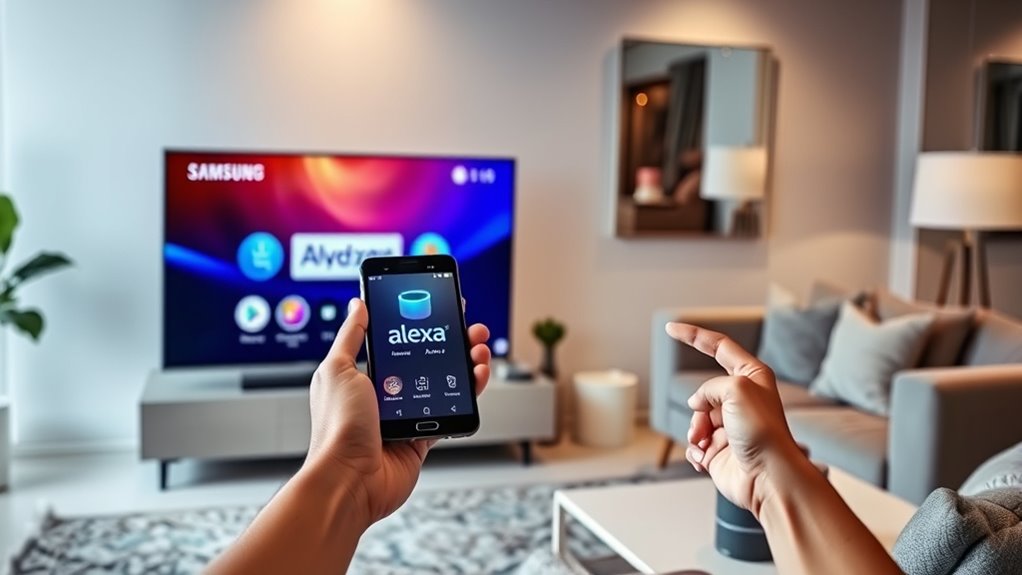

To connect Alexa to your Samsung Smart TV, first, verify your TV is compatible and both devices are on the same Wi-Fi network. Download the SmartThings app and sign in with your Samsung account. Add your TV within the app and complete the linking process with Alexa. Once connected, you can control your TV with voice commands like turning it on or changing the channel. If you need assistance with any issues, there’s more helpful information available.
Prerequisites for Connecting Alexa to Your Samsung Smart TV
Before diving into the connection process, it’s essential to assure you have everything you need. First, verify your Samsung Smart TV is compatible with Alexa; newer models usually support voice assistant compatibility. Next, check your internet connection—both your TV and the Alexa device must be online for smart home integration to work seamlessly. You’ll also want the latest firmware updates for your TV, so its features can perform at their best. Finally, download the necessary apps on your smartphone, like the Samsung SmartThings app, to facilitate the connection. Having these prerequisites in place will make the setup process smoother, allowing you to enjoy voice control over your entertainment without any hassle.
Setting Up the Samsung SmartThings App
With your prerequisites in place, you’re ready to set up the Samsung SmartThings app. First, download the app from the Google Play Store or Apple App Store. Once installed, open the app and sign in with your Samsung account. You’ll quickly notice SmartThings features that allow you to control various smart devices, including your TV.
For effective app navigation, explore the home screen to view all connected devices. Tap on the “+” icon to add your Samsung Smart TV and follow the prompts. This setup not only enhances your control over the TV but also integrates it into your smart home ecosystem. Enjoy the freedom of managing your devices seamlessly, all from one centralized app.
Linking Your Samsung Smart TV to Alexa
Linking your Samsung Smart TV to Alexa is a straightforward process that enhances your home entertainment experience. First, verify your TV has smart TV compatibility with Alexa. Next, make sure your TV and Alexa device are connected to the same Wi-Fi network. Open the SmartThings app on your phone, and select your TV from the list of devices. Follow the prompts to complete the Alexa device setup, allowing your TV to be recognized by Alexa. Once linked, you can easily control your TV using voice commands. If you’re having trouble, double-check your connections and the SmartThings app settings. With just a few steps, you’ll enjoy the convenience of controlling your Samsung Smart TV through Alexa.
Voice Commands to Control Your Samsung Smart TV
Once you’ve connected your Samsung Smart TV to Alexa, you can start using voice commands to enhance your viewing experience. With voice control, you can easily access smart TV features like changing the channel, adjusting the volume, or launching your favorite streaming apps, all hands-free. Just say, “Alexa, turn on the TV,” or “Alexa, play my playlist,” and enjoy the convenience of controlling your entertainment effortlessly. The voice control benefits are numerous; it allows for a more intuitive experience and lets you multitask without missing a moment of your favorite shows. Embrace this technology to enjoy seamless control and make your home entertainment setup truly smart.
Troubleshooting Common Connection Issues
If you’re having trouble connecting your Samsung Smart TV to Alexa, you’re not alone. Many users face connection errors that can be frustrating. First, check your device compatibility; not all Samsung Smart TVs support Alexa. Make sure both devices are on the same Wi-Fi network, as this is vital for a successful connection. If issues persist, reboot your TV and Alexa device to refresh their settings. You might also want to re-enable the Alexa skill for your TV in the Alexa app. Finally, verify your TV’s firmware is up to date, as outdated software can lead to connectivity problems. Don’t hesitate to consult the user manuals for further guidance if needed.
Frequently Asked Questions
Can I Connect Multiple Samsung TVS to Alexa?
Yes, you can connect multiple Samsung TVs to Alexa. In fact, 60% of smart TV users prefer multi device setups for seamless Alexa integration. This allows you to control each TV effortlessly with your voice.
Is Alexa Compatible With All Samsung Smart TV Models?
Not all Samsung models support Alexa integration. You’ll need to check your specific model’s compatibility. Generally, newer TVs have better support, but it’s smart to verify before assuming any Alexa functionality will work.
Do I Need a Smart Home Hub for This Connection?
You don’t need a smart home hub for this connection. Enjoy voice control advantages and seamless smart home integration directly with your Samsung Smart TV. It’s all about making your life easier and more connected!
Can I Use Alexa Without an Internet Connection?
No, you can’t use Alexa without an internet connection. While some offline features exist, voice control largely relies on connectivity. For full functionality, staying connected is essential to access Alexa’s capabilities and control your smart devices.
What if My Samsung TV Doesn’T Support Alexa?
If your Samsung TV doesn’t support Alexa, don’t worry! You’ve got alternative solutions like using a smart remote or other voice control alternatives, ensuring you still enjoy hands-free convenience without feeling restricted.
