

To connect your Harman Kardon speakers, you need to determine whether you’re using Bluetooth, a wired connection, or a home theater system. This article will guide you through the different methods of connecting your speakers to your devices, ensuring you can enjoy high-quality audio in no time. Whether you’re setting up a soundbar for your television or connecting speakers to your smartphone, understanding the process will enhance your audio experience.
Understanding Your Harman Kardon Speakers
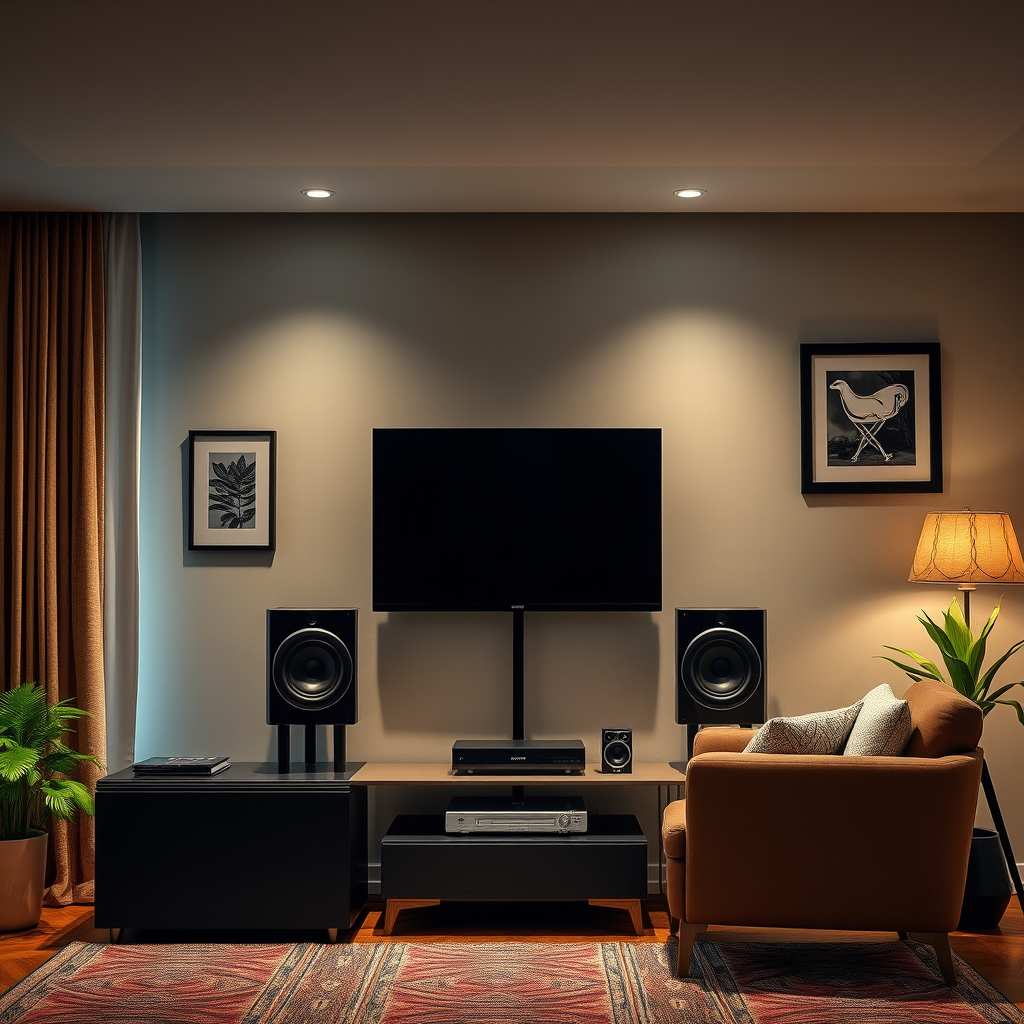
Before diving into the connection methods, it’s essential to identify the type of Harman Kardon speakers you possess. The brand offers a variety of products, including Bluetooth speakers, wired speakers, and soundbars, each with unique features and connection requirements.
1. Bluetooth Speakers: These are portable, allowing you to connect wirelessly to various devices such as smartphones and tablets. They typically have a built-in battery for mobility.
2. Wired Speakers: These are designed for a more permanent setup and often deliver superior sound quality. They generally require physical connections via cables to an audio source.
3. Soundbars: Often used as a part of a home theater system, soundbars provide enhanced audio for televisions and can connect via Bluetooth or wired connections.
Familiarize yourself with the ports on your speakers—such as USB, auxiliary, and optical—and their wireless capabilities, which will be critical as you proceed to connect them to your devices.
Connecting via Bluetooth
Connecting your Harman Kardon Bluetooth speakers is straightforward and convenient for those who prefer wireless solutions. Here’s how you can do it:
1. Turn On Your Speakers: Ensure that your Harman Kardon speakers are powered on. Most models have an indicator light to signify they’re ready to pair.
2. Set to Pairing Mode: Activate pairing mode on your speakers. This is often done by pressing a designated Bluetooth button, which may be accompanied by a sound or flashing light.
3. Access Bluetooth Settings: On your smartphone, tablet, or computer, navigate to the Bluetooth settings. Enable Bluetooth if it is not already active.
4. Select Your Speakers: Look for your Harman Kardon speakers in the list of available devices. Once you find them, select them to initiate the connection.
5. Confirmation: Once connected, your device will usually provide a confirmation message, and you should hear audio through your speakers.
This method allows for easy mobility and flexibility, making it ideal for casual listening and gatherings.
Connecting with a Wired Connection
For audiophiles or those who prefer a stable connection, using a wired approach can ensure the highest sound quality. Here’s how to connect your Harman Kardon speakers with wires:
1. Choose the Right Cables: Depending on your speaker model, you may need auxiliary, RCA, or optical cables. Ensure you have the appropriate cables for your setup.
2. Connect to Audio Source: Plug one end of the cable into the output port of your audio source (like a computer, smartphone, or receiver) and the other end into the corresponding input port on your Harman Kardon speakers.
3. Secure Connections: Make sure all connections are snug and secure to avoid any sound issues.
4. Select the Input: If your speakers have multiple inputs, ensure that you select the correct one. This can usually be done via a switch or remote control.
5. Test the Setup: Play audio from your device to confirm that the speakers are functioning correctly.
Wired connections tend to be more reliable and can deliver superior sound quality without the interference sometimes encountered with Bluetooth.
Integrating with Home Theater Systems
Integrating your Harman Kardon speakers into a home theater system can significantly enhance your viewing experience. Here’s how to set it up:
1. Connect to a Receiver: Use the appropriate audio cables (such as HDMI, optical, or RCA) to connect your Harman Kardon speakers to the home theater receiver. Make sure to refer to the user manual for specific port information.
2. Configure Audio Settings: Once connected, access the receiver’s settings menu. Adjust the audio settings to optimize sound output, including speaker size, distance, and crossover frequency.
3. Test the Configuration: Play a movie or music that you are familiar with. Adjust settings as needed to ensure balanced sound across all speakers.
4. Fine-Tuning: Consider using a calibration microphone if your receiver supports it. This feature helps to automatically adjust the audio settings for your specific room environment.
Integrating speakers into a home theater system can create an immersive experience, making it feel like you’re in a cinema.
Top Harman Kardon Speakers Comparison (2024)
| # | Model | Type | Bluetooth | Price (USD) | Sound Quality |
|---|---|---|---|---|---|
| 1 | Harman Kardon Onyx Studio 6 | Bluetooth | Yes | 299.95 | ★★★★☆ |
| 2 | Harman Kardon Citation One | Smart Speaker | Yes | 199.95 | ★★★★★ |
| 3 | Harman Kardon Neo | Portable | Yes | 149.95 | ★★★★☆ |
| 4 | Harman Kardon Go + Play 3 | Bluetooth | Yes | 399.95 | ★★★★☆ |
| 5 | Harman Kardon AVR 171S | Receiver | No | 499.95 | ★★★★★ |
| 6 | Harman Kardon SoundSticks 4 | Wired | No | 249.95 | ★★★★☆ |
| 7 | Harman Kardon Sabre SB 35 | Soundbar | Yes | 699.95 | ★★★★★ |
Troubleshooting Common Issues
While connecting your Harman Kardon speakers is usually straightforward, you may encounter some common issues. Here are solutions to help you troubleshoot:
1. Bluetooth Interference: If your Bluetooth connection fails, ensure that there are no obstacles between your device and the speaker. Other electronic devices can also cause interference, so consider moving them away.
2. No Sound from Wired Connections: If you don’t hear sound when using wired connections, double-check that the cables are securely connected. Try using different cables if available to rule out faulty wiring.
3. Input Selection: Sometimes, speakers may not produce sound simply because the incorrect input is selected. Confirm that the correct input source is chosen on your speakers.
4. Firmware Updates: For Bluetooth speakers, check if there are firmware updates available. Manufacturers often release updates to improve performance and fix bugs.
5. Device Compatibility: Ensure that your device is compatible with the Harman Kardon speakers, especially if you are using advanced features.
By following these troubleshooting steps, you can quickly resolve most connection issues and enjoy your audio experience without interruptions.
Enhancing Your Audio Experience
Once you have successfully connected your Harman Kardon speakers, consider exploring features that can further enhance your audio experience:
1. Multi-Room Audio: If you have multiple Harman Kardon speakers, you can set them up for multi-room audio. This allows you to play music in different rooms simultaneously, creating a cohesive sound experience throughout your home.
2. Voice Assistant Integration: Many Harman Kardon speakers are compatible with voice assistants like Google Assistant or Amazon Alexa. This feature allows for hands-free control of your audio playback and can integrate with your smart home devices.
3. Sound Adjustments: Take advantage of any equalizer settings available on your device or speaker to adjust bass, treble, and other sound preferences to match your environment and personal taste.
4. Streaming Services: Use your speakers with popular music streaming services to access millions of songs, playlists, and podcasts. Services like Spotify, Apple Music, and Tidal can be easily integrated for an enhanced listening experience.
By exploring these features, you can tailor your audio setup to your preferences and enjoy an immersive listening experience.
Connecting your Harman Kardon speakers can elevate your sound experience, whether you opt for wireless Bluetooth, a wired setup, or integration with a home theater system. Each method has its advantages, and understanding how to troubleshoot common issues will ensure a seamless experience. Explore additional features to maximize your audio enjoyment, and don’t hesitate to try connecting your speakers using the methods discussed here. If you have any questions or experiences to share, please leave a comment below!
Frequently Asked Questions
How do I connect my Harman Kardon speakers to my TV?
To connect your Harman Kardon speakers to your TV, first identify the audio output options on your TV, such as HDMI ARC, optical, or aux cable. If using HDMI ARC, connect an HDMI cable from the TV’s ARC port to the speaker’s HDMI input. For optical connections, use an optical cable from the TV to the speaker, and for aux, a standard 3.5mm cable will suffice. Make sure to select the corresponding input on your speakers to ensure proper sound output.
What devices are compatible with Harman Kardon speakers?
Harman Kardon speakers are compatible with a wide range of devices, including smartphones, tablets, laptops, and televisions. Most models support Bluetooth connectivity, allowing for easy pairing with any Bluetooth-enabled device. Additionally, many Harman Kardon speakers feature auxiliary input, USB ports, and Wi-Fi connectivity, further expanding their compatibility with various audio sources.
Why won’t my Harman Kardon speakers connect to Bluetooth?
If your Harman Kardon speakers won’t connect to Bluetooth, first ensure that the speakers are in pairing mode, which is typically indicated by a flashing LED light. Check that your Bluetooth device is within range and that Bluetooth is enabled on it. If the connection still fails, try resetting the speakers by turning them off and then on again, and remove any previous pairings from your Bluetooth device to avoid conflicts.
What is the best way to set up Harman Kardon speakers for optimal sound quality?
To set up your Harman Kardon speakers for optimal sound quality, position them at ear level and ensure they are at least a few feet away from walls to minimize sound distortion. Use a proper audio source with high-quality files, and adjust the speaker settings through the app or remote control if available, to match your room’s acoustics. Experiment with different placements and angles to find the sweet spot that provides the best audio experience.
Which Harman Kardon models support multi-room audio?
Several Harman Kardon models support multi-room audio, notably the Harman Kardon Citation series and the Harman Kardon Onyx Studio line. These speakers can be connected via Wi-Fi for seamless audio streaming across multiple rooms. To set up multi-room audio, use the Harman Kardon app, which allows you to group speakers and control playback from a single device, enhancing your listening experience throughout your home.
References
- https://www.harman.com/harman-kardon
https://www.harman.com/harman-kardon - https://www.harman.com/harman-kardon/support
https://www.harman.com/harman-kardon/support - https://www.lifewire.com/how-to-connect-bluetooth-speakers-4771476
https://www.lifewire.com/how-to-connect-bluetooth-speakers-4771476 - Google Scholar Google Scholar
https://scholar.google.com/scholar?q=how+to+connect+harman+kardon+speakers - Google Scholar Google Scholar
https://scholar.google.com/scholar?q=Harman+Kardon+speaker+setup - Google Scholar Google Scholar
https://scholar.google.com/scholar?q=Bluetooth+speaker+connection+methods - https://www.harman.com/harman-kardon/faq
https://www.harman.com/harman-kardon/faq - https://www.bbc.com/news/technology-46379909
https://www.bbc.com/news/technology-46379909 - how to connect harman kardon speakers – Search results
https://en.wikipedia.org/wiki/Special:Search?search=how+to+connect+harman+kardon+speakers - https://www.ncbi.nlm.nih.gov/search/research-articles/?term=how+to+connect+harman+kardon+speakers
https://www.ncbi.nlm.nih.gov/search/research-articles/?term=how+to+connect+harman+kardon+speakers
