
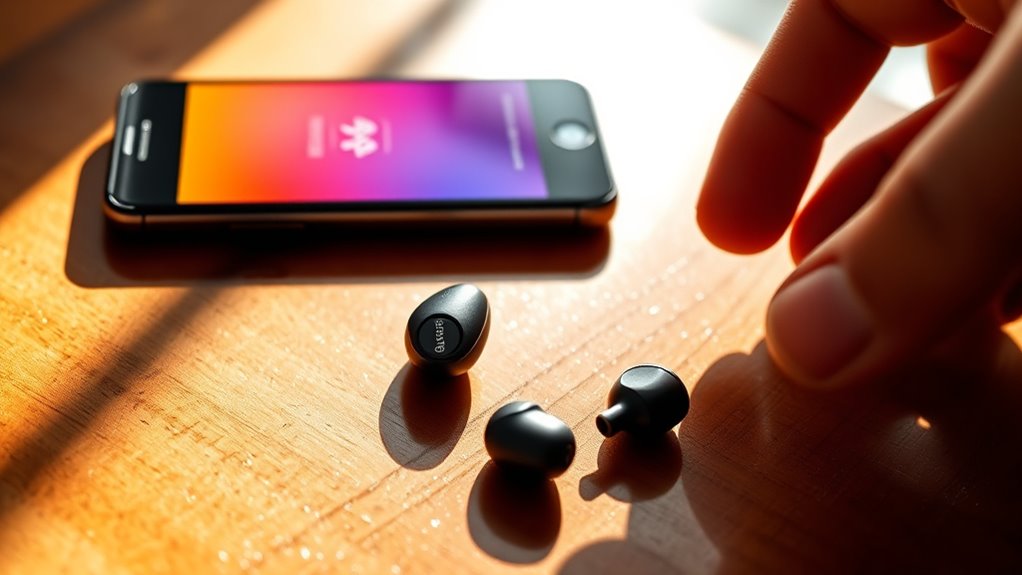

To connect your Jabra earbuds, first, make sure they’re fully charged and turned on. Activate Bluetooth on your device, whether it’s a smartphone, tablet, or laptop. For pairing, hold the Bluetooth button on your earbuds until you see them in the device’s Bluetooth settings. Select the earbuds to connect, and if prompted, enter the passcode “0000.” If you face any issues, don’t worry; there are more tips to smooth the process ahead.
Understanding Bluetooth Technology
Bluetooth technology is a wireless communication standard that enables devices to connect and exchange data over short distances. Understanding Bluetooth basics is essential for enjoying the freedom and convenience it offers. This wireless technology operates primarily in the 2.4 GHz band, allowing devices like your Jabra earbuds to communicate seamlessly with smartphones, tablets, and computers. You don’t need to worry about messy wires or complicated setups; Bluetooth simplifies your experience. By pairing devices, you can easily enjoy music, make calls, or listen to podcasts without being tethered to your device. This flexibility enhances your lifestyle, whether you’re working out, commuting, or just relaxing at home. Embracing Bluetooth technology opens up a world of possibilities for connectivity.
Preparing Your Jabra Earbuds for Pairing
Before you start pairing your Jabra earbuds, make sure they’re fully charged to guarantee a smooth connection. You’ll also need to enable Bluetooth on your device for pairing to work. If you’re having trouble, resetting your earbuds might help resolve any issues.
Charge Your Earbuds Fully
To guarantee maximum performance from your Jabra earbuds, it is vital to charge them fully before pairing. A well-charged battery not only enhances sound quality but also improves battery lifespan. Start by connecting your earbuds to the charging case and confirm the LED indicator shows they’re charging. For ideal charging, here are some charging tips: avoid letting your earbuds drain completely, and try to keep them between 20% and 80% charged for everyday use. Always use the original charging cable and adapter for best results. If you’re planning an extended listening session, a full charge will provide you with the freedom to enjoy music or calls without interruptions. So, plug them in and let them power up!
Enable Bluetooth on Device
Now that your Jabra earbuds are fully charged, it’s time to prepare them for pairing with your device. First, head to the Bluetooth settings on your device—this is usually found in the settings menu. Make sure Bluetooth is turned on; if it isn’t, simply toggle it to enable. Your device should now be scanning for available connections.
Keep in mind that your Jabra earbuds are compatible with a wide range of devices, including smartphones, tablets, and laptops. If you’re having trouble finding your earbuds in the list of devices, double-check that they’re in pairing mode. Once they appear, select them to connect. You’re one step closer to enjoying your audio freedom!
Reset Earbuds if Necessary
If you’re having trouble connecting your Jabra earbuds, resetting them can often resolve any pairing issues. To initiate the resetting process, start by placing both earbuds in the charging case. Make sure they’re charging, then press and hold the multi-function button on each earbud for about 10 seconds. You’ll see the LED lights flash, indicating they’ve been reset to factory settings. Once that’s done, take them out of the case, and they should enter pairing mode automatically. This fresh start can clear out any glitches and restore your earbuds to peak performance. After resetting, try connecting them to your device again, and you should be good to go for a seamless listening experience.
Connecting Jabra Earbuds to a Smartphone
Connecting your Jabra earbuds to a smartphone is a straightforward process that involves Bluetooth pairing. You’ll need to make sure your earbuds are in pairing mode and your smartphone’s Bluetooth is activated. If you run into any connection issues, troubleshooting steps can help you get back on track.
Bluetooth Pairing Process
Pairing your Jabra earbuds with a smartphone is a straightforward process that typically takes just a few moments. First, verify your earbuds are charged and turned on. For most Jabra models, press and hold the power button until the LED starts flashing. Next, go to your smartphone’s Bluetooth settings and enable Bluetooth. Look for your Jabra earbuds in the list of available devices. Once you see them, tap to connect. If prompted for a passcode, enter “0000.” To enhance your experience, consider these pairing tips: keep your earbuds close to your smartphone, and avoid interference from other devices. With these simple steps, you’ll enjoy the freedom of wireless audio in no time!
Troubleshooting Connection Issues
Even with a smooth pairing process, connection issues can occasionally arise when using your Jabra earbuds with your smartphone. If you’re experiencing connection problems, start by ensuring Bluetooth is enabled on your device. Disconnect and reconnect your earbuds, as this often resolves minor glitches. If audio issues persist, try resetting your earbuds by holding the volume up and down buttons simultaneously for about 10 seconds. Make sure your earbuds are charged, too; low battery can cause connectivity disruptions. Finally, check for any software updates for both your earbuds and smartphone, as outdated versions can lead to compatibility problems. By following these steps, you can quickly regain the freedom to enjoy your music without interruptions.
Pairing Jabra Earbuds With a Tablet
To enjoy your favorite music or podcasts on a tablet with Jabra earbuds, you’ll first need to verify they’re in pairing mode. Start by turning on your Jabra earbuds and pressing the Bluetooth button until you hear an audio prompt. Next, head to your tablet’s Bluetooth settings. Confirm that your device is compatible with the earbuds for peak tablet compatibility. Once you see your Jabra earbuds listed, tap to connect. After pairing, you’ll experience impressive audio quality, enhancing your listening experience. If you encounter any issues, simply repeat the steps. With your earbuds connected, you can now freely enjoy your media without the hassle of wires, giving you the ultimate audio freedom you crave.
Connecting Jabra Earbuds to a Laptop
To connect your Jabra earbuds to a laptop, you’ll first need to adjust your laptop settings for Bluetooth. Once that’s set, activate the pairing mode on your earbuds to establish the connection. If you run into any issues, troubleshooting steps can help you get back on track.
Prepare Your Laptop Settings
Before you can connect your Jabra earbuds to your laptop, you’ll need to verify that your laptop’s Bluetooth settings are properly configured. First, check your laptop compatibility to guarantee it supports Bluetooth. If it does, make sure Bluetooth is turned on; you can usually find this option in the settings menu. Next, go to your audio settings to confirm that your laptop recognizes Bluetooth audio devices. This will help your earbuds connect seamlessly. Additionally, verify your laptop’s operating system is up to date, as this can affect connectivity. By following these steps, you’ll create the perfect environment for your Jabra earbuds to pair with your laptop effortlessly, giving you the freedom to enjoy your audio without hassle.
Pairing Mode Activation
Once your laptop settings are ready, activating pairing mode on your Jabra earbuds is the next step to connect them. Follow these simple activation steps to make your earbuds discoverable:
- Press and hold the multifunction button until the LED starts flashing blue.
- Listen for the voice prompt confirming that your earbuds are in pairing mode.
- Confirm your laptop’s Bluetooth is active and ready to pair.
Once you’ve completed these steps, your Jabra earbuds should appear in the list of available devices on your laptop. Select them, and you’ll be all set to enjoy your favorite tunes or take calls hands-free. Embrace the freedom of wireless connectivity and enjoy your audio experience!
Troubleshooting Connection Issues
Encountering connection issues with your Jabra earbuds can be frustrating, especially when you’re enthusiastic to enjoy your audio. If you’re facing connection failures or audio interruptions while connecting to your laptop, try these troubleshooting steps:
| Step | Action | Result |
|---|---|---|
| Check Bluetooth | Verify Bluetooth is on and discoverable | Device is ready for pairing |
| Restart Devices | Turn off and on your laptop and earbuds | Refreshes connection |
| Remove Pairing | Unpair Jabra from the laptop and reconnect | Clears potential conflicts |
| Update Drivers | Make certain your laptop’s Bluetooth drivers are up to date | Improves compatibility |
Troubleshooting Connection Issues
Troubleshooting connection issues with your Jabra earbuds can often be resolved by following a few simple steps. If you’re experiencing connection errors or audio dropouts, don’t worry—here’s what you can do:
- Reset your earbuds: This can clear any glitches causing connection issues.
- Check Bluetooth settings: Verify your device is discoverable and that the earbuds are paired correctly.
- Stay within range: Keep your earbuds close to your device to maintain a strong connection.
Managing Multiple Device Connections
If you’re using Jabra earbuds with multiple devices, managing those connections can be a bit tricky. To make your experience smoother, it’s important to understand how to switch devices effectively and set priority connections. Here’s a quick reference table to help you:
| Action | Steps |
|---|---|
| Connect to Device 1 | Turn on earbuds, select from Bluetooth |
| Connect to Device 2 | Disconnect from Device 1, select Device 2 |
| Switch to Device 1 | Simply select Device 1 from Bluetooth |
| Set Priority Connection | Use Jabra app to manage connections |
Customizing Your Jabra Earbuds Settings
Once you’ve got your Jabra earbuds connected to your devices, you can enhance your listening experience by customizing their settings. With the right adjustments, you’ll enjoy a personalized sound that fits your style.
- Create custom sound profiles to match your music genres.
- Utilize touch controls to easily manage playback and volume.
- Set up voice assistant access for hands-free convenience.
These features let you tailor your earbuds to your preferences, giving you the freedom to enjoy your audio just the way you like it. Immerse yourself in the Jabra app to explore these options and reveal the full potential of your earbuds. Remember, a few tweaks can make a world of difference in how you experience your favorite tunes.
Maintaining Your Jabra Earbuds
Maintaining your Jabra earbuds is essential for guaranteeing they last and perform at their best. Start with regular cleaning to prevent dirt and grime buildup. Use a soft, dry cloth to wipe the earbuds and gently clean the silicone tips with warm, soapy water. Avoid using harsh chemicals that might damage the materials.
For battery care, don’t let your earbuds fully discharge frequently; this can shorten battery life. Aim to recharge them when they’re around 20-30% to keep the battery healthy. Additionally, store your earbuds in their case when not in use to protect them and guarantee they’re charged. Following these cleaning tips and battery care recommendations will keep your Jabra earbuds functioning effectively for a long time.
Enjoying Your Experience With Jabra Earbuds
How can you make the most of your listening experience with Jabra earbuds? Start by ensuring you’ve got the perfect fit for ultimate user comfort. Once you’re snug, plunge into the rich sound quality that Jabra offers. To enhance your experience, consider these tips:
- Experiment with different ear tips to find your ideal seal.
- Adjust the equalizer settings in the Jabra app to match your music style.
- Take advantage of noise-cancellation features for a more immersive experience.
With these steps, you’ll enjoy crisp vocals and deep bass, all while feeling liberated from distractions. Your Jabra earbuds aren’t just about sound; they’re about freedom and comfort in every moment of your listening journey.
Frequently Asked Questions
Can I Use Jabra Earbuds While Exercising or Running?
Yes, you can use Jabra earbuds while exercising or running. They offer great exercise comfort and running stability, ensuring they stay in place during your workouts, allowing you to enjoy your music without interruptions.
How Do I Reset My Jabra Earbuds?
Ah, the art of earbud troubleshooting! To reset your Jabra earbuds, press and hold the multi-function button and volume down for about 10 seconds. Voilà! You’ve commenced the reset process to freedom.
Are Jabra Earbuds Water-Resistant or Waterproof?
Jabra earbuds typically offer sweat resistance but aren’t fully waterproof. Check the specific model’s waterproof ratings for detailed information. They’re great for workouts, but avoid submerging them in water to maintain their longevity.
What Is the Battery Life of Jabra Earbuds?
Jabra earbuds typically offer impressive battery performance, lasting up to 35 hours with the charging case. To maximize longevity, keep ’em charged regularly and avoid extreme temperatures. Enjoy your freedom without worrying about constant recharging!
Can I Use Jabra Earbuds With a Gaming Console?
Sure, you can use Jabra earbuds with a gaming console! Just guarantee they support Bluetooth for seamless console pairing. Their gaming compatibility makes them a great choice for immersive audio experiences. Enjoy your gaming freedom!
