
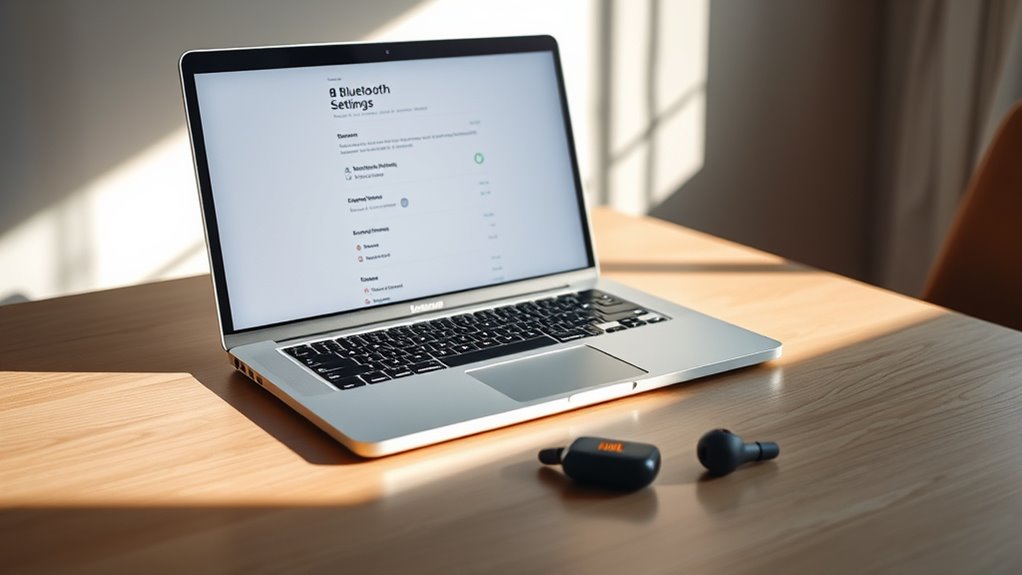

To connect your JBL earbuds to your MacBook, first, make sure they’re charged and in pairing mode. Then, open System Preferences, click on Bluetooth, and turn it on. Find your JBL earbuds in the device list and click “Connect.” Once paired, check for audio output to verify they’re set as the default audio device. If you encounter issues, troubleshooting steps can help you establish a solid connection. More tips are just around the corner!
Check Your JBL Earbuds’ Battery Level
Before you connect your JBL earbuds to your MacBook, it’s a good idea to check their battery level. Most JBL earbuds have battery indicators that display their current charge, so take a moment to look. If the lights show a low battery, you’ll want to recharge them first. This simple battery maintenance step guarantees you won’t run out of power mid-playlist. To check the battery level, you can often use the companion app or simply connect them to your device and view the status. Keeping your earbuds charged not only enhances your listening experience but also prolongs their lifespan. So, before diving into your music, make certain those earbuds are ready to go!
Enable Bluetooth on Your MacBook
Once your JBL earbuds are charged and ready, the next step is to enable Bluetooth on your MacBook. Start by clicking the Apple menu in the top-left corner of your screen. Select “System Preferences” from the dropdown menu. In the window that appears, look for the “Bluetooth” option and click on it. This will open your Bluetooth settings. Make sure Bluetooth is turned on; if it’s off, simply click the “Turn Bluetooth On” button. You’ll see your MacBook searching for nearby devices. Staying in your MacBook preferences, you can also choose whether to make your Mac discoverable to other Bluetooth devices. With Bluetooth enabled, you’re one step closer to connecting your JBL earbuds!
Put Your JBL Earbuds in Pairing Mode
To connect your JBL earbuds, you’ll need to put them in pairing mode. Start by locating the pairing button on your earbuds, which usually activates Bluetooth mode. Once activated, your earbuds will be ready to connect to your MacBook.
Locate Pairing Button
While connecting your JBL earbuds to your MacBook, the first step is to locate the pairing button on your earbuds. This button is essential for enabling the pairing techniques needed to establish a connection. Depending on your specific model, the button locations may vary. Most JBL earbuds feature a multi-function button, often found on the right earbud. It might be labeled with a Bluetooth symbol or simply be a round button. Press and hold this button until you see a flashing light, indicating that your earbuds are in pairing mode. Knowing where this button is will streamline your connection process, giving you the freedom to enjoy your music without hassle.
Activate Bluetooth Mode
After you’ve found the pairing button on your JBL earbuds, the next step is activating Bluetooth mode. This process guarantees your earbuds are ready for Bluetooth compatibility with your MacBook. Follow these steps to put your JBL earbuds in pairing mode:
- Press and hold the pairing button until you see a flashing LED light.
- Confirm your earbuds are charged, so they can connect without interruptions.
- Put your MacBook in Bluetooth settings, making it ready to find devices.
- Select your JBL earbuds from the list when they appear, showcasing their impressive JBL features.
Once connected, you’ll enjoy seamless audio freedom and exceptional sound quality. Happy listening!
Locate Your JBL Earbuds on Your MacBook
To locate your JBL earbuds on your MacBook, you first need to guarantee that Bluetooth is enabled. Go to your MacBook’s Bluetooth settings and start searching for devices. Once your earbuds appear in the list, you’ll be ready to connect.
Enable Bluetooth on MacBook
Before you can connect your JBL earbuds to your MacBook, you’ll need to guarantee that Bluetooth is enabled. Here’s how to check your Bluetooth settings and get it ready:
- Click on the Apple logo in the top-left corner of your screen.
- Select “System Preferences” from the dropdown menu.
- In the System Preferences window, choose “Bluetooth” to access your Bluetooth settings.
- Make sure Bluetooth is turned on by clicking the “Turn Bluetooth On” button if it’s off.
Once Bluetooth is enabled in your MacBook preferences, you’re one step closer to enjoying your music. Just remember, keeping Bluetooth active will allow your MacBook to connect with your JBL earbuds seamlessly.
Search for Devices
How can you quickly locate your JBL earbuds on your MacBook? First, make certain your earbuds are within the Bluetooth range. Then, follow these steps to search for devices:
| Step | Action |
|---|---|
| 1. Open Bluetooth | Click the Bluetooth icon |
| 2. Select “Devices” | Choose “Bluetooth Settings” |
| 3. Enable Search | Confirm search is active |
| 4. Check Compatibility | Verify JBL earbuds are compatible |
| 5. Connect | Click on your JBL earbuds |
Once your earbuds appear in the list, select them to connect. Always remember, the closer your earbuds are to your MacBook, the better the connection will be! Enjoy the freedom of wireless listening.
Initiate the Pairing Process
Once you’ve confirmed your JBL earbuds are charged, it’s time to initiate the pairing process with your MacBook. You’ll want to verify device compatibility first, so follow these steps:
- Put your JBL earbuds in pairing mode: Usually by holding the power button until you see a blinking light.
- Open Bluetooth settings on your MacBook: Click the Apple menu, then select System Preferences, and choose Bluetooth.
- Scan for devices: Wait for your earbuds to appear in the list of available devices.
- Select your earbuds: Click “Connect” next to your JBL earbuds to start the pairing process.
Once you’ve followed these steps, you’ll be ready to enjoy your audio freedom!
Confirm the Connection
After you’ve connected your JBL earbuds, it’s important to verify the connection to confirm everything is working smoothly. To do this, simply play some audio on your MacBook. If the sound comes through your earbuds, that’s your connection confirmation. You might also want to check for audio feedback; any sound distortion or lag can indicate a connection issue. If you don’t hear anything, go back to your Bluetooth settings to ascertain your earbuds are selected as the audio output device. Disconnect and reconnect if necessary. By guaranteeing a solid connection, you can enjoy your music, podcasts, or videos without interruptions. Don’t forget, a reliable connection enhances your listening experience, letting you focus on what you love.
Adjust Audio Settings
While enjoying your audio, adjusting the audio settings on your MacBook can considerably enhance your listening experience with JBL earbuds. Here are a few quick tips to boost sound quality:
- Open Sound Preferences: Click on the Apple menu, select System Preferences, and then Sound.
- Adjust Output Volume: Verify the output volume is set to a comfortable level for maximum audio enhancement.
- Balance Audio: Check the balance slider to verify sound is evenly distributed between left and right earbuds.
- Enable Spatial Audio: If available, enable the spatial audio feature for a more immersive listening experience.
With these adjustments, you’ll notice a significant improvement in your overall audio experience, letting you enjoy every beat and note more freely.
Troubleshooting Connection Issues
Even with ideal audio settings, you might encounter connection issues when pairing your JBL earbuds with your MacBook. First, verify your earbuds are fully charged and in pairing mode. One of the common mistakes is forgetting to remove them from the Bluetooth list on other devices. If you’re using multiple connection methods, like USB or Bluetooth, make certain only the desired one is active. Restart both your MacBook and earbuds to refresh their connections. If the problem persists, check for software updates on your MacBook, as outdated drivers can hinder connectivity. Finally, verify your earbuds aren’t connected to any other device, as this can interfere with pairing. Following these steps can help you enjoy uninterrupted audio freedom.
Frequently Asked Questions
Can I Connect Multiple JBL Earbuds to My Macbook Simultaneously?
No, you can’t connect multiple JBL earbuds to your MacBook simultaneously. While they support multi-device connectivity, audio latency issues may arise, impacting sound quality. Stick to one pair for the best experience.
How Do I Reset My JBL Earbuds if They Won’t Connect?
If your JBL earbuds won’t connect, try the reset procedure: hold the power button for 10 seconds. This can resolve connection issues. For troubleshooting tips, check battery levels and make certain Bluetooth is enabled on your device.
Will Connecting to My Macbook Affect My Earbuds’ Battery Life?
Yes, connecting to your MacBook can affect your earbuds’ battery life due to increased power consumption. To optimize battery management, consider disconnecting when not in use, ensuring longer usage between charges for your JBL earbuds.
Are There Any Audio Quality Differences When Using Bluetooth?
Yes, there can be audio quality differences when using Bluetooth. Depending on the audio codecs your earbuds support, you might experience varying sound latency, which can affect your listening experience, especially during video playback.
Can I Use My JBL Earbuds for Phone Calls on My Macbook?
Yes, you can use your JBL earbuds for phone calls on your MacBook. They’ll provide decent audio call clarity, but check the microphone functionality to guarantee clear communication during your conversations. Enjoy the freedom!
