


Connecting your PC to your TV wirelessly is straightforward and can greatly enhance your viewing experience. The easiest methods include using technologies like Miracast, Chromecast, or built-in smart TV features. In this guide, you’ll learn how to utilize these methods to effortlessly stream content from your PC to your TV. Whether you want to watch movies, play games, or share presentations, this article will provide you with detailed steps to achieve a seamless connection.
Understanding Wireless Display Technologies
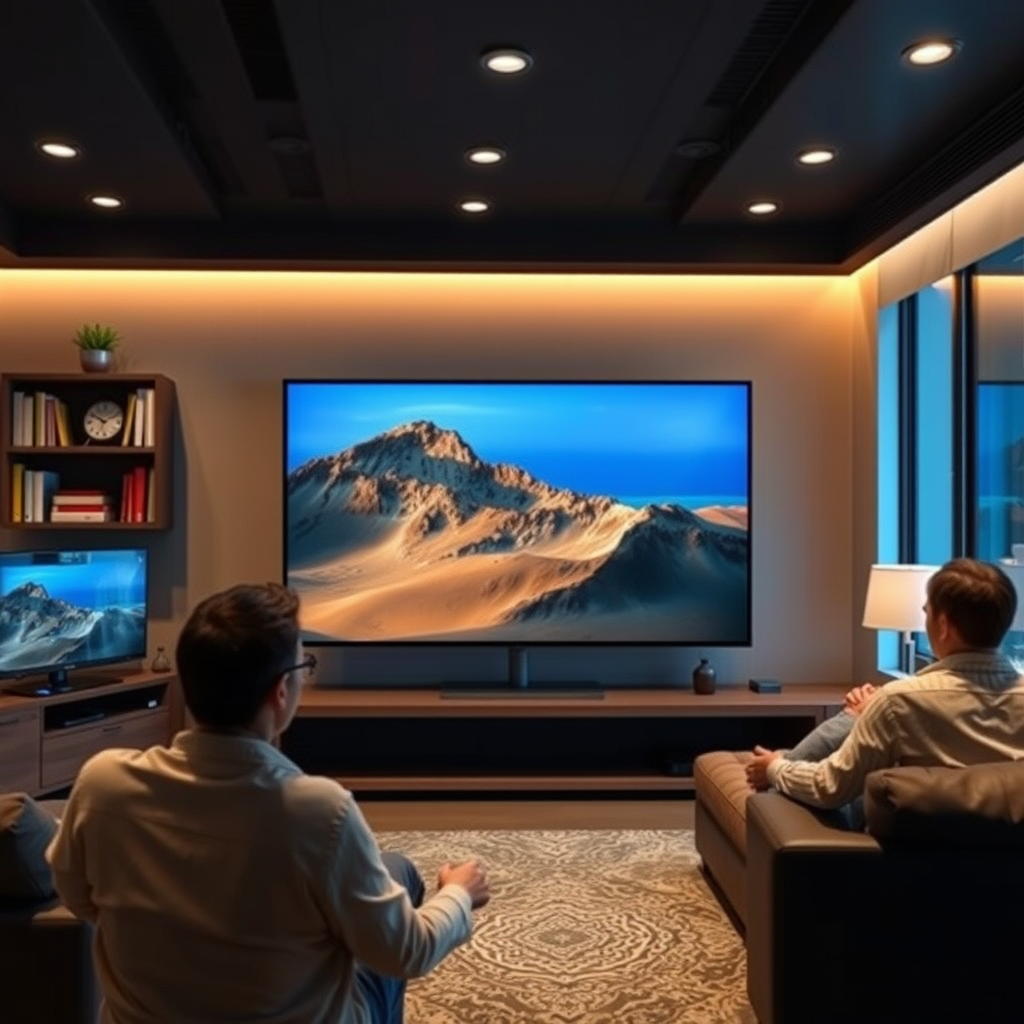
Modern technology offers several methods for wirelessly connecting your PC to your TV, significantly enhancing your multimedia experience.
– Miracast: This is a wireless display standard that allows you to mirror your PC’s screen to a compatible TV. It operates on Wi-Fi Direct, enabling devices to connect directly without a router. Many Windows PCs and smart TVs support Miracast, making it a versatile option for screen sharing.
– Chromecast: This device enables streaming from your PC to your TV using Google Chrome. By plugging a Chromecast into your TV’s HDMI port, you can cast media content directly from your browser or even mirror your entire desktop. Its integration with Google services makes it particularly convenient for users in the Google ecosystem.
Understanding these technologies will help you choose the best method based on your devices and needs.
Preparing Your Devices for Connection
Before attempting to connect your PC to your TV wirelessly, it’s crucial to prepare both devices adequately.
– Check Compatibility: Ensure both your PC and TV support the wireless display technologies you intend to use. Most modern smart TVs come with built-in support for Miracast or Chromecast. On the PC side, Windows 8.1 and newer versions typically have native support for Miracast.
– Wi-Fi Network: Both devices must be connected to the same Wi-Fi network for seamless streaming. This ensures that data transfer occurs without interruption and maintains a stable connection.
By confirming compatibility and network connection, you set a solid foundation for a successful wireless connection.
Using Windows Built-in Features
Windows provides built-in features that make it easy to connect your PC to your TV.
– Projecting to This PC: To wirelessly project your screen to the TV, simply open the “Connect” app on your PC. You can access this by searching for “Connect” in the Start menu. Once opened, your PC will begin looking for available wireless displays, including your TV. Select your TV from the list to establish a connection.
– Adjusting Display Settings: After connecting, you may want to adjust the display settings for optimal resolution and layout. Right-click on the desktop, select “Display settings,” and choose how you want to use your TV (e.g., as an extended display or mirroring your PC screen). You can also adjust the resolution to match your TV’s capabilities, ensuring the best viewing experience.
The built-in features of Windows streamline the connection process, allowing you to focus on enjoying your content.
Top Wireless Display Technologies (2024)
| # | Technology | Supported Devices | Ease of Use | Compatibility Rating |
|---|---|---|---|---|
| 1 | Miracast | Windows PCs, Smart TVs | Moderate | ★★★★☆ |
| 2 | Chromecast | Chrome Browser, Android, iOS | Easy | ★★★★★ |
| 3 | Apple AirPlay | Apple Devices, Smart TVs | Very Easy | ★★★★☆ |
| 4 | DLNA | Various Devices, Smart TVs | Moderate | ★★★☆☆ |
| 5 | Roku | Roku Devices, TVs | Easy | ★★★★☆ |
| 6 | Amazon Fire TV | Fire TV Devices, Android | Easy | ★★★★☆ |
| 7 | AnyCast | Various Devices | Moderate | ★★★☆☆ |
Setting Up Chromecast for PC Streaming
For users who prefer Google’s ecosystem, setting up Chromecast for PC streaming is a compelling option.
– Installing the Chrome Browser: If you do not already have Google Chrome installed, download it from the official website. Chrome is essential for using Chromecast and provides a user-friendly interface for casting content.
– Casting Tabs or Desktop: Once Chrome is installed, you can cast content by clicking on the three-dot menu in the upper right corner and selecting “Cast.” From there, you can choose to cast your entire desktop or just a specific tab. This flexibility allows you to show anything on your PC, be it a presentation, a video, or a website, directly onto your TV screen.
Chromecast offers a seamless integration with various applications, making it an excellent choice for users who frequently stream content.
Connecting via Smart TV Features
Many modern smart TVs come equipped with their own wireless display capabilities, allowing for a straightforward connection without additional devices.
– Screen Mirroring: Most smart TVs will have a screen mirroring option that can be accessed through the settings menu. Look for terms like “Screen Mirroring,” “Miracast,” or “Wireless Display.” Once activated, your TV will search for nearby devices to connect to, allowing you to easily share your PC screen.
– Using TV Apps: Some smart TVs come with built-in apps that support streaming services. For instance, apps like Netflix, YouTube, or Hulu can be directly accessed from the TV, reducing the need for a PC connection. This not only simplifies the process but can also improve the streaming quality since the TV connects directly to the internet.
Utilizing your smart TV’s built-in features can often provide a more stable and user-friendly experience compared to connecting through a PC.
Troubleshooting Connection Issues
Despite the convenience of wireless connections, users may occasionally face challenges. Here are some common issues and solutions.
– Signal Interference: Wireless connections can be affected by obstacles such as walls or other electronic devices. If you experience a poor connection, try moving closer to the router or minimizing physical obstructions between your PC and TV.
– Software Updates: Ensure that both your PC and TV have the latest software updates installed. Updates often include bug fixes and improvements that enhance connectivity and performance. Check your PC’s Windows Update settings and your TV’s system settings for the latest updates.
By addressing these common issues, you can optimize your wireless connection and enjoy a flawless streaming experience.
Enhancing Your Wireless Experience
To ensure the best possible wireless connection and streaming experience, consider the following enhancements.
– Quality of Service (QoS): Adjust your router settings to prioritize bandwidth for your streaming devices. QoS settings allow you to allocate more network resources to your PC or TV, improving streaming quality and reducing lag.
– Using Ethernet for Stability: If you find that wireless performance is lacking, consider connecting your PC to the router via Ethernet. A wired connection can provide a more stable and faster internet connection, especially for data-intensive activities like streaming high-definition video.
Implementing these enhancements can dramatically improve your wireless experience, allowing you to enjoy seamless streaming without interruptions.
By following these steps, you can easily connect your PC to your TV wirelessly and enjoy your favorite content on a larger screen. Whether you choose Miracast, Chromecast, or your TV’s built-in features, each method offers a user-friendly way to enhance your viewing experience. Now that you’re equipped with the knowledge, go ahead and try connecting your devices for an enjoyable multimedia experience!
Frequently Asked Questions
How can I connect my PC to my TV wirelessly without any additional hardware?
You can connect your PC to your TV wirelessly using the built-in Miracast feature available on Windows 10 and later versions. To do this, ensure both your PC and TV are on the same Wi-Fi network, then go to Settings > Devices > Connected devices, click on “Add Bluetooth or other device,” and select “Wireless display or dock.” Follow the on-screen instructions to complete the connection.
What are the best methods to wirelessly stream content from my PC to my TV?
The best methods to wirelessly stream content from your PC to your TV include using Miracast, Google Chromecast, and streaming devices like Roku or Amazon Fire Stick. Each method has its own setup process, but they all allow you to mirror your PC screen or stream content directly, ensuring a seamless viewing experience.
Why is my PC not detecting my TV when trying to connect wirelessly?
If your PC is not detecting your TV for a wireless connection, it may be due to several reasons, such as both devices not being on the same Wi-Fi network, Miracast not being enabled on your TV, or outdated drivers on your PC. Ensure your TV’s wireless display feature is active and update your PC’s graphics and wireless drivers to resolve connectivity issues.
Which devices support wireless connections to a PC for screen mirroring?
Most modern smart TVs from brands like Samsung, LG, Sony, and Vizio support wireless connections to a PC for screen mirroring via Miracast or built-in casting capabilities. Additionally, devices like Google Chromecast and Amazon Fire TV Stick can be used to bridge the connection between your PC and TV, expanding compatibility with various models.
How do I improve the quality of the wireless connection between my PC and TV?
To improve the quality of the wireless connection between your PC and TV, ensure both devices are as close to your Wi-Fi router as possible to minimize interference. Additionally, using a dual-band router and connecting to the 5GHz band can enhance speed and reduce lag, resulting in a better streaming experience.
References
- WiDi
https://en.wikipedia.org/wiki/Wireless_display - https://www.mayoclinic.org/healthy-lifestyle/consumer-health/in-depth/wireless-devices/art-20458740
https://www.mayoclinic.org/healthy-lifestyle/consumer-health/in-depth/wireless-devices/art-20458740 - https://www.pcmag.com/how-to/how-to-wirelessly-connect-your-pc-to-your-tv
https://www.pcmag.com/how-to/how-to-wirelessly-connect-your-pc-to-your-tv - https://www.lifewire.com/how-to-wirelessly-connect-your-pc-to-your-tv-4587776
https://www.lifewire.com/how-to-wirelessly-connect-your-pc-to-your-tv-4587776 - https://www.bbc.com/news/technology-57471122
https://www.bbc.com/news/technology-57471122 - Google Scholar Google Scholar
https://scholar.google.com/scholar?q=how+to+connect+pc+to+tv+wirelessly - Google Scholar Google Scholar
https://scholar.google.com/scholar?q=wireless+display+technology+for+PCs - Google Scholar Google Scholar
https://scholar.google.com/scholar?q=wireless+screen+mirroring+for+PCs+to+TVs - Google Scholar Google Scholar
https://scholar.google.com/scholar?q=how+can+i+connect+my+pc+to+my+tv+wirelessly - how can i connect my pc to my tv wirelessly – Search results
https://en.wikipedia.org/wiki/Special:Search?search=how+can+i+connect+my+pc+to+my+tv+wirelessly

[…] TV screen mirroring works, but only if you use the right input path and confirm your phone and TV are on the same […]
[…] to cast from your phone or computer to a Fire TV device and when you’ll need an alternative (like screen mirroring) instead of Chromecast. Get the steps and requirements first, then start casting with […]
[…] hook a tablet to a TV using an HDMI adapter (for the most reliable, low-lag display) or wireless screen mirroring (for fast, cable-free setup). The best method depends on your tablet’s port (USB‑C, Lightning, […]
[…] Screen mirroring/casting “Apple TV” playback […]
[…] but usually not through a native “YouTube TV” app on Echo Show. In most setups, you’ll need screen mirroring, casting, or an external streaming device connected to your TV, and then you can treat Echo Show as […]
[…] to display video on a TV; Bluetooth typically supports audio only. For video, the practical path is screen mirroring (Chromecast for Android, AirPlay for iPhone) or an HDMI adapter—and I’ll show you the exact […]