


Connecting speakers to your Samsung TV can significantly enhance your audio experience. Whether you choose wired or Bluetooth speakers, the process is straightforward and can be completed in just a few simple steps. This guide provides detailed instructions to help you set up both types of speakers effectively, ensuring you enjoy superior sound quality while watching your favorite shows or movies.
Choosing the Right Speakers
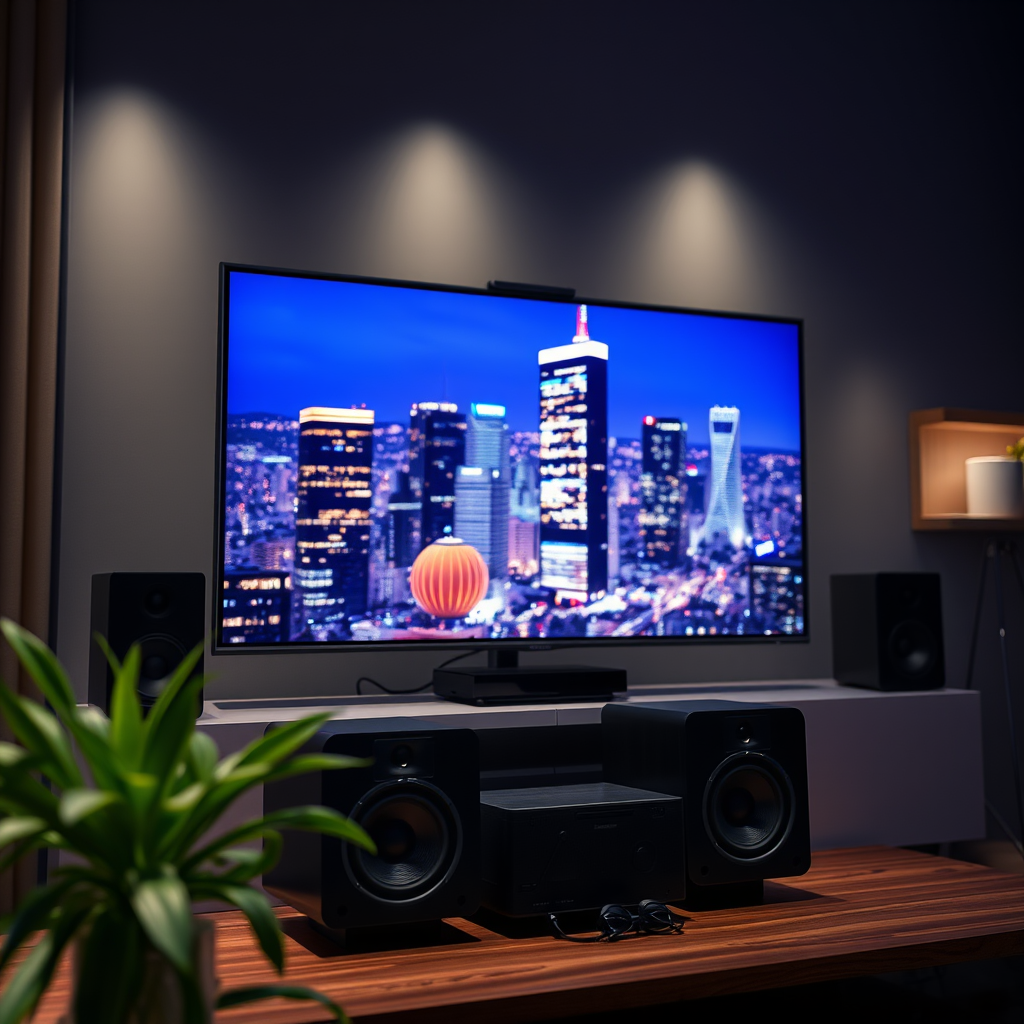
When considering speakers for your Samsung TV, it’s essential to understand the types that are compatible. You can choose between wired speakers, wireless speakers, or soundbars. Wired speakers typically offer a more stable connection and can deliver robust sound quality, making them a good choice for dedicated home theater setups. Wireless speakers provide more flexibility and can be conveniently placed anywhere in the room without the clutter of cables. Soundbars are a popular choice for those looking for an all-in-one solution that fits neatly under the TV while delivering immersive audio.
Before making a choice, consider your space and audio needs. For smaller rooms, compact speakers or a soundbar may suffice, while larger spaces may benefit from a multi-speaker setup to achieve a surround sound effect. Evaluate your listening preferences, whether you prioritize crisp dialogue for shows or deep bass for movies and music, to find the best option for your home entertainment setup.
Connecting Wired Speakers
To connect wired speakers to your Samsung TV, you’ll need to locate the audio output ports, which are typically labeled as “Audio Out.” These ports may include various types such as RCA (red and white connectors), a 3.5mm jack, or optical audio output.
1. Identify the Ports: Look at the back or side of your TV for the audio output connections.
2. Select the Right Cables: Depending on the port type, choose the appropriate cables. For RCA, use a red and white cable; for a 3.5mm connection, a standard headphone jack cable will work; and for optical audio, ensure you have a compatible optical cable.
3. Make the Connection: Connect the cables from the audio output ports on your TV to the corresponding input ports on your speakers. Ensure the connections are secure to avoid any audio issues.
Once connected, power on your speakers and adjust the volume as needed. Your Samsung TV should automatically detect the wired connection; if not, check the settings to ensure the correct audio output is selected.
Connecting Bluetooth Speakers
Connecting Bluetooth speakers to your Samsung TV allows for a wire-free audio experience. Here’s how to do it:
1. Activate Bluetooth on Your TV: Start by navigating to the settings menu on your Samsung TV. Find the ‘Sound’ or ‘Audio’ section and select ‘Bluetooth Audio.’ Ensure Bluetooth is turned on.
2. Put Your Bluetooth Speakers in Pairing Mode: Follow the manufacturer’s instructions to activate pairing mode on your Bluetooth speakers. This usually involves holding down a button until a light blinks or a sound indicates they are ready to connect.
3. Select Your Speakers: On your Samsung TV, you should see a list of available Bluetooth devices. Select your speakers from the list to initiate the pairing.
4. Confirm the Connection: Once connected, you may hear a confirmation sound from your speakers. Adjust the volume to your liking.
With Bluetooth speakers, you can enjoy greater flexibility in speaker placement, and the absence of wires can enhance the aesthetic of your entertainment setup.
Top 7 Bluetooth Speakers for Samsung TVs (2024)
| # | Speaker Model | Battery Life | Bluetooth Range | Rating |
|---|---|---|---|---|
| 1 | JBL Charge 5 | 20 hours | 30 feet | ★★★★★ |
| 2 | Sonos Roam | 10 hours | 40 feet | ★★★★★ |
| 3 | Bose SoundLink Revolve+ | 17 hours | 33 feet | ★★★★★ |
| 4 | Ultimate Ears MEGABOOM 3 | 20 hours | 100 feet | ★★★★★ |
| 5 | Anker Soundcore 3 | 24 hours | 66 feet | ★★★★★ |
| 6 | Sony SRS-XB43 | 15 hours | 100 feet | ★★★★★ |
| 7 | JBL Flip 5 | 12 hours | 33 feet | ★★★★☆ |
Adjusting Audio Settings
After connecting your speakers, adjusting the audio settings on your Samsung TV is crucial for optimal performance. Navigate to the audio settings menu, usually found under the ‘Sound’ option in the settings.
1. Select Audio Output: Ensure that the correct output is selected based on your connection type—either wired or Bluetooth.
2. Fine-Tune Sound Options: Depending on your speakers, you may want to adjust options such as:
– Balance: Adjust the sound balance between left and right speakers to suit your seating arrangement.
– Surround Sound: If your speakers support surround sound, enable this feature for a more immersive experience.
– Equalizer Settings: Use the equalizer to customize frequencies, enhancing bass or treble according to your preferences.
Regularly revisit these settings, especially if you change your audio equipment or environment, to ensure you’re getting the best sound experience possible.
Troubleshooting Common Issues
If you encounter issues with sound after setting up your speakers, there are several troubleshooting steps you can take:
1. Check Connections: Ensure that all cables are securely connected. For Bluetooth speakers, verify that they are paired correctly with the TV.
2. Volume Settings: Check both your TV and speaker volume settings to ensure they are at an appropriate level.
3. Firmware Updates: Make sure your Samsung TV’s firmware is up to date. Outdated firmware can lead to compatibility issues with external speakers.
4. Input Source: Confirm that the correct input source is selected on your TV. For wired speakers, this may be labeled as ‘Audio Out’ or similar, while Bluetooth may require a specific setting.
If problems persist, consult your user manual or the manufacturer’s support website for additional guidance.
Enhancing Your Audio Experience
To truly elevate your audio experience, consider exploring additional settings on your Samsung TV. Many models come equipped with various sound modes designed to optimize audio for different types of content, such as movies, music, or sports.
You might also want to delve into audio enhancements available, such as Dolby Atmos or DTS:X, which can provide richer sound quality and a more immersive listening experience.
If you’re serious about audio quality, investing in a high-quality soundbar or a complete home theater system can make a significant difference. These systems often come with advanced sound technology and multiple speaker configurations that can create a truly cinematic experience.
In summary, connecting speakers to your Samsung TV is an easy process, whether you opt for wired or Bluetooth options. By following the steps outlined in this guide, you can substantially enhance your audio experience while enjoying your favorite media. If you encounter any issues, refer back to the troubleshooting section for quick fixes. Start improving your audio setup today, and enjoy a richer, more immersive sound experience!
Frequently Asked Questions
How do I connect my Bluetooth speakers to a Samsung TV?
To connect Bluetooth speakers to your Samsung TV, first, make sure your speakers are in pairing mode. On your TV, navigate to the Settings menu, select Sound, then Sound Output, and choose Bluetooth Speaker List. From there, select your speakers to complete the connection.
What cables do I need to connect wired speakers to my Samsung TV?
To connect wired speakers to your Samsung TV, you will typically need an HDMI cable, optical audio cable, or RCA cables, depending on the speaker system. Ensure that you connect the cables to the correct audio output on your TV and the corresponding input on your speakers for optimal sound quality.
Why won’t my Samsung TV recognize my Bluetooth speakers?
If your Samsung TV isn’t recognizing your Bluetooth speakers, ensure that the speakers are fully charged and in pairing mode. Additionally, check that your TV’s Bluetooth is enabled in the Settings under Sound Output. If issues persist, try restarting both the TV and the speakers, as this can often resolve connectivity problems.
What is the best way to connect a soundbar to a Samsung TV?
The best way to connect a soundbar to a Samsung TV is through an HDMI ARC (Audio Return Channel) cable, as this provides high-quality audio and allows for easy control with your TV remote. Alternatively, you can use an optical cable if HDMI ARC isn’t available, ensuring a solid audio connection without any lag.
Which Samsung TV models support connecting external speakers?
Most Samsung TV models, especially those released in the last few years, support connecting external speakers either through Bluetooth or physical audio outputs like HDMI ARC, optical, or RCA. Check the specifications of your specific model in the user manual or on the Samsung website to confirm the available connection options.
References
- https://www.lifewire.com/how-to-connect-external-speakers-to-your-tv-1846730
https://www.lifewire.com/how-to-connect-external-speakers-to-your-tv-1846730 - https://www.samsung.com/uk/support/tv-audio-video/how-to-connect-external-speakers-to-samsung-tv/
https://www.samsung.com/uk/support/tv-audio-video/how-to-connect-external-speakers-to-samsung-tv/ - https://www.samsung.com/in/support/tv-audio-video/how-to-connect-samsung-tv-to-bluetooth-speakers/
https://www.samsung.com/in/support/tv-audio-video/how-to-connect-samsung-tv-to-bluetooth-speakers/ - Google Scholar Google Scholar
https://scholar.google.com/scholar?q=connecting+speakers+to+samsung+tv - Google Scholar Google Scholar
https://scholar.google.com/scholar?q=samsung+tv+audio+setup - https://scholar.google.com/scholar?q=how+to+pair+speakers+with+samsung+tv Google Scholar
https://scholar.google.com/scholar?q=how+to+pair+speakers+with+samsung+tv - Google Scholar Google Scholar
https://scholar.google.com/scholar?q=how+to+connect+speakers+to+a+samsung+tv - how to connect speakers to a samsung tv – Search results
https://en.wikipedia.org/wiki/Special:Search?search=how+to+connect+speakers+to+a+samsung+tv - https://www.ncbi.nlm.nih.gov/search/research-articles/?term=how+to+connect+speakers+to+a+samsung+tv
https://www.ncbi.nlm.nih.gov/search/research-articles/?term=how+to+connect+speakers+to+a+samsung+tv
