

Connecting speakers to your Xbox One is straightforward and can greatly enhance your gaming experience. By following a few simple steps, you can set up either wired or wireless speakers to immerse yourself in the rich audio landscape of your favorite games. This guide will walk you through the necessary steps to get your audio set up perfectly so you can enjoy every sound, from the softest footsteps to the loudest explosions.
Understanding Your Audio Options
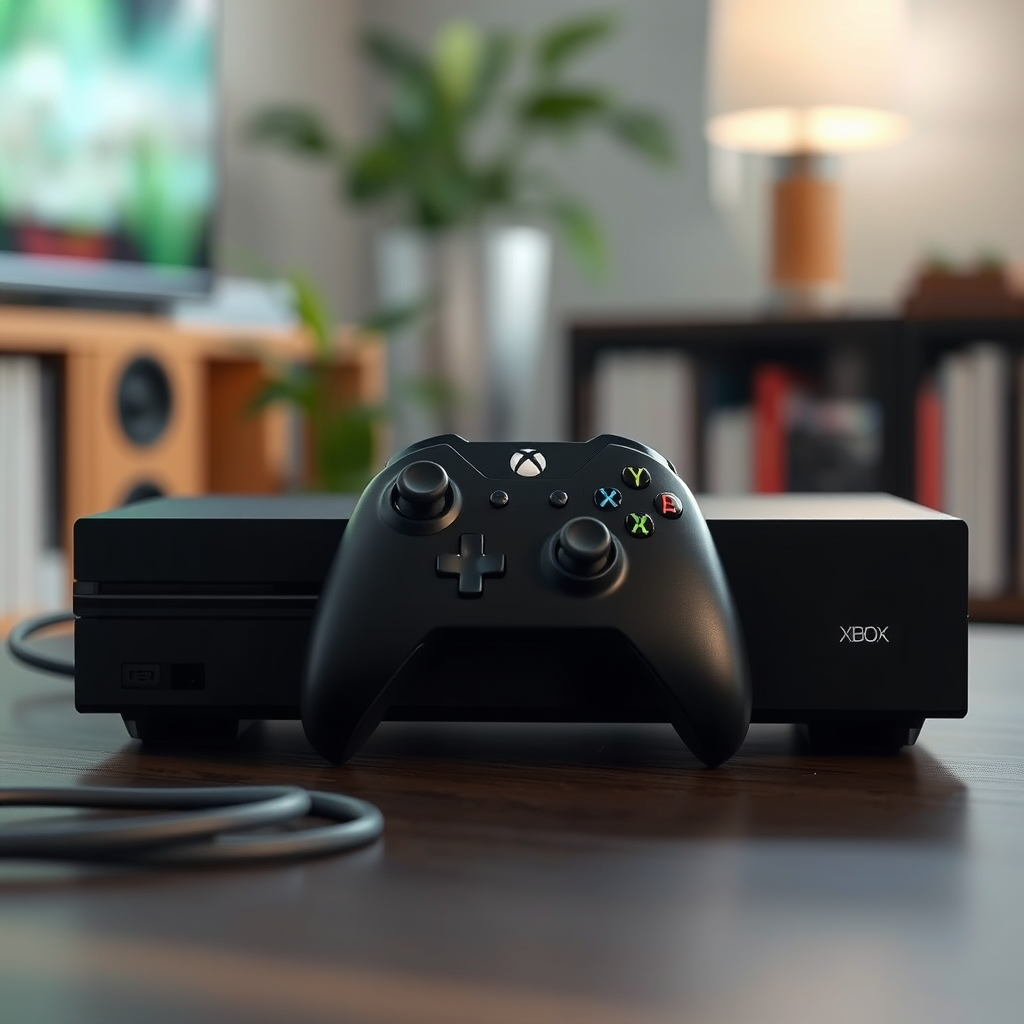
The Xbox One supports various audio connections, including HDMI, optical, and USB. This versatility allows gamers to choose the audio setup that best suits their preferences and environment. For those who prefer a direct connection, wired speakers are an excellent option, providing reliable sound quality without the risk of interference. On the other hand, Bluetooth-enabled wireless speakers offer convenience and flexibility, allowing you to enjoy audio without the hassle of wires. Understanding these options is crucial in making an informed decision about how to enhance your gaming audio experience.
Connecting Wired Speakers
To connect wired speakers to your Xbox One, first locate the HDMI or optical audio output on the console. The HDMI output is typically used for both video and audio transmission, while the optical output is specifically designed for high-quality audio. If you’re using a soundbar or a speaker system that connects via optical, simply plug one end of the optical cable into the Xbox One’s optical port and the other end into your speaker system.
Once connected, ensure that the speakers are powered on and set to the correct input source. If you are using a traditional speaker setup with a receiver, connect the receiver to the Xbox One using either HDMI or optical cables. After everything is connected, you may need to adjust your audio settings on the Xbox One to ensure sound is routed correctly.
Connecting Wireless Speakers
To connect wireless speakers to your Xbox One, it’s essential first to ensure that your speakers are compatible with the console. Many modern wireless speakers support Bluetooth connectivity, which is the method you’ll be using for this connection. Start by putting your wireless speakers into pairing mode, which is typically done by pressing a specific button or combination of buttons on the speaker itself.
Next, navigate to the Xbox One’s settings by selecting the gear icon on the home screen. From there, go to “Devices & connections” and select “Bluetooth devices.” Your Xbox One will search for nearby Bluetooth devices. Once your speakers appear in the list, select them to initiate the connection. After a successful pairing, you should be able to enjoy audio wirelessly from your Xbox One.
Adjusting Audio Settings
Once your speakers are connected, it’s essential to configure the audio settings on your Xbox One to optimize sound quality. Access the audio settings menu by selecting “Settings” from the home screen, then navigating to “General” and selecting “Volume & audio output.” Here, you can choose the correct output device based on how you’ve connected your speakers—either HDMI or optical.
Additionally, you can adjust volume levels and select audio formats to enhance your sound experience. For example, if you are using a high-quality surround sound system, you may want to enable the surround sound feature to enjoy a more immersive experience. Testing various settings can help you find the optimal configuration for your specific audio setup.
Top 7 Speaker Options for Xbox One (2024)
| # | Speaker Model | Connection Type | Power Output | Price |
|---|---|---|---|---|
| 1 | Logitech Z623 | Wired | 200W | $149.99 |
| 2 | Bose SoundLink | Wireless | 30W | $199.00 |
| 3 | Sony HT-S350 | Wired | 320W | $348.00 |
| 4 | Razer Leviathan | Wireless | 60W | $199.99 |
| 5 | Yamaha YAS-209 | Wired | 200W | $349.95 |
| 6 | JBL Charge 4 | Wireless | 30W | $179.95 |
| 7 | Samsung HW-Q60T | Wired | 360W | $399.00 |
Troubleshooting Common Issues
Despite the relatively straightforward setup process, you may encounter some common issues when connecting speakers to your Xbox One. If you find that sound is not working, the first step is to check all cable connections to ensure they are secure and that all devices are powered on. Additionally, verify that the speakers are set to the correct audio input mode.
If the problem persists, revisit the audio settings on your Xbox One. Check that the correct output device is selected and that the volume is appropriately adjusted. Sometimes, a simple restart of the console can resolve sound issues. Lastly, consult the user manual for your specific speakers, as there may be unique settings or troubleshooting steps required.
Enhancing Your Audio Experience
To take your audio experience to the next level, consider investing in a soundbar or a home theater system. These systems can provide a more immersive sound experience, enhancing your gaming and entertainment sessions. Many modern soundbars come with built-in surround sound capabilities, allowing you to feel as though you are truly part of the action.
Moreover, exploring the surround sound settings on your Xbox One can further enhance your audio experience. By enabling options such as Dolby Atmos or DTS:X, you can create a more cinematic soundstage that brings your games and movies to life. With the right setup, you’ll find yourself fully immersed in the audio environment of your favorite titles.
Maintaining Your Audio Setup
To ensure your audio setup continues to perform optimally, regular maintenance is essential. Start by checking for firmware updates for both your speakers and your Xbox One. Manufacturers often release updates that can improve performance or fix known issues.
Additionally, keep an eye on your cables and connections. Dust and debris can accumulate over time, potentially affecting sound quality. Cleaning these connections regularly will help maintain high-quality audio. Lastly, consider periodically reviewing your audio settings, especially after making changes to your setup, to ensure you’re getting the best sound possible.
Summarizing the steps to connect speakers to your Xbox One, you can choose between wired and wireless options, follow the setup processes, and adjust your audio settings to enhance your gaming experience. For further assistance, feel free to consult your speaker’s user manual or Xbox support resources. With the right audio setup, every gaming session can turn into an unforgettable experience.
Frequently Asked Questions
How do I connect my Bluetooth speakers to Xbox One?
To connect Bluetooth speakers to your Xbox One, you’ll need to use a Bluetooth adapter since the console does not natively support Bluetooth audio devices. Plug the adapter into a USB port on the Xbox One, pair it with your Bluetooth speakers following the adapter’s instructions, and you should be able to hear game audio through your speakers.
What type of audio cables do I need to connect speakers to Xbox One?
You can connect speakers to your Xbox One using an optical audio cable, HDMI audio extractor, or a 3.5mm aux cable, depending on your speaker’s input options. If your speakers have an optical input, use an optical cable; otherwise, an HDMI audio extractor can help if you’re using a standard HDMI connection to your TV.
Why is there no sound from my speakers when connected to Xbox One?
If there’s no sound from your speakers connected to Xbox One, first check the audio settings in the Xbox menu to ensure the correct output is selected. Additionally, verify that the speakers are powered on and properly connected, and check for any mute settings on the speakers themselves.
Which speakers are best for Xbox One gaming?
The best speakers for Xbox One gaming often include models designed for immersive audio experiences, such as the Logitech G560 LIGHTSYNC or the Razer Nommo Pro. These speakers provide high-quality sound and features like surround sound or customizable RGB lighting, enhancing your gaming experience.
How can I set up surround sound speakers with my Xbox One?
To set up surround sound speakers with your Xbox One, connect the speakers to an AV receiver using HDMI or optical cables. Then, configure the audio settings in the Xbox One settings menu to enable surround sound, allowing you to enjoy an immersive audio experience while gaming.
References
- Xbox Support
https://support.xbox.com/en-US/help/hardware-network/audio-video/connect-audio-video-devices - https://www.lifewire.com/how-to-connect-speakers-to-an-xbox-one-4779667
https://www.lifewire.com/how-to-connect-speakers-to-an-xbox-one-4779667 - https://www.reddit.com/r/xboxone/comments/5j3p9t/how_to_connect_external_speakers_to_xbox_one/
https://www.reddit.com/r/xboxone/comments/5j3p9t/how_to_connect_external_speakers_to_xbox_one/ - https://scholar.google.com/scholar?q=how+to+connect+speakers+to+xbox+one Google Scholar
https://scholar.google.com/scholar?q=how+to+connect+speakers+to+xbox+one - Google Scholar Google Scholar
https://scholar.google.com/scholar?q=Xbox+One+audio+setup - Google Scholar Google Scholar
https://scholar.google.com/scholar?q=connecting+speakers+to+video+game+consoles - https://www.bbc.com/news/technology-53217518
https://www.bbc.com/news/technology-53217518 - https://www.theguardian.com/technology/2020/jul/27/xbox-series-x-what-to-know-about-microsofts-next-console
https://www.theguardian.com/technology/2020/jul/27/xbox-series-x-what-to-know-about-microsofts-next-console - how to connect speakers to xbox one – Search results
https://en.wikipedia.org/wiki/Special:Search?search=how+to+connect+speakers+to+xbox+one - https://www.ncbi.nlm.nih.gov/search/research-articles/?term=how+to+connect+speakers+to+xbox+one
https://www.ncbi.nlm.nih.gov/search/research-articles/?term=how+to+connect+speakers+to+xbox+one
