
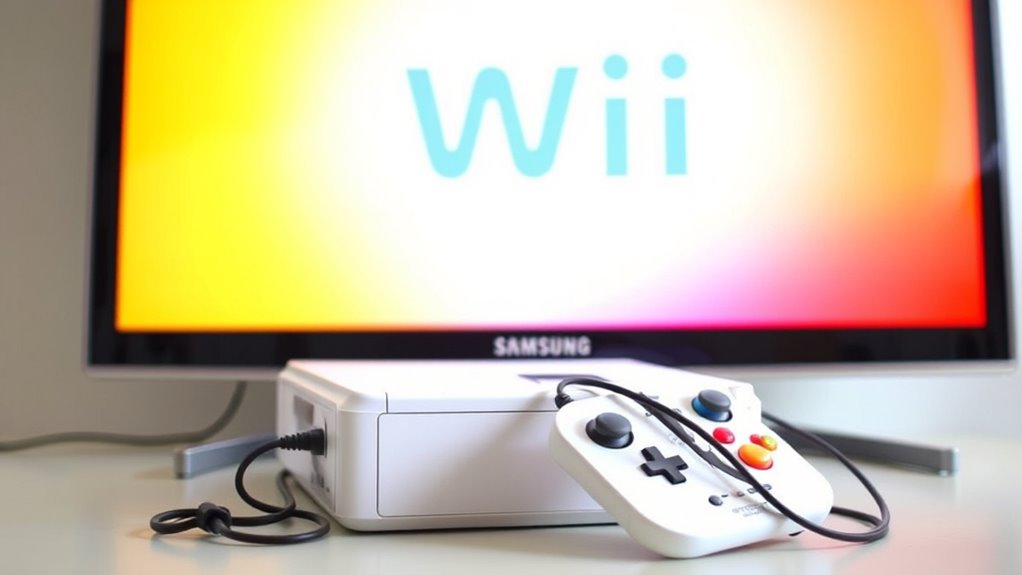

To connect your Wii to a Samsung Smart TV, start by using either a Composite AV Cable or an HDMI adapter. Plug the AV cables into the Wii and connect them to the TV’s corresponding ports. Power on both devices and select the correct input source on your TV. Adjust the TV settings for brightness and contrast for the best display. For additional tips and troubleshooting advice, you’ll find more details to enhance your gaming setup.
Required Equipment for Connection
To connect your Wii to a Samsung Smart TV, you’ll need a few essential pieces of equipment. First, make certain you’ve got the Wii console itself, along with the necessary AV cables or an HDMI adapter for seamless connectivity. Check your Samsung display settings to verify you can select the correct input source once everything’s hooked up. If you’re aiming for peak Wii game compatibility, an HDMI adapter is a great choice, as it enhances the video quality. After connecting, navigate through the TV settings to adjust the resolution and aspect ratio, guaranteeing a smooth gaming experience. With the right equipment and setup, you’ll be ready to enjoy your favorite games on the big screen.
Identifying the Wii AV Cable
To connect your Wii to your Samsung Smart TV, you’ll need to identify the correct AV cable. There are different types of Wii AV cables, so knowing the color coding will help you connect them properly. Understanding the connection ports on both your Wii and TV is essential for a successful setup.
Wii AV Cable Types
There are three main types of Wii AV cables, and identifying the right one is crucial for connecting your console to a Samsung Smart TV. Understanding these Wii cable types will help you choose the best AV connection methods for your setup.
- Composite AV Cable: This is the standard cable with yellow, red, and white connectors, providing basic video and audio quality.
- Component AV Cable: Offering improved video quality, this cable uses five connectors (three for video and two for audio) for a clearer signal.
- HDMI Adapter: This is a more modern solution, allowing for a single cable connection that enhances audio and video quality.
Choosing the correct cable guarantees you’ll enjoy the best gaming experience on your TV.
Color Coding Explained
Identifying the right Wii AV cable can be straightforward if you understand the color coding used in the connectors. The color coding significance plays an essential role in guaranteeing you connect everything correctly. Typically, you’ll find three connectors: yellow, red, and white. The yellow connector is for video, while the red and white ones are for audio—red for the right channel and white for the left. These cable color standards help you avoid confusion and make setup easier. When you plug them in, match the colors to the corresponding ports on your Samsung Smart TV. This simple approach guarantees you get the best picture and sound quality, letting you enjoy your gaming experience without hassle.
Connection Ports Overview
When setting up your Wii, knowing the connection ports on your Samsung Smart TV is essential for a smooth gaming experience. The Wii uses an AV cable that connects to your TV, and understanding the port compatibility is key to choosing the right connection types. Here’s what to look for:
- Composite Video (Yellow): This is the primary cable for video output.
- Audio (Red and White): These cables transmit stereo sound.
- HDMI (optional): If you’re using an adapter, make sure your TV has an HDMI port for better quality.
Make certain you’ve got the right ports available on your TV, and you’ll be gaming in no time!
Finding the Right Ports on Your Samsung Smart TV
To successfully connect your Wii to a Samsung Smart TV, you’ll first need to locate the appropriate ports on your television. Most Samsung models feature multiple HDMI and AV ports, but for Wii compatibility, you’ll specifically look for the yellow, red, and white AV inputs. These ports are typically grouped together, often labeled as “AV In.” Some Samsung TVs may require an adapter if they lack direct composite inputs. Familiarizing yourself with the port layout can save you time and frustration during setup. Don’t forget to check your TV’s manual for specific port locations or additional Samsung features that might enhance your gaming experience. Once you’ve found the right ports, you’ll be ready to connect your Wii.
Connecting the Wii to the TV
To connect your Wii to your Samsung Smart TV, you’ll need the right cables and possibly an adapter. Once you’ve gathered your equipment, setting up the connections is straightforward. Finally, you’ll need to adjust your TV settings to guarantee everything works smoothly.
Required Cables and Adapters
Connecting your Wii to a Samsung Smart TV requires just a few essential cables and adapters. To guarantee peak Wii compatibility, you’ll need to gather the right equipment. Here’s what you should have on hand:
- Composite AV Cable: This is the standard cable that comes with the Wii, connecting to the TV’s audio and video inputs.
- HDMI Adapter: If your TV lacks composite inputs, an HDMI adapter will help convert the signal for a better connection.
- Power Supply: Don’t forget the Wii’s power supply to keep everything running smoothly.
Once you’ve collected these items, you’ll be ready to set up your gaming experience without a hitch. Enjoy your gaming freedom on the big screen!
Setting Up Connections
Now that you have all the necessary cables and adapters, it’s time to set up the connections between your Wii and Samsung Smart TV. First, locate the AV multi-out port on the back of your Wii. Connect the AV cables, making sure the yellow cable goes into the video input and the red and white cables link to the audio inputs.
Next, plug the other end into your TV’s corresponding AV input. If your Samsung features HDMI, consider using a Wii-to-HDMI adapter for a clearer picture. Confirm the TV is set to the correct input source. This setup guarantees Wii compatibility with your Samsung Smart TV, so you can enjoy gaming without hassle!
Adjusting TV Settings
Once you’ve set up the connections, adjusting your TV settings is essential for an ideal gaming experience. To optimize your Wii gameplay, immerse yourself in your Samsung Smart TV’s settings.
Here are a few adjustments to take into account:
- Image Settings: Fine-tune brightness, contrast, and color levels to enhance visuals.
- Display Modes: Switch to the appropriate mode, such as “Game” mode, to reduce input lag and improve responsiveness.
- Aspect Ratio: Verify the aspect ratio matches your Wii’s output to avoid distortion.
These tweaks can greatly elevate your gaming session. Don’t hesitate to experiment with different settings until you find what feels best for you. Enjoy your time with the Wii on your Samsung Smart TV!
Powering On the Wii and TV
To get started, power on both your Wii and Samsung Smart TV. For the Wii, locate the power button on the console and press it. You’ll see the green LED light up, confirming it’s on. Now, grab your remote control for the TV. Press the power button, and wait for your Samsung Smart TV to boot up.
Here’s a quick reference table to guide you:
| Device | Action |
|---|---|
| Wii | Press the power button |
| Samsung Smart TV | Press the remote control power button |
Once both devices are powered up, you’re ready for the next steps to connect them. Enjoy the freedom of gaming on your big screen!
Selecting the Correct Input Source
How can you assure your Wii is displayed correctly on your Samsung Smart TV? It’s essential to select the right input source to guarantee the Wii audio and resolution are ideal. Here’s how to do it:
- Locate the “Source” or “Input” button on your TV remote.
- Cycle through the input options until you find the one labeled “AV,” “HDMI,” or “Component,” depending on how your Wii is connected.
- Once selected, you should see the Wii menu on your screen.
Adjusting TV Settings for Optimal Display
While you’ve successfully connected your Wii to your Samsung Smart TV, optimizing the display settings is crucial for the best gaming experience. Start by accessing the picture settings in your TV’s menu. Look for options like “Game Mode” to reduce input lag and enhance responsiveness. Next, consider display calibration to guarantee colors and contrast are vibrant and true to life. Adjust brightness and sharpness levels to suit your preference, but avoid extremes that can lead to eye strain. Use any available calibration tools your TV offers for precise adjustments. Finally, remember to save your settings so every gaming session feels just right, providing you with the freedom to enjoy your favorite games without distraction.
Troubleshooting Common Connection Issues
Even with the display settings optimized, you might run into connection issues while trying to play your favorite Wii games on your Samsung Smart TV. Here are some common connection problems to check:
- Incorrect input source: Confirm your TV is set to the correct HDMI or AV input where the Wii is connected.
- Loose cables: Double-check all cables for secure connections to both the Wii and the TV.
- Compatibility issues: Verify that your TV supports the resolution and format your Wii is outputting.
If you’ve addressed these points and still face trouble, consider rebooting both the Wii and the TV. Sometimes, a simple reset can resolve lingering issues and restore your gaming experience.
Enjoying Your Wii Games on Samsung Smart TV
Once you’ve successfully connected your Wii to your Samsung Smart TV, you can immerse yourself in an immersive gaming experience that combines nostalgia with modern technology. You’ll notice that the Wii game graphics, while not cutting-edge, still offer a charming aesthetic that pulls you back into the vibrant worlds of classic titles. The larger screen of your Smart TV enhances the visuals, making every pixel pop. Whether you’re solo or enjoying multiplayer gaming with friends, the experience is amplified by the TV’s sound and display capabilities. So grab those controllers, gather your friends, and engage with timeless favorites. With your Wii and Samsung Smart TV working together, gaming night just became even more enjoyable and engaging!
Frequently Asked Questions
Can I Use a Wireless Connection for My Wii and TV?
You can’t use a wireless connection for your Wii. It relies on wired connections for ideal gaming performance. For seamless Wii connectivity, consider using an HDMI adapter or component cables to connect to your TV.
What Resolution Does the Wii Output to the TV?
The Wii outputs a maximum resolution of 480p, which may limit compatibility with modern TVs. However, it still provides a nostalgic gaming experience, letting you enjoy classic titles on your screen without any hassle.
Do I Need a Specific HDMI Adapter for the Wii?
Yes, you’ll need a specific HDMI adapter for the Wii, as it doesn’t have native HDMI compatibility. There are various Wii adapter options available that convert the output for modern TVs, ensuring a smooth gaming experience.
Can I Connect Multiple Consoles to My Samsung Smart TV?
You can connect multiple consoles to your Samsung Smart TV. With the right connection options and console compatibility, you can switch between devices seamlessly, enjoying all your gaming adventures without missing a beat.
Will Using Third-Party Cables Affect the Connection Quality?
Yes, using third-party cables can affect connection quality. While they might work fine, you could experience issues like interference or lower resolution. It’s best to use reliable, manufacturer-approved cables for superior performance.
