
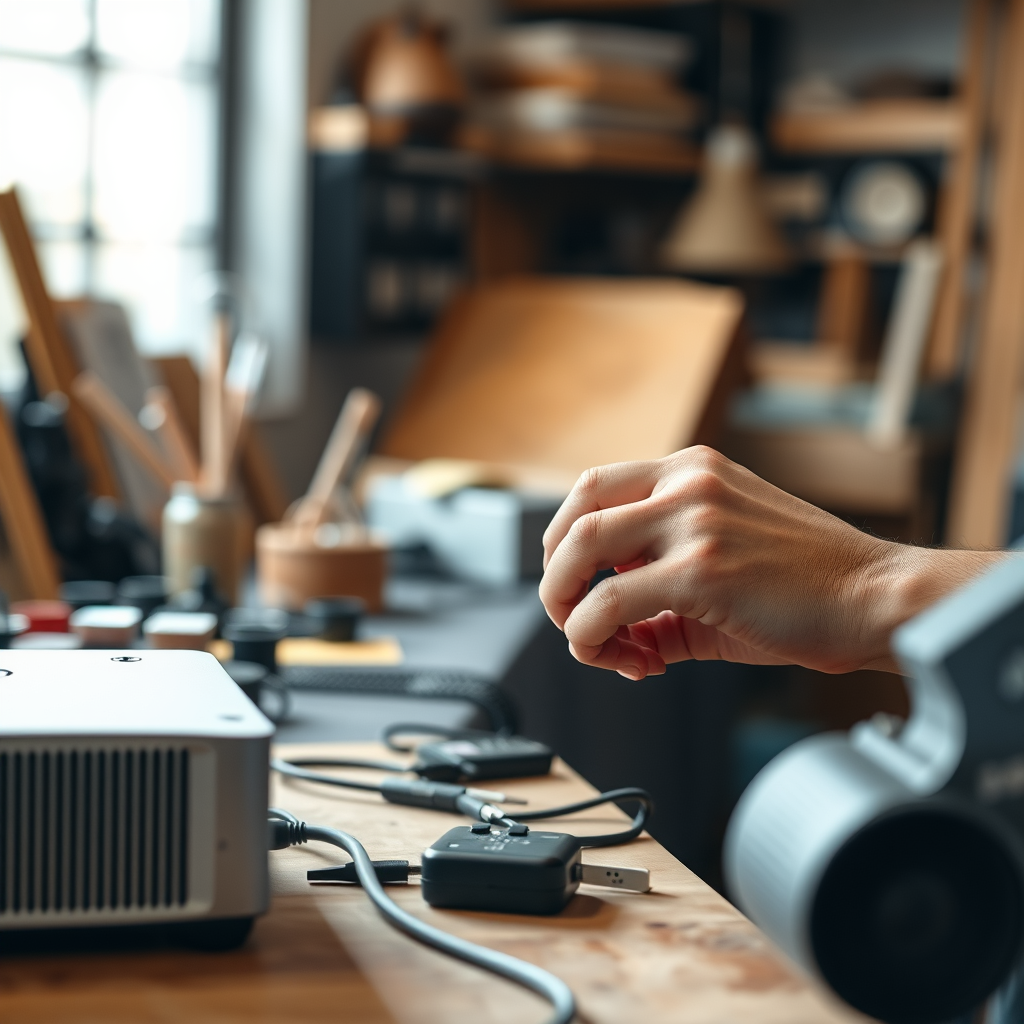

To get sound from your projector to speakers wirelessly, you can use Bluetooth adapters or wireless audio transmitters. These devices allow you to stream audio seamlessly without the clutter of cables, giving you a clean and efficient setup. In this article, we’ll explore various methods, tools, and tips to ensure you enjoy high-quality sound from your projector, enhancing your viewing experience.
Understanding Wireless Audio Transmission
Wireless audio transmission has revolutionized how we connect devices, allowing for greater flexibility and convenience. The two most prevalent technologies for this purpose are Bluetooth and Wi-Fi. Bluetooth is widely used for short-range audio streaming, making it ideal for personal setups like connecting a projector to Bluetooth speakers. It typically offers a range of about 30 feet, with a focus on simplicity and ease of use.
On the other hand, Wi-Fi-based systems can provide a more robust connection over longer distances and typically support higher audio quality. These systems can create a home network that allows multiple devices to connect simultaneously, providing a seamless audio experience throughout the home.
When choosing between Bluetooth adapters and wireless audio transmitters, it is essential to understand the differences. Bluetooth adapters are often simpler devices that plug into the audio output of your projector, enabling it to send sound to Bluetooth-enabled speakers. Wireless audio transmitters, however, may involve a more complex setup, often allowing for multiple connections and higher fidelity sound quality.
Choosing the Right Wireless Audio Device
Selecting the right wireless audio device is crucial for ensuring compatibility and performance. When considering a device, check for the following factors:
1. Compatibility: Ensure that the device is compatible with both your projector and speakers. Most modern projectors have either Bluetooth or an audio output jack (like AUX or optical).
2. Range: Consider the range of the device. If your setup is large, a Wi-Fi-based transmitter might be more suitable than Bluetooth.
3. Audio Quality: Look for devices that support high-definition audio to enhance your viewing experience.
4. Ease of Use: Some devices are plug-and-play, while others may require more complex setup processes.
A few recommended brands and models known for their reliable performance include:
– TaoTronics Bluetooth 5.0 Transmitter and Receiver: Known for its range and audio quality.
– Audioengine B1 Bluetooth Music Receiver: Excellent for audiophiles seeking premium sound quality.
– Avantree Oasis Plus: Offers long-range and supports aptX Low Latency for synchronized audio.
Setting Up Bluetooth Connections
Connecting your projector to Bluetooth speakers can be straightforward. Follow these step-by-step instructions to ensure a successful pairing:
1. Turn on your projector and navigate to the settings menu.
2. Enable Bluetooth on your projector. This option is typically found under the audio settings.
3. Put your Bluetooth speakers in pairing mode. Most speakers have a dedicated button for this purpose.
4. Search for devices on your projector. It should display available devices in range.
5. Select your Bluetooth speakers from the list and confirm the pairing.
If you encounter common connection issues, consider the following troubleshooting tips:
– Ensure that both devices are charged and within range.
– Restart both the projector and the speakers.
– Check if the speakers are already connected to another device and disconnect them.
Using Wireless Audio Transmitters
Wireless audio transmitters serve as a versatile solution for connecting projectors to speakers without the need for cables. Here’s how they work and how to set them up:
Wireless transmitters typically connect to the audio output of your projector, converting the audio signal into a wireless format that can be picked up by compatible speakers. This method allows for multiple devices to connect simultaneously, making it ideal for larger setups.
Setup Guide:
1. Connect the transmitter to the audio output of your projector using the appropriate cable (AUX, RCA, or optical).
2. Power on the transmitter and place it in a suitable position for optimal range.
3. Turn on your speakers and set them to receive mode, often indicated by a light or sound.
4. The transmitter should automatically connect to the speakers. If not, follow the manufacturer’s pairing instructions.
Enhancing Audio Quality
Optimizing the audio quality of your projector and speakers can significantly elevate your experience. Here are some tips:
– Adjust Sound Settings: Explore the audio settings on your projector. Many projectors allow you to adjust bass, treble, and overall volume.
– Use a Quality Transmitter: Choose a transmitter that supports high-definition audio and low latency for better synchronization.
– Position Your Speakers: Ensure that your speakers are appropriately placed in the room to create a balanced soundstage. Avoid placing them too close to walls or obstacles that may muffle sound.
– Audio Delay Adjustment: If you experience audio sync issues, check if your projector or speakers have options to adjust audio delay settings.
Alternative Solutions for Wireless Audio
If Bluetooth adapters or wireless audio transmitters do not meet your needs, there are alternative solutions worth considering. Soundbars and multi-room audio systems can provide excellent audio quality and flexibility.
Soundbars offer a compact solution that often includes advanced audio processing features. They can be connected to your projector via HDMI ARC or optical outputs, simplifying the setup. However, they may limit placement options and can be more expensive.
Multi-room audio systems, such as Sonos or Google Home, allow you to stream audio throughout your home. While they provide immense flexibility, they may require additional setup and investment in multiple devices.
Pros and Cons
| Method | Pros | Cons |
|—————————|———————————————|——————————————–|
| Bluetooth Adapters | Easy setup, portable, inexpensive | Limited range, possible latency issues |
| Wireless Audio Transmitters| More robust connection, supports multiple devices | More complex setup, potentially higher cost |
| Soundbars | Compact, improved audio quality | Limited placement flexibility |
| Multi-room Audio Systems | Flexibility for multiple rooms | Higher cost, complex setup |
Troubleshooting Common Issues
Wireless audio setups may occasionally encounter issues. Here are some common problems and their quick fixes:
– Audio Dropouts: Ensure no obstructions are between your projector and speakers. Check that both devices are within range.
– Connection Failures: Restart both devices and try re-pairing. Ensure that the projector’s audio output is set correctly.
– Audio Delay: Adjust audio settings on your projector or speaker to sync audio more effectively.
Regular maintenance, such as keeping software updated and checking connections, can also help maintain a stable audio connection.
By following these steps, you can enjoy a seamless audio experience with your projector. Whether you choose Bluetooth adapters or dedicated wireless transmitters, ensure your setup is compatible and optimized for the best sound quality. Experiment with different settings and solutions to find what works best for you.
Top Wireless Audio Devices for Projectors (2024)
| # | Device | Connection Type | Range | Audio Quality |
|---|---|---|---|---|
| 1 | TaoTronics Bluetooth 5.0 | Bluetooth | 30 ft | High |
| 2 | Audioengine B1 | Bluetooth | 100 ft | Ultra High |
| 3 | Avantree Oasis Plus | Bluetooth | 164 ft | High |
| 4 | Logitech Bluetooth Audio Adapter | Bluetooth | 30 ft | Moderate |
| 5 | Mpow Bluetooth Transmitter | Bluetooth | 30 ft | High |
| 6 | Nulaxy Bluetooth Transmitter | Bluetooth | 30 ft | Moderate |
| 7 | ZIOCOM Bluetooth Transmitter | Bluetooth | 30 ft | High |
In conclusion, whether utilizing Bluetooth adapters or wireless audio transmitters, your projector’s sound can be transmitted wirelessly with ease. By considering the compatibility and features of the devices you choose, along with optimizing audio settings, you can enjoy an immersive sound experience. Don’t hesitate to explore various solutions like soundbars or multi-room audio systems to elevate your setup further. With the right tools and configurations, you’ll achieve a wireless audio experience that enhances every viewing moment.
Frequently Asked Questions
How can I connect my projector to Bluetooth speakers wirelessly?
To connect your projector to Bluetooth speakers wirelessly, ensure your projector has Bluetooth capability. Turn on the projector and put the Bluetooth speakers in pairing mode. Navigate to the projector’s settings menu, select Bluetooth settings, and search for nearby devices. Once your speakers appear, select them to complete the connection.
What are the best wireless solutions for transmitting sound from a projector to external speakers?
The best wireless solutions for transmitting sound from a projector to external speakers include Bluetooth transmitters and Wi-Fi audio adapters. Bluetooth transmitters are convenient for short distances, while Wi-Fi adapters may offer better audio quality and range. Consider your environment and audio needs when selecting the right solution.
Why is there a delay in sound when using wireless speakers with my projector?
A delay in sound when using wireless speakers with your projector is often due to audio latency, which can occur with Bluetooth connections. This is particularly noticeable in video playback where audio sync is crucial. To minimize latency, look for low-latency Bluetooth devices or consider a Wi-Fi solution for better synchronization.
Which projectors support wireless audio output to speakers?
Many modern projectors support wireless audio output to speakers, including models from brands like Epson, BenQ, and Sony. Look for projectors that specifically mention Bluetooth or Wi-Fi audio capabilities in their specifications. Reading user reviews can also provide insights into the effectiveness of wireless audio functionality.
How do I troubleshoot sound issues when connecting my projector to wireless speakers?
To troubleshoot sound issues when connecting your projector to wireless speakers, start by ensuring both devices are powered on and within range. Check the volume settings on both devices and confirm that they are paired correctly. If problems persist, try resetting the Bluetooth connection, or consult the projector and speaker manuals for specific troubleshooting steps.
References
- Projector
https://en.wikipedia.org/wiki/Projector - https://www.sciencedirect.com/topics/engineering/projector
https://www.sciencedirect.com/topics/engineering/projector - Google Scholar Google Scholar
https://scholar.google.com/scholar?q=wireless+sound+from+projector+to+speakers - https://www.nature.com/articles/s41598-021-87405-5
https://www.nature.com/articles/s41598-021-87405-5 - Google Scholar Google Scholar
https://scholar.google.com/scholar?q=how+to+connect+projector+to+speakers+wireless - https://www.bbc.com/news/technology-53787735
https://www.bbc.com/news/technology-53787735 - https://www.theguardian.com/technology/2021/aug/10/the-best-wireless-projectors
https://www.theguardian.com/technology/2021/aug/10/the-best-wireless-projectors - https://pubmed.ncbi.nlm.nih.gov/32531370/
https://pubmed.ncbi.nlm.nih.gov/32531370/ - https://www.cdc.gov/healthcommunication/toolstemplates/entertainmented/tips/projector.html
https://www.cdc.gov/healthcommunication/toolstemplates/entertainmented/tips/projector.html - https://www.nytimes.com/2020/02/12/technology/personaltech/projector-guide.html
https://www.nytimes.com/2020/02/12/technology/personaltech/projector-guide.html
