

Installing apps on your Philips Smart TV is a straightforward process that allows you to access your favorite content easily. In just a few simple steps, you can enhance your viewing experience by downloading apps directly through the TV’s interface. This guide will walk you through the necessary steps to get apps installed and ready for use on your Philips Smart TV, ensuring you can enjoy everything from streaming services to games at your convenience.
Accessing the Home Screen
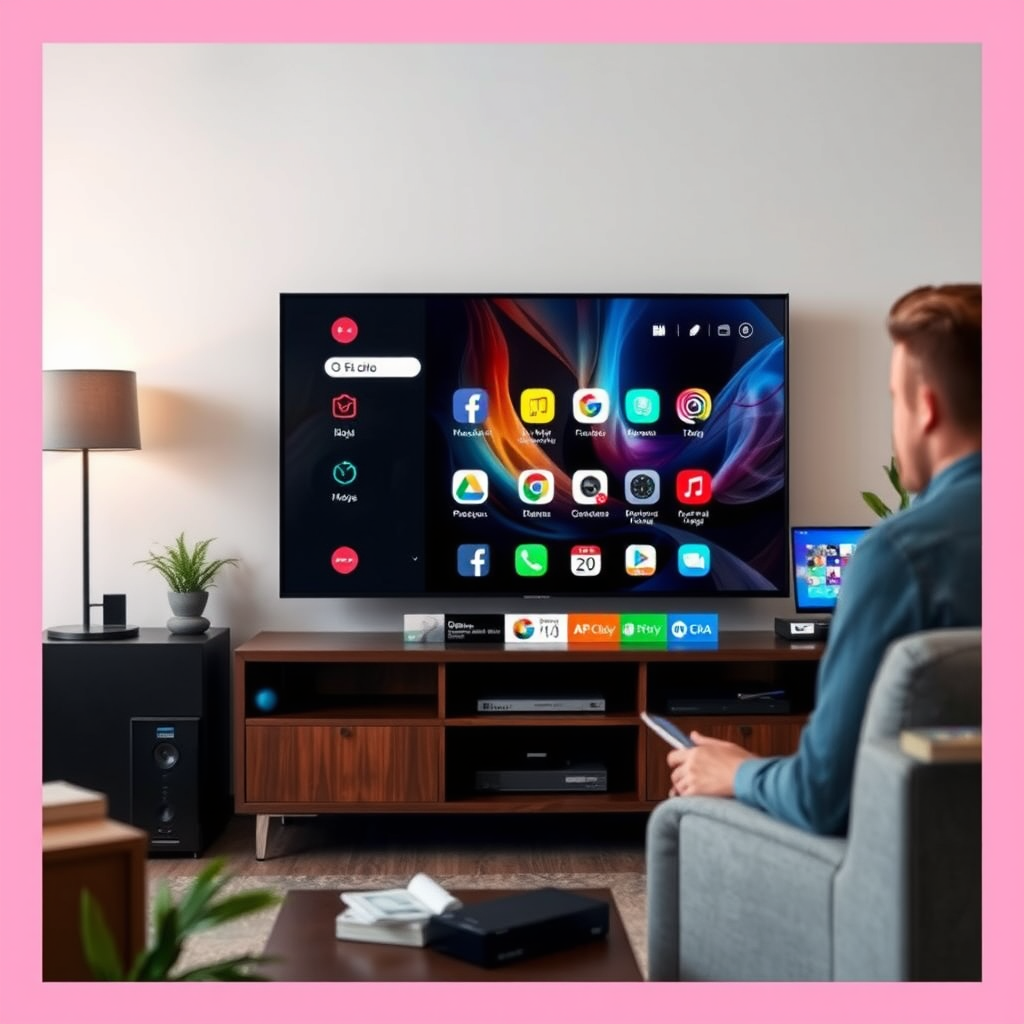
To begin installing apps on your Philips Smart TV, the first step is to access the Home Screen. This can be done by pressing the “Home” button on your remote control. This action opens the main menu, displaying various options and features available on your TV.
Once on the Home Screen, navigate to the “Apps” section. This section is typically found among other options like “Settings,” “Media,” or “Sources.” Here, you will find a curated list of apps that are available for download, as well as any apps that are already installed on your TV. Familiarizing yourself with this interface is crucial as it serves as the gateway to a world of entertainment options.
Using the App Gallery
After accessing the “Apps” section, the next step is to explore the App Gallery. To do this, select “App Gallery.” This area is designed for you to browse and search for new applications that can be installed on your TV.
In the App Gallery, you will find various categories such as “Popular Apps,” “New Releases,” and “Recommended for You.” This organization helps users easily find apps that may interest them. Additionally, there is a search function that allows you to locate specific applications quickly. Whether you’re looking for streaming services like Netflix or Hulu, games, or utility apps, the App Gallery is the one-stop-shop for all your app needs.
Installing an App
Once you have identified an app you would like to install, the process is simple. Highlight the desired app and select it to view more information, including a description, user ratings, and any necessary permissions required for installation.
To initiate the installation, click on the “Install” or “Download” button. The installation process usually takes just a few moments, depending on your internet speed and the size of the app. After the app has been successfully installed, it will be available in your “Apps” section for easy access.
Top 7 Streaming Apps for Philips Smart TV (2024)
| # | App Name | Platform | Features | User Rating |
|---|---|---|---|---|
| 1 | Netflix | Smart TV | Streaming Movies & TV Shows | ★★★★☆ |
| 2 | Amazon Prime Video | Smart TV | Exclusive Movies & TV Shows | ★★★★☆ |
| 3 | YouTube | Smart TV | User-Generated Content | ★★★★★ |
| 4 | Hulu | Smart TV | Live & On-Demand TV | ★★★★☆ |
| 5 | Disney+ | Smart TV | Family-Friendly Content | ★★★★★ |
| 6 | Spotify | Smart TV | Music Streaming | ★★★★★ |
| 7 | Twitch | Smart TV | Live Streaming of Games | ★★★★☆ |
Managing Installed Apps
After successfully installing your desired apps, managing them is the next essential step to ensure an optimal viewing experience. To access your installed apps, return to the “Apps” section from the Home Screen. Here, you will see a list of all the apps you have installed on your Philips Smart TV.
You can rearrange the order of apps for easier access, uninstall apps that you no longer use, or update them to ensure you have the latest features and security patches. To rearrange an app, simply highlight it, press the corresponding button on your remote (usually the “Options” button), and select “Move.” To uninstall an app, highlight it, press the “Options” button, and select “Delete.” Updates can typically be done directly from the same menu, ensuring your apps are always up-to-date and functioning optimally.
Troubleshooting Installation Issues
While the process of installing apps is generally smooth, you may occasionally encounter issues. The first step in troubleshooting is to ensure that your Philips Smart TV is connected to the internet. Without an active connection, you will not be able to download or update any applications.
If you experience issues with an app failing to install or update, a simple solution is to restart your TV. Power cycling can resolve minor glitches that may be affecting the installation process. Additionally, ensure that your TV’s firmware is up-to-date, as outdated software can sometimes lead to compatibility issues with new applications.
Updating Your Apps
To ensure that your apps are running smoothly and to take advantage of the latest features, it’s important to regularly check for updates. In the “Apps” section, navigate to the installed apps list and look for any notifications indicating that an update is available.
If your Philips Smart TV supports automatic updates, consider enabling this feature. This way, your apps will automatically receive updates as they become available, reducing the hassle of manual checks and ensuring you always have the best possible experience.
Exploring Additional Features
Philips Smart TVs come equipped with additional features that enhance content access and user experience. One of these features is the ability to cast or mirror content from your mobile devices to the TV. This functionality is particularly useful for viewing photos, videos, or presentations on a larger screen.
Additionally, explore the settings menu for options to customize your app experience. You can set parental controls to restrict access to certain content, manage notifications for app updates, or personalize how your apps are displayed. Understanding these features will help you leverage the full potential of your Philips Smart TV.
By following these straightforward steps, you can easily install and manage apps on your Philips Smart TV. Enjoy a more personalized viewing experience with access to a wide range of content right at your fingertips. Now that you know how to install apps, start exploring the App Gallery and make the most of your smart TV!
Frequently Asked Questions
How do I install apps on my Philips Smart TV?
To install apps on your Philips Smart TV, first press the Home button on your remote. Navigate to the ‘App Gallery’ or ‘Philips TV Apps’ section, where you can browse available applications. Select the desired app, click on ‘Install,’ and wait for the download to complete. The app will then appear on your home screen for easy access.
What should I do if I can’t find the app I want on my Philips Smart TV?
If you can’t find a specific app on your Philips Smart TV, check if your TV model supports it, as some apps may not be available for all models. You can also use the ‘Search’ feature in the App Gallery to locate it. Alternatively, consider updating your TV’s firmware to ensure you have access to the latest apps and features.
Why is my Philips Smart TV not installing apps?
Your Philips Smart TV may not install apps due to insufficient storage space, an outdated software version, or a poor internet connection. Ensure you have enough storage by deleting unused apps, check for software updates in the settings menu, and test your internet connection to confirm it’s stable and fast enough for downloads.
Which apps are best for my Philips Smart TV?
The best apps for your Philips Smart TV often include popular streaming services like Netflix, Amazon Prime Video, and YouTube, along with local content providers based on your region. Additionally, consider downloading apps for games, news, or lifestyle to enhance your viewing experience. Always check user reviews and ratings for insights on app performance and content quality.
How can I update apps on my Philips Smart TV?
To update apps on your Philips Smart TV, navigate to the ‘App Gallery’ and locate the app you want to update. If an update is available, you will see an ‘Update’ button next to the app. Click it to download and install the latest version. Regularly updating your apps ensures you have access to the latest features and security improvements.
References
- https://support.philips.com/philipsconsumer/
https://support.philips.com/philipsconsumer/ - Google Scholar Google Scholar
https://scholar.google.com/scholar?q=install+apps+on+philips+smart+tv - Google Scholar Google Scholar
https://scholar.google.com/scholar?q=Philips+Smart+TV+application+installation - Google Scholar Google Scholar
https://scholar.google.com/scholar?q=Philips+Smart+TV+guide - Google Scholar Google Scholar
https://scholar.google.com/scholar?q=how+to+install+apps+on+philips+smart+tv - how to install apps on philips smart tv – Search results
https://en.wikipedia.org/wiki/Special:Search?search=how+to+install+apps+on+philips+smart+tv - https://www.ncbi.nlm.nih.gov/search/research-articles/?term=how+to+install+apps+on+philips+smart+tv
https://www.ncbi.nlm.nih.gov/search/research-articles/?term=how+to+install+apps+on+philips+smart+tv

[…] installing an app from the LG Content Store, press the Home button and look for the new app among your installed […]
[…] – An Apps store or “App Gallery” […]
[…] most smart TV platforms, installing an app requires selecting “Install” (or “Get”) and waiting for the download to finish before […]