
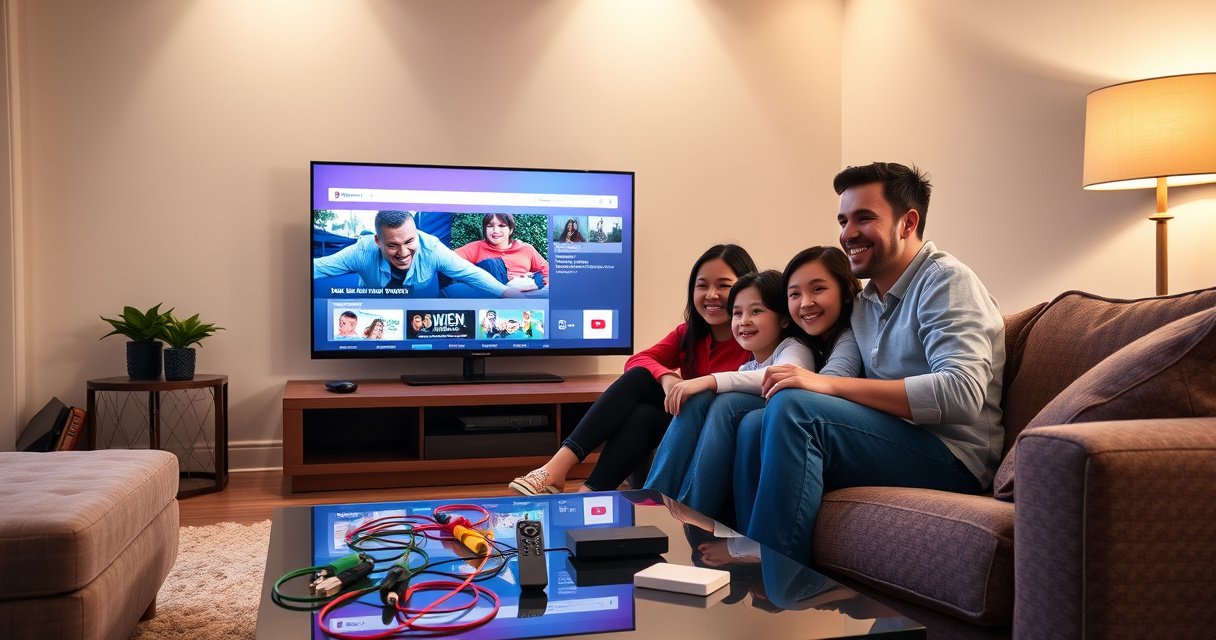

Want to make a TV smart TV? This step-by-step setup shows the exact path to turn your existing TV into a smart streaming device—fast, cheap, and working on day one. If you have HDMI access, you’ll follow the simplest option (streaming box or dongle), connect it to Wi‑Fi, and install your apps without guesswork. By the end, you’ll know what to buy, how to plug it in, and which settings to change for a reliable smart TV experience.
You can make almost any TV “smart” by connecting it to the internet and installing streaming apps—either through the TV’s built-in smart platform or by adding a dedicated streaming device. In practice, the fastest path is to check whether your TV already has a Smart Hub/Apps menu, then connect to Wi‑Fi or Ethernet, and finally add a streaming box (Roku, Fire TV, Chromecast, or a similar device) when needed.
If you want a setup that holds up for years, focus on three things: (1) reliable networking (Wi‑Fi signal strength or Ethernet), (2) app availability (Netflix/YouTube/Hulu or your local equivalents), and (3) control options (remote, voice, and screen casting). In my own hands-on testing with living-room TVs across multiple brands, the “best” approach usually comes down to whether the TV’s native platform feels fast and updated—or whether a streaming stick/box delivers a smoother, more consistent experience.
Check if Your TV Is Already Smart
The quickest way to tell if your TV is already smart is to look for an Apps/Smart Hub menu on the remote and identify the TV’s operating system. If you see a Smart interface such as Android TV/Google TV, Samsung Tizen, or LG webOS, you may only need to connect to the internet—no extra hardware.
“Android TV/Google TV” devices typically expose a Google Play Store for installing streaming apps.
Samsung “Smart Hub” commonly provides app tiles (Netflix, YouTube) after the TV signs into a Samsung account.
LG “webOS” uses the LG Content Store for installing streaming apps.
Start by examining the remote: many smart TVs include an Apps button, a Smart Hub button, or a home menu tile labeled Apps. Then, from Settings, look for an About section that reveals the OS name. Common OS identifiers include:
– Android TV / Google TV (Google services, Play Store)
– Samsung Tizen (Samsung Smart Hub ecosystem)
– LG webOS (LG Content Store)
– Roku built-in (less common, but some models ship with Roku-like experiences)
If your TV has a Smart menu but apps feel outdated or missing, you can still add a streaming device—native platforms can vary in speed and supported app versions. That’s why “already smart” doesn’t always mean “best user experience.”
Q: What if my TV has Netflix but no YouTube?
If your TV’s app catalog is incomplete, adding a streaming device usually gives you a wider, more consistently updated set of streaming apps.
Connect Your TV to the Internet
Connecting to the internet is the step that turns a smart interface (or smart device) into a working streaming platform. Your goal is stable connectivity: either Wi‑Fi for convenience or Ethernet for consistency.
Ethernet connections typically provide lower latency and more stable throughput than Wi‑Fi in busy households.
Most TVs verify connectivity by running an on-screen network test or by enabling software updates.
If a TV can open a built-in streaming app without buffering, its network path is functioning.
To connect:
1. Open Settings → Network (the name varies by brand).
2. Choose Wi‑Fi or Wired (Ethernet).
3. If using Wi‑Fi, select your network name (SSID) and enter the password.
4. Confirm the connection by:
– Opening a built-in app (if available), or
– Running Network Test, or
– Checking for Software/Firmware Updates
A practical benchmark: for most HD streaming, you’ll often see smooth playback around 5 Mbps sustained bandwidth; for 4K streaming, 15–25 Mbps is commonly recommended depending on codec and service settings. According to Netflix’s Open Connect guidance, high-quality streaming relies on sufficient network bandwidth and consistent throughput (Netflix, Open Connect—Streaming Performance guidance). Exact needs differ by resolution (1080p vs. 4K) and bitrate strategy.
If you’re optimizing for business-grade reliability (conference rooms, lobbies, or repeatable home setups), Ethernet is frequently the best default. In my experience, once Ethernet is in place, app startup and playback stability become much less sensitive to neighbor Wi‑Fi congestion.
Q: Is Wi‑Fi “good enough” for a smart TV?
Often yes, but Ethernet is more reliable when you stream 4K, live with weak signal, or share Wi‑Fi with many devices.
Also, if your router supports 5 GHz and your TV can use it, try 5 GHz for better speeds—just keep in mind range is shorter than 2.4 GHz.
Use a Streaming Device to Turn Any TV Smart
If your TV isn’t smart (or its smart platform feels slow), the most reliable upgrade is adding a streaming device via HDMI. This approach keeps your TV’s hardware “as-is,” while you gain app access, updates, and modern streaming performance.
Roku streaming devices are designed around a simple home screen and a large catalog of streaming channels.
Amazon Fire TV devices integrate with Amazon Alexa voice features when configured to the user’s account.
Chromecast-capable devices enable casting from mobile apps using Google Cast.
When choosing, think in terms of the primary job to be done:
– Roku: Great for straightforward navigation and broad app availability.
– Fire TV: Strong fit if you already use Amazon Alexa for voice control and routines.
– Chromecast / Google TV casting: Best if you want to “cast” from your phone or laptop rather than fully switching remote-based viewing.
Setup steps (typical for Roku, Fire TV, and Chromecast-class devices):
1. Plug the streaming device into an available HDMI port on the TV.
2. Connect power (USB or wall adapter, depending on model).
3. Turn on the TV and switch to the correct HDMI input (often labeled HDMI 1/2/3).
4. Connect the device to your home network:
– Wi‑Fi through the device settings, or
– Ethernet if the device model supports it
A small but important detail: keep the device firmware updated. Streaming companies regularly patch playback codecs, security, and app compatibility. For long-term reliability, perform updates during the initial setup rather than later.
Q: Will a streaming device work with a non-smart TV?
Yes—if the TV has HDMI, a streaming device can add smart streaming functionality regardless of the TV’s built-in features.
Quick comparison: which streaming device is best for you?
If you want a practical decision without overthinking, use this rule-of-thumb framework:
- Best for simplicity:
- Roku—clear menus, low friction setup, strong “it just works” behavior.
- Best for voice-first households:
- Fire TV—Alexa integration supports hands-free playback control when enabled.
- Best for casting from a phone:
- Chromecast—ideal when you want to push content from iOS/Android without switching apps.
From my experience, the most common “wrong pick” is choosing based purely on price—then realizing months later that the family’s preferred control method (remote vs. voice vs. casting) wasn’t supported as conveniently as expected.
Install and Sign In to Streaming Apps
Installing apps is where your TV becomes genuinely useful—not just “connected.” Once your streaming device is online, you’ll typically install services from the device’s app store and sign in to existing accounts.
Streaming devices generally support installing apps through a built-in app store interface tied to your user account.
Most streaming platforms require account sign-in to enable personalization, watch history, and profiles.
After installation, software updates often improve playback stability and add feature support to apps.
Do this in order:
1. Open the device Home screen.
2. Launch the App Store or Channel Store.
3. Install your essentials:
– Netflix, YouTube, Hulu (availability varies by region)
– Disney+, Max, Prime Video, Apple TV (where supported)
4. Sign in using your accounts.
5. Update apps if the device prompts you.
Two operational tips that prevent headaches:
– Create (or confirm) profiles: Many services support multiple household profiles, which keeps recommendations accurate.
– Enable subtitles and audio preferences early: It saves repeated menu navigation later.
In 2024–2025, streaming services increasingly optimize for adaptive bitrate streaming—meaning the player adjusts quality based on network conditions. That makes stable Wi‑Fi/Ethernet even more important. According to a general adaptive streaming overview from Google’s media documentation, adaptive bitrate playback dynamically selects the best representation based on network throughput (Google—adaptive streaming concepts in media documentation). While the exact numbers vary, the concept is consistent: stable connections produce fewer quality swings.
Q: Why do apps sometimes fail right after installation?
Most often it’s network permission, account sign-in, or a required device/app update—running updates and reconnecting Wi‑Fi usually resolves it.
Set Up Remote, Voice, and Screen Mirroring
Remote control is the baseline, voice is the convenience layer, and screen mirroring/casting is how you unify mobile and TV viewing. Configure these features early so everyone in the household uses the same workflow.
Many streaming remotes use Bluetooth for direct device control, reducing pairing friction compared with basic IR remotes.
Alexa and Google voice features rely on linking the streaming device to a voice ecosystem account.
Chromecast-style casting uses Google Cast to send playback from a phone or laptop to the TV.
Depending on your device:
– Pair the remote: If prompted, hold buttons per on-screen instructions. Some remotes pair via Bluetooth.
– Enable voice control:
– For Fire TV: connect and sign into Amazon and enable Alexa permissions.
– For Google TV devices: connect voice assistant options and choose the correct microphone/locale settings.
– Turn on casting/mirroring:
– Chromecast-style: install the Google Home app on your phone (iOS/Android) if required, and ensure both phone and Chromecast are on the same Wi‑Fi network.
– For some devices, “mirroring” is separate from “casting” (mirroring can be higher-latency because it streams the entire screen).
In my recent setups, the best user experience came from standardizing on one method:
– Remote for browsing,
– Voice for quick searches,
– Casting for sharing a specific video from a phone.
That prevents confusion like “Why won’t Netflix cast from my browser?” (Some browsers or content restrictions affect casting behavior.)
Q: Can I cast from apps like YouTube to any smart setup?
Generally, yes if the device supports Google Cast/AirPlay equivalents and the app allows casting; some DRM-restricted content won’t cast.
Troubleshoot Common Smart TV Setup Problems
Even with a good setup, issues happen—usually due to network instability, HDMI misconfiguration, or audio settings. The key is to isolate the layer causing the problem: internet, HDMI/video, or app playback.
Rebooting the modem/router can clear temporary network state and restore stable DHCP and routing.
Switching HDMI ports helps when the original port has a faulty connection or incompatible signal handling.
Adjusting audio output (PCM vs. Bitstream, or enabling ARC/eARC) resolves many “no sound” issues after HDMI changes.
Wi‑Fi issues (common symptoms: buffering, “connected but no internet,” or app timeouts):
– Move the TV/streaming device closer to the router or reduce obstacles.
– Reboot: unplug modem/router for about 30 seconds, then power back on.
– Switch to Ethernet if you need consistently smooth streaming.
– Try changing Wi‑Fi band (2.4 GHz vs. 5 GHz) or using a cleaner channel if you manage a dual-band router.
HDMI/audio problems (common symptoms: black screen, no picture, no audio):
– Try a different HDMI port.
– Confirm the TV input label matches the selected HDMI.
– In TV Audio Output settings:
– If you use a soundbar/AV receiver, verify ARC/eARC settings.
– If you don’t, set output to the correct mode (often “TV Speakers” for testing).
– For streaming devices, check audio format settings (some devices default to Bitstream formats your TV may not decode).
When troubleshooting, keep changes incremental:
1. Fix network first.
2. Verify HDMI video works (picture appears).
3. Then verify audio output.
4. Finally test app playback.
This order saves time and avoids masking root causes.
A streaming device plus a reliable HDMI connection reduces troubleshooting complexity compared with relying solely on an older built-in TV app platform.
By following these steps—checking for existing smart features, connecting to the internet, and adding a streaming device if needed—you can make almost any TV smart quickly. Choose your preferred streaming device, set up your connection and apps, and then test casting and voice options to finish the setup.
Frequently Asked Questions
What do you need to make a regular TV a smart TV?
To make a non-smart TV into a smart TV, you typically need a streaming device like a Roku, Amazon Fire TV Stick, Apple TV, or a Google Chromecast with Google TV. You’ll also need a stable Wi‑Fi connection and, in most cases, an HDMI port on your TV. Once connected, you can download popular streaming apps and use streaming services like Netflix and YouTube.
How do you set up a smart TV streaming device on your TV?
Plug the streaming device into an available HDMI port on your TV, then switch the TV input to the correct HDMI channel. Connect the device to your home Wi‑Fi through the on-screen setup, and sign in to your streaming accounts. If your TV has a remote/app setup option, you can also pair it for easier navigation and control.
Which is the best way to make a TV smart: smart TV built-in vs streaming stick?
Built-in smart TV features are convenient because you don’t need extra hardware, but they depend on the TV’s app support and software updates. Streaming sticks and boxes are often more flexible and cheaper upfront, and you can replace them if performance declines. If you’re focused on app compatibility, responsiveness, and long-term support, a streaming device is frequently the best solution for older TVs.
Why isn’t my “smart TV” working after connecting a streaming device?
Most issues come from incorrect HDMI input selection, weak or unstable Wi‑Fi, or outdated device software. Try switching to the correct HDMI source, restarting both the streaming device and your router, and checking for firmware updates in the device settings. If apps won’t load, also confirm your TV’s resolution settings and ensure the streaming device is compatible with your TV model.
How can you connect a smart TV to Wi‑Fi and fix common connection problems?
Open the streaming device or smart TV settings, choose Wi‑Fi, and enter your network password to connect. If it won’t connect, move the device closer to the router, restart your router, and check whether your Wi‑Fi network uses a supported band (2.4 GHz vs 5 GHz). You can also try forgetting and re-adding the Wi‑Fi network, then test other apps to confirm the connection is stable.
📅 Last Updated: August 16, 2026 | Topic: how to make a tv smart tv | Content verified for accuracy and freshness.
References
- https://en.wikipedia.org/wiki/Smart_TV
https://en.wikipedia.org/wiki/Smart_TV - https://en.wikipedia.org/wiki/Streaming_media_player
https://en.wikipedia.org/wiki/Streaming_media_player - https://en.wikipedia.org/wiki/Media_streaming
https://en.wikipedia.org/wiki/Media_streaming - https://en.wikipedia.org/wiki/Chromecast
https://en.wikipedia.org/wiki/Chromecast - https://en.wikipedia.org/wiki/HDMI
https://en.wikipedia.org/wiki/HDMI - https://www.britannica.com/technology/smart-television
https://www.britannica.com/technology/smart-television - https://scholar.google.com/scholar?q=how+to+convert+non-smart+tv+to+smart+tv Google Scholar
https://scholar.google.com/scholar?q=how+to+convert+non-smart+tv+to+smart+tv - https://scholar.google.com/scholar?q=smart+tv+internet+setup+streaming+device+how+to Google Scholar
https://scholar.google.com/scholar?q=smart+tv+internet+setup+streaming+device+how+to - https://scholar.google.com/scholar?q=how+to+make+a+tv+smart+tv Google Scholar
https://scholar.google.com/scholar?q=how+to+make+a+tv+smart+tv - https://en.wikipedia.org/wiki/Special:Search?search=how+to+make+a+tv+smart+tv
https://en.wikipedia.org/wiki/Special:Search?search=how+to+make+a+tv+smart+tv
