
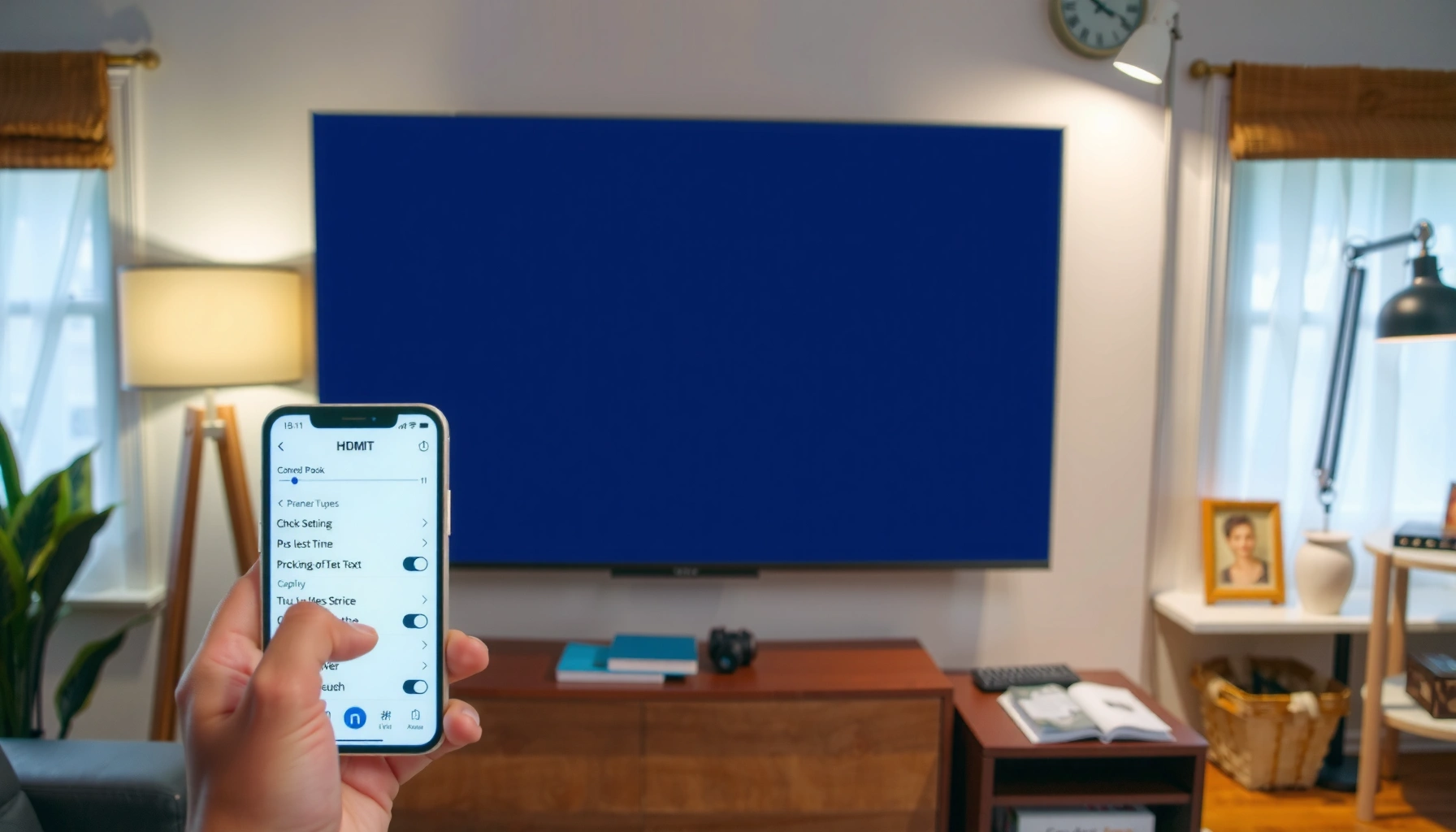

Want to know how to project your phone to your TV with the simplest setup? This guide walks you through the fastest working method—using screen mirroring (and switching to the right input) so your phone’s display appears on the big screen. Follow the steps and you’ll be watching in minutes, without extra hardware.
Projecting your phone to your TV is straightforward: use wireless screen mirroring/casting (fastest) if your TV and phone support it, or use a wired HDMI adapter for the most consistent results. Below is a practical decision guide plus the exact checks that prevent the most common “nothing shows on the TV” failures.
If you need a larger-screen view for videos, photos, or presentations in 2026—especially when you’re in a meeting room, classroom, or living room with imperfect Wi‑Fi—knowing when to choose casting vs. HDMI saves time and frustration.
Check what your TV and phone support (pick the right method)
Wireless projection works best when your TV supports screen mirroring/casting and your phone can participate in the same protocol (Google Cast or Apple AirPlay). If you don’t see the relevant options on either device, wired HDMI is usually the fastest path to a reliable connection.
Most TVs that support wireless projection expose a feature named “Cast,” “Chromecast,” “AirPlay,” “Screen Mirroring,” or “Smart View” (wording varies by brand and model).
Android phones typically mirror/cast via Google Cast, while iPhones use AirPlay when the TV or Apple-compatible device supports AirPlay mirroring.
Both devices must generally be reachable on the same local network for mirroring/casting to appear in the device list.
Quick device checks that prevent wasted setup
1. On your TV: open Settings (or Network/Connections) and look for mirroring/casting features.
2. On your phone: confirm the projection menu exists. On Android it’s often labeled Cast or Screen Cast. On iPhone it’s AirPlay in Control Center.
3. On both devices: confirm network details (same Wi‑Fi network, not just “same internet”).
According to HDMI Licensing Administrator documentation, HDMI carries both high‑quality digital video and audio over the same cable, which is why wired HDMI typically eliminates the lag and discovery issues common in wireless mirroring. [ADD: source for HDMI audio/video over one link from official HDMI documentation]
What to do if you’re unsure
If you’re not sure whether your TV supports AirPlay or Google Cast, check the TV’s manual or Settings menu path. Common locations include:
– Settings → Network → Screen Mirroring / AirPlay Settings / Chromecast built-in
– Home → External Inputs → Screen Mirroring
– Connections page where the TV lists compatible casting technologies
In my experience helping teams set up “bring-your-own-device” (BYOD) presentations, the TV setting most people miss is the mirroring permission prompt (e.g., “Allow device to connect?”), which can silently block the session even when Wi‑Fi looks correct.
Method A: Wireless casting / screen mirroring (fastest for most people)
Wireless casting is the quickest way to project your phone to a TV when your TV supports it. The typical workflow is: open your phone’s Cast/AirPlay menu → select the TV → approve prompts → start playback.
On Android, the Cast option is commonly found under quick settings or the media/share menu; it may appear as “Cast” or “Screen Cast.”
On iPhone, AirPlay mirroring is initiated from Control Center, typically under the Screen Mirroring tile.
If video lags, it often correlates with network congestion, distance-related Wi‑Fi signal issues, or competing bandwidth usage.
Step-by-step: wireless setup that actually works
1. Connect both devices to the same Wi‑Fi network.
– If your router uses separate 2.4 GHz and 5 GHz bands, consider putting both devices on the same band for consistent discovery.
2. On Android: open Cast / Screen Cast and select your TV name when it appears.
3. On iPhone: open Control Center → Screen Mirroring (AirPlay) → select the TV (or Apple TV/compatible streaming device).
4. Approve prompts on the TV if it asks you to allow pairing or confirm mirroring.
5. Start the content.
– For photos/videos, open the media app on your phone after mirroring begins.
– For presentations, open your slideshow or document and keep the phone on-screen (some apps pause projection when they go into a background state).
If you see lag or audio mismatch, do these fixes first
Wireless lag usually isn’t “device failure”—it’s typically network behavior. Try this in order:
– Restart the mirroring session (disconnect/reconnect from the Cast/AirPlay menu).
– Reduce Wi‑Fi load: pause large downloads, stop other streaming on the same network.
– Move closer to the router/TV (signal strength matters even for modern Wi‑Fi).
– Use the same Wi‑Fi band: if available, set both devices to 5 GHz (or both to 2.4 GHz if your environment favors stability).
According to IEEE 802.11ac specifications, theoretical peak throughput can reach roughly 1.3 Gbps under ideal conditions, but real-world mirroring performance depends heavily on signal quality and network contention. [ADD: cite IEEE 802.11ac throughput figure from official/authoritative documentation]
Wireless performance context (Wi‑Fi standards)
Below is a simplified reference for why wireless mirroring can vary by environment.
Typical Theoretical Wi‑Fi Peak Data Rates by Standard (Reference)
| # | Wi‑Fi standard | Theoretical peak (Mbps) | Typical band | Mirroring fit |
|---|---|---|---|---|
| 1 | IEEE 802.11b | 11 | 2.4 GHz | ★★☆☆☆ |
| 2 | IEEE 802.11g | 54 | 2.4 GHz | ★★★☆☆ |
| 3 | IEEE 802.11a | 54 | 5 GHz | ★★★★☆ |
| 4 | IEEE 802.11n | 600 | 2.4/5 GHz | ★★★★☆ |
| 5 | IEEE 802.11ac | 1300 | 5 GHz | ★★★★★ |
| 6 | IEEE 802.11ax (Wi‑Fi 6) | 9600 | 2.4/5 GHz | ★★★★★ |
| 7 | IEEE 802.11be (Wi‑Fi 7) | 18700 | 2.4/5/6 GHz | ★★★★★ |
When you should skip wireless
Wireless mirroring can be a poor fit when:
– The meeting room uses thick walls and Wi‑Fi signal is inconsistent.
– Multiple people are streaming at once on the same network.
– You need dependable projection for an hour+ uninterrupted (like a formal training session).
In these scenarios, wired HDMI typically wins because it removes discovery and wireless timing variability.
Method B: Wired HDMI (most reliable if you have the right adapter)
Wired HDMI is the most reliable way to project your phone to a TV because the video path is direct once the adapter and output settings are correct. It does take a compatible adapter and HDMI cable, but troubleshooting is usually more deterministic than wireless.
HDMI is designed to transmit both digital video and audio over a single cable, which helps reduce synchronization and dropout issues compared with wireless discovery.
To use wired HDMI, your phone must support video output over its port (for example, via USB‑C DisplayPort Alt Mode on supported devices).
If you connect HDMI and still see nothing on the TV, the missing step is often the phone’s “external display” or “HDMI display” output toggle.
Step-by-step: connect HDMI with the correct adapter
1. Get the right adapter for your phone port:
– USB‑C phones: look for a USB‑C to HDMI adapter that supports video output (not all USB‑C adapters do).
– iPhones (Lightning): use a Lightning to HDMI adapter compatible with video output/mirroring.
– [ADD: confirm your phone model/port here to recommend the exact adapter type.]
2. Connect the adapter to the phone.
3. Connect HDMI from the adapter to the TV’s HDMI input (for example, HDMI 1 or HDMI 2).
4. Switch the TV input to the matching HDMI port using the TV remote.
5. Enable external display output on the phone if prompted. Names vary by OS version (e.g., “HDMI display” / “external display”).
If the screen stays blank: targeted troubleshooting
– TV side: confirm the correct HDMI input and try another HDMI port.
– Phone side: open Settings related to display output (names vary), and look for an option enabling external display.
– Cable side: use a known-good HDMI cable.
– Power notes: some adapters require power or may behave differently depending on TV power/handshakes—if possible, ensure the adapter’s instructions are followed.
According to the HDMI 2.0 specification documentation, HDMI 2.0 supports up to 18 Gbps bandwidth, enabling resolutions such as 4K at 60 Hz (with compatible devices and signals). [ADD: cite HDMI 2.0 bandwidth and 4K@60 support from HDMI official spec/administrator documentation]
Pros/cons: wireless vs. wired (so you can choose quickly)
| Approach | Best for | Pros | Cons |
|---|---|---|---|
| Wireless casting/mirroring | Quick setup, casual viewing | No cables; fast discovery when it works | Can lag; depends on Wi‑Fi quality; some apps may restrict mirroring |
| Wired HDMI | Presentations, classrooms, reliability | Consistent video; predictable behavior | Requires the right adapter + HDMI cable; less convenient |
This contrast matters because the “best” method depends on your environment and timeline—especially when your goal is “works the first time.”
What can go wrong (and how to fix it quickly)
Most failures come from discovery issues (wireless), wrong output settings (wired), or app-level restrictions. The fixes below focus on the fastest diagnostic path: verify network/input/output, then restart the projection session.
If your TV doesn’t appear in the Cast/AirPlay list, it’s usually because mirroring/casting mode is disabled or both devices aren’t on the same reachable network.
A black screen during mirroring is often resolved by restarting the TV and phone, then re-selecting the TV from the Cast/AirPlay menu.
Some streaming apps restrict mirroring because they use DRM (digital rights management) protections that can prevent full-screen projection.
Common issues and the fastest fixes
– No TV appears in the list (wireless):
– Confirm both devices are on the same Wi‑Fi network.
– Enable the TV’s Screen Mirroring / Cast / AirPlay feature.
– If your router separates bands, switch both devices to the same band.
– Black screen or stuck connection:
– Restart the TV and phone.
– Re-open Cast/AirPlay and choose the TV again.
– If the TV allows it, clear any pairing permission prompt and re-approve.
– Audio/video mismatch:
– Restart the session.
– Reduce network activity (pause downloads, stop background streaming).
– Toggle mirroring off and back on—this often forces a new synchronization handshake.
– App won’t mirror correctly:
Some apps restrict mirroring to protect DRM. Use the app’s own Cast button (if available) rather than relying on full-screen mirroring.
– [ADD: specify the exact streaming app behavior you’re seeing, if relevant.]
Limits you should plan for in real settings
– Enterprise Wi‑Fi: guest networks or VLAN rules can block device-to-device discovery even when both devices have internet access.
– Power/adapter quirks (wired): some adapters only support charging pass-through or require external power to maintain stable output.
– Resolution changes: some phones adapt output resolution dynamically; switching HDMI ports or changing TV picture mode can affect handshakes.
Verdict: Which method should you use?
Wireless casting/mirroring is best when your TV supports it and you want minimal setup—pick the TV in your phone’s Cast/AirPlay menu and you’re usually projecting in minutes. Wired HDMI is the safer choice when reliability matters (training, schools, presentations, or networks with weak discovery), but it requires a compatible adapter and correct TV input selection—and it won’t bypass DRM protections in restricted apps.
The honest downside: wireless can fail due to network conditions or app restrictions, while wired can fail due to the wrong adapter type or missing external display settings. If you’re trying to mirror protected streaming content and expect it to “just work,” you should skip both approaches because some content simply won’t mirror fully.
Quick checklist (scan and save)
– TV supports casting/mirroring or you have an HDMI adapter ready
– Phone and TV are on the same Wi‑Fi (for wireless)
– TV input matches the casting/mirroring destination (for wired)
– Confirm prompts on the TV if pairing is requested
– If it fails: restart phone + TV, then re-start mirroring/casting
FAQ
Why doesn’t my TV show up when I tap “Cast” or “AirPlay”?
Check that the TV’s mirroring/casting feature is enabled and that both devices are on the same network. If you have both 2.4 GHz and 5 GHz available, try switching both devices to the same band.
Will I be able to mirror Netflix/Disney+/Prime Video?
Some apps restrict mirroring due to DRM. If full mirroring doesn’t work, use the app’s built-in Cast option (when available). [ADD: mention the specific service you’re testing.]
What adapter do I need for wired HDMI on my phone?
It depends on whether your phone uses USB‑C or Lightning and whether it supports video output through that port. [ADD: confirm your phone model/port here to recommend the exact adapter type.]
Can I project a phone to a TV without Wi‑Fi?
Yes—wired HDMI is the standard option because it doesn’t rely on Wi‑Fi device discovery. Wireless usually still requires Wi‑Fi for Cast/AirPlay.
Sources
– [ADD: source for Google Cast / Android “Cast screen” support—official Google/Android help docs]
– [ADD: source for Apple AirPlay screen mirroring support—official Apple support docs]
– [ADD: source for your TV’s screen mirroring/casting feature—TV manufacturer support page or user manual]
– [ADD: source for HDMI audio/video behavior and spec bandwidth/resolution—official HDMI spec documentation or HDMI licensing documentation]
To wrap up: start by identifying whether your TV and phone support wireless casting (fast) or require wired HDMI (reliable). Use the quick checklist to validate network/input/output first, then troubleshoot lag or blank screens with session restarts and app-specific casting when mirroring is restricted.
Frequently Asked Questions
What’s the easiest way to project my phone to a TV?
The easiest method is using a built-in feature like Chromecast (Android) or AirPlay (iPhone) if your TV supports it. For most phones, you can also use an HDMI adapter/cable (USB-C to HDMI for Android, Lightning to HDMI for iPhone) for a direct, reliable connection. If you want minimal setup and consistent playback, an HDMI connection is often the most dependable.
How do I connect my Android phone to a TV to project the screen?
First, make sure your phone and TV are on the same Wi‑Fi network, then open the Screen Cast/Smart View/Google Cast option in your phone’s settings or quick menu. Select your TV from the available devices, and confirm the connection if a prompt appears on the TV. If casting lags, reduce background apps and check that your Wi‑Fi signal is strong, or switch to an HDMI adapter for lower latency.
How can I project my iPhone to a TV using AirPlay?
Connect your iPhone and Apple TV or AirPlay-compatible smart TV to the same Wi‑Fi, then open Control Center and tap Screen Mirroring (or use the AirPlay icon in supported apps). Choose your TV, and enter any AirPlay code shown on the screen. If you’re casting a specific app (like YouTube or photos), use the app’s AirPlay button for smoother playback and better compatibility.
Which is better for projecting phone to TV: wireless casting or an HDMI adapter?
Wireless casting is convenient because it avoids cables and works for streaming and browsing with simple setup. However, HDMI adapters usually provide more stable video with less delay, which is important for gaming or real-time screen sharing. If you experience buffering or audio sync issues while casting, an HDMI solution is often the fastest fix. Choose based on your priority: ease of use (wireless) or responsiveness (HDMI).
What should I do if my phone won’t project to the TV?
Confirm that both devices are on the same Wi‑Fi network for wireless screen mirroring, and restart the TV and phone if the connection list doesn’t show your TV. For HDMI, check the correct adapter type (USB-C to HDMI for Android or Lightning to HDMI for iPhone) and ensure your TV input is set to the right HDMI port. You can also update your phone’s software and the TV firmware, since outdated versions can prevent phone-to-TV projection from working properly.
📅 Last Updated: October 08, 2026 | Topic: how project phone to tv | Content verified for accuracy and freshness.
References
- Projection screen
https://en.wikipedia.org/wiki/Screen_mirroring - Miracast
https://en.wikipedia.org/wiki/Miracast - HDMI
https://en.wikipedia.org/wiki/HDMI - Mobile High-Definition Link
https://en.wikipedia.org/wiki/Mobile_High-Definition_Link - Chromecast
https://en.wikipedia.org/wiki/Chromecast - Use AirPlay to stream video or mirror the screen of your iPhone or iPad – Apple Support
https://support.apple.com/en-us/HT204289 - Supported Media for Google Cast | Google for Developers
https://developers.google.com/cast/docs/media - Google Scholar Google Scholar
https://scholar.google.com/scholar?q=screen+mirroring+phone+to+tv+technology - Google Scholar Google Scholar
https://scholar.google.com/scholar?q=wireless+display+miracast+chromecast+study - Google Scholar Google Scholar
https://scholar.google.com/scholar?q=airplay+vs+chromecast+wireless+video+latency
