
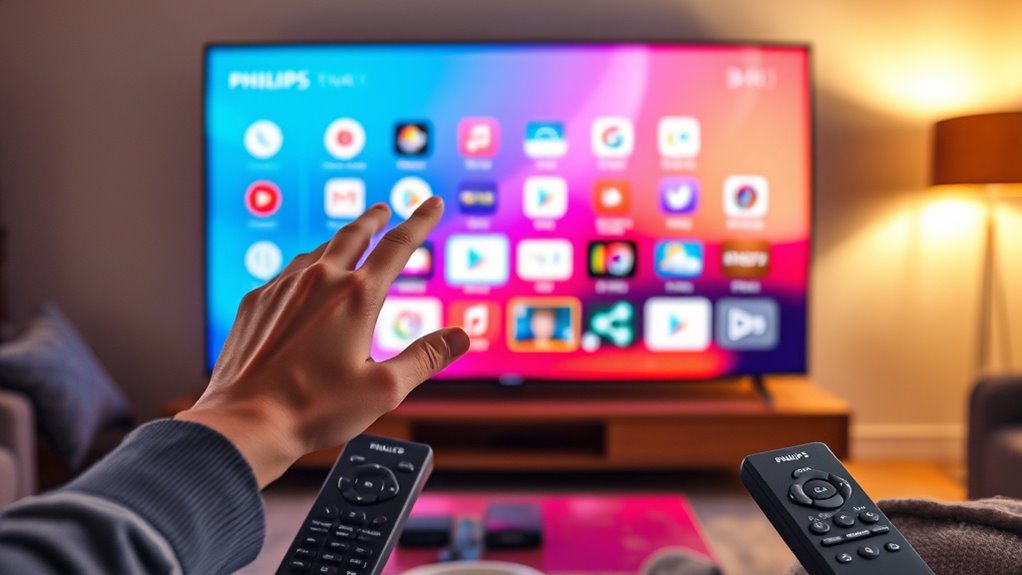

To put apps on your Philips Smart TV, start by accessing the App Store from the home screen. Browse or search for the app you want and check its compatibility with your model. Once you’ve found it, select the app details and click “Install.” After installation, the app will appear on your home screen. You can also manage your installed apps easily. Stay tuned for more tips on optimizing your Philips Smart TV experience!
Understanding Your Philips Smart TV Interface
Maneuvering your Philips Smart TV interface can feel overwhelming at first, but it’s designed to be user-friendly. Start by familiarizing yourself with the home screen, where you’ll find various apps and features. Managing menus is straightforward; use the remote to scroll through options effortlessly. Don’t hesitate to explore different sections, as each offers unique settings that enhance your viewing experience. Customizing settings is key to making your TV truly yours. Adjust picture quality, sound preferences, and accessibility options to suit your needs. Remember, the more you interact with the interface, the more intuitive it becomes. Embrace the freedom to personalize your setup, making your Philips Smart TV a perfect fit for your lifestyle. Enjoy the journey!
Accessing the App Store
To access the App Store on your Philips Smart TV, you’ll need to navigate through the home screen. Follow these simple steps to get started:
- Locate the App Store Icon: Look for the icon that resembles a shopping bag or a grid, typically found on the home screen.
- Explore App Categories: Once you’re in the App Store, browse through various app categories like entertainment, games, or news to find something that sparks your interest.
- Check App Recommendations: Keep an eye out for featured or recommended apps, which can help you discover popular content that suits your taste.
Now you’re ready to plunge into the world of apps and enhance your viewing experience on your Philips Smart TV!
Installing New Apps
Once you’ve found the apps you want, installing them on your Philips Smart TV is a straightforward process. First, check the app compatibility to verify it works with your model. Navigate to the App Store on your TV, and search for the desired app. Once you’ve located it, select the app to view more details. You’ll see an “Install” button—click it to begin the installation process. Depending on your internet speed, this might take a moment. After installation, the app will appear on your home screen, ready for use. Embrace the freedom of customizing your viewing experience by exploring various apps that cater to your interests and preferences. Enjoy your new content!
Managing Installed Apps
Managing your installed apps on a Philips Smart TV is essential for optimizing your viewing experience. With proper app organization, you can easily access your favorite content. Here are a few tips to help you manage your apps effectively:
Managing your Philips Smart TV apps enhances your viewing experience, allowing easy access to your favorite content.
- Rearranging Apps: Use the remote to navigate to the app, then press and hold the ‘OK’ button to move it to your preferred location.
- App Removal: To free up space, uninstall apps you no longer use. Navigate to the app, press the options button, and select ‘Remove’ or ‘Uninstall.’
- Updating Apps: Keep your apps up to date for the best performance. Check the app store regularly for updates.
Troubleshooting Common App Issues
While enjoying your favorite shows, you might encounter some common app issues on your Philips Smart TV. Don’t worry; troubleshooting these problems is usually straightforward. First, check for app compatibility issues, as some apps may not support your TV model or software version. If an app isn’t working, try uninstalling and reinstalling it.
Next, consider network connectivity problems. Verify your TV is connected to Wi-Fi and that your internet is stable. Restarting your router can often resolve connectivity issues. If you’re still having trouble, check for any available software updates for your TV, as these can enhance app performance. By addressing these common issues, you can quickly get back to your streaming without hassle.
Frequently Asked Questions
Can I Use a USB Drive to Install Apps?
You can’t use a USB drive to install apps directly. USB compatibility issues often arise, so consider alternative installation methods. Sometimes, the simplest paths lead to the most surprising dead ends, don’t they?
Are All Apps Available on Philips Smart TV?
Not all apps are available on your Philips Smart TV, as app availability depends on smart TV compatibility and regional restrictions. Check the app store regularly for updates and new app options tailored for your device.
How Do I Update Installed Apps on Philips TV?
Updating apps on your Philips TV’s like breathing fresh air into old favorites. Access the app management settings, select the app you want, then follow the prompts in the app update process for seamless upgrades.
Can I Uninstall Pre-Installed Apps From My Philips TV?
You can’t uninstall pre-installed apps on your Philips TV. However, you can manage them through the App Management settings. Check for uninstall options for any downloaded apps instead, giving you more control over your viewing experience.
Is There a Limit to the Number of Apps?
There’s no hard limit on the number of apps you can install, but app storage can fill up quickly. Effective app management helps guarantee you’ve got room for all your favorites without feeling cramped.
