
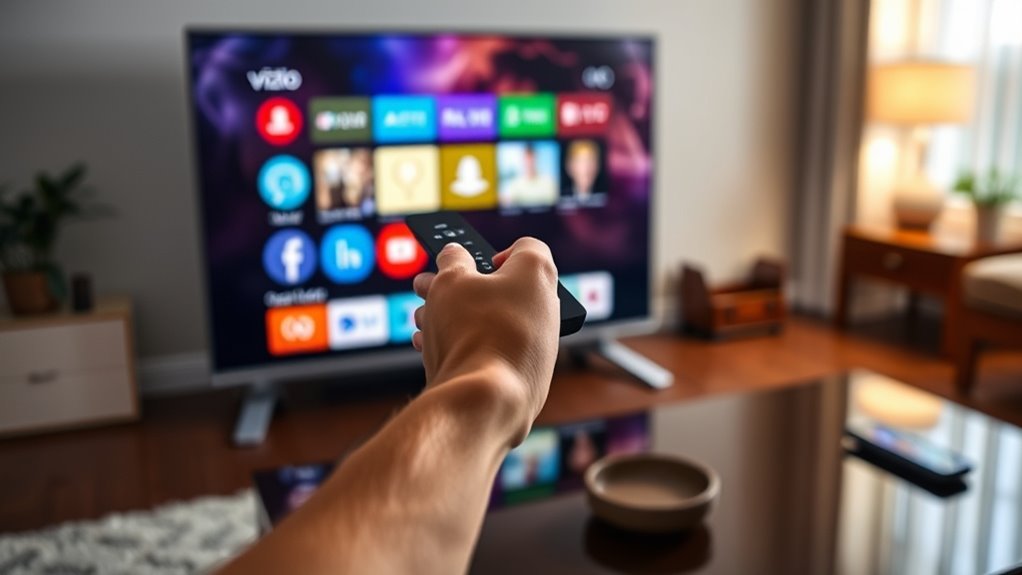

To remove an app from your Vizio Smart TV, press the “V” button on your remote, and navigate to the “Apps” section. Highlight the app you want to delete and press the OK button. Confirm the deletion when prompted. If you find the process isn’t working smoothly, it might be due to software issues or a need for updates. There are additional tips for organizing your apps and troubleshooting if needed, so keep exploring!
Understanding Your Vizio Smart TV Interface
To effectively manage apps on your Vizio Smart TV, it is essential to understand its interface. The Vizio interface features an intuitive design that simplifies Smart TV navigation. You’ll find a home screen that displays all your installed apps, making it easy to access your favorites. The menu bar at the bottom provides quick links to settings and other functionalities, allowing you to customize your viewing experience. Using the remote, you can effortlessly scroll through options, rearranging or launching apps with just a few clicks. Familiarizing yourself with these features empowers you to take control of your entertainment choices, giving you the freedom to curate your app selection to suit your preferences and viewing habits.
Accessing the App Menu
After getting familiar with the Vizio Smart TV interface, accessing the app menu is your next step. This menu gives you the freedom to explore and manage your installed applications. To access the app menu, follow these simple steps:
Familiarize yourself with the Vizio Smart TV interface to easily access and manage your installed apps.
- Press the “V” button on your remote.
- Navigate to the “Apps” option using the arrow keys.
- Select “All Apps” to view everything you have installed.
- Accessing settings becomes easy from here, allowing you to customize your viewing experience.
Navigating to Installed Apps
Finding your installed apps on a Vizio Smart TV is straightforward and only takes a few steps. Start by pressing the V button on your remote, which brings up the app menu. From there, you can scroll through your installed apps. As you explore app features, take note of how each app uses your storage space. This insight helps you decide which apps to keep and which ones to let go. If you’re running low on storage, managing your apps effectively guarantees you have room for new content. Regularly checking your installed apps not only keeps your TV organized but also enhances your viewing experience by making it easier to access your favorite entertainment options.
Selecting the App to Remove
Once you’ve accessed your list of installed apps, the next step is selecting the app you want to remove. Here are some app selection tips to help streamline the app removal process:
After accessing your installed apps, it’s time to choose which ones to remove for a cleaner experience.
- Identify which apps you rarely use or no longer need.
- Check for apps that take up too much storage.
- Look for apps with negative reviews or performance issues.
- Consider whether the app’s content is still relevant to your interests.
Deleting the App From Your TV
Now that you’ve selected the app you want to remove, it’s time to access the app menu on your Vizio Smart TV. From there, you can easily confirm the deletion of the app. Let’s go over the steps to complete this process efficiently.
Accessing App Menu
To remove an app from your Vizio Smart TV, you’ll need to access the App Menu, where all your installed applications are listed. Here are some app navigation tips to help you customize your app layout effectively:
- Press the Home button on your remote to open the main menu.
- Navigate to the “Apps” section using the arrow keys.
- Scroll through the list of apps to find the one you want to remove.
- Highlight the app and press the OK button to select it.
Confirming App Deletion
How do you confirm the deletion of an app from your Vizio Smart TV? After you’ve initiated the app removal, the app confirmation process will typically display a message indicating the successful deletion. You’ll want to check your app menu to verify the app no longer appears. If it’s still listed, the removal hasn’t been completed, and you might need to repeat the steps. Verifying app removal is essential if you’re aiming for a clutter-free experience. Sometimes, restarting your TV can help refresh the app list and confirm the changes. Remember, a clean interface not only enhances your viewing pleasure but also gives you the freedom to access your favorite apps with ease.
Confirming the Deletion
Once you’ve selected the app you want to delete, confirming the deletion is the final step in the process. You’ll need to complete the app confirmation to guarantee it’s gone for good. Here’s what to keep in mind during the deletion process:
Confirming the deletion is essential; ensure it’s the right app before finalizing the process for a cleaner interface.
- A confirmation message will pop up, asking if you really want to delete the app.
- You can typically select “Yes” or “No” to proceed.
- If you confirm, the app will be removed from your device.
- Always double-check that it’s the right app before finalizing the deletion.
Taking these steps gives you control over your Vizio Smart TV, letting you customize your experience freely. Enjoy a cleaner interface with apps that truly matter to you!
Checking for Successful Removal
Are you sure the app has been successfully removed from your Vizio Smart TV? To check, navigate to your app management section. Look through the list of installed apps and confirm the one you aimed to remove isn’t there anymore. If it’s still listed, you may need to repeat the removal process. You can also try restarting your TV to refresh the app list, ensuring any changes take effect. Additionally, check if the app still appears in your “My Apps” section. Successful removal should give you more space and streamline your experience. Remember, effective app management can enhance your TV’s performance and make it easier for you to find what you actually want to watch.
Reorganizing Your Remaining Apps
Now that you’ve removed the unwanted app, it’s time to organize the remaining ones. You can rearrange app icons to prioritize your favorites, group similar apps for easier access, or even create app folders for a cleaner look. This way, you’ll enhance your viewing experience and make navigation a breeze.
Rearranging App Icons
Rearranging app icons on your Vizio Smart TV can help you create a more personalized and organized viewing experience. By customizing app order, you can access your favorite content faster. Here’s how to do it:
- Press the V button on your remote to open the app launcher.
- Navigate to the app you want to move.
- Press and hold the OK button until the app icon begins to shift.
- Drag the app to your desired location and release.
Keep in mind that rearranging app layouts not only enhances your TV’s appearance but also streamlines your streaming sessions. With just a few simple steps, you’ll have a setup that fits your lifestyle perfectly!
Grouping Similar Apps
Grouping similar apps on your Vizio Smart TV can enhance your viewing experience by making it easier to find what you want. With effective app organization, you can categorize your apps by genre or usage, such as streaming services, games, or utilities. This method not only simplifies navigation but also improves your app management. To group apps, start by identifying which ones you use most frequently and which ones belong together. Once you’ve got your categories, you can rearrange your apps accordingly. This way, when you sit down to watch your favorite show or play a game, everything’s just a click away. Enjoy the freedom of a tailored app layout that suits your personal preferences and viewing habits!
Creating App Folders
Creating app folders on your Vizio Smart TV can streamline your app organization and make navigation even easier. By utilizing folder creation, you can group your favorite apps and access them quickly without sifting through everything. Here’s how to enhance your viewing experience:
- Organize apps by category (e.g., streaming, gaming, news)
- Create folders for family members (e.g., kids, adults)
- Prioritize frequently used apps for quick access
- Customize your home screen layout for a personal touch
With these simple steps, you’ll find yourself enjoying a more organized TV experience. Embrace the freedom to customize your Vizio Smart TV, making it uniquely yours while enhancing your app organization!
Updating Your Vizio Smart TV
To guarantee your Vizio Smart TV runs smoothly and has the latest features, it’s important to keep it updated. Vizio updates are released periodically to enhance performance, fix bugs, and introduce new Smart TV features. To check for updates, simply press the “Home” button on your remote, navigate to “Settings,” and select “Check for Updates.” If an update is available, follow the on-screen prompts to download and install it. This process usually takes just a few minutes and doesn’t require much effort on your part. Keeping your TV updated not only improves its functionality but also assures you have access to the latest apps and streaming services. So, make it a habit to check for updates regularly!
Troubleshooting Common Issues
Sometimes, you might encounter issues like an app not responding or errors while trying to uninstall it. Don’t worry, these problems are common and can often be resolved with a few simple steps. Let’s go over some troubleshooting tips to help you get your Vizio Smart TV back on track.
App Not Responding
If you find an app on your Vizio Smart TV not responding, you’re not alone. Many users face similar issues that can hinder app performance and functionality. Here are some quick troubleshooting tips to get things back on track:
- Restart the app: Sometimes, a simple restart can resolve minor glitches.
- Check your internet connection: A weak connection can cause apps to freeze or crash.
- Clear cache: Clearing the app’s cache can improve performance and resolve errors.
- Update the app: Verify you’re using the latest version for peak functionality.
Uninstalling Errors
While uninstalling apps from your Vizio Smart TV is usually straightforward, you might encounter errors that can complicate the process. Common uninstalling issues include the app refusing to delete or the TV freezing during the attempt. If an app malfunctions, it may not appear in the uninstall menu. To resolve these problems, first, verify your TV’s software is up to date. Restart your TV to refresh the system, which can help clear any glitches. If the problem persists, try resetting your TV to factory settings, but keep in mind this will remove all apps and settings. By following these steps, you can often overcome uninstalling issues and enjoy a smoother experience with your Vizio Smart TV.
Frequently Asked Questions
Can I Reinstall an App After Deleting It?
Yes, you can reinstall an app after deleting it. Simply navigate to the app store, search for the app, and follow the app reinstallation process. This can also help troubleshoot app issues you might encounter.
Will Removing an App Delete My Account Data?
Removing an app typically doesn’t delete your account data, but it may depend on the app’s policies regarding account privacy and data retention. It’s wise to check the specific app’s guidelines for details.
How Do I Hide Apps Instead of Deleting Them?
You can’t directly hide apps, but organizing them according to your user preferences can create a cleaner interface. Statistics reveal 74% of people feel more in control when they manage their app layout effectively.
Are There Any Apps That Cannot Be Removed?
Yes, some pre-installed applications can’t be removed due to device limitations. These apps are often essential for functionality or system stability, so you’ll need to keep them, even if you prefer not to use them.
How Can I Reset My TV to Factory Settings?
If you’re looking to release your Vizio’s full potential, explore the Vizio settings menu, select “Reset & Admin,” and choose “Factory Reset.” Just like that, your TV’s back to square one!
