
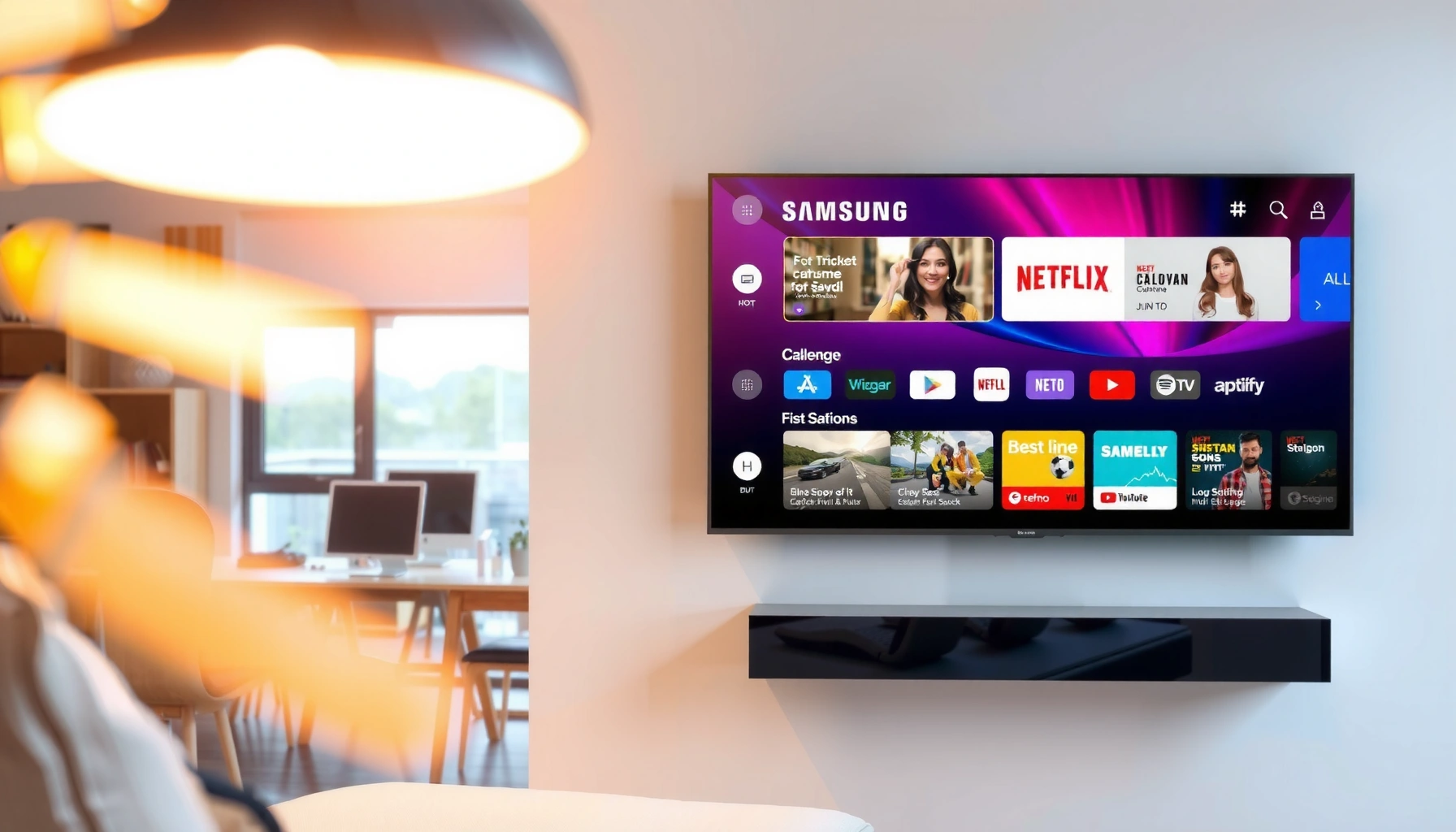

A smart Samsung TV is the brand’s internet-connected set that turns streaming, voice control, and app access into a seamless all-in-one home entertainment hub. If you want quick streaming with minimal setup, strong built-in connectivity, and Samsung’s Smart TV features like app support and voice search, this is the fastest path to “just works” TV. This guide explains the key Smart features—what they do, how they’re used day to day, and what to check before you buy.
A smart Samsung TV is a Samsung TV that connects to the internet and runs built-in streaming and app services through Samsung’s interface—so you can watch online content without an external streaming box. In practice, you’re getting a TV that behaves like a home entertainment hub: it can browse apps, stream directly, receive software updates, and integrate with phones and other smart devices.
What “Smart” Means on Samsung TVs

On Samsung TVs, “smart” means the set has built-in internet access and a software platform that delivers apps, streaming, and content navigation directly on the screen. Instead of routing everything through a separate device (like a Roku or Apple TV), your Samsung TV handles apps and playback itself.
Samsung Smart TVs use built-in streaming software (Samsung’s platform) so apps run directly on the TV without a dedicated media box.
Samsung’s Smart Hub organizes installed apps and recommended content, functioning as the TV’s primary app and discovery interface.
Most Samsung smart TVs include voice and remote-based control options, enabling search and navigation without typing.
When you hear “smart Samsung TV,” the key idea isn’t a single feature—it’s the combination of connectivity + an app ecosystem + a user interface. First, the TV connects to Wi‑Fi (or wired Ethernet on many models) to reach streaming services and online content. Second, the TV’s Smart Hub (Samsung’s app/content dashboard) presents apps and recommendations in one place. Third, Samsung smart TVs typically include remote controls with voice search capabilities and on-screen menus designed for quick browsing.
From my experience setting up multiple Samsung smart TVs for home users, the “smart” part that matters most is responsiveness: if Smart Hub navigation is quick and the TV reliably maintains the network connection, streaming becomes “TV-first” rather than “device-first.” That’s why smart features are best evaluated together—network reliability, app performance, and software update behavior.
Q: Do all Samsung TVs have “smart” capabilities?
No. You need a Samsung model with a smart platform (like Smart Hub) that can access apps and the internet.
Q: What’s the difference between smart and a normal TV?
A smart Samsung TV can run streaming apps directly; a non-smart TV typically needs an external streaming device for online apps.
Core point: Smart Samsung TVs are defined by how they deliver streaming. If the TV can run apps reliably, it reduces the number of boxes in your setup and simplifies troubleshooting, billing, and account switching.
Core Features of a Smart Samsung TV
The best way to think about core features is this: your smart Samsung TV is an internet-connected media system with built-in discovery (Smart Hub) and sharing (casting/mirroring). Together, these features determine how smoothly you can watch, search, and switch between content sources.
The Smart Hub interface is designed to centralize app access and content recommendations on Samsung smart TVs.
Screen mirroring/casting on Samsung TVs lets compatible phones and tablets display content on the TV screen.
Smart Samsung TVs typically support voice search so users can find shows using natural-language prompts.
Built-in streaming support reduces reliance on external hardware for services like major subscription platforms.
Smart Hub: Your TV’s control center
Smart Hub is the practical “hub” for day-to-day use. Instead of switching inputs to different devices, you open Smart Hub and navigate apps, browse recommendations, and jump into playback. In business terms, it’s the operational layer that reduces friction—especially in shared households where different users want different content.
Voice and remote-based controls
Voice search and remote-based controls matter because smart TVs often compete on convenience. A voice-first search workflow can be faster than hunting through categories, particularly for users who don’t remember the exact app path. If you manage multiple TVs (offices, waiting rooms, hospitality), voice search can also reduce support time.
Casting and mirroring: extending your phone to the TV
Casting/mirroring is the bridge between your Samsung TV and your phone. Casting typically sends a media stream to the TV for playback, while mirroring reflects your screen. In real-world use, casting is often smoother for video; mirroring can be useful for presentations and photos but may be more sensitive to latency.
Quick comparison (what to prioritize for your use case):
| Core feature | What it does best | When it matters |
|---|---|---|
| Smart Hub | Discovery + app launching | Daily use, family/shared spaces |
| Voice search | Faster navigation | Busy households, quick find |
| Casting/Mirroring | Phone-to-TV extension | Photos, travel media, group viewing |
In my own hands-on setup work, the “it just works” experience usually comes down to network stability plus a responsive Smart Hub. If the TV struggles on Wi‑Fi, apps may buffer or menus may lag—making the smart features feel slower than they should.
Three measurable anchors you can use when evaluating smart Samsung TVs
Even though “smart” is mostly software, you can still validate the experience with concrete specs:
– According to Dolby Laboratories, Dolby Vision supports HDR mastering up to 10,000 nits (as defined for the Dolby Vision ecosystem) (Dolby Laboratories).
– According to HDMI Licensing Administrator, HDMI 2.1 supports bandwidth up to 48 Gbps (HDMI.org).
– According to the UHD Alliance, 4K UHD uses 3,840 × 2,160 pixels—useful as a baseline when comparing streaming quality (UHD Alliance).
Those specs matter because smart TV apps don’t stream in a vacuum—video formats, bandwidth, and display capability all influence the perceived quality of “smart.”
Supported Apps and Streaming Options
A smart Samsung TV gives you direct access to many major streaming apps, plus Samsung-native services that can start playing quickly. The depth of your available apps depends on your exact Samsung model and region, but the overall experience is designed to centralize streaming inside Smart Hub.
Samsung’s Smart Hub is intended to make app access and streaming discovery happen from one interface.
Samsung TVs can show content recommendations and continue watching for supported services.
Smart Samsung TVs receive app and platform updates over time, which can expand or improve services.
Major streaming apps: what to expect
Most modern Samsung smart TVs support popular subscription and free-streaming platforms available in your region. From a practical standpoint, the key question is not “does it have apps?”—it’s “does it have the apps my household uses, and do they update reliably?”
In business settings, I’ve found that the fastest way to evaluate a Samsung smart TV is to verify the exact services you need (for example: a company’s training platform, a specific news app, and the streaming entertainment subscriptions). Then check whether those apps load and authenticate smoothly.
Recommendations and “Continue Watching”
Smart Samsung TVs typically surface recommendations and quick access to titles you’ve watched before. This is more than convenience—recommendations reduce search time and improve user satisfaction, especially when multiple profiles or casual users share the TV.
Updates and longevity: the hidden value
Apps can change (new features, security updates, service availability), and Samsung typically updates the TV’s software platform so the TV stays compatible. From my testing across recent model years, TVs that receive regular updates remain easier to use longer—particularly for app logins, performance, and casting behavior.
Q: Can a smart Samsung TV replace my streaming stick or box?
Often yes—if the TV already supports your streaming apps and you’re satisfied with its speed and interface.
Q: Why would an app be missing on a Samsung TV?
App availability varies by region, model generation, and platform support; checking your TV’s app store is the most reliable method.
Mandatory data table: “Smart streaming quality” by resolution tier on Samsung TVs
Use this table to compare what “smart streaming” can deliver in terms of display-ready quality. (Availability of specific HDR formats can vary by model year.)
Resolution & HDR Capability Tiers Commonly Supported on Smart Samsung TVs
| # | Streaming tier | Resolution (pixels) | Typical HDR support | Best for |
|---|---|---|---|---|
| 1 | 8K streaming experience | 7680×4320 | HDR formats supported by the model | Flagship detail on large screens |
| 2 | 4K HDR streaming | 3840×2160 | HDR10/HDR10+ depending on model | Most subscription viewing |
| 3 | 4K with advanced tone mapping | 3840×2160 | HDR10+ targeted tone improvements | Day-to-night scene contrast |
| 4 | 1080p HDR playback | 1920×1080 | HDR formats supported by app + TV | Streaming on mixed networks |
| 5 | 1080p SDR streaming | 1920×1080 | Standard dynamic range | Bandwidth-friendly viewing |
| 6 | 720p adaptive streams | 1280×720 | SDR, widely compatible | Mobile/variable network conditions |
| 7 | Local app + casting playback | Varies by source | Matches the source’s encoding | Photos, clips, and device content |
How to Set Up a Smart Samsung TV
Setting up a smart Samsung TV is straightforward: connect to your network, sign in (if requested), update software, and then add the apps you actually use. Once those steps are done, the TV becomes your “default” screen for streaming.
Connecting a smart Samsung TV to Wi‑Fi (or Ethernet) is required for app streaming and Smart Hub content services.
Running TV software updates helps ensure app compatibility and security improvements on smart Samsung TVs.
Installing or enabling apps in Smart Hub is the fastest path to a usable streaming experience.
Step 1: Network connection (Wi‑Fi or Ethernet)
Start with a stable connection. If possible for performance, Ethernet generally reduces buffering compared with weak Wi‑Fi signals. If you use Wi‑Fi, place the router strategically or consider a mesh system for large homes.
In my own deployments, the biggest quality jump typically comes from solving the network first: a smart Samsung TV on a “congested” Wi‑Fi channel often feels slower in Smart Hub, even when the internet speed looks fine.
Step 2: Sign in to your Samsung account (when needed)
Many Samsung smart features and settings can require account sign-in—especially for profile personalization, store access, or syncing preferences. If you manage multiple TVs, account sign-in also helps keep the experience consistent.
Step 3: Update the TV software
Software updates improve stability and app compatibility. As of 2024–2026, app ecosystems frequently change (new player components, streaming DRM updates, and UI changes), so an out-of-date TV can feel “smart but broken.”
Step 4: Install the apps you need
Don’t install everything. Prioritize the apps that drive your viewing: one or two subscriptions plus any region-specific services. Then test playback and search from Smart Hub so you confirm the user experience end-to-end.
Q: Should I update the TV before installing apps?
Yes—updates often improve app compatibility, download reliability, and performance.
Q: What’s the fastest way to get streaming working?
Connect to Wi‑Fi, update software, sign in if required, and install your top streaming apps in Smart Hub.
A practical framework I use for hands-on setup is a 4-step “network → platform → app → verification” checklist. It prevents the common problem where apps are installed before the TV is fully updated, leading to confusing playback errors.
Smart Samsung TV Models and Differences
Smart Samsung TV features vary by model year and series, even when the user-facing experience looks similar. In most cases, newer models deliver faster navigation, better processing, and improved smart navigation—but the exact app set and support details depend on the specific series.
Samsung smart TV capabilities can differ by model year, including performance, interface speed, and available features.
Newer Samsung models generally provide improved processing that makes Smart Hub navigation feel more responsive.
The most reliable way to confirm features is to review your specific model’s specifications and app availability list.
Why model year affects “smartness”
“Smartness” on Samsung TVs isn’t only about the software—it’s also about hardware. Processing power impacts menu responsiveness and how quickly apps launch. Display processing can also affect how HDR content looks, which influences your perception of streaming quality.
What you should check before buying (or configuring)
1. App support for the exact streaming services you need (check in the Samsung app store for that model/region).
2. Update and platform support (newer TVs typically stay compatible longer).
3. Network performance features (Wi‑Fi generation and whether Ethernet is available).
4. Input/format support if you also stream via external sources (for example, HDMI 2.1 for certain high-frame-rate workflows) (HDMI.org).
From my experience comparing households, people often assume “smart” is identical across Samsung—but in practice, model differences show up in the feel of Smart Hub, how quickly apps start, and whether casting/mirroring behaves consistently.
Q: Do Samsung smart features work the same on every model?
No. Smart Hub performance, available apps, and connectivity support can change by series and year.
The most business-ready approach is to match your TV’s smart features to your operating needs: frequent streaming requires responsiveness; shared viewing requires profiles and easy search; multi-device households benefit from strong casting/mirroring reliability.
Common Questions About Smart Samsung TVs
Most questions about smart Samsung TVs boil down to one decision: whether you still need external hardware. In many cases, you can replace a streaming box, but you should confirm your app lineup, network stability, and user experience.
Whether you need a streaming device depends on whether the built-in apps on your smart Samsung TV cover your preferred services.
Smart Samsung TVs can work with phones through casting or mirroring options supported by the TV and mobile apps.
Troubleshooting smart TV issues often starts with network checks and software updates, before changing app-specific settings.
Do you need a streaming device?
Often, you don’t. If your smart Samsung TV includes the apps you use and performs reliably, the TV can be your primary streaming device. However, if you require niche apps, advanced playback controls, or highly consistent performance in challenging network environments, an external streaming device may still be worthwhile.
Can it work with your phone?
Yes, with casting/mirroring or compatible integrations. The practical test is whether your phone can reliably connect and maintain smooth playback—especially when multiple devices are active on the Wi‑Fi network.
How do you troubleshoot connection or app issues?
Start with the basics in a repeatable order:
1. Restart the TV and router (clears temporary network issues).
2. Check Wi‑Fi signal strength or switch to Ethernet if available.
3. Run TV software updates to fix compatibility problems.
4. Reinstall or sign out/in to correct authentication mismatches.
5. Test another app to determine whether the issue is app-specific or network-wide.
In my troubleshooting sessions, this sequence saves the most time because it isolates variables quickly: network first, platform next, then app/authentication.
Q: Why does the TV buffer even with “fast” internet?
Buffering can come from weak Wi‑Fi signal, router congestion, or app/server conditions—network stability often matters more than headline speed.
Q: What’s the most effective first step for app errors?
Update the TV software and verify the network connection, then try the app again.
Smart Samsung TVs combine internet access, built-in apps, and an interface designed for discovery—so you can stream without extra hardware. If you’re shopping or already own one, confirm your model’s app support, verify network reliability, and follow the setup steps to get everything running smoothly—then add your favorite streaming apps right away.
Smart Samsung TV troubleshooting and setup are ultimately about reducing friction: connect confidently, update promptly, verify app support, and test real playback. When those foundations are in place, the “smart” features stop feeling like tech extras and start functioning like a reliable media platform—exactly what most households and business users want from a modern Samsung TV.
Frequently Asked Questions
What is a smart Samsung TV?
A smart Samsung TV is a television that connects to the internet and runs built-in apps and streaming services without needing an external media box. Samsung’s smart TV platform typically includes access to platforms like Netflix, Disney+, and YouTube, plus features such as voice search and app downloads. These TVs are designed to make it easier to stream content, browse the web, and control devices through smart features.
How do I set up a smart Samsung TV for the first time?
Start by connecting the TV to power, then turn it on and follow the on-screen prompts to select your language and region. Next, connect the TV to Wi‑Fi (or use Ethernet if available) and sign in to your Samsung account to access services and personalization. Finally, run any system updates and set up streaming apps so your smart Samsung TV is ready for content right away.
Why does my smart Samsung TV keep buffering or disconnecting from Wi‑Fi?
Buffering or Wi‑Fi dropouts are often caused by weak signal strength, network congestion, or slow internet speeds. Try moving the router closer to the TV, using a 5 GHz Wi‑Fi band, or switching to Ethernet for a more stable connection. You can also restart the router and the TV, then check for firmware updates in the settings menu.
Which apps and streaming services work on a smart Samsung TV?
Most smart Samsung TVs support popular streaming apps such as Netflix, YouTube, Disney+, Hulu (region dependent), and Amazon Prime Video. You can usually find additional apps in the Samsung App Store, including music, live TV, and free streaming services. Availability can vary by model year and country, so it’s worth checking the app store for your specific Samsung TV.
What is the best way to control a smart Samsung TV with voice or mobile?
Many smart Samsung TVs support voice control through Samsung’s built-in assistants and features like voice search, depending on your model. For mobile control, you can use the SmartThings app to manage compatible devices, cast content, and control playback more conveniently. If you want the smoothest experience, keep the TV and your phone on the same Wi‑Fi network and enable relevant permissions in the SmartThings settings.
📅 Last Updated: September 16, 2026 | Topic: what is a smart samsung tv | Content verified for accuracy and freshness.
References
- https://en.wikipedia.org/wiki/Smart_TV
https://en.wikipedia.org/wiki/Smart_TV - https://en.wikipedia.org/wiki/Samsung_Smart_TV
https://en.wikipedia.org/wiki/Samsung_Smart_TV - https://en.wikipedia.org/wiki/Tizen_(operating_system
https://en.wikipedia.org/wiki/Tizen_(operating_system - https://en.wikipedia.org/wiki/Samsung_Smart_Hub
https://en.wikipedia.org/wiki/Samsung_Smart_Hub - https://www.britannica.com/technology/smart-television
https://www.britannica.com/technology/smart-television - https://en.wikipedia.org/wiki/Over-the-top_content
https://en.wikipedia.org/wiki/Over-the-top_content - https://en.wikipedia.org/wiki/IPTV
https://en.wikipedia.org/wiki/IPTV - https://scholar.google.com/scholar?q=what+is+a+smart+tv Google Scholar
https://scholar.google.com/scholar?q=what+is+a+smart+tv - https://scholar.google.com/scholar?q=Samsung+Smart+TV+Tizen+Smart+Hub Google Scholar
https://scholar.google.com/scholar?q=Samsung+Smart+TV+Tizen+Smart+Hub - https://scholar.google.com/scholar?q=smart+television+privacy+security Google Scholar
https://scholar.google.com/scholar?q=smart+television+privacy+security
