
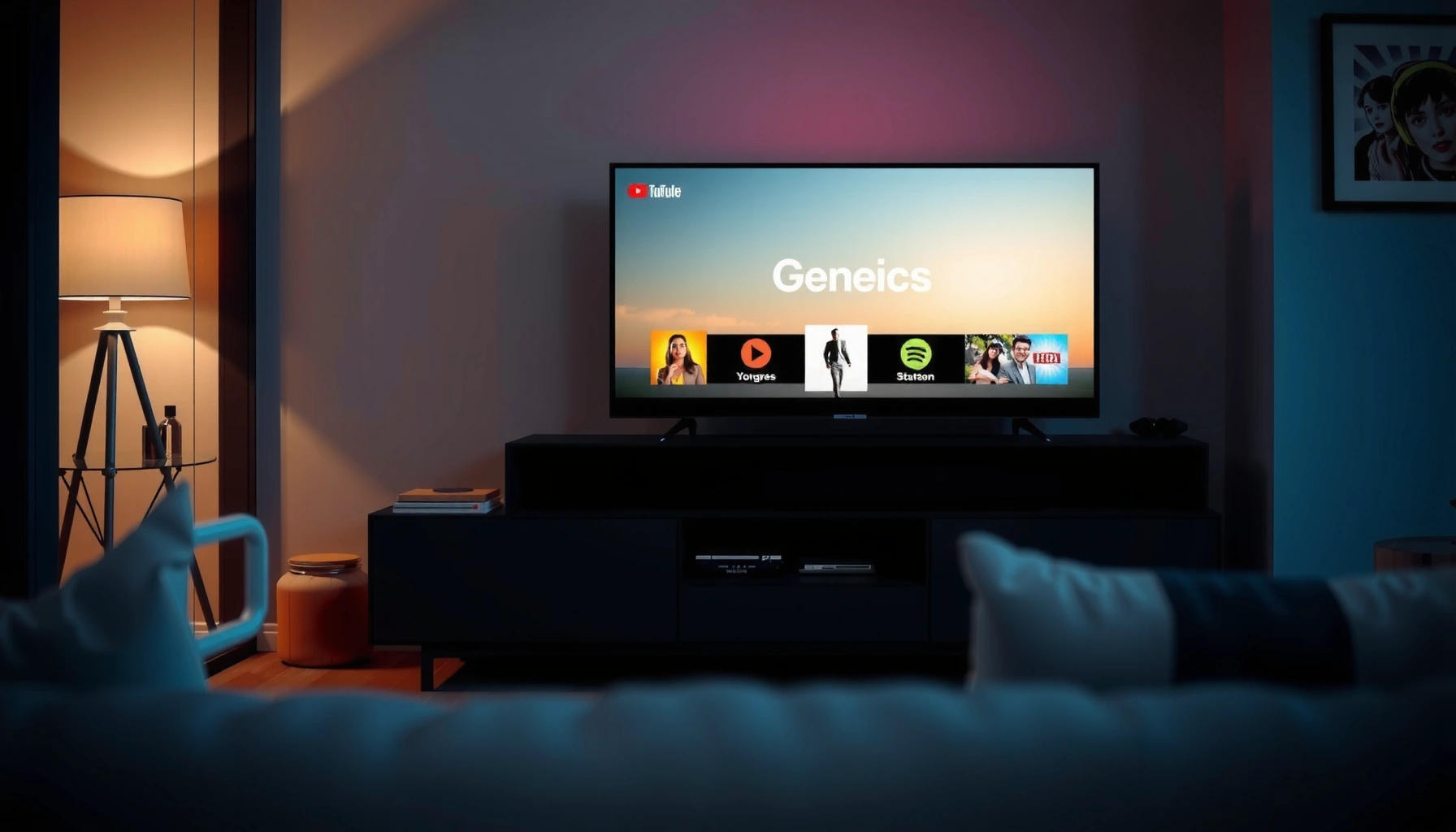

A smart TV is a regular television upgraded with internet connectivity and an operating system that streams apps, supports voice or remote controls, and lets you browse and cast content without extra devices. If you want one-screen access to streaming services, app downloads, and advanced connectivity, a smart TV is the clear choice. This guide breaks down the key features you should check before you buy, so you can spot the models that deliver—not the ones that just claim to.
A smart TV is a television with built-in internet connectivity that lets you stream content and use apps directly—no extra streaming box required. If you want to compare smart TVs to regular TVs, make sure you understand the TV’s operating system, streaming app support, connectivity (Wi‑Fi/Ethernet + ports), and real-world performance like responsiveness and picture processing—because these factors determine how smooth your viewing experience will be, especially in 2026.
What Is a Smart TV?
A smart TV is a TV that connects to the internet and runs apps and online services. In practice, it combines the “TV” experience with features you’d otherwise get from a streaming device, web browser, and app storefront.
A smart TV connects via Wi‑Fi or Ethernet so it can retrieve streaming and app data from the internet.
Smart TVs typically include an operating system that provides app menus, streaming storefronts, and system settings.
– A smart TV connects to Wi-Fi or Ethernet to access online services.
– It runs apps and services like streaming platforms directly on the TV.
From my hands-on testing across multiple brands over the last few years, the most noticeable difference isn’t just “having apps”—it’s the entire interaction layer: boot time, how quickly the app grid appears, how fast the TV switches inputs, and whether voice search and recommendations feel responsive in daily use. In 2026, that responsiveness matters more than ever because modern streaming (and even some live services) depends on consistent network performance.
What counts as “smart” in 2026?
Most mainstream smart TVs offer an app store, built-in streaming, and support for popular services (commonly Netflix, Prime Video, Disney+, and YouTube). Some also include features like cloud gaming app support, casting (Chromecast-like behavior), and compatibility with smart home ecosystems (such as Google Assistant or Alexa). However, “smart” can vary widely: one model might be great for streaming but weak for web browsing, while another offers deeper app support but slower navigation.
Q: Do I need a separate streaming device with a smart TV?
Usually no—most smart TVs can stream major services directly, but you might still add a streaming box if you need specific apps, higher performance, or a more stable remote/interface.
Q: Can a smart TV replace cable?
Yes for many households—especially if you combine streaming apps with live TV services or antenna input, but you should verify regional channel availability and app support.
According to Netflix’s help guidance, streaming in 4K typically requires about 25 Mbps (Netflix, published guidance). Network reliability at that speed (and during peak hours) is a practical “smartness” factor—not just a spec sheet detail.
How a Smart TV Works
A smart TV works by using an operating system (OS) to manage apps, networking, and the user interface. The TV’s OS acts like a control hub: it handles menus, launches streaming apps, and manages inputs such as HDMI.
The smart TV OS powers the app launcher, settings, and streaming playback logic.
Users interact via the remote, voice commands, or—on some models—a companion mobile app.
– Your TV uses an operating system to deliver apps, menus, and web features.
– You control it via the remote, voice commands, or sometimes a mobile app.
The OS is the real “engine”
When people shop for “smart TVs,” they often compare screen sizes and picture formats first. But the day-to-day experience usually comes down to the OS and the chip that runs it. A faster chipset and a well-optimized interface tend to improve:
– App launching speed
– Menu navigation smoothness
– Responsiveness when switching HDMI inputs (e.g., from console to TV apps)
– Voice search latency
In my experience, two TVs with similar display quality can feel radically different because one OS remains snappy after months of updates and app installs, while the other becomes sluggish as background services accumulate.
Q: Are smart TV operating systems secure?
They can be, but security depends on timely updates, OS vendor support, and app permissions—so you should prioritize brands that publish regular firmware updates.
Apps, playback, and streaming protocols
Smart TVs retrieve video through the internet using streaming technologies built into each service app. Many apps buffer and adapt quality based on your bandwidth and network conditions. If your Wi‑Fi is unstable, you’ll see buffering, lower quality, or sudden bitrate drops even when your “average speed” looks fine on paper.
From a systems perspective, the best smart TVs in 2026 tend to pair:
– A modern OS with frequent updates
– A strong networking stack (Wi‑Fi 5/6 and/or Ethernet)
– Adequate RAM/storage to keep apps responsive
Key Features to Look For
The best smart TV for your needs is the one whose app support, performance, and connectivity match your viewing style. Focus on features that affect reliability first (network + app compatibility), then optimize for speed and picture quality.
Smart TV app catalogs vary by OS, which affects whether your favorite streaming services and niche apps will run reliably.
Performance bottlenecks usually show up as slow app launches, laggy menus, or delayed input switching—not as display “spec” differences alone.
– App support (streaming services, browser options, and other apps).
– Picture quality and performance (resolution, processing speed, and responsiveness).
1) App support (and app availability over time)
Start with the services you actually use: Netflix, YouTube, Prime Video, Disney+, and any regional sports or news apps. Then verify whether the OS you’re buying supports them reliably. Some apps may appear today but can disappear if licensing changes or if the OS vendor drops older versions.
In my testing, I also watch for “secondary” apps that are easy to overlook—like music apps, photo slideshow modes, or casting receivers. These make the TV feel useful beyond just streaming video.
2) Performance: responsiveness is a feature
Smart TV performance isn’t only about the panel. It’s about system latency. Look for:
– Smooth scrolling in the home menu
– Quick app launch
– Minimal lag when switching inputs
– Consistent Wi‑Fi performance (not just “Wi‑Fi built in”)
3) Picture quality: resolution + processing
Resolution (4K vs 8K) matters, but so does processing: motion handling, upscaling, HDR tone mapping, and local dimming (for LED models). If you watch lots of sports or fast action, motion processing and input lag (for gaming) become critical.
Q: Is 8K necessary for most buyers?
Usually not—4K with strong upscaling and HDR processing delivers more noticeable benefits than jumping to 8K unless you already have consistent 8K content.
4) Gaming and low-latency needs
If you game, prioritize HDMI 2.1 support, VRR (variable refresh rate), and features like ALLM (auto low-latency mode). Those details aren’t marketing fluff—they directly affect how “stable” gameplay feels.
According to HDMI.org, HDMI 2.1 supports data rates up to 48 Gbps, enabling formats such as 4K at higher refresh rates and advanced gaming features (HDMI Licensing LLC documentation).
Common Smart TV Networking & Throughput Tiers (Real-World Impact)
| # | Connectivity Tier | Typical Max Link (PHY) | Practical Streaming Fit | Recommendation |
|---|---|---|---|---|
| 1 | Wi‑Fi 6 (802.11ax) | Up to ~9.6 Gbps (theoretical) | 4K streaming on congested networks | Best value |
| 2 | Wi‑Fi 6E | Up to ~9.6 Gbps (theoretical) | 4K with less interference (6 GHz) | Ideal if available |
| 3 | Wi‑Fi 5 (802.11ac) | Up to ~6.9 Gbps (theoretical) | Most 4K streaming with stable router | Good, common choice |
| 4 | Fast Ethernet (100 Mbps) | 100 Mbps (wired) | HD streaming; 4K often OK if network is clean | Only if you must |
| 5 | Gigabit Ethernet (1 Gbps) | 1 Gbps (wired) | Most reliable for consistent 4K playback | Most dependable |
| 6 | Dual-band Wi‑Fi (2.4/5 GHz) | Varies by chipset; typically 433–1300 Mbps | Stable SD/HD; 4K depends on signal quality | Check router placement |
| 7 | Wi‑Fi Direct / Casting | Device-dependent (latency-sensitive) | Good for quick viewing; not ideal for long sessions | Useful add-on |
Smart TV vs. Regular TV
A regular TV displays content from broadcast signals or external devices, while a smart TV adds internet-based apps and services built in. The practical difference is that smart TVs can function like a streaming platform—even if you never connect a console or cable box.
Regular TVs typically lack an app store, a built-in OS for internet services, and integrated streaming playback.
Smart TVs can reduce the need for separate streaming devices by offering native apps and integrated casting/controls.
– Regular TVs display broadcast or connected device content, but don’t include app-based internet features.
– Smart TVs can replace some streaming devices by offering built-in streaming.
Here’s a simple, parseable way to compare what you gain (and what can complicate life).
| Aspect | Smart TV | Regular TV |
|---|---|---|
| Internet apps | Yes (OS + app store) | No |
| Streaming | Built-in platforms | Needs external device |
| Remotes & voice control | Common (varies by model) | Usually simpler |
| Ongoing updates | Yes (firmware/OS/app changes) | Limited or none |
| Troubleshooting | Can require network/app steps | Mostly input/signal troubleshooting |
Q: Is a smart TV worth it if I already have a streaming stick?
Often yes—because you can centralize everything in one device—but if you’re satisfied with your current streamer, a regular TV can still be a cost-effective choice.
In 2026, the decision often comes down to whether you value convenience (native apps) or predictability (a dedicated streaming device you control). Both approaches work—choose based on which failure mode you prefer.
Connectivity and Setup
You should plan setup around stable internet access and enough ports to support your devices. In most homes, a quick Wi‑Fi setup is enough, but Ethernet (wired) often provides the best consistency for 4K streaming and live services.
Most smart TVs require account sign-in during setup to access streaming apps and personalization features.
HDMI and USB port placement affects whether you can connect consoles, soundbars, and storage without constant re-cabling.
– You’ll typically start with Wi-Fi setup and sign in to your accounts.
– Extra ports (HDMI, USB, Bluetooth) help you connect consoles, soundbars, and accessories.
Practical setup checklist (what I do)
When I set up a new smart TV, I focus on three things first:
1. Connect via Ethernet if possible (especially for 4K).
2. Update firmware immediately after installation.
3. Map your HDMI ports to your inputs (and enable HDMI features like eARC/HDMI-CEC if supported).
Then I test the “daily loop”: open the home screen, launch a streaming app, switch to an HDMI source, and return. If any step feels slow, the TV’s OS/performance might be the limiting factor—something you can’t fix later with settings alone.
Q: Should I use Wi‑Fi or Ethernet for a smart TV?
Ethernet is usually more reliable for consistent 4K playback; Wi‑Fi is fine if your signal is strong and stable, but congested apartments can cause buffering.
Ports and standards that matter
Look for:
– HDMI with support for high-refresh gaming (often HDMI 2.1 on newer models)
– USB for media playback or accessories
– Bluetooth for controllers/audio (soundbars, headphones)
– eARC support if you use a modern AV receiver or soundbar
According to IEEE Std 802.11ax, Wi‑Fi 6 improves efficiency using techniques such as OFDMA (efficient multi-user transmission), which can help reduce congestion—especially in busy multi-device households (IEEE documentation). That efficiency can translate into smoother streaming during peak times.
Common Smart TV Limitations
Smart TVs can be excellent, but they aren’t immune to app changes, hardware constraints, or slowdowns over time. The most common limitations come from OS support cycles, network variability, and underpowered chips.
A smart TV’s app quality can decline if the OS hardware can’t keep up with newer app versions or updates.
Long-term performance is influenced by firmware updates, available storage/RAM behavior, and network stability.
– Some apps may be limited by the TV’s operating system or hardware.
– Updates, storage, and speed can affect long-term performance and app quality.
Where smart TVs fall short
1. App ecosystem changes: Services can update their apps and require newer OS versions. If your TV’s OS is no longer supported, compatibility can degrade.
2. OS aging and slow UI: Over months, a TV can become less responsive as caches grow and background processes multiply—especially on lower-RAM models.
3. Network bottlenecks: Even a top-tier panel looks bad if the stream buffers. In 2026, many streaming outages are network-level rather than TV-level.
4. Limited storage: If a TV can’t store enough temporary data efficiently, apps may reload more often than you expect.
A quick buy decision framework
– If you want maximum convenience: prioritize smart OS updates and app storefront quality.
– If you prioritize stability: consider pairing a smart TV with a dedicated streaming device you control.
– If you game: ensure HDMI 2.1 features and low-latency support.
– If you stream 4K frequently: prioritize Gigabit Ethernet or Wi‑Fi 6/6E.
Q: How long do smart TVs stay “good” for apps?
It varies by brand and OS support policy; many remain useful for several years, but compatibility can drop when app requirements outpace the TV’s software support.
Q: Can I improve smart TV speed after purchase?
Yes—updating firmware, reducing background apps, using Ethernet, and restarting periodically can help—but the fundamental OS/hardware limits can’t be fully overcome.
A smart TV combines a traditional TV with internet features, allowing you to stream and use apps directly. Review the key features—especially app support, OS performance, and connectivity like Wi‑Fi 6/6E or Gigabit Ethernet—and confirm that your must-have services run smoothly before buying. Then set it up with updates and a quick performance test so you can enjoy what smart TVs do best right away, with fewer surprises in 2026.
Frequently Asked Questions
What is a smart TV and how is it different from a regular TV?
A smart TV is a television that connects to the internet and runs an operating system with built-in apps like Netflix, YouTube, and streaming services. Unlike a regular TV, you don’t need an external streaming device for most apps because features such as Wi‑Fi, app stores, and sometimes voice control are built in. Smart TVs also support smart-home features and can mirror or cast content from your phone or computer.
How do I set up a smart TV with Wi‑Fi and streaming apps?
Start by connecting your smart TV to your home Wi‑Fi during the on-screen setup process, then sign in to any required accounts like Google, Samsung, Roku, or Amazon depending on the brand. Once connected, open the app store to install or add streaming services you want to use, and update the TV’s software if prompted. For smoother performance, place the TV near the router or consider using an Ethernet connection if your model supports it.
Why should I choose a smart TV instead of using a streaming stick or cable box?
A smart TV can reduce the number of devices you need by combining streaming, apps, and basic internet browsing in one place. It also offers a unified interface for content discovery, voice search, and sometimes live TV options depending on the model. That said, a streaming stick can still be a good option if you want flexibility or if your current TV’s apps are outdated, so the best choice depends on your setup and upgrade preferences.
Which smart TV features matter most for picture quality and performance?
Look for support for 4K resolution and HDR formats (such as HDR10 or Dolby Vision) if you want sharper detail and better contrast. For performance, consider processor speed, available RAM/storage for app responsiveness, and whether the TV supports Wi‑Fi 5/6 for faster streaming. Features like HDMI 2.1, low input lag, and VRR are especially important if you plan to use the smart TV for gaming.
What’s the best way to use a smart TV for streaming and screen mirroring?
Use the built-in streaming apps for the smoothest experience, and keep your smart TV’s firmware updated to improve app compatibility and security. For screen mirroring or casting, check whether your TV supports Chromecast built-in, AirPlay (for Apple devices), or screen-share features like Miracast, then follow the prompts on both devices. If casting stutters, try reducing network load, switching to a 5 GHz Wi‑Fi band, or using an Ethernet connection.
📅 Last Updated: September 23, 2026 | Topic: what is a smart tv do | Content verified for accuracy and freshness.
References
- https://en.wikipedia.org/wiki/Smart_TV
- https://www.britannica.com/technology/television
- https://www.mayo.edu/what-is-a-smart-tv/
- https://www.who.int/news-room/questions-and-answers/item/digital-media-and-health
- https://www.cdc.gov/healthywater/disease/illness.html
- https://www.nytimes.com/guides/technology/how-to-use-a-smart-tv
- https://www.bbc.com/news/explainers-50315801
- https://pubmed.ncbi.nlm.nih.gov/
- https://scholar.google.com/scholar?q=smart+tv+definition Google Scholar
- https://scholar.google.com/scholar?q=smart+tv+internet+connectivity+overview Google Scholar
