
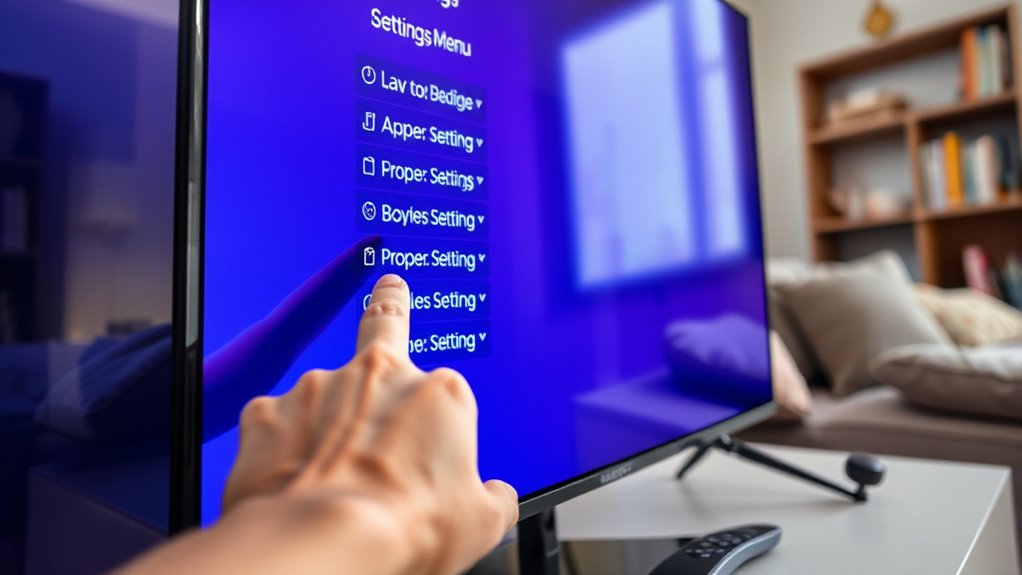

To find the MAC address of your Samsung Smart TV, press the Home button on your remote and go to the Settings menu. From there, select “Network” and then “Network Status” to view the connection details, where you’ll find the MAC address listed with the IP address. You can also check for a label on the back or side of the TV with the MAC address. Discovering more methods can enhance your network management skills.
Understanding MAC Addresses
A MAC address is like a unique fingerprint for your devices on a network. It’s essential to grasp the MAC address basics, as this identifier helps differentiate your Samsung Smart TV from others. Each device has its own MAC address, consisting of six pairs of alphanumeric characters. This significance lies in its role in network communication, ensuring that data packets reach the correct device. When you connect to Wi-Fi or interact with other devices, the MAC address facilitates seamless connectivity. Understanding this concept empowers you to manage your network better and secure your devices. By knowing your TV’s MAC address, you can enhance your digital freedom and optimize your viewing experience. Embrace the power of knowledge!
Accessing the Settings Menu
To find your Samsung Smart TV’s MAC address, you first need to access the Settings menu. Start by pressing the Home button on your remote. This will bring up the main interface where you can easily navigate through the settings. Use the arrow keys to scroll down to the “Settings” icon, often represented by a gear symbol. Once you’re in the Settings menu, you’ll notice options for menu customization, allowing you to tailor your experience. For easier settings navigation, familiarize yourself with the layout, as it’s designed for simplicity. Take your time to explore different settings available, as they can enhance your viewing experience while keeping your device running smoothly.
Finding the MAC Address via Network Settings
To find your Samsung Smart TV’s MAC address, you’ll first need to access the Network Settings. Once there, you can easily locate the MAC address displayed within the network details. If you can’t find it this way, there are alternative methods available to help you out.
Accessing Network Settings
Finding the MAC address of your Samsung Smart TV is straightforward and can be done through the network settings. First, grab your remote and navigate to the “Settings” menu. From there, look for “Network” or “General,” depending on your TV model. This section allows you to access network configuration options. Select “Network Status” or “Network Settings” to view your current connection details. Here, you’ll find essential information for device identification, including your television’s MAC address. It’s usually listed alongside your IP address. Make a note of it for future reference, especially if you’re setting up network restrictions or parental controls. This simple process guarantees your device is easily identifiable on your network.
Locating MAC Address
Locating the MAC address of your Samsung Smart TV is a quick and simple process. Knowing your MAC address is essential for network security, as it helps identify your device on your network. Here’s how to find it:
- Access Network Settings: Navigate to the settings menu and select ‘Network’.
- Open Network Status: Click on ‘Network Status’ to view your current connection.
- View MAC Address: In the network details, you’ll see the MAC address listed, typically labeled as “Wired MAC Address” or “Wireless MAC Address”.
Alternative Methods Available
If you’re looking for additional ways to find your Samsung Smart TV’s MAC address, there are a couple of alternative methods you can try. One effective option is to navigate to the Network Settings on your TV. Go to Settings > General > Network > Network Status. Here, you can find your MAC address displayed along with other network details.
Another method involves using third-party applications designed for device management. These apps can scan your local network and list all connected devices, including your TV, along with their MAC addresses. Just make certain to choose a reputable application to guarantee your privacy and security. With these methods, you’ll easily locate your Samsung Smart TV’s MAC address without any hassle.
Locating the MAC Address on the Physical Label
To identify the MAC address of your Samsung Smart TV, you can check the physical label usually found on the back or side of the device. Here’s what to look for:
- Location: Turn your TV around and locate the physical label. It’s often on the lower section or side.
- Details: The label may include various information like the model number, serial number, and the MAC address itself.
- Format: The MAC address will be displayed as a series of six pairs of alphanumeric characters, separated by colons or hyphens.
Once you find the physical label, you’ll be able to easily read and note down the MAC address. This can be helpful for network configurations and troubleshooting connectivity issues.
Using the Smart Hub to Retrieve MAC Address
To find your Samsung Smart TV’s MAC address using the Smart Hub, start by accessing the Smart Hub menu. From there, navigate to the Network Settings section. You’ll be able to view your MAC address easily within these settings.
Accessing Smart Hub Menu
Accessing the Smart Hub menu on your Samsung Smart TV is a straightforward process that can lead you to important network details, including your TV’s MAC address. With its smart hub features, you’ll find everything you need right at your fingertips. Here’s how to navigate it:
- Press the Home button on your remote to open the Smart Hub.
- Use the arrow keys to navigate through the Smart Hub navigation until you reach Settings.
- Select Network to view your network information, including the MAC address.
Navigating Network Settings
Once you’re in the Settings menu, maneuvering to the Network settings is simple. Just scroll down to the ‘Network’ option and select it. Here, you’ll find various options that help you manage your internet connection and setting preferences. If you’re facing any connectivity issues, this section is also essential for network troubleshooting. You’ll see options to check your connection status and even run diagnostics if needed. As you navigate through these settings, you can adjust Wi-Fi settings or switch to a wired connection. This straightforward process guarantees you can easily find the network settings you need, allowing you to maintain a smooth experience while using your Samsung Smart TV.
Viewing MAC Address
While you’re in the Smart Hub, finding your Samsung Smart TV’s MAC address is a quick and straightforward process. Just follow these steps:
- Navigate to the “Settings” menu using your remote.
- Select “Network,” then go to “Network Status.”
- Here, you’ll see your MAC address displayed, usually labeled as “MAC Address.”
Once you’ve noted down the mac address, you can use it for various purposes, like connecting to your network or troubleshooting issues. This information is essential for ensuring a stable connection and maintaining your freedom to enjoy seamless streaming. With just a few clicks, you’ll have your Samsung TV’s MAC address at your fingertips!
Troubleshooting Connectivity Issues
If you’re experiencing connectivity issues with your Samsung Smart TV, it can be frustrating, but there are several steps you can take to resolve the problem. Start with basic network troubleshooting; check if your Wi-Fi is working on other devices. Restart your router and TV, and make sure they’re within range of each other. If that doesn’t help, verify that the correct network is selected on your TV and double-check your password. You might also want to update your TV’s software, as outdated firmware can cause connectivity problems. Finally, consider resetting your network settings on the TV for fresh connectivity solutions. By following these steps, you can often restore your TV’s connection and enjoy streaming again.
Alternative Methods to Find MAC Address
Although finding the MAC address of your Samsung Smart TV is often straightforward through the settings menu, there are alternative methods you can use if you prefer a different approach. Here are three effective ways to discover your TV’s MAC address:
- Router Interface: Access your router’s settings via a web browser. Look for the connected devices list; your TV’s MAC address will be displayed there. This is useful for managing wifi security.
- Network Printout: Some routers provide a network printout. Print this list, and you can find your TV’s MAC address easily for device tracking.
- WiFi Scanner App: Use a WiFi scanner app on your smartphone. These apps can identify devices connected to your network and display their MAC addresses.
Importance of Knowing Your MAC Address
Knowing your MAC address can be quite beneficial for several reasons. First, it plays an essential role in network security. By identifying your device on a network, you can prevent unauthorized access. If you’re managing your home network, knowing your MAC address allows you to set up MAC address filtering, ensuring only your trusted devices connect. Additionally, device identification is important for troubleshooting connectivity issues. When you encounter problems, having your MAC address handy can help tech support quickly identify your device and resolve issues efficiently. Ultimately, being aware of your MAC address empowers you to maintain control over your network and enhances your overall digital freedom. It’s a simple yet effective way to secure and manage your devices.
Tips for Managing Network Connections
Managing network connections effectively can greatly enhance your smart TV experience. Here are some tips to help you maintain network security and improve device management:
- Regularly Update Software: Keep your smart TV’s firmware updated to protect against vulnerabilities and enhance performance.
- Secure Your Network: Use strong, unique passwords for your Wi-Fi and consider enabling WPA3 encryption for better security.
- Monitor Connected Devices: Regularly check which devices are connected to your network. Disconnect any that you don’t recognize or no longer use.
Frequently Asked Questions
Can I Change My Samsung Smart Tv’s MAC Address?
You can’t change your Samsung Smart TV’s MAC address directly, but MAC spoofing might be possible through network settings or third-party routers. Just remember, altering it can affect your device’s connectivity and functionality.
How Does a MAC Address Differ From an IP Address?
A MAC address is like a device’s fingerprint, unique to each networked device for identification, while an IP address acts as its postal address, directing data flow. Both are essential in understanding network fundamentals and device communication.
Does My Samsung Smart TV Have a Unique MAC Address?
Yes, your Samsung Smart TV has a unique MAC address for network identification. This address allows for device tracking on your network, ensuring accurate communication between your TV and other connected devices.
Why Is Knowing My Tv’s MAC Address Important for Security?
Knowing your TV’s MAC address is essential for network security, helping in device identification and preventing unauthorized access. It guarantees your device communicates safely, allowing you to enjoy your streaming freedom without potential threats lurking nearby.
Will Resetting My TV Affect Its MAC Address?
Resetting your TV won’t change its MAC address. However, a factory reset does restore network settings, so you’ll need to reconnect to your Wi-Fi and re-enter any necessary credentials after the reset.

[…] works at Layer 3 and makes decisions based on IP addresses and routing rules, which enables inter-network communication and subnetting. If you need to connect two parts of the same Ethernet LAN, a bridge is typically […]
[…] it instantly with commands like `ipconfig` (Windows) or `ip route` (Mac/Linux). In my day-to-day network troubleshooting for small offices and remote workers, this “Default Gateway first” approach has solved the vast […]
[…] to see my WiFi password on Android fast? The quickest way is to use your phone’s network settings to view the saved WiFi password—often without any extra apps. If your Android version doesn’t […]
[…] stored? If you’re on Windows or macOS, the fastest way is to pull it from your saved Wi‑Fi network settings using built-in tools. This guide shows the exact steps to reveal your current Wi‑Fi password—so […]
[…] You’ll get the quickest, most reliable method for each—whether you’re pulling it from saved network settings or viewing it directly on the device. By the end, you’ll know exactly which option works for your […]