
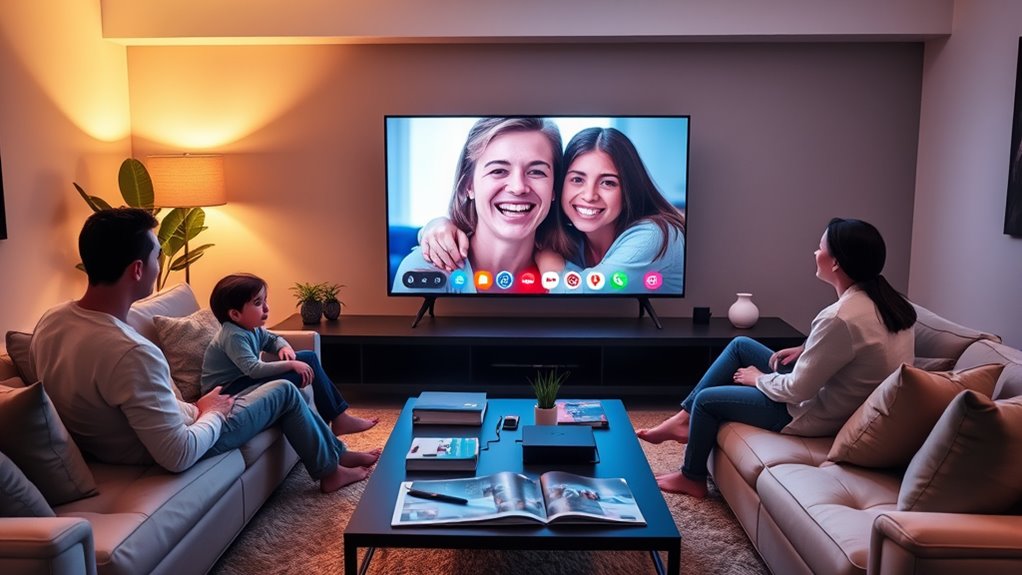

You can’t directly use FaceTime on most smart TVs, as they typically focus on streaming rather than video calling. However, you can connect your smartphone using methods like screen mirroring or HDMI. This way, you can enjoy video calls on a larger screen. Some smart TVs might support video conferencing apps, too. If you’re curious about enhancing your video call experience or exploring more options, there’s plenty more to discover.
Understanding Smart TVs and Their Capabilities
Smart TVs have revolutionized how we consume media, blending the functionalities of traditional television with internet capabilities. These devices come loaded with smart TV features that allow you to stream your favorite shows, browse the web, and access apps all in one place. One exciting aspect is the integration of video call technology, enabling you to connect with family and friends through your TV screen. Imagine having a video call with loved ones during family gatherings or holidays, all while enjoying a larger display. With voice control and easy navigation, you’re not just watching TV; you’re engaging in a more interactive experience. Embrace the freedom and possibilities your smart TV offers, transforming how you connect and enjoy entertainment.
What Is Facetime and How Does It Work?
Although many video calling platforms exist, FaceTime stands out as a popular choice for Apple users. It’s integrated seamlessly into iOS and macOS devices, making it easy for you to connect with friends and family. With its intuitive user interface, you can make video calls with just a couple of taps. FaceTime offers robust video call features like HD video, group calls, and effects that enhance your conversations. You can even use it over Wi-Fi or cellular networks, giving you the freedom to connect from almost anywhere. Whether you’re catching up with loved ones or collaborating on a project, FaceTime provides a reliable and enjoyable way to communicate, ensuring you never feel disconnected.
Can You Directly Use FaceTime on Smart TVs?
You might be wondering if you can directly use FaceTime on your smart TV. While most smart TVs don’t support the app natively, there are alternative ways to connect your devices for video calls. Let’s explore the compatibility of FaceTime with smart TVs and the options available to get you connected.
Compatibility With Smart TVS
Many people wonder if they can directly use FaceTime on their smart TVs. Unfortunately, most smart TVs don’t support FaceTime natively, as they typically focus on streaming and entertainment rather than video calling apps. However, some smart TV features may allow you to access FaceTime indirectly through screen mirroring or casting from your smartphone or tablet. The video call quality can vary based on your TV model and the method you use. For the best experience, verify both your device and the smart TV are connected to a stable Wi-Fi network. While it’s not as straightforward as using FaceTime on a phone or tablet, you can still enjoy larger screens for video calls with a bit of creativity.
Alternative Connection Methods
While it’s tempting to think you can directly use FaceTime on your smart TV, alternative connection methods can help bridge the gap. One popular option is utilizing wireless connections. If your TV supports screen mirroring, you can easily cast your iPhone or iPad’s screen to it. Just verify both devices are on the same Wi-Fi network.
If you prefer a wired approach, consider using HDMI adapters. These adapters allow you to connect your iPhone directly to your TV, providing a reliable and high-quality video and audio experience. Simply plug the adapter into your device, connect it to the TV, and start FaceTime. With these methods, you can enjoy video calls on a bigger screen without any hassle.
Compatible Smart TV Models for FaceTime
Several smart TV models are now compatible with FaceTime, making it easier than ever to connect with friends and family on a larger screen. Many popular brands, including LG, Samsung, and Sony, have integrated smart TV features that support video call apps. If you own a TV with built-in Apple support or the latest Android TV, you’re likely in luck. These models allow you to download FaceTime or use screen mirroring options to enjoy video calls seamlessly. You’ll appreciate how these smart TVs enhance your communication experience, bringing loved ones closer through stunning visuals. Just check your TV’s specifications to verify compatibility and enjoy the freedom of connecting from the comfort of your living room.
Alternative Methods to Access FaceTime on Smart TVs
If your smart TV isn’t compatible with FaceTime, don’t worry—there are still ways to enjoy video calls on the big screen. You can use smart devices like tablets or smartphones to facilitate video chat. By connecting your smart device to the TV via HDMI or using apps that support casting, you can easily display your calls on a larger screen. Here are some alternative methods:
| Method | Requirements | Benefits |
|---|---|---|
| HDMI Connection | HDMI cable, compatible TV | Direct connection, high quality |
| Streaming Device | Chromecast, Apple TV | Wireless streaming, easy setup |
| Video Call Apps | Zoom, Skype | More options for video chat |
These methods let you enjoy FaceTime-like experiences on your smart TV without limitations!
Using Screen Mirroring for FaceTime Calls
Although many smart TVs don’t support FaceTime directly, you can still enjoy video calls by using screen mirroring. This feature lets you share your smartphone or tablet’s screen on your TV, making it perfect for FaceTime calls. To get started, verify both your device and TV are connected to the same Wi-Fi network. Open the Control Center on your device and select the screen mirroring option, then choose your TV. Once connected, you’ll see your FaceTime interface on the bigger screen. This method not only enhances your viewing experience but can also improve call quality, as you’ll benefit from your TV’s audio system. So, gather your friends and family, and enjoy those video calls like never before!
Utilizing Video Conferencing Apps on Smart TVs
How can you make the most of your smart TV for video calls? Utilizing video conferencing apps is a game changer. Many smart TVs now support popular platforms like Zoom, Skype, and Google Meet, thanks to video call integrations. Just download the app directly from your TV’s app store, and you’ll be set for group chats or one-on-ones on a larger screen.
Don’t forget about smart device compatibility; you can often link your smartphone or tablet to enhance your experience. Use your phone for easy navigation or text input while enjoying the big screen’s clarity. With these tools, you can connect with friends and family effortlessly, making video calls more enjoyable and freeing you from the constraints of smaller devices.
Enhancing Your Video Call Experience on a Big Screen
To make the most of your video calls on a big screen, it’s essential to know which smart TV models are compatible. Next, you’ll want to connect your devices seamlessly for a smooth experience. Finally, enhancing your audio and video quality can transform your calls into a more immersive experience.
Compatible Smart TV Models
When you’re looking to elevate your video calling experience, choosing a compatible Smart TV model can make all the difference. Not every Smart TV will support video calls, so it’s essential to check the smart TV specifications before making a purchase. Look for models that feature built-in cameras or support external cameras for ideal video call features. Brands like Samsung, LG, and Sony often provide great options that seamlessly integrate video calling apps. Verify your chosen TV runs on a compatible operating system, such as Android TV or webOS, to access popular video calling applications. By selecting the right model, you’ll enjoy a larger screen, better audio, and an overall enhanced connection with friends and family.
Connecting Your Devices
Once you’ve chosen the right Smart TV model for video calling, the next step is connecting your devices to enhance the experience on a big screen. Ensuring device compatibility is vital for smooth operation, so check that your smartphone or tablet supports the necessary apps. Connection stability is also essential; consider using a wired connection for more reliable performance. Below, you’ll find a table that outlines common connection methods and their benefits:
| Connection Method | Compatibility | Stability |
|---|---|---|
| HDMI | High | Excellent |
| Wi-Fi | Moderate | Variable |
| Screen Mirroring | High | Good |
| USB-C | High | Excellent |
| Bluetooth | Low | Variable |
With the right setup, you’re ready to enjoy video calls like never before!
Enhancing Audio and Video
While a stunning picture is essential for video calls, great audio can make all the difference in your communication experience. To enhance your video call on a smart TV, focus on both audio quality and video resolution. Start by using an external microphone or soundbar for clearer sound—this can drastically improve your voice’s clarity. Make sure you’re in a quiet environment to minimize background noise. For video, choose a resolution that matches your TV’s capabilities; 1080p or higher often provides the best clarity. Adjust your TV settings to optimize both audio and visual performance. With these tweaks, you’ll create a more immersive experience, making conversations feel more natural and engaging. Enjoy the freedom of connecting with loved ones on a grand scale!
Future Trends in Smart TVs and Video Calling Technology
As technology evolves, the integration of video calling features into smart TVs is becoming more prevalent, paving the way for a new era of home entertainment and communication. With AI advancements, you can expect smarter interfaces that recognize your voice and preferences, making video calls as easy as saying, “Call Mom.” Future smart TVs will likely incorporate seamless smart home integration, allowing you to connect with other devices effortlessly. Imagine adjusting your lighting or sound system with a simple command during a video chat. This convergence of entertainment and communication will redefine how you interact with loved ones, breaking barriers and enhancing your experience. Embrace the future, where video calling on your smart TV becomes a natural part of your daily life.
Frequently Asked Questions
Can I Use Facetime Without an Apple Device?
You can’t use FaceTime without an Apple device, but there are plenty of FaceTime alternatives. Consider video call platforms like Zoom, Skype, or Google Meet for seamless communication across various devices. Enjoy your options!
Do I Need Special Equipment for Facetime on a Smart TV?
You don’t necessarily need special equipment for video call setup on a smart TV, but guarantee your TV has smart TV compatibility with apps that support FaceTime-like features for the best experience.
Is Facetime Compatible With All Video Conferencing Apps?
FaceTime isn’t compatible with all video conferencing apps due to its limitations. However, you’ve got plenty of alternatives like Zoom or Skype that offer broader compatibility and features, giving you more freedom in your video calls.
How Can I Improve My Smart Tv’s Camera Quality?
To improve your smart TV’s camera quality, adjust your camera settings, enhance your lighting effects, and consider using a backdrop. With the right tweaks, you’ll capture clearer images and enjoy a more vibrant viewing experience.
Can I Record Facetime Calls on My Smart TV?
You can’t directly record FaceTime calls on your smart TV due to recording limitations and compatibility issues. Consider using a separate device or app designed for recording to capture those memorable conversations instead.
