
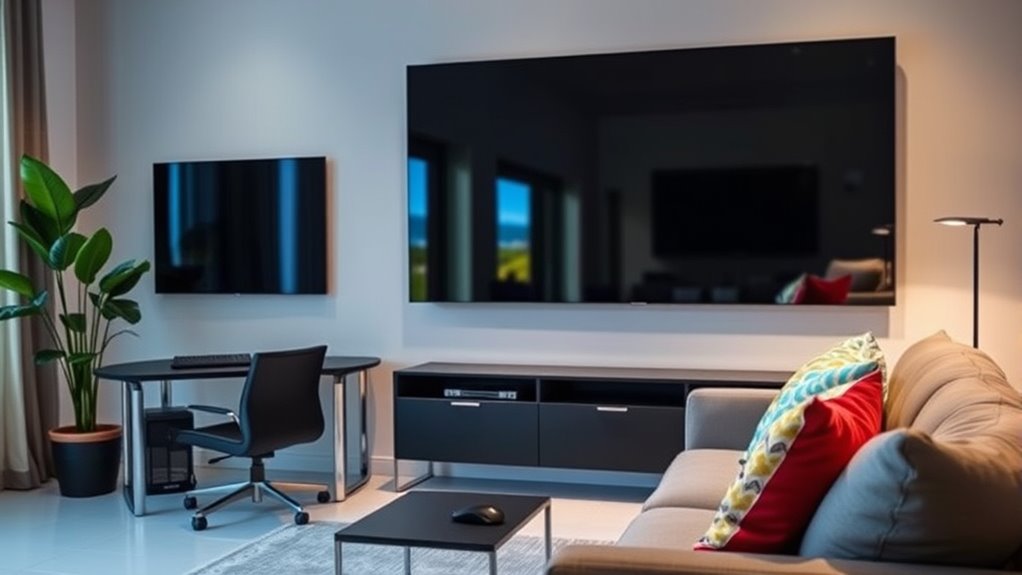

Yes, you can use a TV as a computer monitor. TVs offer larger screens for multitasking and entertainment, but consider resolution, input lag, and color accuracy. A 4K TV is best for sharp visuals, while input lag over 20 milliseconds may hinder performance. Connectivity options like HDMI are common. However, be aware of potential drawbacks like glare and limited refresh rates. For a more in-depth understanding of how to optimize your setup, keep exploring these factors.
Understanding Resolution and Display Quality
When you’re considering using a TV as a computer monitor, understanding resolution and display quality is essential. The resolution dictates how clear and detailed your images will appear. Higher resolutions like 4K offer more pixels and better pixel density, which translates to sharper visuals. However, it’s not just about resolution; color accuracy also plays a significant role in your viewing experience. TVs often enhance colors to catch your eye, but this can lead to inaccurate representations on-screen. If you’re working with graphics or need precise color matching, a TV might not be your best choice. Balancing pixel density and color accuracy can help you decide if a TV meets your needs for both casual use and professional tasks.
Input Lag and Its Impact on Performance
Input lag refers to the delay between your actions on a device and their response on the screen, which can greatly affect your experience when using a TV as a computer monitor. Understanding how to measure this lag can help you assess its impact on your performance, whether you’re gaming or working. By recognizing the effects of input lag, you can make more informed decisions about your setup.
Understanding Input Lag
Although many people enjoy the large display and vibrant colors that a TV offers, understanding input lag is essential for achieving peak performance, especially in gaming or fast-paced applications. Input lag refers to the delay between your actions on the keyboard or controller and their corresponding display on the screen. High input lag can greatly hinder your gaming performance, making it difficult to react quickly or accurately. If you’re into competitive gaming, even a fraction of a second can make a difference. TVs typically have higher input lag compared to dedicated monitors, which can impact your overall experience. Being aware of this factor helps you make informed choices about whether to use a TV or stick with a traditional monitor for peak performance.
Measuring Performance Impact
While choosing a TV for your computer monitor, it’s crucial to understand how input lag can greatly impact your performance. Input lag measures the delay between your actions and what appears on the screen. High input lag can hinder your responsiveness, especially in fast-paced gaming or demanding tasks. Performance benchmarks often indicate that a lag over 30 milliseconds can negatively affect user experiences, making actions feel sluggish. Ideally, you want a TV with an input lag under 20 milliseconds for a smoother experience. To truly gauge how a TV will perform, consider testing it or checking reliable reviews. Balancing screen size with low input lag can help you enjoy both freedom and functionality without sacrificing performance.
Connectivity Options: HDMI vs. Other Ports
When considering using a TV as a computer monitor, it’s essential to understand the various connectivity options available. HDMI cables are the most common choice, providing excellent video and audio support. However, other ports can also be relevant, depending on your setup. Here are three key options:
- DisplayPort Options: Ideal for high-resolution displays and refresh rates, especially if you’re gaming or doing graphic design.
- VGA Compatibility: While older, this port can still be useful for legacy devices, though it lacks audio support.
- Adapter Requirements: You might need adapters for certain connections, impacting your cable management and overall setup.
Understanding these options will help you make an informed choice for your needs.
The Benefits of Using a TV as a Monitor
Using a TV as a monitor offers a larger screen experience, which can enhance both productivity and entertainment. It’s also a cost-effective solution, especially if you already own a TV, allowing you to avoid the expense of a dedicated monitor. Plus, with versatile connectivity options, you can easily link your devices without hassle.
Larger Screen Experience
The allure of a larger screen experience is hard to ignore, especially when it comes to using a TV as a computer monitor. With a TV, you can elevate your productivity and enjoyment in various ways:
- Immersive Home Theater: Enjoy movies, shows, and games with stunning visuals that draw you in, transforming your living space into a personal cinema.
- Enhanced Multitasking Advantages: A bigger screen allows you to view multiple applications side by side, making it easier to work on projects while streaming videos or chatting with friends.
- Comfortable Viewing Distance: You can sit further back without sacrificing detail, reducing eye strain and creating a more relaxed environment.
Utilizing a TV as a monitor opens up a world of possibilities for entertainment and efficiency.
Cost-Effective Solution
While many people might overlook the idea of using a TV as a computer monitor, it can actually be a cost-effective solution that delivers significant value. Investing in a TV can often be more budget-friendly than purchasing a dedicated monitor of similar size. You’ll find that many modern TVs come equipped with features that rival traditional displays, making them a practical choice for your computing needs. Plus, with the vast array of affordable tech available today, you can easily find a model that suits your requirements without breaking the bank. By opting for a TV, you’re not just saving money; you’re also enjoying a versatile viewing experience that enhances both work and play.
Versatile Connectivity Options
One of the standout advantages of connecting a TV as a computer monitor is its versatile connectivity options. You’re not limited to just one way of connecting your devices, giving you the freedom to choose what works best for you. Here are three key aspects to take into account:
- HDMI Ports: Most TVs come with multiple HDMI ports, providing seamless cable compatibility with various devices.
- Wireless Connectivity: Many modern TVs support wireless screen mirroring, allowing you to project your computer screen without any cables.
- USB Inputs: Some TVs offer USB ports, enabling direct connections for peripherals like keyboards and mice.
These versatile display options enhance your setup, making it easier to switch between devices or expand your workspace. Enjoy the flexibility!
Potential Drawbacks and Limitations
Although using a TV as a computer monitor can offer a larger viewing area, it also comes with several potential drawbacks and limitations. One major concern is color accuracy; many TVs prioritize vibrant colors for media, which may distort your work. Additionally, screen size can lead to pixelation if the resolution isn’t high enough.
| Drawbacks | Considerations |
|---|---|
| Color Accuracy | May not be suitable for design work |
| Input Lag | Can affect gaming performance |
| Refresh Rate | Often lower than monitors |
You might find yourself squinting at small text or struggling with glare. These limitations can impact productivity, so weigh your options carefully before making the switch.
Recommended TV Features for Computing
When choosing a TV for computing, you’ll want to focus on resolution and clarity to guarantee crisp visuals. Input lag is another essential factor, as a lower lag can enhance your experience, especially for gaming or interactive tasks. Finally, consider the connectivity options available to confirm compatibility with your computer and other devices.
Resolution and Clarity
To guarantee an ideal computing experience when using a TV as a monitor, resolution and clarity are paramount. You’ll want to take into account the following factors to make informed choices:
- Resolution Differences: Opt for a 4K TV for sharper images and better text clarity, especially for detailed work.
- Screen Size: Larger screens can enhance clarity, but make sure you’re sitting at an appropriate distance to avoid pixelation.
- Refresh Rate: A higher refresh rate improves motion clarity, which is essential for gaming or video editing.
Input Lag Considerations
While selecting a TV for computing, input lag is a crucial factor that shouldn’t be overlooked. Input lag types can vary greatly among models, affecting your overall experience. For tasks like gaming or graphic design, even a slight delay can lead to frustration, as input lag effects become pronounced. Ideally, look for a TV with a low input lag rating, typically under 20 milliseconds, to guarantee smooth interaction. Features like “Game Mode” can further reduce lag by optimizing settings for quicker responses. Remember, the smoother your experience, the more freedom you’ll have to focus on your work or play. Prioritizing input lag will help you select a TV that truly meets your computing needs.
Connectivity Options Available
A variety of connectivity options can greatly enhance your experience when using a TV as a computer monitor. Ensuring TV compatibility with your computer is essential, as different devices may require specific cables. Here are three key cable requirements to take into account:
- HDMI: Most modern TVs and computers use HDMI cables for high-definition video and audio.
- DisplayPort: If your computer supports DisplayPort, you might need an adapter, as not all TVs come with this option.
- USB-C: Some newer models allow for USB-C connections, which can simplify your setup.
Make sure you check your TV’s specifications to avoid connectivity issues. The right cables can make all the difference in achieving an ideal computing experience.
Setting Up Your TV as a Computer Monitor
Setting up your TV as a computer monitor can enhance your viewing experience, especially for tasks like gaming or streaming content. First, connect your computer to the TV using HDMI or another compatible cable. Once connected, you may need to adjust your computer’s display settings to recognize the TV. After this, focus on screen calibration; this guarantees colors and brightness are suitable for your needs. Use your TV’s settings menu to tweak contrast, sharpness, and other parameters. Don’t forget to set the resolution to match your TV’s native format for the best clarity. Finally, test the setup by opening various applications to verify everything looks right. With these steps, you’re ready to enjoy a larger screen experience!
Gaming on a TV: What to Consider
Once you’ve successfully set up your TV as a computer monitor, gaming on it can be a transformative experience. However, there are a few key considerations to keep in mind to guarantee the best gaming performance and visual fidelity:
- Input Lag: Look for a TV with low input lag to enhance your gaming responsiveness.
- Refresh Rate: A higher refresh rate can greatly improve your gaming experience, especially in fast-paced games.
- Resolution: Make sure your TV supports at least 1080p, but 4K can offer stunning visual fidelity for compatible games.
Alternative Solutions: Dedicated Monitors
While using a TV as a computer monitor can enhance your viewing experience, dedicated monitors often provide superior performance for specific tasks, especially gaming and professional work. These dedicated displays come with benefits like improved color accuracy and refresh rates, which are essential for graphics-intensive activities. An ergonomic design guarantees visual comfort during extended use, while varying screen sizes allow you to customize your workspace aesthetics. If you’re considering multi monitor setups, dedicated monitors can optimize productivity enhancement by giving you the screen real estate you need.
| Feature | Dedicated Monitors | TVs |
|---|---|---|
| Color Accuracy | High | Moderate |
| Refresh Rate | 60-240Hz | 30-60Hz |
| Ergonomic Design | Yes | No |
| Ideal Viewing Distance | Closer | Farther |
| Screen Size | 24″-32″ | 40″-75″ |
Final Thoughts on TV vs. Computer Monitor
When deciding between using a TV or a dedicated computer monitor, it’s important to evaluate your specific needs and how each option aligns with them. Both choices come with distinct advantages.
- TV Advantages: Larger screen sizes and built-in streaming capabilities can enhance entertainment experiences.
- Monitor Benefits: Higher resolutions and faster refresh rates provide a clearer, more responsive display, ideal for tasks like gaming or graphic design.
- Versatility: A TV can double as a monitor in casual settings, while a dedicated monitor excels in performance-driven environments.
Ultimately, if you prioritize performance and clarity, a monitor might be the better choice. However, if you value versatility and larger displays for entertainment, a TV could serve your needs effectively. Choose based on what freedom and functionality matter most to you.
Frequently Asked Questions
Can I Use a 4K TV for Basic Computing Tasks?
Absolutely, you can use a 4K TV for basic computing tasks. Think of it as a spacious canvas; while a monitor’s precision shines for detailed work, the TV’s 4K resolution advantages offer vibrant visuals for everyday use.
Will Using a TV Reduce My Computer’s Performance?
Using a TV might not reduce your computer’s performance, but input lag and a resolution mismatch can affect your experience. For peak performance, make sure your TV’s settings are configured for gaming or computer use.
Are There Specific Brands Better Suited for Computer Use?
Some brands, like LG and Samsung, shine bright for computer use, offering stellar gaming performance and impressive color accuracy. You’ll find your visual experience soaring, bringing your digital world to life with vibrant clarity.
How Do I Adjust Settings for Optimal Display Quality?
To adjust settings for ideal display quality, tweak your resolution settings to match your device’s native resolution and perform color calibration using your TV’s settings menu. This guarantees vibrant colors and sharp images for a better experience.
Can I Connect Multiple Devices to My TV Simultaneously?
Yes, you can connect multiple devices to your TV simultaneously if it has enough HDMI ports and they’re compatible. Just switch between devices using your TV remote for seamless access to your favorite content.

[…] to project a focused, colored image onto a screen. In practice, the projector’s image brightness, color accuracy, and sharpness come from how the light engine, the LCD pixel structure, and the lens alignment work […]
[…] is usually system calibration and optics quality, since proper setup affects perceived sharpness, color accuracy, and […]
[…] imaging system to produce an image on your screen. In practice, the projector lamp’s brightness, color accuracy, and lifespan depend on several linked steps—light generation, light conditioning, image […]
[…] Department of Energy, projector/AV systems often specify performance in lumens (light output) and color accuracy metrics, which directly affect real-world image visibility in rooms with ambient light. U.S. DOE […]
[…] surface texture, coatings, gain rating, and mounting all determine brightness uniformity, contrast, color accuracy, and the size of the “sweet spot” for […]
[…] targets. The important nuance: many units remain usable after their rated point, but brightness and color accuracy typically […]
[…] If your room has direct sunlight or very bright windows, look for 5,000 ANSI lumens or higher to maintain legibility and strong contrast. For partially controlled daylight (no direct sun, curtains or blinds available), around 3,000–4,500 lumens can be enough for many home setups. When comparing options, prioritize real ANSI lumens and consider the projector’s brightness in “bright mode” versus color accuracy. […]