
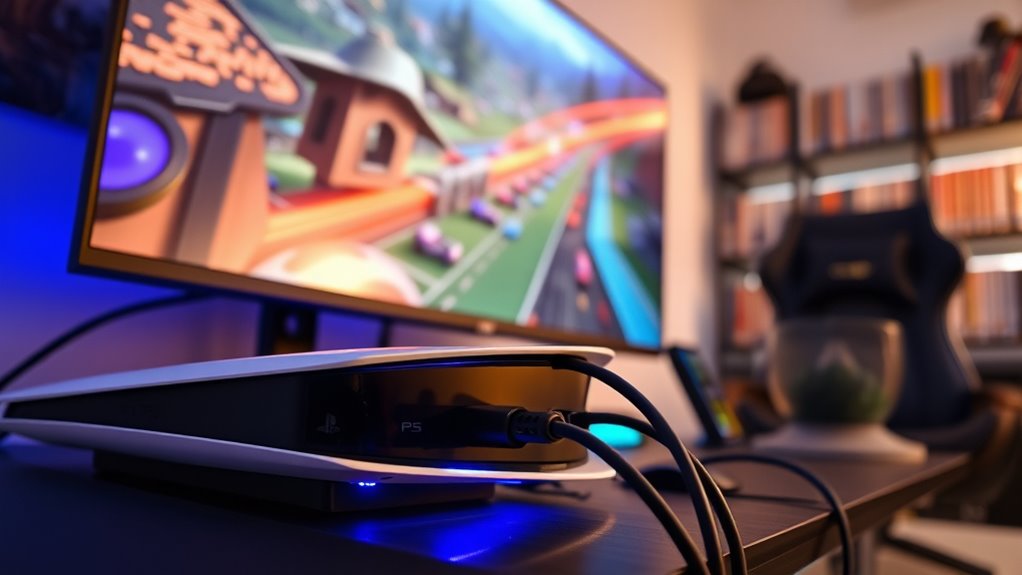

To make your PS5 audio come out of your monitor, first, check that your monitor has built-in speakers or audio output capabilities. Connect the PS5 to the monitor using an HDMI cable, then power both devices on. Next, go to the PS5 settings and adjust the “Sound” options to select the finest audio format. If you’re still having issues, consider using external speakers or headphones for a better experience. There’s more to ensuring ideal audio, so keep exploring!
Understanding Your Monitor’s Audio Capabilities
When it comes to enjoying your PS5’s audio through a monitor, understanding your monitor’s audio capabilities is crucial. First, check if your monitor has built-in speakers or audio output options. If it doesn’t, you might need external speakers or a soundbar for an enhanced gaming experience.
Next, consider the audio formats your monitor supports, as this can impact sound quality. A monitor capable of handling surround sound can greatly elevate your gaming experience, making you feel like you’re in the action.
Lastly, pay attention to the audio settings on your PS5 and adjust them to match your monitor’s capabilities. This guarantees you get the best monitor audio, allowing you to fully immerse yourself in your games.
Connecting Your PS5 to the Monitor
To connect your PS5 to a monitor, start by ensuring you have the right cables on hand. You’ll need an HDMI cable for a seamless HDMI connection, which is the most straightforward way to link your console to the monitor. Simply plug one end of the HDMI cable into your PS5 and the other into the HDMI port on your monitor. Once connected, power on both devices. You may need to adjust the display settings on your monitor to select the correct input source. This setup allows you to enjoy high-quality visuals while gaming. Now you’re ready to plunge into your favorite games with your PS5 connected to your monitor!
Configuring PS5 Audio Settings
While connecting your PS5 to a monitor is essential for great visuals, configuring the audio settings is equally important for an immersive gaming experience. Start by steering to the settings menu on your PS5. Go to “Sound,” where you’ll find various audio format options. Choose the one that best suits your monitor’s capabilities, like linear PCM for high-quality sound. Next, make certain to adjust the volume settings to your preference; this helps in balancing game audio with any voice chat or background sounds. Don’t forget to test the audio after making changes to verify everything sounds just right. With these adjustments, you’ll enjoy a fully engaging gaming experience that complements your stunning visuals.
Using External Speakers or Headphones
If you want to elevate your audio experience, using external speakers or headphones can make a significant difference. To start, consider the audio quality; high-quality speakers or headphones can immerse you in the game, enhancing every explosion and subtle sound. When using speakers, think about speaker placement—position them at ear level and create an equidistant triangle from your viewing spot for ideal sound. For headphones, verify they’re comfortable and provide good sound isolation to block out distractions. Connect them to your PS5 via Bluetooth or the headphone jack, depending on your choice. This simple upgrade can transform your gaming sessions into an audio-rich adventure, allowing you to fully engage with every moment.
Troubleshooting Common Audio Issues
Although you might have everything set up correctly, audio issues can still arise when gaming on your PS5. If you’re experiencing sound delay, it could be due to your monitor’s audio formats. Confirm your monitor supports the same audio format as your PS5. You can adjust these settings in the PS5’s audio menu.
Another potential issue is the connection type. HDMI cables generally provide the best audio quality, so make certain you’re using a high-speed cable. If you’re using external speakers, check their compatibility with the PS5. Finally, restarting your console or monitor can sometimes resolve temporary glitches. By troubleshooting these areas, you can enjoy a seamless audio experience while gaming.
Frequently Asked Questions
Can I Use a HDMI Splitter for Audio Output?
Yes, you can use an HDMI splitter for audio output. Its functionality allows you to route audio to multiple devices. Just make certain you select the right output options to achieve the desired sound experience.
Will Using a Different HDMI Cable Improve Sound Quality?
Using a different HDMI cable might boost your sound quality, but it’s not guaranteed. Factors like HDMI cable types and your monitor’s capabilities play essential roles. Experimenting could lead to a more satisfying audio experience.
Does the Monitor Need Built-In Speakers for Audio?
No, your monitor doesn’t need built-in speakers for audio. You can use external speakers instead. Just connect them to your PS5, and you’ll enjoy great sound without relying on the monitor’s audio capabilities.
Can I Connect Wireless Headphones Directly to the PS5?
Yes, you can connect wireless headphones directly to your PS5. Just make sure they support low latency for better audio quality. This way, you’ll enjoy freedom from wires while gaming without sacrificing sound experience.
How Can I Test Audio Without a Game Running?
You can test audio without a game running by going into the PS5’s audio settings. Select “Sound” and choose “Audio Output.” Use the “Sound Testing” option to hear the audio through your connected device.
