
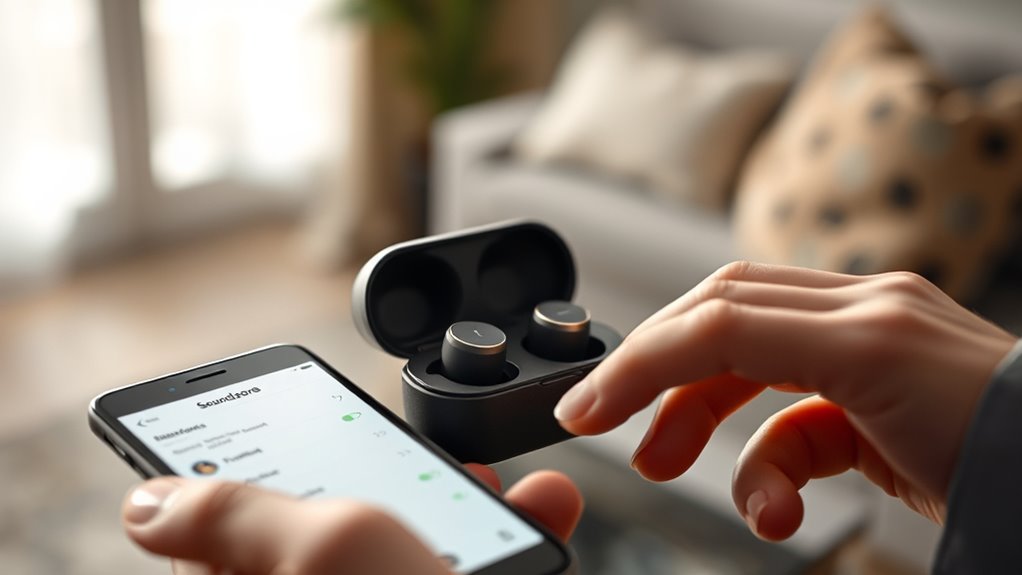

To connect your Soundcore earbuds, start by confirming they’re charged and powered on. Press and hold the power button until the LED flashes red and white, indicating they’re in pairing mode. On your device, enable Bluetooth and select the earbuds from the list of available devices. Once connected, enjoy seamless audio playback. If you encounter any issues, there are helpful tips to guarantee smooth connectivity and enhance your experience.
Unboxing Your Soundcore Earbuds
When you first open the box of your Soundcore earbuds, you’ll likely be greeted with a sleek design and organized packaging. As you take them out, you’ll notice the impressive earbuds features that set them apart. The lightweight build guarantees comfort during long listening sessions, while the customizable ear tips provide a snug fit for any ear shape.
You’re not just getting a stylish accessory; the sound quality is truly remarkable. With deep bass and crisp highs, these earbuds elevate your audio experience, whether you’re jamming out to your favorite tunes or catching up on podcasts. Plus, the intuitive controls make it easy to navigate your playlists. Unboxing these earbuds is just the beginning of your journey into immersive sound.
Charging Your Earbuds
To guarantee your Soundcore earbuds are always ready for action, charging them properly is essential. Here are some charging tips for ideal battery maintenance:
Properly charging your Soundcore earbuds is crucial for optimal performance and longevity.
- Keep the charging case clean and free from debris.
- Use the original cable and adapter for efficient charging.
- Avoid overcharging; unplug once they’re fully charged.
- Store your case in a cool, dry place to extend battery life.
Turning On Your Soundcore Earbuds
To turn on your Soundcore earbuds, you’ll first need to locate the power button, which is usually easy to find. Pay attention to the LED indicator behavior, as it lets you know if your earbuds are powered on or in pairing mode. Some models even feature an automatic power-on function, making the process even simpler.
Power Button Location
Finding the power button on your Soundcore earbuds is essential for getting them up and running quickly. This small but mighty button is key to activating all the incredible earbud features. Here’s where you can typically find it:
- On the right earbud, often near the charging port
- Slightly recessed to prevent accidental presses
- Marked with a power symbol for easy identification
- Designed for a comfortable press without fumbling
Once you locate the power button, a simple press will turn them on, allowing you to enjoy your favorite tunes and podcasts in no time. Embrace the freedom of wireless sound and get ready to immerse yourself in an audio experience like no other!
LED Indicator Behavior
After locating the power button on your Soundcore earbuds, you’ll want to pay attention to the LED indicator. This small light provides vital information about your earbuds’ status. Understanding color codes is essential for guiding their functionality. For instance, a steady blue light means your earbuds are powered on and ready to connect, while a red light indicates low battery. If you see a flashing blue light, it signals that your earbuds are in pairing mode. By recognizing these led indicator meanings, you can make certain your earbuds are always ready when you are. So, before diving into your favorite tunes, keep an eye on that LED to confirm you’re set for a seamless listening experience.
Automatic Power-On Feature
When you’re ready to enjoy your music, the automatic power-on feature of your Soundcore earbuds makes it incredibly convenient. With just a simple action, you can plunge into your playlist without hassle. This wireless convenience allows you to experience freedom while on the go.
- The moment you take your earbuds out of the case, they spring to life.
- They connect seamlessly to your device, ready for action.
- You won’t need to fumble with buttons or settings.
- And when you’re done, they power off automatically, saving battery life.
Entering Pairing Mode
To connect your Soundcore earbuds, you’ll first need to locate the power button. Once you’ve turned them on, activate pairing mode to make them discoverable by your device. After that, just confirm the connection on your device, and you’re all set to enjoy your music!
Locate Power Button
While it may seem straightforward, locating the power button on your Soundcore earbuds is essential for entering pairing mode. Different power button types may be present depending on your model, but they generally have similar button functionality.
Here’s what to look for:
- A small, circular button that’s easy to press.
- A textured surface to help you identify it by touch.
- An LED light indicator that shows when the earbuds are powered on.
- A slight click sound when pressed, providing tactile feedback.
Once you find this button, you’ll be well on your way to connecting your earbuds. Embrace the freedom of wireless listening by mastering this simple step!
Activate Pairing Mode
Once you’ve located the power button, it’s time to activate pairing mode so your Soundcore earbuds can connect to your device. To do this, press and hold the power button until you see the LED indicator flashing. This signals that your earbuds are ready to pair, allowing you the freedom to connect with compatible devices.
Here are some pairing tips to keep in mind:
| Device Type | Compatibility | Notes |
|---|---|---|
| Smartphones | Yes | Most iOS and Android |
| Laptops | Yes | Bluetooth-enabled only |
| Tablets | Yes | Check Bluetooth settings |
| Smart TVs | Sometimes | May require manual setup |
Confirm Device Connection
After activating pairing mode, the next step is to confirm your device connection. You’ll want to verify your device is compatible with your Soundcore earbuds for ideal sound quality. Here’s how to do it:
- Open your device’s Bluetooth settings.
- Look for your Soundcore earbuds in the list of available devices.
- Select them to initiate the connection.
- Listen for a confirmation tone or visual cue indicating a successful pairing.
Once connected, you’ll experience the freedom of high-quality sound without interruptions. Enjoy your favorite tunes, podcasts, or calls with seamless audio clarity. If you encounter any issues, double-check your device compatibility and try reconnecting for that perfect listening experience.
Connecting to Ios Devices
To connect your Soundcore earbuds to an iOS device, start by ensuring that your earbuds are charged and in pairing mode. Once that’s done, grab your iPhone or iPad and head to “Settings.” Tap on “Bluetooth” and make sure it’s turned on. Look for your Soundcore earbuds under “Other Devices.” When you see them, tap to connect. You’ll notice a significant boost in your user experience as these earbuds offer great sound quality, making them a perfect fit for your lifestyle. Plus, with earbud compatibility across various iOS versions, you won’t have to worry about connectivity issues. Enjoy the freedom your Soundcore earbuds provide, and embrace high-quality audio wherever you go!
Connecting to Android Devices
To connect your Soundcore earbuds to an Android device, start by enabling Bluetooth in your device’s settings. Next, put your earbuds into pairing mode so they can be detected. Finally, select your Soundcore earbuds from the list of available devices to complete the connection.
Enable Bluetooth on Device
Before you can connect your Soundcore earbuds to your Android device, you’ll need to enable Bluetooth. This step is essential for ensuring device compatibility. Follow these simple instructions to access your Bluetooth settings:
- Swipe down from the top of your screen to open the quick settings menu
- Look for the Bluetooth icon and tap it to turn it on
- Alternatively, go to Settings > Connected devices > Connection preferences
- Select Bluetooth and toggle it to the on position
Once Bluetooth is enabled, your device will start scanning for nearby devices. This opens up a world of wireless freedom, allowing you to enjoy your favorite music or take calls without being tethered. Make sure to do this before moving on to the pairing process!
Pairing Mode Activation
Once your Bluetooth is enabled, the next step is activating pairing mode on your Soundcore earbuds. To do this, press and hold the power button on your earbuds until you see the LED light flash alternately in red and white. This indicates they’re in pairing mode and ready to connect.
If you encounter any pairing issues, verify your earbuds are charged and not connected to another device. A quick reset can also help; just hold the power button for about 10 seconds.
For smooth connections, try these pairing tips: keep your Android device close to the earbuds and make sure it’s discoverable in Bluetooth settings. Enjoy the freedom of wireless listening!
Select Soundcore Earbuds
Connecting your Soundcore earbuds to an Android device is a straightforward process that enhances your listening experience. Once paired, you’ll enjoy outstanding sound quality and all the amazing earbud features. Here’s how to do it:
- Quick pairing: Activate Bluetooth on your Android device.
- Select earbuds: Find your Soundcore earbuds in the Bluetooth settings.
- Enjoy freedom: Experience the wireless convenience for music and calls.
- Quality sound: Immerse yourself in rich audio and powerful bass.
With just a few taps, you’ll be ready to enjoy your favorite tunes or podcasts. Don’t forget to explore the settings to customize your earbud features for an even better experience. Embrace the freedom that comes with quality wireless sound!
Connecting to Windows Computers
To connect your Soundcore earbuds to a Windows computer, you’ll need to follow a few simple steps. First, verify your earbuds are charged and in pairing mode. Open your Windows computer and navigate to the Bluetooth settings. You can find this by clicking on the Start menu, then selecting “Settings,” followed by “Devices.” Toggle Bluetooth on if it isn’t already. Next, click “Add Bluetooth or other device” and select your Soundcore earbuds from the list. Once connected, you’ll see a confirmation message, indicating successful Windows compatibility. Now you can enjoy your favorite tunes or videos with the freedom that wireless earbuds provide. Don’t forget to adjust the audio settings for the best experience!
Connecting to Mac Computers
If you’re looking to pair your Soundcore earbuds with a Mac computer, the process is straightforward and quick. First, verify your Mac’s Bluetooth settings are enabled. Follow these simple steps:
- Open System Preferences from the Apple menu
- Select Bluetooth to access your Bluetooth settings
- Put your Soundcore earbuds in pairing mode
- Click Connect next to your earbuds when they appear on the list
With Mac compatibility, you’ll enjoy seamless audio streaming. Once connected, you can roam freely without worrying about tangled wires. Just make sure your earbuds are charged, and you’re ready to plunge into your favorite tunes or podcasts! Enjoy the wireless freedom that Soundcore earbuds offer!
Troubleshooting Connection Issues
While enjoying your Soundcore earbuds, you might occasionally encounter connection issues that can be frustrating. To improve connection stability and audio quality, try the following troubleshooting steps:
| Issue | Solution | Notes |
|---|---|---|
| Earbuds won’t connect | Reset your earbuds | Hold the button for 10s |
| Audio cuts out | Check battery levels | Charge if low |
| Poor sound quality | Re-pair with your device | Forget and reconnect |
If these steps don’t help, verify there are no obstacles between your earbuds and the device. Also, keep your devices updated for peak performance. Taking these simple actions can enhance your listening experience and restore that freedom you crave.
Enjoying Your Music and Media
Once you’ve successfully connected your Soundcore earbuds, you’re ready to immerse yourself in a world of music and media. With stunning audio quality, your listening experience will elevate to new heights. Whether you’re into music streaming or podcasts, your earbuds will deliver clear, rich sound, making every note resonate.
Immerse yourself in stunning audio quality with Soundcore earbuds, transforming every note into a rich listening experience.
Here are a few ways to enjoy your earbuds to the fullest:
- Create your personalized playlists to match your mood.
- Dive into immersive audiobooks that transport you to different worlds.
- Catch up on your favorite podcasts during your daily commute.
- Experience live concerts from the comfort of your home.
Frequently Asked Questions
Can Soundcore Earbuds Connect to Multiple Devices at Once?
Soundcore earbuds don’t support multi-device connectivity simultaneously. However, you can switch between devices easily. Enjoy great sound quality on each device without hassle, giving you the freedom to connect wherever you are.
How Do I Reset My Soundcore Earbuds?
To reset your Soundcore earbuds, hold the touch panel for about 10 seconds until you see the LED flash. This reset process can help with troubleshooting issues, restoring your earbuds to their default settings.
What Is the Battery Life of Soundcore Earbuds?
The battery life of Soundcore earbuds typically lasts up to 30 hours with the charging case. Charging time is about an hour, ensuring you’re always ready to enjoy great sound without interruptions.
Are Soundcore Earbuds Water-Resistant or Waterproof?
Soundcore earbuds offer water resistance features, letting you dance in the rain without worry. For peak performance and longevity, remember to regularly check their maintenance. Enjoy your freedom to groove, rain or shine!
Can I Use Soundcore Earbuds for Phone Calls?
Yes, you can use Soundcore earbuds for phone calls. Their compatibility guarantees decent phone call quality, allowing you to enjoy clear conversations without hassle. Experience freedom while staying connected with friends and family effortlessly.
