

I have recently borrowed an Onkyo receiver from one of my friends to set up my home theater. To my surprise, the receiver delivers excellent quality service for my setup. However, one night I was sleeping and woke up due to the sound of my TV in the middle of the night! What I saw really spooked me out.
My Onkyo receiver turned on by itself! The incident happened quite a few times after that. If you are here and suffering from the same weird problem, don’t worry, as I will tell you why the Onkyo receiver turns on by itself and what you can do to solve it.
5 Common Reasons Behind Onkyo Receiver Turning On By Itself
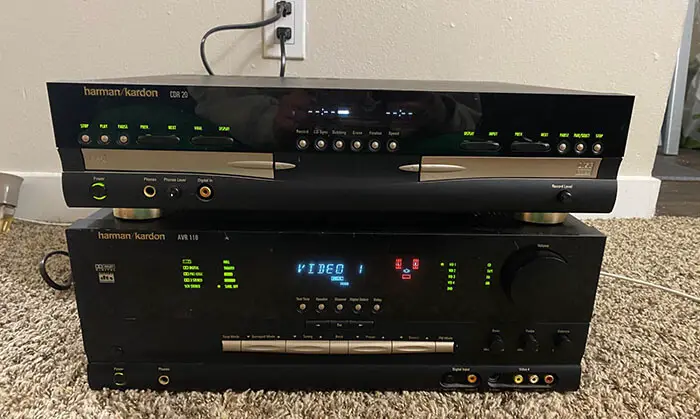
Like all other electrical equipment, it’s very common that your device might have some manufacturing faults. A faulty unit will never perform perfectly even if you try every other solution. However, your Onkyo receiver might turn on by itself due to HDMI CEC.
1. Your Devices Might Be Waking Up Due to A Feature Called HDMI CEC
HDMI CEC is a special feature through which devices that are connected via HDMI, can talk to each other. That means if you have connected your Onkyo receiver to your TV via an HDMI cable, both of the devices can pass signals to send information through the cable.
The feature is created for users like you to control everything by grabbing a single remote. Even though it is an amusing concept, it functions perfectly quite rarely.
If you find that your Onkyo receiver is turning on by itself often, it is probably happening because HDMI CEC told it to. Some other issues might also occur due to the malfunctioning of this feature.
For instance, you might have turned on your TV, but your Blu-ray DVD turned on. Or you turned on your TV and your Xbox or PlayStation came into life. Sometimes powering up the receiver can cause everything else to power up. All of these incidents are happening due to the feature HDMI CEC.
2. Are Multiple Devices Connected in Your System?
Even though HDMI CEC is the most probable cause of this issue, some other reasons can also be the culprit. For example, your Onkyo receiver might be looking for a firmware update. Various models of Onkyo receivers power on periodically to check for firmware updates.
However, apart from your receiver, any other device connected in the chain could also be looking for firmware updates. It can cause the receiver to turn on by itself as well. That means if HDMI CEC is enabled in any of the connected devices, it can easily cause all other devices to wake up periodically while looking for firmware updates.
3. Have You Checked Your Power Switch?
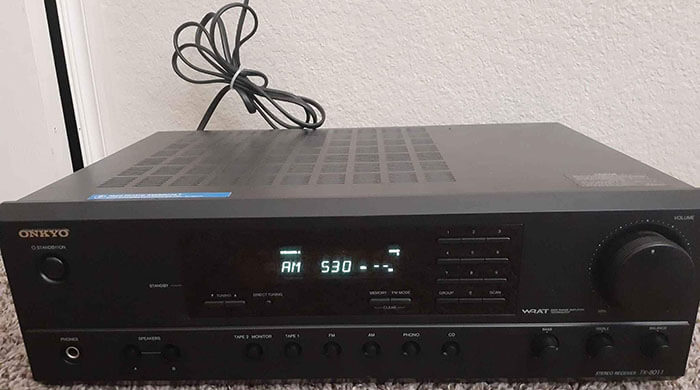
It might seem very unlikely but a very possible reason behind your Onkyo receiver turning on by itself is a faulty power switch or power strip. A faulty or dirty power switch can trigger the power to circulate and force any equipment connected to the socket to turn on.
It usually happens if you are using a very old power socket that has not been cleaned in many years. Another reason could be that the switch has a loose wire connection or dirt has accumulated in connection points.
4. A Faulty Remote Might Be a Culprit
Another possible reason behind the issue is a faulty remote. We generally keep the remote in the same room in an open place, sometimes facing toward the receiver. If the remote has a short circuit or faulty power button, it could send signals to the Onkyo receiver randomly. Thus, your receiver wakes up randomly and you have no explanation for it.
5. Too Much Heat Can Cause the Receiver to Function Abnormally
If you live in a hot climate, try to keep your electrical equipment in temperate conditions. Otherwise, too much heat inside can cause it to malfunction or behave abnormally.
In short, your Onkyo receiver is turning on by itself because:
- HDMI CEC is forcing it to turn on
- One of the connected devices has HDMI CEC enabled
- A faulty or dirty power switch
- A faulty remote
A Quick Fix Guide for Solving the Issue
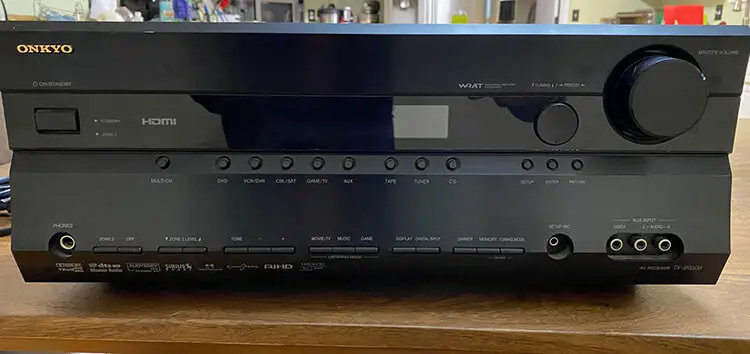
Till now, we have explored the reasons behind why your receiver is turning on by itself. But knowing the causes alone won’t help to solve it. Now, I will show you some of the quickest ways to solve this issue.
- Firstly, turn off HDMI CEC in your Onkyo receiver
- The feature HDMI CEC is called under different names by different manufacturers. For instance, Sony calls it BRAVIA Sync and Samsung calls it Anynet+. You can quickly search on the internet for what your TV manufacturer calls it in the settings. Despite its different names, turn it off from the settings.
- Turn off HDMI CEC in all of the connected devices.
- Turn off automatic updates and scheduled updates
- Keep your remote in a drawer or keep its head covered up to find out if a faulty remote is a reason. Sometimes low batteries in the remote can cause it to send wrong signals. If so, purchase a new remote.
- Try connecting your devices to a different power outlet. If the issue does not occur again, try to change the power socket, or clean the insides using isopropyl alcohol.
- Try keeping the receiver under a fan or in an air-conditioned room. Sometimes too much heat generated inside can cause it to function abnormally.
Frequently Asked Questions
Can you reset an Onkyo receiver?
Yes. You can hold the VCR/DVR button and the standby button together until you see “clear” on the display. Then turn on the device again by pressing the standby button to turn on the device. It is now back to factory settings.
Which is the official Onkyo remote control application?
“Onkyo Controller” is the official Onkyo remote control application.
Conclusion
I hope you are now able to diagnose the reason behind your Onkyo receiver turning on by itself. You can follow the mentioned solution sequentially to get the best results. However, if you are still unable to fix the issue, you will require the help of a professional. Try contacting the seller or manufacturer to solve your issue.

[…] WiFi boxes may cost more but can improve coverage and performance in larger homes or with many connected devices. When comparing options, focus on your broadband speed, home size, and whether you need whole-home […]
[…] Is it safe to change the WiFi password in the router admin page?Yes, as long as you update all connected devices immediately; otherwise you’ll temporarily disconnect clients that still use the old WiFi […]
[…] If you need Wi‑Fi credentials, the fastest and safest approach is to first check what your connected Windows PC already saved for that network, then confirm the current Wi‑Fi key in your router’s admin UI. If neither is available and you’re locked out, a router reset can work—but it’s the most disruptive option, especially on networks with many connected devices. […]
[…] This article gives you the fastest, most reliable method to reveal it—starting with checking your connected devices and the router settings. If you’re locked out, it also covers the quickest way to regain access […]
[…] is usually the best approach because it doesn’t require router access. If you can’t access connected devices, the next best option is to ask the person who set up the network or check the router label if […]
[…] commonly provide DHCP (Dynamic Host Configuration Protocol) to automatically assign IP addresses to connected devices. When Wi‑Fi is enabled, routers broadcast an SSID (Service Set Identifier) so client devices can […]
[…] where to send them next based on routing tables. In Wi‑Fi setups, it also assigns IP addresses to connected devices (often using DHCP) so they can communicate. When you browse websites, the router routes your […]
[…] You can always find (or re-establish) the WiFi password by using the router’s label, admin app, or settings page. If you can access the router admin interface, that’s usually faster and cleaner than resetting because it avoids breaking connected devices. […]