

Using a Firestick does not require a smart TV; it can work with any TV that has an HDMI port. This flexibility allows users to enjoy streaming services and apps even on older television models. In this article, we’ll explore what you need to use a Firestick, its compatibility requirements, and other relevant considerations.
Understanding the Firestick
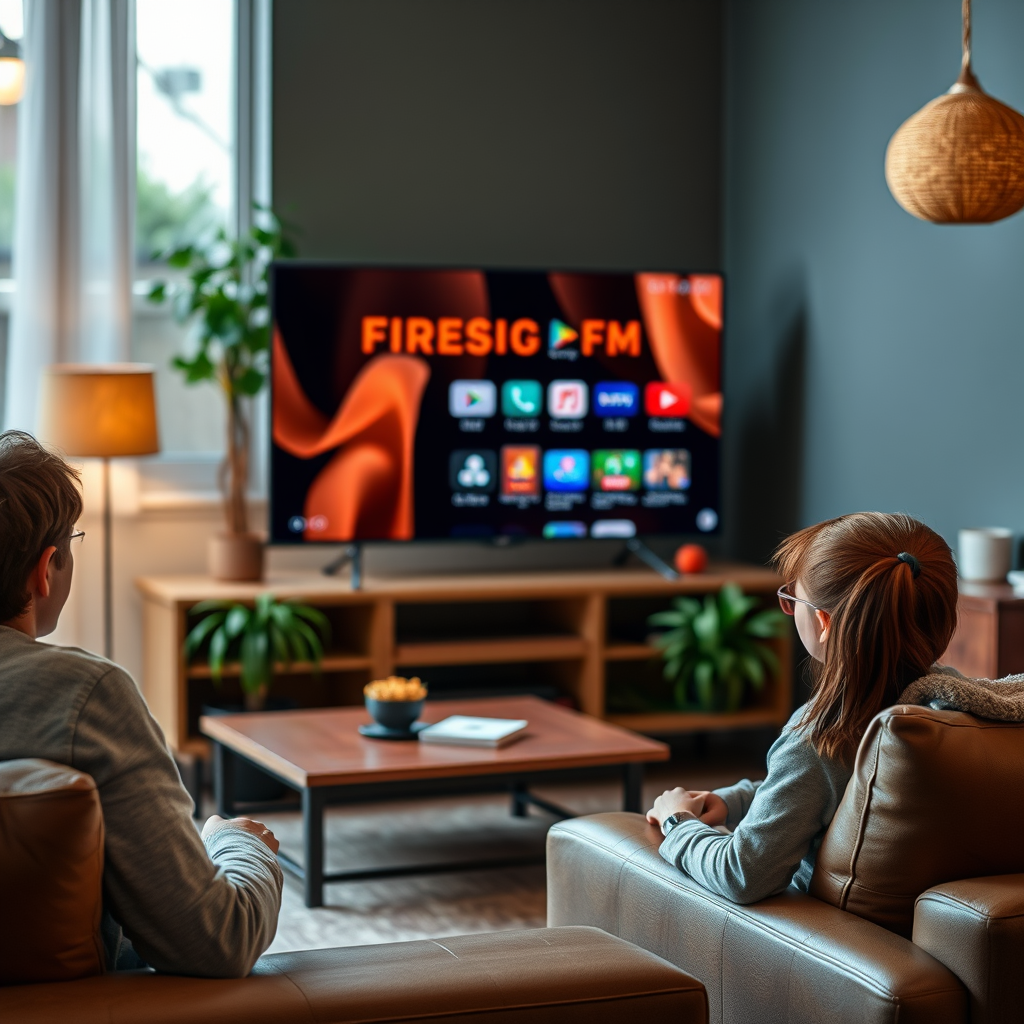
The Amazon Firestick is a compact streaming device that connects directly to your TV via an HDMI port, transforming your regular television into a smart TV. This small yet powerful device enables users to access a variety of streaming services such as Netflix, Hulu, Prime Video, Disney+, and many more, making it an excellent addition for anyone looking to enhance their viewing experience. With an intuitive interface and voice control capabilities through Alexa, the Firestick allows for seamless navigation and content discovery.
The Firestick operates on Fire OS, which is based on Android, providing a user-friendly experience with access to a vast library of apps and games. Additionally, it supports various video resolutions, including HD and 4K, depending on the model you choose, ensuring that you can enjoy your favorite content in high quality.
HDMI Requirement
To successfully use a Firestick, your television must have an available HDMI port. This is the standard connection for most modern TVs, including many models manufactured in the last decade. HDMI not only transmits high-definition video and audio but also simplifies the connection process, allowing for a single cable solution.
Most modern televisions come equipped with multiple HDMI ports, which means you can connect several devices simultaneously, such as gaming consoles, Blu-ray players, and streaming devices like the Firestick. If you are unsure whether your TV has an HDMI port, simply check the back or side panel of your television for the HDMI input labels.
Alternative TV Types
If you own a non-smart TV, you can still utilize a Firestick, provided it has an HDMI port. This opens up a wealth of streaming options for those who may not want to invest in a new smart television. However, if your television only features AV (composite) or component inputs, you will need an adapter to connect the Firestick. These adapters are relatively inexpensive and readily available, allowing you to bridge the gap between older technology and modern streaming capabilities.
Compatibility Overview
Firestick Compatibility with Television Types (2024)
| # | TV Type | HDMI Ports | Smart Features | Ideal for Firestick |
|---|---|---|---|---|
| 1 | 4K Smart TV | 2-4 | Yes | Excellent |
| 2 | HD Television | 1-2 | No | Good |
| 3 | Non-Smart TV | 1 | No | Fair |
| 4 | Older CRT TV | 0 | No | Poor |
| 5 | Smart TV (Older Model) | 1-3 | Yes | Excellent |
| 6 | Projector | 1 | No | Fair |
| 7 | Monitor (with HDMI) | 1 | No | Good |
Power Source for Firestick
The Firestick requires a stable power source to operate effectively, typically through a USB cable. Most Firestick models come with a USB power cable and an adapter that allows you to connect to a wall outlet. If your TV has a USB port, you can utilize it for power; however, using the included wall adapter is often recommended for optimal performance, as some TV USB ports may not supply sufficient power for the Firestick to function correctly.
When setting up your Firestick, ensure that the power source is connected before you start the device. This will allow the Firestick to boot up properly and connect to your TV without delays.
Internet Connectivity
A reliable internet connection is essential for the Firestick to operate as intended. The device relies on streaming content from the internet, and a slow or unstable connection could result in buffering and poor viewing experiences. Firesticks connect to Wi-Fi networks, eliminating the need for an Ethernet cable.
To ensure optimal performance, consider the following factors:
– Wi-Fi Speed: For HD streaming, a minimum internet speed of 5 Mbps is recommended; for 4K streaming, you should aim for at least 25 Mbps.
– Router Placement: Keep your Wi-Fi router as close to the Firestick as possible to ensure a strong signal.
– Network Congestion: If multiple devices are using the same network, you may experience slower speeds. Consider prioritizing your Firestick’s connection in your router’s settings.
Setting Up the Firestick
Setting up the Firestick is a straightforward process, designed for user convenience. Here are the steps to get started:
1. Connect the Firestick: Plug the Firestick into an available HDMI port on your television.
2. Power it Up: Connect the Firestick to a power source using the provided USB cable and adapter.
3. Switch Input: Use your TV remote to switch to the HDMI input where your Firestick is connected.
4. Initial Setup: Follow the on-screen instructions to connect to your Wi-Fi network and sign in to your Amazon account. If you don’t have an Amazon account, you can create one during this process.
Once the setup is complete, you will have access to a plethora of streaming options right at your fingertips. The interface is easy to navigate, and you can download additional apps as needed.
Benefits of Using a Firestick
The Amazon Firestick offers numerous benefits that make it a worthwhile investment for anyone looking to enhance their entertainment options:
– Wide Range of Content: With access to thousands of apps, including popular streaming services and games, users can find virtually any content they desire.
– Regular Updates: Amazon frequently updates the Firestick’s software, introducing new features and improving performance, ensuring that users always have access to the latest enhancements.
– Voice Control: With Alexa built directly into the Firestick remote, users can easily search for content, control playback, and even manage smart home devices using voice commands.
– Cost-Effective Solution: For those with non-smart TVs, the Firestick provides a budget-friendly way to access streaming services without the need to purchase an entirely new TV.
In conclusion, using a Firestick with a non-smart TV is a straightforward process that allows you to enjoy streaming services without needing to upgrade to a smart TV. As long as you have a TV with an HDMI port, you’re well on your way to enhancing your viewing experience. The Firestick serves as a cost-effective solution, giving you access to a vast range of content and making it an excellent choice for anyone looking to elevate their home entertainment setup.
Frequently Asked Questions
Do you need a smart TV to use an Amazon Fire Stick?
No, you do not need a smart TV to use an Amazon Fire Stick. The Fire Stick can be connected to any TV with an HDMI port, allowing you to stream content from various services like Netflix and Prime Video, regardless of whether your TV has smart capabilities.
How does the Fire Stick work with a non-smart TV?
The Fire Stick works with a non-smart TV by plugging it into the HDMI port and connecting it to Wi-Fi. Once connected, you can use the Fire Stick’s remote to navigate through streaming apps and services, transforming your regular TV into a smart entertainment hub.
Why should I use a Fire Stick instead of upgrading to a smart TV?
Using a Fire Stick can be a cost-effective alternative to upgrading to a smart TV, as it provides access to a vast array of streaming services without the high price tag of a new television. Additionally, Fire Stick updates and new features are frequently added, keeping your streaming experience current without needing to buy new hardware.
What features does the Fire Stick offer that I won’t find in a standard TV?
The Fire Stick offers features such as voice control through Alexa, access to a wide range of streaming apps, and the ability to easily download new apps and games. Additionally, it includes features like screen mirroring and personalized recommendations based on your viewing habits, which may not be available on standard TVs.
Which Fire Stick model is best for a non-smart TV?
The standard Amazon Fire TV Stick is typically the best choice for a non-smart TV, as it provides an excellent balance of features and price. For those looking for enhanced performance, the Fire TV Stick 4K offers superior streaming quality and additional features such as HDR support, making it a great option if your TV supports those technologies.
References
- https://www.lifewire.com/what-is-amazon-fire-tv-stick-4687766
https://www.lifewire.com/what-is-amazon-fire-tv-stick-4687766 - https://www.pcmag.com/how-to/how-to-use-the-amazon-fire-tv-stick
https://www.pcmag.com/how-to/how-to-use-the-amazon-fire-tv-stick - Google Scholar Google Scholar
https://scholar.google.com/scholar?q=do+you+need+a+smart+tv+to+use+a+firestick - Google Scholar Google Scholar
https://scholar.google.com/scholar?q=Amazon+Fire+TV+Stick+compatibility - Google Scholar Google Scholar
https://scholar.google.com/scholar?q=Firestick+requirements+for+TV - do you need a smart tv to use a firestick – Search results
https://en.wikipedia.org/wiki/Special:Search?search=do+you+need+a+smart+tv+to+use+a+firestick - https://www.ncbi.nlm.nih.gov/search/research-articles/?term=do+you+need+a+smart+tv+to+use+a+firestick
https://www.ncbi.nlm.nih.gov/search/research-articles/?term=do+you+need+a+smart+tv+to+use+a+firestick

[…] can watch Netflix on a non-smart TV by adding a streaming device (like Roku, Fire TV Stick, Chromecast, or Apple TV) that outputs […]
[…] can watch Netflix on a non-smart TV by adding a streaming device—then signing into the Netflix app over Wi‑Fi. In my own setup […]
[…] reliable internet connection is required for Samsung Smart Hub to load app catalogs and support downloads. Restarting the TV or […]
[…] can watch Netflix on a non-smart TV by adding an external streaming device (like Roku, Fire TV Stick, Chromecast, or Apple TV) and […]
[…] can watch Netflix on a non-smart TV by adding an external streaming device—such as Roku, Amazon Fire TV, Chromecast, or Apple […]
[…] can watch Netflix on a non-smart TV by adding a streaming device (such as Roku, Fire TV, Chromecast, or Apple TV) or using a game […]
[…] negotiating network connectivity and can’t complete setup routines. For business environments, a stable power source (and patience during first boot) is often the difference between success and repeated […]
[…] display. The real question is whether you want a Roku experience or the TV’s built-in apps: a non-smart TV plus Roku wins for most people who just want reliable streaming without paying for extra […]
[…] any non-smart TV into a smart TV by adding a streaming device (Roku, Fire TV, Chromecast, or Apple TV) and […]
[…] Can I turn a non-smart TV into a smart TV without Wi‑Fi?Yes—if you use Ethernet on the streaming device, and if the […]
[…] Panasonic Z95A: commonly aimed at strong overall picture processing, with a focus on making a wide range of content look consistent (especially non-4K sources) based on the brand’s typical tuning approach. [ADD: […]
[…] the rear vents; overheating can trigger protection shutdowns that look like sudden power off. Use a stable power source and try a different wall outlet, then inspect the power cable for damage. If the TV still turns off […]