

Connecting speakers to your TV can significantly enhance your audio experience, and the process is straightforward. Whether you’re using wired or wireless speakers, this guide will walk you through the various methods you can employ to achieve optimal sound quality. With the right setup, you can transform your home entertainment system and enjoy movies, music, and games like never before.
Understanding Your TV’s Audio Outputs
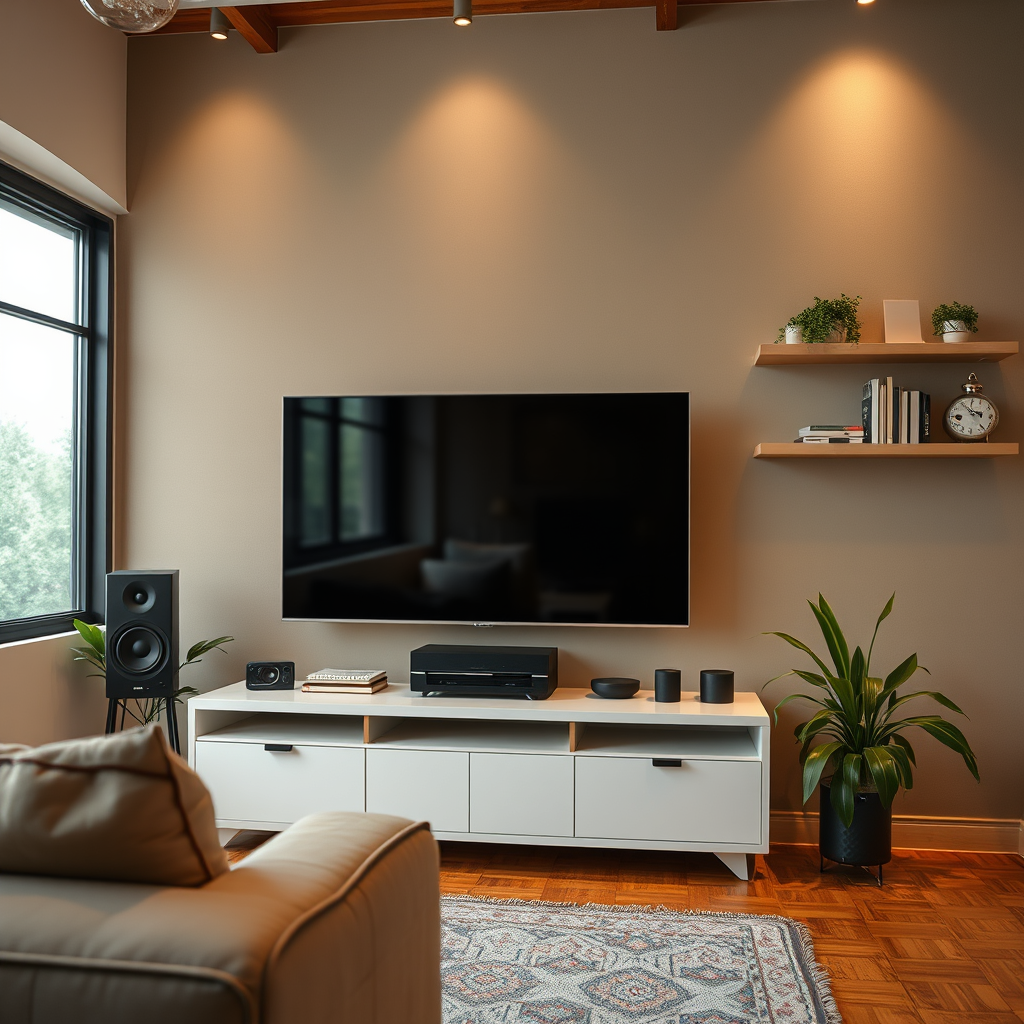
Before you connect any speakers, it’s crucial to understand the audio outputs available on your TV. Most modern televisions come equipped with several connection options, including HDMI, optical (TOSLINK), and RCA. HDMI ARC (Audio Return Channel) allows for high-quality audio transmission, while optical connections provide a digital audio signal, ideal for surround sound systems. Alternatively, RCA outputs, often color-coded in red and white, are common in older models and are suitable for basic stereo sound.
To ensure a successful connection, check the compatibility of your speakers with these outputs. Most powered speakers will connect easily with RCA or 3.5mm jacks, while soundbars and home theater systems often utilize HDMI or optical connections. Verify the specifications of your speakers to determine the best method for connecting to your television.
Choosing Between Wired and Wireless Speakers
When deciding on the type of speakers to connect to your TV, it’s essential to weigh the benefits of wired versus wireless options.
Wired speakers offer a reliable connection with minimal audio latency, which is particularly important for gaming or watching action-packed movies. They do not require batteries and usually deliver superior sound quality due to the direct connection. However, they can limit your placement options due to the need for cables.
On the other hand, wireless speakers provide convenience and flexibility in placement. They can be positioned anywhere in the room without the hassle of wires, allowing for a cleaner aesthetic. Bluetooth and Wi-Fi-enabled speakers are increasingly popular, but they may experience interference or require battery management. Ultimately, the choice between wired and wireless speakers will depend on your specific needs and the layout of your space.
Connecting Wired Speakers to Your TV
To connect wired speakers to your TV, follow these step-by-step instructions based on the type of audio output available:
1. Identify the Output: Check your TV for audio outputs. If you have RCA outputs, locate the red and white audio ports. For a 3.5mm audio jack, look for a headphone-shaped port.
2. Connect RCA Speakers:
– Plug the red and white RCA cables into the corresponding ports on the TV.
– Connect the other ends to the speakers, ensuring that the colors match.
3. Connect 3.5mm Speakers:
– Insert the 3.5mm audio jack into the headphone port of your TV.
– Connect the other end to your speakers.
4. Secure Connections: Make sure all connections are tight and secure to avoid audio interference or dropouts.
5. Power On: Turn on your TV and speakers, adjusting the volume as needed.
6. Test the Audio: Play a video or audio source to ensure that sound is coming through the speakers correctly.
By following these steps, you can easily set up your wired speakers for an enhanced audio experience.
Popular Wired Speaker Models (2024)
| # | Speaker Model | Type | Power Output (W) | Rating |
|---|---|---|---|---|
| 1 | Edifier R980T | Bookshelf | 24 | ★★★★☆ |
| 2 | Logitech Z623 | 2.1 Speaker | 200 | ★★★★★ |
| 3 | Mackie CR3-XBT | Studio Monitor | 50 | ★★★★☆ |
| 4 | Creative Pebble 2.0 | Desktop | 4.5 | ★★★★☆ |
| 5 | Kanto YU4 | Bookshelf | 120 | ★★★★★ |
| 6 | Klipsch R-41M | Bookshelf | 50 | ★★★★☆ |
| 7 | Polk Audio T15 | Bookshelf | 100 | ★★★★★ |
Setting Up Wireless Speakers
Setting up wireless speakers can enhance your audio experience with the freedom of placement and reduced cable clutter. There are two primary wireless technologies for audio: Bluetooth and Wi-Fi.
Bluetooth Speakers:
1. Power On: Turn on the Bluetooth speaker and set it to pairing mode (refer to your speaker’s manual for specifics).
2. Access TV Settings: On your TV, navigate to the Bluetooth settings menu.
3. Pair Devices: Select your speaker from the list of available devices and confirm the pairing.
4. Test Sound: Play audio to ensure the connection is successful.
Wi-Fi Speakers (like Sonos or similar):
1. Download Manufacturer App: Install the app associated with your Wi-Fi speakers on your smartphone or tablet.
2. Connect to Wi-Fi: Follow the app’s instructions to connect the speakers to your home Wi-Fi network.
3. Link to TV: Use the app to link your speakers with the TV, often via a streaming service or smart device feature.
4. Adjust Settings: Fine-tune audio settings for optimal performance.
If you encounter issues during the setup, common troubleshooting steps include ensuring both devices are updated to the latest firmware, checking for network connectivity, and verifying that the speakers are within range of the TV.
Adjusting Audio Settings for Optimal Sound
Once your speakers are connected, it’s essential to adjust your TV’s audio settings for the best sound quality. Access the audio settings menu on your TV, where you can make several adjustments:
1. Audio Output: Select the correct output option (e.g., external speakers, Bluetooth, etc.).
2. Equalizer Settings: Many TVs offer customizable equalizer settings. Experiment with treble, bass, and midrange to find a balance that suits your preference.
3. Volume Levels: Set your speakers to an appropriate volume level to avoid distortion and ensure clarity.
4. Audio Formats: If your setup supports surround sound, enable the relevant audio format (e.g., Dolby Digital) for an immersive experience.
Experimenting with these settings can drastically improve your listening experience, making your home entertainment feel more professional and enjoyable.
Troubleshooting Common Connection Issues
Even with the best equipment, issues can arise when connecting speakers to your TV. Here are some common problems and their solutions:
– No Sound: Ensure that the correct audio output is selected on your TV and that the speakers are powered on. Check all connections for security.
– Intermittent Audio: This could be caused by loose cables or interference from other wireless devices. Move other devices away from the speakers and ensure cables are tightly connected.
– Latency Issues: If you’re using Bluetooth speakers and notice a delay in audio, try reducing the distance between the speaker and the TV or consider using a dedicated low-latency Bluetooth transmitter.
– Volume Mismatch: If the sound is too low, check both the TV and speaker volume settings. Sometimes, the TV may have its audio output set lower than the system volume.
By following these troubleshooting steps, you can ensure a seamless connection and a superior audio experience.
Exploring Additional Audio Equipment
If you are looking to enhance your TV’s audio experience further, consider exploring additional audio equipment such as soundbars and home theater systems.
Soundbars: These compact devices are designed to deliver high-quality sound in a sleek package, often providing surround sound capabilities without the need for multiple speakers scattered throughout the room. Many soundbars come equipped with subwoofers for added bass, making them an excellent choice for movie enthusiasts.
Home Theater Systems: For a more immersive experience, a complete home theater system can offer superior audio quality with multiple speakers placed around the room. These systems often include a receiver that manages audio formats and delivers a cinematic sound experience.
Regardless of your choice, investing in quality audio equipment can significantly elevate your home entertainment experience, making movies and music more enjoyable.
Summarizing the steps to connect speakers to your TV, you can easily enhance your audio setup by following the methods outlined above. Whether you choose wired or wireless options, ensure compatibility and adjust your audio settings for the best performance. Start enjoying a richer sound experience by connecting your speakers today!
Frequently Asked Questions
How do I connect my Bluetooth speakers to my TV?
To connect Bluetooth speakers to your TV, first ensure that your TV has Bluetooth capability. Go to your TV’s settings, find the Bluetooth menu, and put your speakers in pairing mode. Select your speakers from the list of available devices on your TV, and once connected, you should hear audio through your speakers.
What cables do I need to connect my speakers to my TV?
The type of cables you need to connect your speakers to your TV depends on the speaker type. For wired speakers, you generally need speaker wire or RCA cables. If you’re connecting through an optical output, an optical cable will be necessary. Always refer to your TV and speaker’s manuals for specific connection requirements.
Why is there no sound from my connected speakers to the TV?
If there is no sound from your connected speakers, first check the volume levels on both the TV and the speakers. Ensure that the correct audio output is selected in your TV settings. Additionally, verify all connections are secure and, if using Bluetooth, confirm that the speakers are properly paired and connected.
Which type of speakers are best for connecting to my TV?
The best type of speakers for connecting to your TV largely depends on your space and audio preferences. Soundbars are popular for their ease of setup and space-saving design, while traditional surround sound systems offer a more immersive experience. Wireless speakers are great for flexibility, and powered speakers provide excellent sound quality without needing a separate amplifier.
How can I set up a surround sound system with my TV?
To set up a surround sound system with your TV, start by connecting the main unit (like a receiver) to your TV using HDMI ARC or optical cables. Position the speakers around your room according to the system’s guidelines, typically with front left, front right, center, and surround speakers. Finally, configure your TV’s audio settings to output sound to the surround sound system for an enhanced audio experience.
References
- https://www.lifewire.com/how-to-connect-speakers-to-tv-1846584
https://www.lifewire.com/how-to-connect-speakers-to-tv-1846584 - https://www.pcmag.com/how-to/how-to-set-up-a-soundbar-with-your-tv
https://www.pcmag.com/how-to/how-to-set-up-a-soundbar-with-your-tv - https://www.bbc.com/news/technology-48156382
https://www.bbc.com/news/technology-48156382 - Google Scholar Google Scholar
https://scholar.google.com/scholar?q=connect+speakers+to+TV - Google Scholar Google Scholar
https://scholar.google.com/scholar?q=speaker+connection+to+television - Google Scholar Google Scholar
https://scholar.google.com/scholar?q=audio+output+TV+speakers - Google Scholar Google Scholar
https://scholar.google.com/scholar?q=how+do+you+connect+speakers+to+tv - how do you connect speakers to tv – Search results
https://en.wikipedia.org/wiki/Special:Search?search=how+do+you+connect+speakers+to+tv - https://www.ncbi.nlm.nih.gov/search/research-articles/?term=how+do+you+connect+speakers+to+tv
https://www.ncbi.nlm.nih.gov/search/research-articles/?term=how+do+you+connect+speakers+to+tv
