
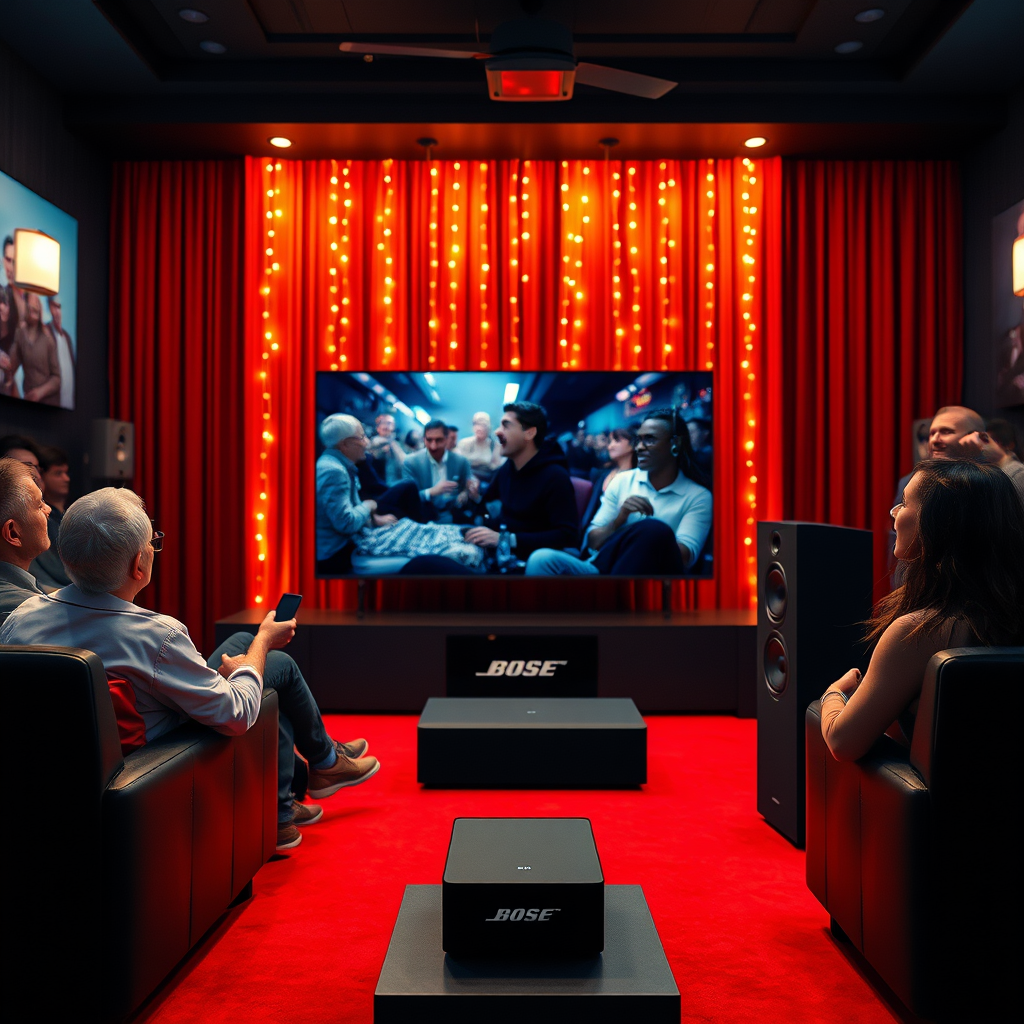

Connecting your Bose speakers to your TV is a straightforward process that can enhance your audio experience significantly. Whether you have a soundbar, a home theater system, or Bluetooth speakers, this guide will walk you through the necessary steps to get your speakers up and running with your television. With the right connections, you will be able to enjoy immersive sound quality that complements your viewing experience, making movies and music more enjoyable.
Understanding the Types of Bose Speakers
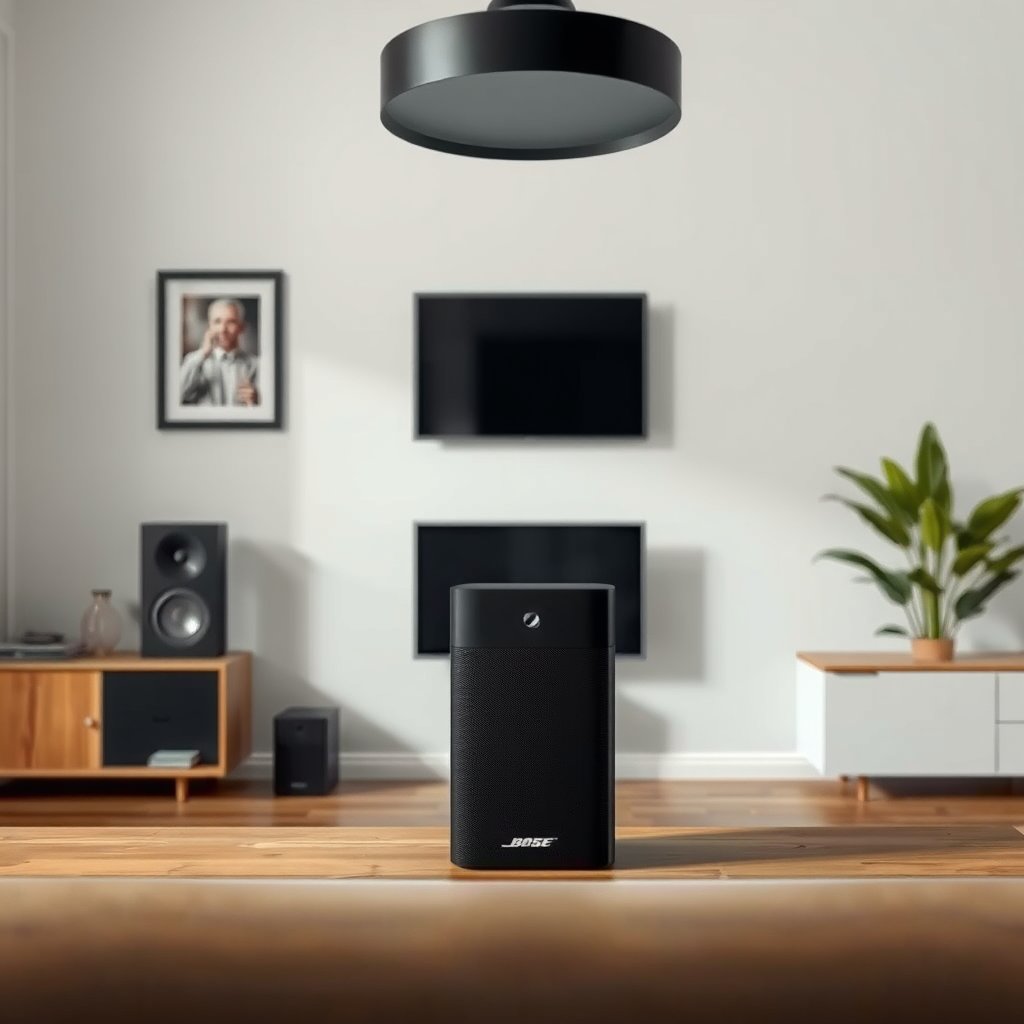
Bose offers a diverse range of speakers to fit various audio preferences and home setups. Understanding the types available is crucial for effectively connecting them to your TV.
– Different models: Bose speakers come in several categories, including soundbars like the Bose Soundbar 700, Bluetooth speakers such as the Bose SoundLink Revolve+, and home theater systems like the Bose Lifestyle 650. Each type is designed for specific use cases, from casual listening to full cinematic experiences.
– Connectivity options: Depending on the model, Bose speakers can connect to your TV in multiple ways. The most common methods include HDMI (ARC), optical cables, and Bluetooth. Understanding these methods will help you choose the right one for your setup.
Preparing Your Bose Speakers
Before diving into the connection process, it’s important to prepare your Bose speakers properly.
– Unboxing and setup: Carefully unbox your Bose speakers and place them in a strategic location for optimal sound quality. For example, soundbars are best placed directly in front of the TV, while surround sound speakers should be positioned around the room to create an enveloping audio environment.
– Powering up: Ensure that your speakers are connected to a power source and turned on. Check that the LED indicators are lit, indicating that they are ready to connect.
Connecting via HDMI
One of the most efficient ways to connect your Bose speakers to your TV is through HDMI.
– Identify HDMI ARC: Look for the HDMI ARC (Audio Return Channel) port on your TV. This is usually labeled and is distinct from standard HDMI ports. Connect one end of the HDMI cable to this port and the other to your Bose speaker.
– Configuration: After physically connecting the cable, adjust your TV settings. Navigate to the audio settings menu and ensure that the audio output is set to the HDMI device you just connected. This will allow sound to route through the Bose speakers seamlessly.
Connecting via Optical Cable
If HDMI isn’t an option for your setup, an optical cable is a great alternative.
– Optical connection: Use a digital optical audio cable to connect your Bose speaker to the TV’s optical audio output. This type of connection offers excellent sound quality and is widely supported by various TV models.
– Setting audio modes: Once the optical cable is connected, access your TV’s audio settings to switch the audio output to the optical output. This ensures that sound is delivered through the speaker rather than the TV’s built-in speakers.
Connecting via Bluetooth
For wireless convenience, Bluetooth is an ideal method for connecting your Bose speakers.
– Pairing mode: First, put your Bose speakers into Bluetooth pairing mode. This is typically done by pressing a specific button on the speaker. Next, access the Bluetooth settings on your TV.
– Completing the connection: From the list of available Bluetooth devices, select your Bose speakers. Once selected, confirm the pairing request on both the TV and the speakers, if prompted. This will establish a wireless connection, allowing you to enjoy audio without any cables.
Troubleshooting Common Issues
Despite the straightforward process, you may encounter some common issues when connecting your Bose speakers to your TV.
– No sound: If you experience no audio, first double-check all physical connections to ensure they are secure. Next, revisit the TV’s audio settings to confirm that the correct output source is selected.
– Sync issues: If there’s a noticeable audio delay, you can address this by adjusting the audio delay settings available in your TV’s menu. Many modern TVs provide options to sync audio and video more effectively.
Comparison of Bose Speaker Models (2024)
| # | Model | Type | Connection | Rating |
|---|---|---|---|---|
| 1 | Bose Soundbar 700 | Soundbar | HDMI, Optical, Bluetooth | ★★★★☆ |
| 2 | Bose SoundLink Revolve+ | Bluetooth Speaker | Bluetooth | ★★★★★ |
| 3 | Bose Lifestyle 650 | Home Theater | HDMI, Optical | ★★★★☆ |
| 4 | Bose SoundTouch 300 | Soundbar | HDMI, Optical, Bluetooth | ★★★★☆ |
| 5 | Bose SoundLink Mini II | Bluetooth Speaker | Bluetooth | ★★★★☆ |
| 6 | Bose Companion 2 | PC Speakers | 3.5mm, USB | ★★★★☆ |
| 7 | Bose QuietComfort 35 II | Noise Cancelling Headphones | Bluetooth | ★★★★★ |
Enjoying Your Setup
Once your Bose speakers are connected, it’s time to enjoy the enhanced audio experience.
– Testing audio: Play a variety of media, such as movies, TV shows, or music, to evaluate the sound quality. This is also a good time to experiment with different volume levels and audio settings to find what works best for your preferences.
– Customizing settings: Explore the additional settings on your Bose speakers, such as equalizer options that allow you to personalize the audio output based on your listening environment and preferences.
In summary, connecting your Bose speakers to your TV can significantly elevate your audio experience. By understanding the various connection methods, properly preparing your equipment, and troubleshooting common issues, you can enjoy high-quality sound that complements your viewing. Remember to test your setup and adjust the settings as necessary for the best performance. If you encounter challenges beyond your control, consulting the user manual or reaching out to Bose support can provide further assistance. Enjoy your enhanced audio journey!
Frequently Asked Questions
How do I connect my Bose speakers to my TV wirelessly?
To connect your Bose speakers wirelessly to your TV, ensure that your TV supports Bluetooth connectivity. First, put your Bose speakers in pairing mode by pressing the Bluetooth button, then navigate to your TV’s Bluetooth settings to find and select your speakers. Once connected, you should be able to enjoy audio from your TV through your Bose speakers seamlessly.
What cables do I need to connect my Bose speakers to my TV?
To connect your Bose speakers to your TV using wires, you typically need either an optical audio cable or an HDMI ARC cable, depending on the available ports on your TV and the specific model of your Bose speakers. Ensure that the selected cable matches the output on your TV and the input on your Bose speakers for optimal sound quality.
Why is my Bose speaker not connecting to my TV?
If your Bose speaker is not connecting to your TV, it may be due to a few common issues. Check if your speaker is in pairing mode, ensure that Bluetooth is enabled on your TV, and verify that the speaker is within range. Additionally, confirm that there are no other devices connected that may interfere with the pairing process.
Which Bose speakers are best for TV use?
The best Bose speakers for TV use are the Bose SoundTouch 300 Soundbar and the Bose Companion 2 Series III speakers. The SoundTouch 300 offers immersive sound and easy connectivity options, while the Companion 2 is a great choice for smaller spaces with clear audio quality. Both options enhance your TV viewing experience significantly.
How can I adjust the audio settings after connecting my Bose speakers to my TV?
After connecting your Bose speakers to your TV, you can adjust the audio settings through your TV’s sound menu. Look for options such as equalizer settings, audio delay, and speaker balance to fine-tune the sound to your preference. Additionally, if you’re using a soundbar, you may have access to dedicated settings within the soundbar app for further customization.
References
- Customer Support
https://www.bose.com/en_us/support/article/how-to-connect-bose-speakers-to-tv.html - https://scholar.google.com/scholar?q=how+to+connect+bose+speakers+with+tv Google Scholar
https://scholar.google.com/scholar?q=how+to+connect+bose+speakers+with+tv - Google Scholar Google Scholar
https://scholar.google.com/scholar?q=Bose+speaker+TV+connection+guidelines - https://www.britannica.com/technology/speaker
https://www.britannica.com/technology/speaker - https://www.lifewire.com/how-to-connect-bose-speakers-to-your-tv-4689268
https://www.lifewire.com/how-to-connect-bose-speakers-to-your-tv-4689268 - https://www.pcmag.com/how-to/how-to-connect-your-soundbar-to-your-tv
https://www.pcmag.com/how-to/how-to-connect-your-soundbar-to-your-tv - how to connect bose speakers with tv – Search results
https://en.wikipedia.org/wiki/Special:Search?search=how+to+connect+bose+speakers+with+tv - https://www.ncbi.nlm.nih.gov/search/research-articles/?term=how+to+connect+bose+speakers+with+tv
https://www.ncbi.nlm.nih.gov/search/research-articles/?term=how+to+connect+bose+speakers+with+tv
