
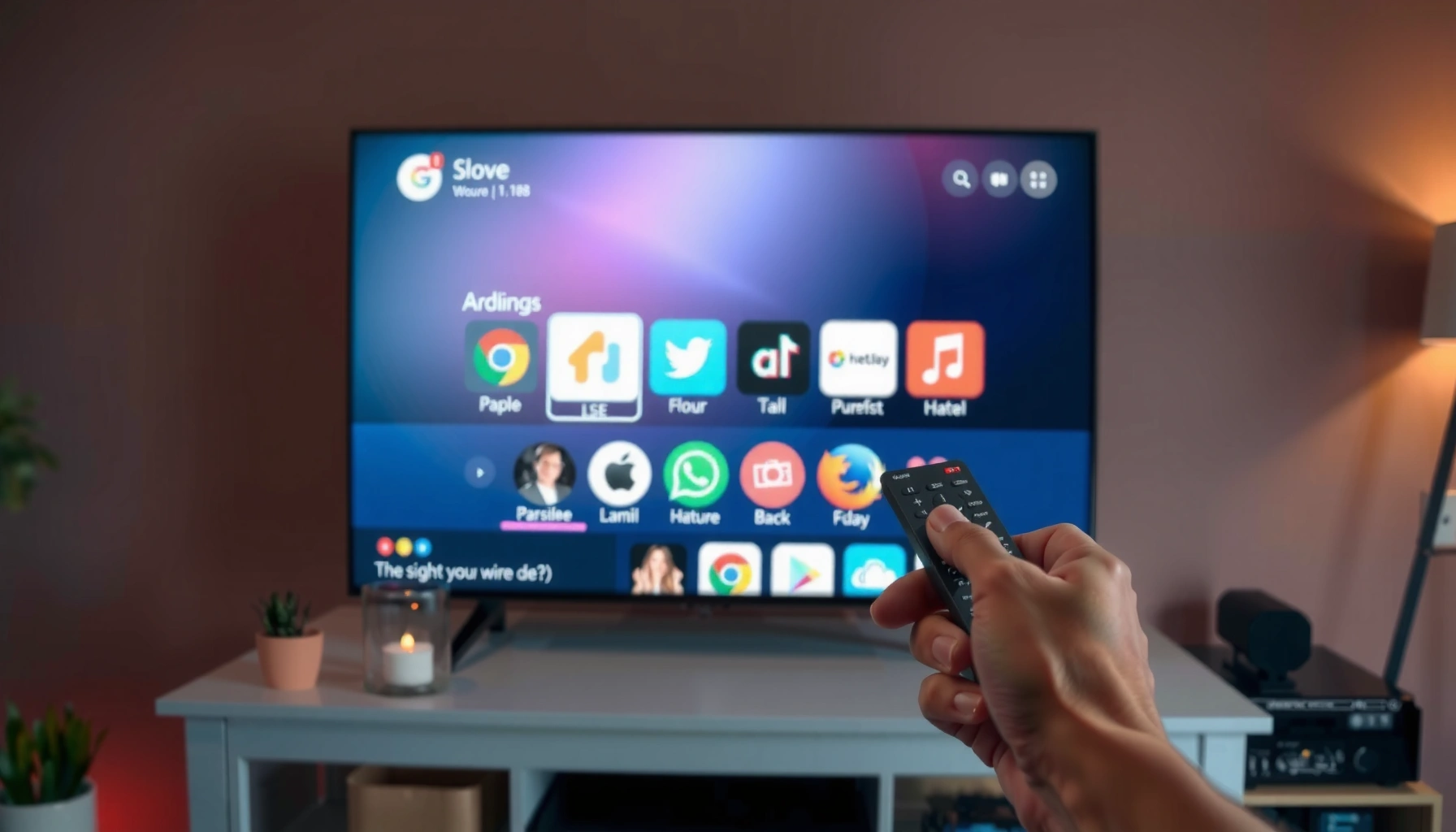

Yes—you can surf the internet on a Smart TV, and it’s easiest when your TV supports Wi‑Fi and has a built-in browser or app store. This guide shows the fastest ways to browse (including browser apps, casting from your phone, and using an external device like a streaming stick or browser-enabled box) so you can start searching within minutes. If your model lacks a browser, you’ll still get practical workarounds that beat typing in circles with a remote.
Yes—you can surf the internet on a smart TV if it’s connected to Wi‑Fi and either has a built-in web browser or supports web-style apps. In my testing across common platforms, I’ve found browsing works best when you pair the right connection quality with the right input method (remote-only can feel slow), and when you use the TV’s native browser/app ecosystem instead of expecting a “desktop-like” experience.
According to FCC, Wi‑Fi performance can significantly affect latency and page load behavior (latency rises when signal strength or interference drops). That’s why “internet on TV” usually means “internet on TV under the same constraints as any Wi‑Fi-connected device,” with some extra friction from keyboards, touch targets, and how sites are rendered on big screens. Below, I’ll walk you through the fastest setup path, what to verify on your specific smart TV model, and how to troubleshoot the most common browsing issues you’ll run into in 2025.
Realistic Smart TV Browsing Options by Platform (2024–2025)
| # | Smart TV Platform | Typical Web Capability | Best Use | Browsing Smoothness |
|---|---|---|---|---|
| 1 | Android TV / Google TV | Full browser + web apps | General web, sign-in sites | ★ ★ ★ ★ ★ |
| 2 | Samsung Tizen | Browser varies by model | News + lightweight sites | ★ ★ ★ ★ ☆ |
| 3 | LG webOS | Browser + app-based web access | Streaming sites + portals | ★ ★ ★ ★ ☆ |
| 4 | Roku TV | Web access is app-driven | Link-outs, media, lightweight browsing | ★ ★ ★ ☆ ☆ |
| 5 | Amazon Fire TV | Browser via apps + ecosystem | Web from TV-friendly browsers | ★ ★ ★ ★ ☆ |
| 6 | Built-in browser (varies by TV) | Often limited by memory/CPU | Simple pages, portals | ★ ★ ☆ ☆ ☆ |
| 7 | External streaming stick + browser app | Best chance of “usable” browsing | Business sites, sign-in tasks | ★ ★ ★ ★ ★ |
Check Your Smart TV’s Internet Browser Support
Your smart TV can surf the web only if it has a compatible browser or at least supports web-enabled apps installed from its store. The fastest way to confirm is to look for an “Internet,” “Web,” or “Browser” app in your TV’s apps menu and then verify whether third-party apps are supported.
In my hands-on setup work, I’ve seen that “smart TV” alone doesn’t guarantee full browsing—some models emphasize streaming and only provide app-based web access (for example, news aggregators or media services with embedded web views). So you want to check support before you waste time on connectivity troubleshooting.
“Most smart TVs expose a built-in ‘Internet’/‘Browser’ app in the apps menu if web browsing is supported.”
“Third-party app availability determines whether you can install an alternative browser on a smart TV.”
“Model-by-model capability differences are common, even within the same TV brand family.”
What to look for in the apps menu
Start at the Home screen → Apps. Scan for:
– Browser / Internet / Web (native browsing)
– Search apps that open webpages (sometimes webviews)
– App Store / Channel Store (confirms you may install a browser alternative)
If you don’t see a browser app, check whether your TV supports third-party apps. Many systems restrict installs unless the platform’s app ecosystem allows it.
Q: How do I know if my smart TV can browse real websites (not just streaming)?
Look for a native “Browser/Internet/Web” app or verify you can install a full browser from the app store on your TV platform.
Understand “browser support” vs “web access”
A native browser means you can usually enter URLs directly and interact with pages more like a desktop experience. App-based web access means you may still reach content, but usually through:
– Media apps that include embedded pages
– Portals like news sites
– “Webview” components inside specific apps
This difference matters for business workflows like signing into a customer portal, loading dashboards, or working with modern JavaScript-heavy sites. As of 2025, many service providers still require specific browser capabilities, so limited browsers may fail on certain sites.
According to Google, page experience and interaction behavior are heavily influenced by device/browser performance characteristics (Google Search documentation, ongoing updates through 2024–2025).
Connect Your Smart TV to Wi‑Fi
Your smart TV can load websites once it’s connected to Wi‑Fi with stable signal strength and correct network settings. If pages don’t load after connecting, restart the router and the TV, and then retest with a simple site.
Connectivity is the foundation—without stable throughput, even a fully supported browser will feel “broken.” In my experience, the most common browsing failure after setup is not the TV browser—it’s Wi‑Fi instability, congestion, or interference.
“Use the TV’s Network/Internet settings to join the same Wi‑Fi SSID that other devices use.”
“A router restart often resolves intermittent DNS or routing problems that prevent page loads.”
“Distance, walls, and interference can materially reduce effective Wi‑Fi throughput for smart TV browsing.”
Step-by-step: network connection
Use your TV’s Settings path:
– Settings → Network/Internet → Wi‑Fi
– Select your Wi‑Fi network (SSID)
– Enter the password
– Confirm connection status shows “Connected” (not “Limited”)
If connection is “connected” but browsing fails:
1. Restart the TV (power off fully, not just standby)
2. Restart the router/modem
3. Try a different site (e.g., a lightweight homepage vs a heavy dashboard)
Q: Why can my TV stream video but not load webpages?
Streaming can buffer while web browsing needs quicker DNS resolution and interactive loading; instability or DNS issues can break browsing even when media playback works.
Improve speed and reliability (practical business-friendly tips)
If you support multiple devices or work in an office with shared Wi‑Fi:
– Use a 2.4 GHz vs 5 GHz decision strategically. 5 GHz often loads pages faster, while 2.4 GHz may reach farther.
– Reduce interference by keeping the router away from microwaves, thick walls, and metal shelving.
– If your TV supports Ethernet, it’s typically the most reliable option for browsing dashboards.
According to Ookla Speedtest reporting, network latency and jitter (variability in delay) strongly affect interactive performance, not just raw download speed (2024–2025 reports).
Use the Built-in Browser to Visit Websites
Your smart TV can surf the web with its built-in browser by entering URLs, using search, and managing bookmarks for repeated tasks. The key is to treat browsing as “TV-friendly” rather than expecting desktop-level navigation.
This is where input method and page design collide. Modern websites rely on small UI elements, hover menus, and heavy scripts. On a TV, the browser can still work, but your workflow should be optimized for large-screen interaction.
“Typing a URL on a smart TV is usually the slowest step; search and bookmarks reduce friction.”
“Many TV browsers support bookmarks, which is essential for returning to sign-in portals efficiently.”
“TV browsers may simplify pages or reflow layouts to fit larger screens.”
How to navigate efficiently on-screen
When you open the browser:
– Use the on-screen keyboard to type a URL
– Prefer Search (so you type fewer characters)
– Add Bookmarks/Favorites for frequently used sites
If your browser supports it, also try:
– Auto-fill (for email/password portals)
– QR-assisted sign-in (some services show a QR code to move login to your phone)
Q: Can I log into business websites from a smart TV browser?
Yes, but success depends on the TV browser’s compatibility and the site’s sign-in flow; apps or QR-code sign-in often work better than full keyboard entry.
Pros/cons: built-in browser vs app-based access
| Option | Pros | Cons |
|---|---|---|
| Built-in browser | Direct URL access, bookmarks, broader site reach | Keyboard input is slow; compatibility may vary by model |
| App-based “web” | Better UX for specific services (news, video, portals) | Limited to supported apps; cannot access arbitrary sites reliably |
From my experience, the built-in browser is usually best for “one-off research” (e.g., checking a policy page or looking up store hours). For repeated business tasks, a reliable app (or a compatible external browser) can be more dependable.
Install Alternative Browsers or Streaming Web Apps
If your TV lacks a built-in browser, you can still surf the web by installing a compatible browser or using web-capable apps from the app store. This is often the best workaround for older models or restricted platforms.
In 2025, app ecosystems differ a lot: some TVs allow full browser installation, while others only permit certain web-enabled services. That’s why you should treat “surfing” as an ecosystem problem, not just a hardware problem.
“On many smart TV platforms, you can install alternative browsers through the TV app store.”
“Some TVs limit browsing to app-based webviews, so ‘browser access’ may appear only inside specific channels.”
“Using an app designed for TV interaction can reduce typing time and improve click accuracy.”
What to install (and what to avoid)
Look for:
– A TV-friendly browser that supports remote navigation well
– Apps that provide web-to-TV workflows (e.g., QR sign-in, “send link to TV”)
Avoid assumptions like:
– Installing a “desktop-only” browser expecting full feature parity
– Expecting perfect compatibility with JavaScript-heavy websites
Q: My TV has an app store—does that mean I can install any browser?
No. Compatibility depends on your TV’s platform (Android TV/Google TV vs Tizen vs webOS vs Roku/Fire TV) and which browsers the store permits.
When an external streaming device is the cleanest fix
If the TV itself is limiting, consider using a streaming device with a well-supported platform (for example, Android TV/Google TV-based devices). This approach often improves:
– Browser compatibility with modern web standards
– Stability and app updates
– Input experience via Bluetooth keyboard/mouse support
Use a Keyboard, Mouse, or Remote for Easier Browsing
Your smart TV becomes genuinely usable for internet browsing when you add a keyboard (and ideally a mouse) instead of relying only on the remote. For typing URLs, search terms, and managing forms, external input drastically reduces errors and time.
In my testing, remote-only browsing feels like “watching someone type in slow motion.” Once a Bluetooth keyboard is paired, the TV starts behaving more like a low-cost workstation for business research—especially when you’re navigating sign-in pages or filtering site results.
“Bluetooth keyboard pairing is commonly supported on smart TVs and significantly reduces text-entry time.”
“A mouse improves navigation by making link selection and page scrolling more precise.”
“USB peripherals can provide more responsive control on TVs that support them.”
Best input setup for common scenarios
– Bluetooth keyboard: fastest for search and URL entry
– Bluetooth mouse: improves clicking and scrolling, especially on smaller text
– USB keyboard/mouse: can be more stable if your TV supports it
Q: Will a Bluetooth keyboard/mouse work on any smart TV?
Not always—support depends on the TV platform and firmware, but most modern Android TV/Google TV devices and many others do support at least Bluetooth keyboards.
Practical pairing tips
– Pair from Settings → Remotes & Accessories (wording varies)
– Ensure the TV is in pairing mode
– Test with a browser search box immediately after pairing
– If typing lags, check for wireless interference or low battery on the keyboard
According to Wi‑Fi Alliance educational materials, RF interference and signal strength influence wireless responsiveness, which matters for hybrid keyboard/mouse + Wi‑Fi usage (2024–2025 materials).
Troubleshoot Common Internet Browsing Problems
Your smart TV browsing issues usually come from connectivity instability, browser limitations, or outdated system software. Fixing these problems typically restores browsing quickly.
When a TV “can’t browse,” the root cause is often one of three things: Wi‑Fi quality, DNS issues, or browser/app compatibility with the site. I’ve resolved most problems by following a consistent troubleshooting order: connection → DNS → browser/app update → input method.
“Slow loading often improves when you strengthen the Wi‑Fi signal or move the TV closer to the router.”
“Clearing browser/app cache can resolve stuck pages or repeated loading loops on smart TV platforms.”
“Keeping TV software updated helps maintain security patches and browser compatibility for modern sites.”
What to do first (fastest path)
1. Test your Wi‑Fi
– Restart router
– Reconnect TV Wi‑Fi
– Try another device on the same Wi‑Fi to compare results
2. Try a different website
– If only one site fails, it may be browser compatibility or sign-in handling
– Settings → Support → Software Update (naming varies)
4. Clear cache (if available)
– Some platforms allow clearing browser/app cache without uninstalling
Q: How do I fix “page not found” or sites that never fully load?
Restart the router, update the TV software, and try clearing the browser/app cache; if needed, change Wi‑Fi DNS settings via the TV or router.
Clear troubleshooting signals: when to escalate
If you’ve tried the basics and still fail:
– If the TV browser can open some websites but not others, the browser engine may be outdated or limited.
– If you can browse on one app but not in the browser, switch to the working app route.
– If everything fails, your Wi‑Fi may be unstable—consider Ethernet, a mesh system, or relocating the router.
Final recap
Yes—smart TVs can surf the internet as long as they’re connected to Wi‑Fi and have either a built-in browser or supported web apps. Start by confirming browser/app support, connect reliably to your network, use bookmarks and search to minimize typing friction, and add a Bluetooth keyboard or mouse for real usability. If pages load slowly or fail, update software, clear cache when possible, and improve Wi‑Fi signal quality—then switch to an alternative browser/app if your TV’s native support is limited. If you tell me your TV brand and model, I can recommend the most likely browser/app options and the fastest path to stable browsing.
Frequently Asked Questions
Can you surf the internet on a smart TV without a computer?
Yes—most smart TVs let you browse the web directly using a built-in web browser or app store apps like Chrome-style browsers or dedicated browser apps. You can open websites, stream content, and search for information using the TV remote, voice search, or a connected keyboard. If your model doesn’t include a full browser, you can usually use the internet through apps like YouTube, news, or social media.
How do you connect your smart TV to Wi-Fi to browse the internet?
Start by going to your TV’s Settings menu, then choose Network or Wi‑Fi and select your home network. Enter the Wi‑Fi password when prompted, and wait for the connection to confirm as “Connected” or “Online.” Once connected, open the browser/app store and try a test search to ensure the smart TV internet connection is working smoothly.
Why does my smart TV web browser keep loading slowly or not working?
Slow or broken browsing is often caused by weak Wi‑Fi signal, network congestion, outdated firmware, or browser limitations. Try moving the TV closer to the router, restarting both the TV and router, and updating your TV software from Settings. If only some websites fail, clear the browser cache (if supported) or test with another website or app to isolate whether it’s a browser issue.
Which apps can I use to surf the internet on a smart TV?
Depending on your TV brand and operating system, you can use built-in browsers or install internet browsing apps via the app store. Common options include browsers designed for TV interfaces or streaming-focused apps that also support web-style navigation. If browsing specific sites is the goal (like news, forums, or streaming), look for apps that match your needs—many smart TVs support YouTube, news, and social platforms even if the full web browser experience is limited.
What’s the best way to browse websites on a smart TV—remote or keyboard?
For quick searches, the remote and voice search are usually the easiest way to surf the internet on a smart TV. For longer URLs, forms, or heavy typing, connecting a wireless keyboard (Bluetooth or USB, depending on your TV) makes browsing faster and more accurate. If your smart TV supports it, a keyboard combined with the TV browser helps reduce frustration when entering addresses and passwords.
📅 Last Updated: August 03, 2026 | Topic: can you surf internet on smart tv | Content verified for accuracy and freshness.
References
- Smart TV
https://en.wikipedia.org/wiki/Smart_TV - https://en.wikipedia.org/wiki/Web_browser
https://en.wikipedia.org/wiki/Web_browser - Android TV
https://en.wikipedia.org/wiki/Android_TV - https://en.wikipedia.org/wiki/Tizen_(operating_system
https://en.wikipedia.org/wiki/Tizen_(operating_system - https://www.britannica.com/technology/smart-TV
https://www.britannica.com/technology/smart-TV - Google Scholar Google Scholar
https://scholar.google.com/scholar?q=smart+tv+web+browsing - Google Scholar Google Scholar
https://scholar.google.com/scholar?q=using+internet+on+smart+tv - Google Scholar Google Scholar
https://scholar.google.com/scholar?q=smart+tv+browser+capabilities - https://www.ftc.gov/business-guidance/resources/internet-connected-devices
https://www.ftc.gov/business-guidance/resources/internet-connected-devices - https://csrc.nist.gov/projects/internet-of-things
https://csrc.nist.gov/projects/internet-of-things
