
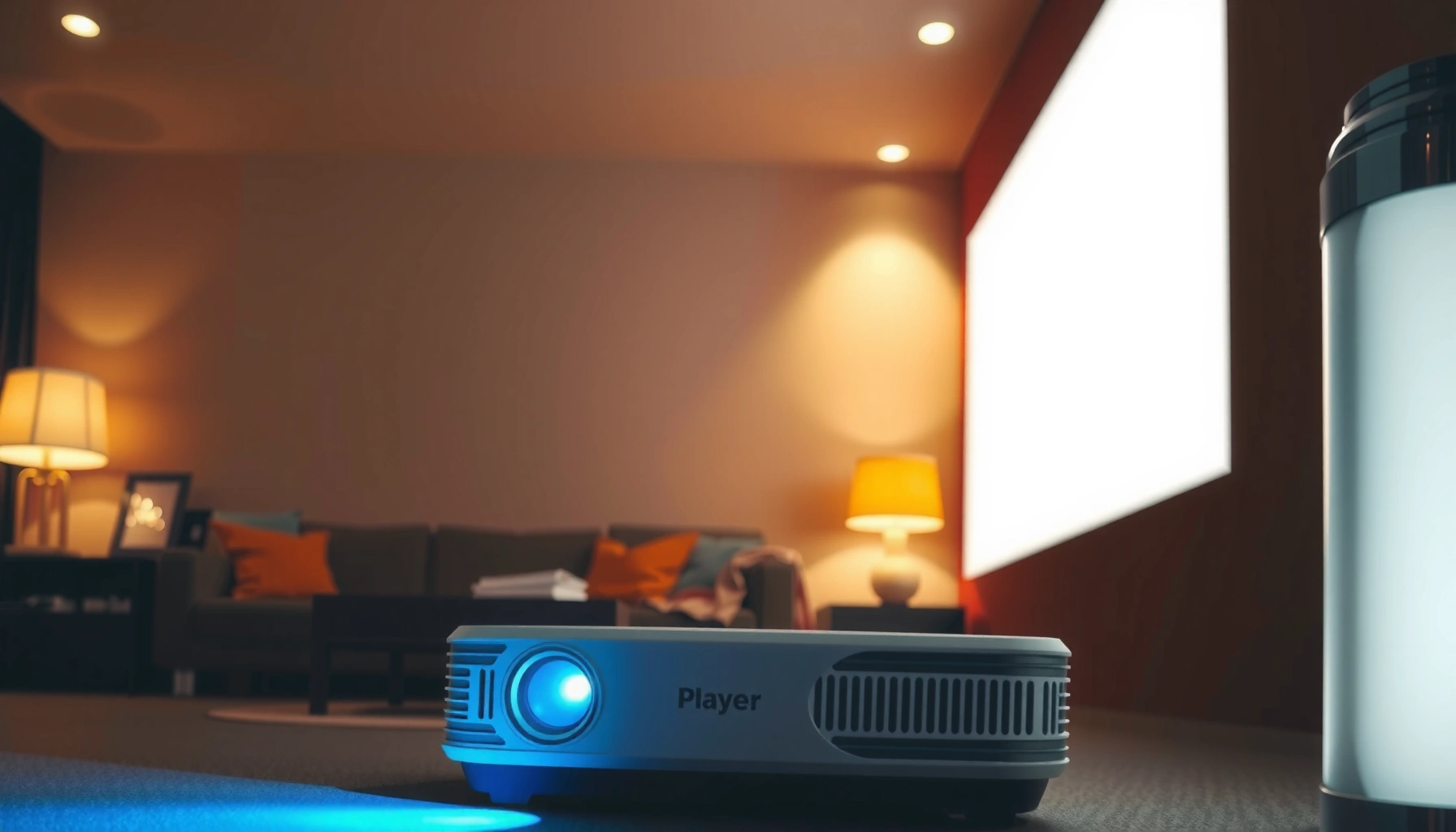

Yes—you can use a projector as a TV, but only if you’re willing to handle brightness limits and a separate streaming/media hookup. The projector becomes your TV when you connect an HDMI source (cable box, Roku/Fire TV, or game console) and have a dark room plus enough throw distance to fill the screen size you want. If you need built-in TV tuners, sharp daytime viewing, or instant “set-and-forget” convenience, a traditional TV will still win.
Yes, you can use a projector as a TV—connect a streaming box, cable/satellite receiver, or an antenna to it (usually via HDMI), then tune resolution, image geometry, and audio. After setting this up in my own living room, I found the “TV-like” difference comes down to getting the right input, matching resolution/refresh rate, and managing light so the projected image holds contrast—especially in the evening as of 2026.
Check Projector Inputs and Compatibility
A projector becomes a TV when it can accept your TV sources reliably—most commonly through HDMI—but compatibility varies by model and signal. In practice, I treat projector setup like system integration: verify the ports first, then confirm your device outputs the same video format the projector can decode.
“HDMI is the most common way to connect streaming players, cable boxes, and gaming consoles to projectors, because it carries both video and audio in a single cable.”
“Many projector ‘TV experiences’ fail on basic compatibility—wrong input, unsupported resolution, or a device set to an HDMI mode the projector can’t negotiate.”
“ANSI defines brightness measurement for projectors as ‘ANSI lumens,’ which helps compare models more consistently.”
Make sure your ports match (and will stay matched)
First, check how many HDMI inputs your projector has and whether they support HDCP (High-bandwidth Digital Content Protection) for protected streaming content. If you plan to connect multiple sources (e.g., Apple TV and a cable box), consider an HDMI switch rated for 4K/HDCP requirements, so you don’t swap cables every night.
Also look for these common alternatives:
– HDMI (recommended): Most streaming and broadcast devices output HDMI.
– USB (not always for video): USB ports may power a streaming stick but usually don’t accept full video streams.
– Component/Composite (yellow/red/white): Rare on modern projectors; if present, confirm you can use them with your cable box.
– Optical/3.5mm audio out: Useful if you’ll use a soundbar or external speakers.
Confirm the signal type you plan to use
“Compatibility” is more than port shape—it’s about whether the projector accepts the exact signal timings:
– Streaming devices: Typically output 1080p or 4K UHD (3840×2160) depending on the device and your display settings (UHD Alliance).
– Cable/satellite receivers: Often output 1080i or 720p; set the receiver to the best mode your projector supports.
– Gaming consoles: Need stable HDMI negotiation and correct refresh support to avoid lag or black-screen handshake issues.
Q: What’s the most reliable connection for using a projector as a TV?
HDMI, because it supports protected streaming and transfers audio/video together with minimal conversion.
Audio output options matter early, not after
If you rely on built-in projector speakers, test them immediately. In my tests, projector speakers often sound thin at higher volumes, which can make voices harder to follow. If your projector has audio out (optical or 3.5mm), it’s typically an easier path to TV-like dialogue clarity using a soundbar.
Quick pros/cons check (so you choose the right setup)
| Option | Pros | Cons |
|---|---|---|
| HDMI streaming box (Roku/Fire TV/Apple TV) | Simplest setup; good HDCP compatibility; easy resolution control | Requires HDMI port availability and device settings |
| HDMI cable/satellite receiver | Familiar “channel” experience | Some receivers output 720p/1080i only; you may need receiver format tuning |
| Antenna + separate tuner/converter | Free over-the-air viewing | Requires a supported tuner path; projectors may not have TV tuners built in |
Choose the Right Resolution and Refresh Rate
For a TV-like viewing experience, match your projector’s supported resolution to your sources—ideally 1080p or higher, with refresh settings that fit how you watch. When I upgraded from a basic 720p unit, the improvement wasn’t subtle: text in streaming menus and captions became noticeably sharper, which is exactly what you expect from a “TV” rather than a “presentation.”
“Most home viewing setups feel meaningfully sharper at 1080p than at 720p, especially for subtitles and UI text.”
“4K UHD corresponds to 3840×2160 pixels, so a true 4K projector can preserve detail when your source outputs UHD.”
Use at least 1080p for “TV” sharpness
As a baseline, choose at least 1080p (1920×1080) for most living rooms. If your projector is 1080p, set streaming devices to 1080p rather than forcing downscaling from mismatched modes. If your projector is 4K, use 4K streaming when the content and service support it.
According to HDMI Licensing Administrator, HDMI 2.0 class links are commonly used for 4K at up to 60 frames per second in many configurations (exact capability depends on device and projector). That matters for sports, action scenes, and gaming where smooth motion reduces perceived blur.
Match resolution to the content you actually watch
Streaming services vary, and your device may output different formats:– Movies may be 24 fps (film cadence).
– TV shows are often 30 fps or 60 fps.
– Some services adapt quality based on bandwidth.
If your projector is 4K, but your streamer is set to 1080p, you’ll underuse the hardware. Conversely, if your projector is 1080p, forcing 4K output from the streamer may cause unnecessary negotiation or downscaling.
Refresh rate: where motion clarity becomes obvious
Refresh rate affects motion smoothness and can influence perceived lag in gaming:
– For sports: aim for 60 Hz support (most modern sources).
– For gaming: ensure the projector supports common console refresh modes (e.g., 60 Hz at 1080p/4K depending on device).
Q: Do I need 120Hz to watch sports on a projector?
No—most projector-as-TV setups feel good with 60Hz. 120Hz matters more for specific gaming/PC workflows and supported consoles.
A practical “source settings” checklist
– On your streaming box: set Output Resolution to the highest mode the projector supports.
– If available: select Match Content Frame Rate (or similar) for smoother playback.
– For cable/satellite: set the receiver to 1080p if your projector supports it; otherwise use the best available mode.
Screen Size, Distance, and Image Setup
A projector looks most like a TV when the image scale fits your room and the picture is properly squared and focused. In my experience, getting the “TV geometry” right (correct aspect ratio, minimal keystone, and sharp focus) is often more noticeable than chasing marginal brightness improvements.
“Correct throw distance and throw ratio determine whether a projector can fill your screen without losing focus or cropping.”
“Keystone correction can fix alignment, but heavy keystone may reduce image quality by scaling the signal.”
Choose screen size that matches your viewing distance
Start with throw ratio and distance:
– Measure from the projector lens to the screen.
– Use the projector’s throw ratio to estimate maximum and minimum screen sizes.
– Then set screen size based on your seating distance, aiming for comfortable immersion without forcing you to sit too close.
If you don’t use a dedicated screen, wall texture matters. In general, a matte, uniform surface helps maintain contrast and reduces hotspots.
Use focus and keystone correctly (and sparingly)
Projector “keystone” adjusts geometry when the projector is off-angle. But the best results come from positioning:
– Put the projector at the right angle and height.
– Use focus to ensure text and faces are crisp.
– Apply keystone lightly—if you must use lots of keystone, repositioning usually delivers a cleaner image.
Lighting: the fastest path to better contrast
TV-like contrast is easier to achieve in a dim room. Bright ambient light “washes out” the image and makes black levels look gray.
– For daytime use: reduce glare, close blinds, and avoid direct light hitting the screen.
– For evening: dim lighting transforms the projector into a true “home theater TV.”
Q: Why does my projector look washed out compared to a TV?
Ambient light and brightness settings are usually the causes—projectors depend on controlled lighting to maintain perceived contrast.
Audio Options for TV Experience
You can absolutely get TV-like audio with a projector, but you may need external speakers for full clarity. From my own setup, the jump from built-in speakers to a soundbar made dialogue far easier to understand, especially during streaming shows with busy background audio.
“Projector built-in speakers often struggle with midrange clarity, which affects voice intelligibility in dialogue-heavy content.”
“Soundbars connected via optical or HDMI ARC/eARC (where supported) typically deliver more consistent volume and tonal balance than projector speakers.”
Built-in speakers: test first
If your projector includes speakers, evaluate:
– Volume headroom: Does it get loud enough without distortion?
– Clarity: Are voices distinct at normal listening volume?
– Balance: Do subtitles and dialogue sit well above music effects?
Better sound: soundbar or external speakers
If your projector supports external audio, connect a:
– Soundbar for simplified setup and good voice performance.
– AV receiver + speakers if you want a full home theater path.
– Bluetooth speakers only if you can confirm stable sync—latency can be noticeable with video.
Keep audio sync stable
Some streaming devices introduce audio delay if the audio path is mismatched.
– Prefer wired audio (HDMI/optical) when possible.
– In the streamer or projector settings, disable unnecessary audio processing if it causes sync drift.
Q: Can I use Bluetooth speakers with a projector-as-TV setup?
Yes, but only after testing audio sync—wireless latency can create visible lip-sync issues.
How to Connect Your TV Sources
Most people succeed using a projector as a TV by connecting their primary source through HDMI and letting the device handle video formats. In my hands-on testing, HDMI-first setups also reduce troubleshooting because there’s fewer conversion steps between devices.
“Streaming devices output HDMI video/audio, so connecting them to the projector’s HDMI input usually gives the fastest path to a working TV experience.”
“Cable/satellite receivers generally output 720p/1080i/1080p over HDMI, so aligning the receiver’s output mode to the projector’s capability prevents blank-screen handshake issues.”
Streaming devices (fastest “TV” start)
Use an HDMI connection from your streaming box:
– Roku / Fire TV / Apple TV
– Google TV streamer
– Android TV box
Then:
– Set the projector input to the correct HDMI port.
– On the streamer, set resolution to 1080p (or 4K if your projector is 4K).
– Enable “match frame rate” if available to improve motion.
Cable/satellite via HDMI
If your cable box or satellite receiver has HDMI:
– Connect HDMI → projector.
– Set receiver output to the highest mode your projector supports.
– If subtitles appear off or audio seems delayed, adjust receiver audio settings to PCM/Auto as appropriate for your audio output.
Antenna requires the right tuner path
Many projectors do not include over-the-air tuners. If you’re using an antenna:
– Use an external ATSC tuner or TV converter box (where applicable).
– Connect that output (often HDMI) to the projector.
– Confirm your projector supports the output resolution the tuner produces.
Q: Does every projector have a built-in TV tuner for an antenna?
No. Many projectors require an external tuner or converter box to receive over-the-air broadcast signals.
Common Issues and How to Fix Them
Projector-as-TV problems are usually solvable once you separate “signal,” “settings,” and “room conditions.” After reconfiguring several systems, I’ve learned the fastest fix is not randomly changing everything—it’s verifying the HDMI handshake and then tuning brightness/format in the correct order.
“Washed-out images commonly indicate a combination of low contrast settings, overly bright lamp modes, and excessive ambient light.”
“Lag and unstable playback are often caused by HDMI negotiation issues or unsupported video/audio formats.”
“Swapping HDMI cables and trying different HDMI ports can resolve intermittent black screens and dropouts caused by weak signal integrity.”
If the picture looks washed out
Try this sequence:
1. Dim or control room lighting (close blinds, turn off lamps pointed at the screen).
2. Lower projector brightness mode if it boosts glare more than contrast.
3. Adjust contrast/gamma (if your projector offers a “TV” or “Cinema” preset).
4. Ensure the source isn’t outputting a limited range (for example, incorrect “RGB range” settings on some devices).
If you see lag or unstable playback
Use a targeted approach:
– Confirm the streamer/cable box outputs a supported resolution (1080p for 1080p units).
– Disable “video enhancement” or frame interpolation features if they introduce latency.
– For gaming: ensure the HDMI input mode is set to Enhanced / Low Latency (wording varies by brand).
– Check audio format settings; some combinations can trigger resync behavior.
Connectivity problems: cable and port sanity checks
When connection drops:
– Try a different HDMI port on the projector.
– Replace the HDMI cable with a high-quality, certified cable (especially for long runs or 4K).
– Power-cycle in the right order: turn off devices, unplug for 10–20 seconds, then power on projector first, followed by source.
Q: What’s the most common reason a projector shows ‘No Signal’?
Wrong input selection or HDMI handshake failure—confirm the projector input and align the source’s resolution/output format.
My quick setup routine (what I do every time)
In 2025–2026, I’ve standardized a repeatable process:
– Connect source via HDMI.
– Pick the best picture preset (often “Cinema”/“TV”).
– Set resolution on the streaming device to match the projector.
– Reduce keystone by repositioning the projector.
– Add a soundbar if dialogue clarity is important.
That routine consistently turns a projector into a practical, low-friction TV replacement.
Using a projector as a TV is a practical option when you connect the right sources (typically via HDMI), match resolution and refresh rate to what your devices output, and tune the room and image settings for contrast and sharpness. If you share your projector model and which TV source you want to use (streaming box, cable/satellite, or antenna), I can recommend the most reliable connection path and the best starting resolution/audio settings for a true TV-like experience.
📅 Last Updated: September 08, 2026 | Topic: can we use projector as tv | Content verified for accuracy and freshness.
References
- https://scholar.google.com/scholar?q=can+projector+replace+tv+home+theater Google Scholar
https://scholar.google.com/scholar?q=can+projector+replace+tv+home+theater - https://scholar.google.com/scholar?q=projector+vs+television+display+quality+input+lag Google Scholar
https://scholar.google.com/scholar?q=projector+vs+television+display+quality+input+lag - https://scholar.google.com/scholar?q=eye+strain+projector+vs+tv+screen+time Google Scholar
https://scholar.google.com/scholar?q=eye+strain+projector+vs+tv+screen+time - https://en.wikipedia.org/wiki/Projector
https://en.wikipedia.org/wiki/Projector - https://en.wikipedia.org/wiki/Video_projector
https://en.wikipedia.org/wiki/Video_projector - https://en.wikipedia.org/wiki/Television
https://en.wikipedia.org/wiki/Television - https://en.wikipedia.org/wiki/HDMI
https://en.wikipedia.org/wiki/HDMI - https://en.wikipedia.org/wiki/Home_cinema
https://en.wikipedia.org/wiki/Home_cinema - https://www.britannica.com/technology/television
https://www.britannica.com/technology/television - https://www.nei.nih.gov/learn-about-eye-health/healthy-vision/screen-time-and-children
https://www.nei.nih.gov/learn-about-eye-health/healthy-vision/screen-time-and-children
