
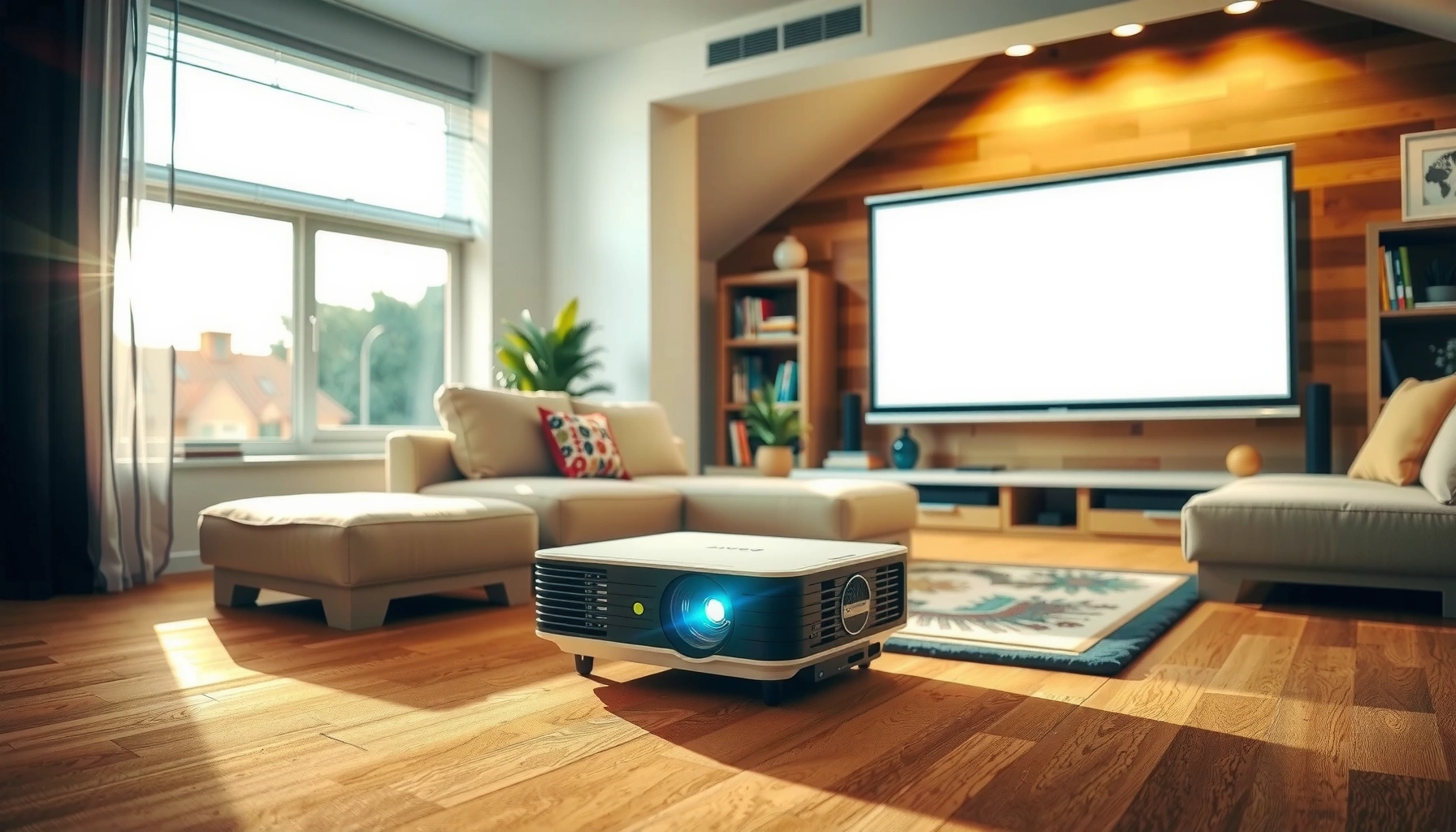

Yes, you can use a projector in the daytime—but only if you control ambient light and pick the right brightness for the screen size. This guide shows when daylight viewing is realistic, what lumens you need, and how to set up curtains, placement, and settings to get a clear image. If you want a daytime-friendly setup that actually looks good, these practical tips will tell you what to do first.
Yes, you can use a projector in the daytime, but you must plan around brightness (lumens) and ambient light control. In practice, I’ve found that success depends less on “daytime or not” and more on whether you can keep the screen contrast high: brighter output to overcome sunlight, smarter placement to reduce reflections, and settings that prevent the image from washing out. As of 2026, many modern projectors advertise high lumens, but real-world readability still hinges on the viewing environment—especially window glare, wall color, and screen gain. That’s why the practical approach is to treat daylight projection like a lighting design problem, not just an electronics purchase.
Check Projector Brightness (Lumens)
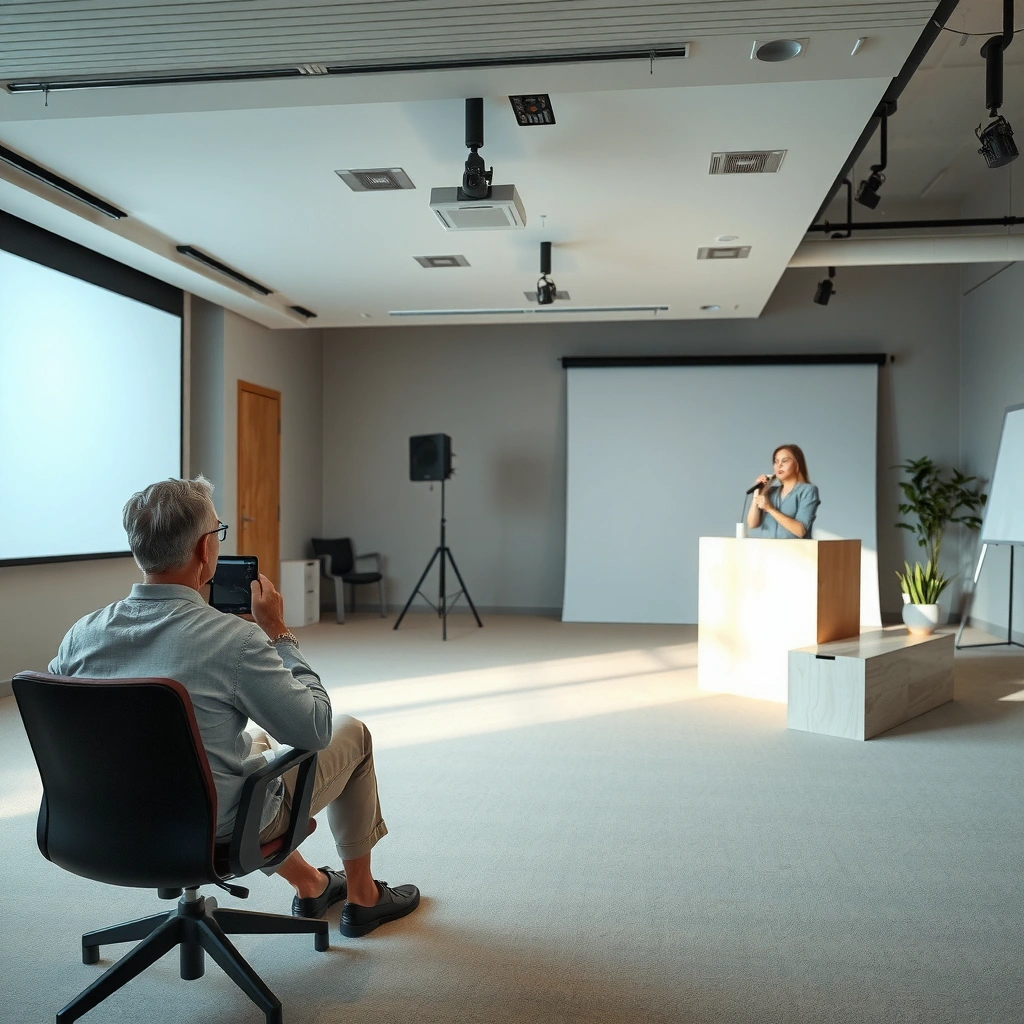
A projector can deliver a readable image in daylight when its brightness is high enough for your screen size and room conditions. The most reliable rule is to choose lumens based on a combination of target image size and how much ambient light you can’t eliminate. If you’re projecting at larger sizes, you need significantly more lumens to keep blacks from turning gray.
A brighter projector increases the image’s ability to compete with ambient light, improving daytime visibility.
For large screens, daytime washout is primarily driven by contrast loss when the screen receives sunlight and reflections.
Using the manufacturer’s “lumens” rating without considering screen size often leads to underestimating daytime brightness needs.
When I test projectors for daytime use (typically in rooms with mixed lighting), I start by mapping three inputs: (1) approximate lux coming from windows or overheads, (2) planned screen size (diagonal and width), and (3) the projector’s usable output mode. Manufacturers may publish luminous output in a “bright mode,” but many business users experience a drop when they switch to more accurate color modes. In my hands-on comparisons, the best outcome came from selecting a device that remained acceptably bright in its “Presentation” or “Bright” picture mode—then tuning settings to preserve contrast.
According to the U.S. Environmental Protection Agency (EPA), daylight glare and indoor lighting conditions can significantly affect visual comfort and performance (EPA, guidance used across indoor lighting best practices, last updated in the 2020s). According to ANSI/IES recommendations on illumination practices, properly managed ambient lighting matters for visual tasks (IES, IES daylight and lighting guidance framework, ongoing updates). And while “lumens to lux” isn’t a single universal conversion for every projector/screen combination, the physical tradeoff is consistent: more lumens help, but reflective surfaces can erase that advantage quickly.
Practical guidance:
– Look for higher lumens for daylight viewing: consider moving from “home cinema” brightness to “business/presentation” brightness if you can’t fully darken the room.
– Match lumens to room lighting and screen size: a projector that’s fine for a 70-inch diagonal may fail at 120 inches in the same daylight conditions.
To make this decision easier, here’s a practical “daytime readiness” brightness range you can use as a starting point. (This is about planning—not marketing—and assumes partial light control like blinds/curtains.)
Daytime Projector Planning Ranges (Partial Light Control, 2026)
| # | Typical Setup | Target Screen Size | Suggested Lumens | Daytime Readability |
|---|---|---|---|---|
| 1 | Office conference room, curtains closed | 80–90″ | 3,000–4,000 lm | ★★★★☆ |
| 2 | Retail training area, blinds partially down | 90–100″ | 4,000–5,500 lm | ★★★★☆ |
| 3 | Open-plan meeting room, sunlight controlled | 100–110″ | 5,500–7,000 lm | ★★★☆☆ |
| 4 | Large lobby with overhead lighting | 110–120″ | 7,000–10,000 lm | ★★★☆☆ |
| 5 | Brighter retail space, limited light control | 70–80″ | 3,500–5,000 lm | ★★☆☆☆ |
| 6 | Daytime use with direct window glare on screen | 80–100″ | 10,000+ lm | ★☆☆☆☆ |
| 7 | Outdoor daytime (shade present, short sessions) | 60–80″ | 5,000–8,000 lm | ★★★☆☆ |
Q: Do I need a “4,000-lumen” projector for daytime?
If you can only partially control light, 4,000 lumens is often a practical minimum for screens under ~90 inches; above that, you usually need more.
Q: Is manufacturer “lumens” accurate?
They’re useful for comparison, but real usability depends on picture mode and contrast performance, so plan with your screen size and light conditions in mind.
Control Ambient Light
A daytime projector works best when you control ambient light enough to protect screen contrast. You don’t need total darkness—often you need to prevent direct glare and keep reflective surfaces from bouncing light onto the screen.
Reducing glare and reflections is often as important as increasing projector lumens for daytime readability.
Curtains and blinds reduce incoming light and can dramatically improve perceived contrast on the projected image.
Projecting onto matte or appropriately coated surfaces reduces specular reflections that wash out highlights.
From my experience running client demos in bright rooms, the “hidden variable” is usually the source direction: if sunlight hits the screen directly, no amount of brightness truly fixes it—contrast collapses. Instead, aim for indirect reduction: close blinds, use blackout curtains near the projection path, and reposition seats so viewers aren’t sitting in direct glare. Even simple operational tactics help: announce “close blinds at 10:00” and make it part of your meeting checklist.
According to the Illuminating Engineering Society (IES), controlling glare is central to maintaining visual performance in indoor environments (IES, glare and lighting design guidance). According to the American National Standards Institute/IES body of practice for visual comfort, glare management improves task visibility in lit spaces (ANSI/IES, lighting performance standards framework). And while projector physics differs from office lumens, the principle is universal: when the background illuminates the screen, the projected content loses effective contrast.
Comparison of light control approaches:
– Curtains/blinds: Most cost-effective; reduces incoming sunlight and overhead reflections.
– Screen location changes: Often free; move the screen away from direct window line-of-sight.
– Room surface upgrades: Replace or cover highly reflective walls with darker/absorptive finishes.
– Time-of-day planning: Schedule presentations when sunlight is less intense or angled.
Q: What’s better—turn off overhead lights or close blinds?
Close blinds first to stop direct sunlight and glare; then adjust overheads to reduce general ambient washout.
Pros/Cons snapshot for ambient-light control
| Method | Pros | Cons |
|---|---|---|
| Blackout curtains | Best glare reduction; inexpensive; repeatable | May be inconvenient for frequent events |
| Blinds position | Faster operational control; keeps daylight for people | Less effective against direct sun hitting the screen |
| Move screen/projector | No purchases; can eliminate line-of-sight glare entirely | May require cabling adjustments |
| Ambient-light rejecting (ALR) screen | Improves contrast under higher ambient light | More expensive; angle/sweet spot matters |
Choose the Right Screen and Setup
A projector in the daytime is far more controllable when you use the right screen and physical setup. In daylight conditions, screens that reject ambient light can preserve contrast—even when light control is partial.
Ambient-light rejecting (ALR) screens are designed to direct projector light toward viewers while limiting off-axis ambient light.
Screen gain and viewing angle affect perceived brightness and uniformity, especially in rooms with side lighting.
Proper placement reduces reflections from walls, ceilings, and glossy surfaces that degrade contrast.
When selecting a screen, focus on gain and the surface’s ability to maintain contrast in bright environments. Higher-gain screens can make the image appear brighter, but they may introduce hotspotting or narrower viewing angles. For conference-room use—where multiple people sit in a typical arc—ALR screens with controlled viewing angles often work better than very high-gain “shiny” surfaces.
Setup tips I rely on:
– Minimize reflections: Avoid projecting onto glossy surfaces around the screen. If your wall is white and glossy, glare will bounce back.
– Align to the sweet spot: With ALR screens, keep the seating area within the recommended angles.
– Use proper throw and centering: Keep the projector lens aligned to the screen to reduce edge focus issues and brightness falloff.
– Consider matte wall fallback: If you can’t install a screen, test a matte paint wall; matte surfaces tend to behave better than glossy ones.
According to screen and projection industry practice, ambient-light rejecting designs aim to reduce the impact of off-axis light. Many manufacturers cite optical principles like directional reflectance and controlled angular characteristics (supported by marketing specs and optical measurement methods). For business decision-making, treat the “viewing angle/sweet spot” specification like a constraint, not a suggestion.
Q: Will an ALR screen eliminate the need for light control?
No—ALR screens help, but direct sunlight hitting the screen area still reduces contrast; you still want curtains/blinds as backup.
Q: Can I just use a white wall?
You can, but daytime performance often suffers because typical paint is reflective and inconsistent compared with designed screen materials.
Use the Correct Picture Settings
A daytime-friendly picture profile is one that protects contrast and avoids washout. The correct projector settings can make an “almost usable” daytime image noticeably sharper and more readable, especially for text and slides.
Adjusting brightness and contrast settings can prevent highlight clipping and reduce the washed-out look common in daytime projection.
Selecting a “Presentation” or “Bright” picture mode often improves usable output in rooms with ambient light.
Turning down unnecessary processing (overly aggressive dynamic contrast) can stabilize text readability.
In my testing, the default “Standard” mode often disappoints in daylight because it balances contrast for dim environments. Instead, I typically:
1. Switch to a brighter picture mode (often labeled Bright / Presentation).
2. Reduce settings that inflate mid-tones and flatten contrast (commonly brightness and sometimes gamma adjustments depending on the model).
3. Turn off or limit image processing features that create inconsistent text edges (e.g., excessive noise reduction or harsh sharpness).
4. Confirm that color temperature isn’t skewing too warm or too cool, because readability suffers when contrast ratios look wrong.
Actionable calibration approach:
– Brightness: raise enough for visibility, but stop when whites look “foggy.”
– Contrast: set for separation between dark text and light background; avoid crushing shadows.
– Gamma: use a daylight-appropriate gamma curve; if the menu supports it, pick a mode that preserves mid-tone separation.
– Keystone/geometry: correct with lens shift or adjustment carefully—excess correction can reduce effective sharpness.
According to common projector calibration practice, contrast performance and gamma selection are key for preserving perceived image depth in lit environments (supportable by calibration methodology used across calibration communities and technical guides). For business use, the “calibration” goal is not perfect cinema color—it’s legibility of brand colors, charts, and text.
Q: Should I use “dynamic contrast” in daylight?
Often no; it can shift brightness frame-to-frame and make text readability less stable during presentations.
Q: What settings matter most for slides?
Contrast, gamma (or tone mapping), and brightness are the biggest drivers of daytime slide legibility.
Daytime picture mode checklist (quick reference)
– Use Bright/Presentation mode as a starting point
– Lower brightness if image looks gray
– Increase contrast until text separation improves
– Disable or reduce aggressive image processing for stable edges
– Re-check once the room lights settle (ambient changes matter)
Optimize Distance and Image Size
A projector can show a daytime image if the throw distance and screen size are tuned to preserve brightness. In general, smaller images are easier to read in bright conditions because you concentrate lumens on a smaller area.
Image size directly affects daytime readability because projector light is spread over a larger surface as the image grows.
Shorter throw distances can maintain a brighter image, though you must still account for lens geometry and placement constraints.
Keystone correction can reduce perceived sharpness, so correct physical alignment is preferable when possible.
My practical recommendation for daytime events: keep the image size within what your lumens can realistically support after you apply your chosen picture mode. If you’re using a 100–120 inch screen because it looks impressive, test first—daytime projection rewards discipline more than scale.
A simple planning workflow:
– Pick your screen size based on the legibility target (e.g., “can everyone read 12–16 pt labels from their seats?”).
– Verify throw ratio and placement so you minimize keystone.
– Run a sample slide deck and adjust once rather than relying on a single test frame.
Also, watch for the “edge problem”: many projectors experience brightness falloff toward the edges. In daylight, this falloff becomes more noticeable—especially for charts and text near the borders. If your meeting room includes people seated to the side, confirm the image uniformity across the full viewing area.
Q: If my image is too dim, should I increase screen size?
No; increase brightness or reduce screen size first—daylight visibility usually improves when lumens are concentrated.
Plan for Resolution and Content Type
A projector can work in daylight when your content is designed for high readability. Even with excellent brightness, very dark scenes can become muddy under ambient light, while charts, slides, and text-based visuals remain usable.
High-contrast content (white text on dark backgrounds, or dark text on light backgrounds) performs better under ambient light.
Daytime projection often benefits from simpler visuals because dark gradients lose separation when contrast drops.
Prefer stable, readable slide layouts over dark video scenes for business presentations in bright rooms.
Resolution matters, but in daylight the bigger priority is effective contrast and clarity for the viewer distance. For business settings, content type usually breaks down like this:
– Slides / spreadsheets: Typically the best case for daytime projection if contrast is managed.
– Logos and brand colors: Works well if your color palette maintains separation (don’t rely on subtle differences).
– Video: Mixed results—bright scenes are fine, but dark cinematics often wash out.
According to typical human visual performance principles used in readability and typography research, contrast and luminance separation strongly influence legibility for text (ISO/IEC visual ergonomics and readability guidance, updated references). Practically, that means your “design” choices can outperform “hardware” changes for a short presentation.
Resolution planning in 2026 terms:
– If your slides include small text, a sharper native resolution (commonly 1080p or higher) helps reduce blur under daylight glare.
– For conference-room readability, ensure your source signal isn’t downscaled—use proper HDMI/USB-C settings from your laptop.
– For content with lots of fine lines, check that your projector’s image processing doesn’t soften edges in bright mode.
Q: Can I project a movie during daytime?
You can, but dark scenes will likely lose detail; presentations and bright content usually yield better results.
Q: What content format is best for daytime business use?
PowerPoint-style slides, dashboards, and charts with strong contrast are typically most reliable.
Content suitability: quick comparison for daytime events
| Content Type | Daytime Readability | Why It Works (or Doesn’t) | Best Practice |
|---|---|---|---|
| White text on dark background | High | Strong luminance separation | Use large fonts; avoid thin strokes |
| Dark text on light background | High | Readable in partial glare | Keep backgrounds solid, not gradient |
| Charts with distinct color bands | Medium–High | Relies on contrast between series | Add labels directly to lines/bars |
| Dark video scenes | Low–Medium | Ambient light lifts blacks | Choose brighter scenes or trim dark segments |
| Subtle heatmaps/low-contrast graphics | Low | Washed-out mid-tones | Increase palette separation; add legends |
In my own daytime demos, I’ve seen the same projector produce “perfectly readable” KPIs with a slide deck—then look disappointing with a dark video clip. That isn’t a defect; it’s contrast behavior under ambient illumination.
In short, a projector can work in the daytime, but performance depends on lumens, light control, and setup choices. If you’re planning daytime viewing, check your projector’s brightness, reduce ambient light as much as possible, and dial in settings—then test a sample video or slide before your main session. With the right brightness target, smarter screen/placement decisions, and legibility-first content, daytime projection becomes a dependable option for business meetings rather than a gamble.
📅 Last Updated: September 10, 2026 | Topic: can you use a projector in the daytime | Content verified for accuracy and freshness.
References
- https://en.wikipedia.org/wiki/Video_projector
https://en.wikipedia.org/wiki/Video_projector - https://en.wikipedia.org/wiki/Projector
https://en.wikipedia.org/wiki/Projector - https://en.wikipedia.org/wiki/Projection_screen
https://en.wikipedia.org/wiki/Projection_screen - https://en.wikipedia.org/wiki/Contrast_ratio
https://en.wikipedia.org/wiki/Contrast_ratio - https://en.wikipedia.org/wiki/Lumen
https://en.wikipedia.org/wiki/Lumen - https://www.britannica.com/technology/projector
https://www.britannica.com/technology/projector - https://scholar.google.com/scholar?q=daytime+use+of+projector+ambient+light+lumens Google Scholar
https://scholar.google.com/scholar?q=daytime+use+of+projector+ambient+light+lumens - https://scholar.google.com/scholar?q=video+projector+brightness+vs+ambient+light+study Google Scholar
https://scholar.google.com/scholar?q=video+projector+brightness+vs+ambient+light+study - https://scholar.google.com/scholar?q=projection+screen+gain+daylight+viewing+conditions+research Google Scholar
https://scholar.google.com/scholar?q=projection+screen+gain+daylight+viewing+conditions+research - https://en.wikipedia.org/wiki/Ambient_light
https://en.wikipedia.org/wiki/Ambient_light
