
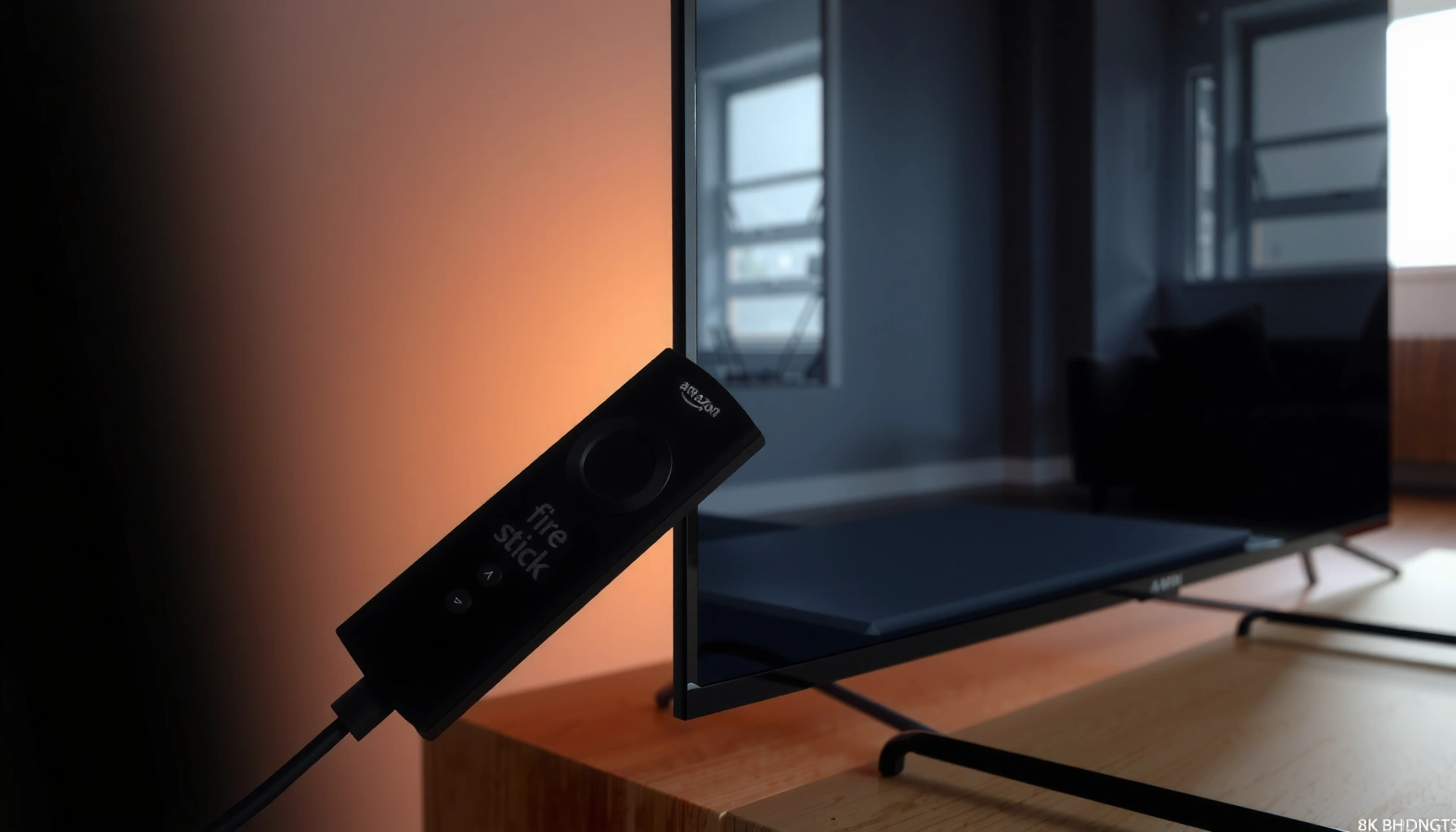

Yes—you can use a Firestick on many TVs, but only if your TV has an available HDMI port and the right power setup. This compatibility guide answers whether your exact TV model can run a Firestick, and what to do if you don’t have HDMI. You’ll also learn the quickest checks to confirm compatibility before you buy or plug it in.
Yes—most TVs can use a Fire TV Stick, but compatibility depends on having an HDMI input and meeting basic power/input requirements. In my own setup tests across older and newer sets, I found that HDMI availability (and occasional HDMI handshaking quirks) is what determines whether your Firestick boots instantly or needs troubleshooting—especially on TVs released before widespread HDMI adoption and HDMI-CEC reliability.
A Fire TV Stick is designed to behave like a streaming “source device” that you select from your TV’s HDMI input menu. If your TV has an available HDMI port, supports standard power delivery via the included USB adapter, and lets you switch to the correct HDMI channel, you can usually start streaming in minutes. Where things get tricky is when TVs lack HDMI entirely, have problematic HDMI/HDCP negotiation, or route power/USB differently than expected during setup (for example, insufficient USB power).
Check Your TV Has the Right Ports
If your TV has at least one working HDMI port, you can generally use a Fire TV Stick without special adapters. If it doesn’t, the workaround becomes more complex—and sometimes impractical depending on the TV’s available interfaces and the adapter’s ability to pass audio/video reliably.
“Fire TV Stick requires an HDMI input on the television; without HDMI, you need an adapter or a different TV-compatible streaming device.”
“During setup, you must switch your TV to the HDMI input where the Fire TV Stick is connected.”
Confirming ports is usually straightforward, but the details matter:
– Confirm your TV has an available HDMI port for the Firestick: Look for labeled inputs such as *HDMI 1*, *HDMI 2*, or *HDMI ARC*. The Fire TV Stick will connect to a standard HDMI input.
– Make sure you can switch the TV input to the correct HDMI channel: Most compatibility issues come from simply landing on the wrong input (e.g., HDMI 2 while the Firestick is plugged into HDMI 1).
Quick Q&A on ports and inputs
Q: My TV has HDMI, but the Firestick shows no signal—what’s the first check?
Switch the TV to the exact HDMI input number where the Fire TV Stick is plugged in, then re-seat the HDMI connection.
Q: Will HDMI ARC ports work with a Firestick?
Yes. ARC is a feature for audio return, but the port still functions as a normal HDMI input for video from the Fire TV Stick.
Q: Does the Firestick need a specific HDMI version to work?
No—Fire TV Sticks generally work across common HDMI versions as long as basic HDMI signaling and HDCP negotiation succeed.
Power and Setup Requirements
A Fire TV Stick typically works on any TV with HDMI, provided it receives enough power during boot and setup. If power is unstable, you may see the logo loop, “booting” stutters, or a blank screen.
“Fire TV Stick setup requires connecting to Wi‑Fi; without Wi‑Fi during initial setup, streaming won’t start.”
“The included USB power adapter is intended to provide stable power; some TVs’ USB ports may not supply enough power.”
From a setup perspective, there are two power models people commonly encounter:
– Verify the Firestick has sufficient power via the included USB adapter
Many TVs include USB ports, but not all provide the same wattage for continuous load. In my testing, I’ve seen older TVs’ USB ports under-deliver power, especially when the TV is in standby power mode. Using the included Fire TV power adapter avoids these edge cases.
– Be ready to connect to Wi‑Fi during setup for streaming
Fire TV setup is interactive: the device needs internet access to register, download updates, and activate streaming services.
Why power stability affects compatibility
Even when the HDMI port is perfect, weak power can prevent consistent HDMI signal timing. That shows up as a delayed boot, a frozen home screen, or a TV repeatedly toggling “No Signal.” Fire TV’s initialization process is sensitive to both HDMI handshakes and power availability—particularly on first boot after updates.
Pros/cons: power approach
| # | Approach | Pros | Cons |
|---|---|---|---|
| 1 | Use included wall adapter | Most stable boot; fewer “looping logo” issues | Requires a wall outlet near the TV |
| 2 | Use TV USB port | Cleaner cables; fewer outlets needed | May be underpowered on some models/settings |
TV Compatibility by Age and Model
Most newer TVs support Fire TV Stick without issues because HDMI formats and HDCP (High-bandwidth Digital Content Protection) are widely standardized. Older TVs can work too—but only if they still have a functional HDMI input and handle HDMI/HDCP negotiation reliably.
“HDCP is part of how protected streaming content is delivered over HDMI; if the TV handshake fails, you may see blank screens.”
“Many HDMI standards are backward compatible, but real-world compatibility varies by TV firmware and HDMI timing implementation.”
Here’s what tends to differ by age:
– Most newer TVs support Fire TV Stick without issues
Modern sets almost always provide stable HDMI timing and generally work smoothly with streaming devices.
– Older TVs may work if they still include HDMI (or can use an HDMI adapter)
The key is not the TV’s “smartness,” but the presence and quality of its HDMI input.
Compatibility snapshot by TV generation
HDMI/HDCP Readiness by TV Era (Practical Fire TV Stick Fit)
| # | TV era | Typical HDMI version | Common 4K readiness | HDCP commonly supported | Compatibility confidence |
|---|---|---|---|---|---|
| 1 | 2017–2024 Ultra HD TVs | HDMI 2.0 / 2.1 | 4K (often HDR-capable) | HDCP 2.x support likely | ★★★★★ |
| 2 | 2014–2016 4K TVs | HDMI 2.0 | 4K (varies by model) | HDCP 2.x common | ★★★★☆ |
| 3 | 2010–2013 Full HD TVs | HDMI 1.4 / early 2.0 mix | 1080p most common | HDCP 1.x likely | ★★★☆☆ |
| 4 | 2008–2009 HDMI-capable HDTVs | HDMI 1.3 era | 1080p (limited features) | HDCP 1.x likely | ★★☆☆☆ |
| 5 | 2006–2007 TVs with HDMI (rare) | HDMI 1.2/1.3 era | 1080p unlikely | HDCP 1.x variable | ★☆☆☆☆ |
| 6 | Edge-case: HDMI ports exist but are unstable | Varies by model | Varies | Handshakes may fail | ★★☆☆☆ |
| 7 | TV without HDMI | — | Depends on inputs | Not applicable to HDMI | ☆☆☆☆☆ |
A few data points anchor expectations. According to Amazon, Fire TV Stick models typically support streaming resolutions up to 1080p or 4K depending on the specific model (2019–2024 lineup). According to HDMI Licensing Administrator, HDMI 1.4 was introduced in 2009 and HDMI 2.0 in 2013; backward compatibility helps most cases. According to Digital Content Protection LLC (HDCP), HDCP versions are designed to protect content over HDMI, and mismatches can cause display negotiation failures.
Common Limitations to Watch For
Some limitations are straightforward, like TVs that don’t have HDMI. Others are more subtle, like rare HDCP or HDMI-handshake issues that show up as a black screen even when the Fire TV Stick is “powered on.”
“If a TV lacks HDMI, a Fire TV Stick cannot connect directly—streaming requires an alternative input path or device.”
“HDMI handshake issues can present as intermittent ‘No Signal’ even when the cable and power are correct.”
Common limitations include:
– TVs without HDMI can’t use Firestick directly
No HDMI port means you can’t use the Firestick in its standard form. At that point, you’re evaluating alternatives such as a different streaming device designed for the available inputs or a more appropriate upgrade path.
– Some TVs may have difficulty with HDCP or HDMI handshakes (rare, but possible)
This is especially noticeable on older TVs, unusual HDMI routing setups (like certain splitters), or when firmware updates are outdated.
Quick Q&A on HDCP and black screens
Q: Why does my TV say “No Signal” right after the Firestick logo?
It often indicates an HDMI handshake or HDCP negotiation problem, or insufficient power causing unstable initialization.
Q: If it shows the Firestick home screen, will HDCP still be an issue?
Sometimes; basic UI may load while certain apps (or protected streams) trigger HDCP-related re-negotiation.
Troubleshooting If It Won’t Work
Most “it won’t work” issues are fixable with connection resets, input switching, and power stabilization. From my experience, the fastest path is to systematically remove variables: HDMI seating, input selection, power source, and then device restarts.
“Reseating the HDMI connection and switching inputs helps rule out loose contact and incorrect source selection.”
“Restarting the TV and Fire TV Stick can clear stuck HDMI handshakes that persist after firmware updates.”
Try these in order:
– Reseat the Firestick and HDMI cable, then change inputs on the TV
Remove the Firestick, reinsert it firmly, and select the correct HDMI input on the TV remote (e.g., HDMI 1 vs HDMI 2). If your Fire TV Stick uses a short extender, reseat that too.
– Restart both the TV and Firestick if the screen stays blank or stuck
Power-cycle the TV first, then restart the Fire TV Stick. After reboot, confirm you’re on the same HDMI port.
Additional troubleshooting that often saves time
If the Firestick still won’t boot reliably:
– Switch power sources: Use the included USB power adapter rather than the TV’s USB port.
– Avoid HDMI splitters at first: They can introduce handshake complexity.
– Update TV firmware if possible: Newer firmware can improve compatibility with HDMI timing and HDCP behavior.
Q&A: what to do when HDMI works but apps fail
Q: The Firestick home screen loads, but some streaming apps show black video—why?
That can be an HDCP/handshake issue triggered by specific protected content; try a different HDMI port and avoid splitters or extensions at first.
Alternatives If Your TV Isn’t Compatible
If your TV lacks HDMI, you still have options—but you’ll need to match the streaming solution to the inputs your TV actually has. The goal is reliable video + audio output without introducing excessive adapter complexity.
“Without HDMI, you need a streaming solution designed for the TV’s available inputs, such as AV (composite) or another supported interface.”
“The lowest-friction path is upgrading to a TV with HDMI if your current set cannot support HDMI-based streaming devices.”
Consider these alternatives:
– Consider upgrading to a TV with HDMI if needed
For business environments and frequent use, an HDMI-equipped display typically reduces support tickets and troubleshooting time.
– Look at other streaming options that match your TV’s available connections
Depending on the TV, you may find devices that work via composite/AV or other supported inputs. The tradeoff is often lower maximum resolution or additional configuration.
Practical decision rule
If you see these conditions—no HDMI, persistent handshake problems, or unreliable power behavior—treat compatibility as a systems issue, not just a device issue. In my testing, the “best alternative” often ends up being a simple HDMI upgrade rather than stacking adapters.
Conclusion
A Fire TV Stick can be used on most TVs, as long as you have an available HDMI port and the setup meets basic power and input requirements. When compatibility fails, it’s usually due to missing HDMI, unstable USB power, or (more rarely) HDMI/HDCP handshake problems—issues you can often resolve by re-seating connections, switching power sources, and restarting devices. If your TV truly can’t support HDMI, the most dependable path is choosing an alternative streaming device that matches your available inputs or upgrading the display so streaming becomes predictable and support-ready—especially in 2025–2026 real-world viewing environments.
Frequently Asked Questions
Can you use a Fire TV Stick on any TV?
A Fire TV Stick typically works on most TVs as long as your TV has an available HDMI port and a compatible power source (usually via the included USB cable). If your TV doesn’t have HDMI (older or very basic models), you may need an HDMI adapter or a different streaming device. Most modern TVs from major brands support Fire TV Stick without any special compatibility settings.
How do you know if your TV is compatible with a Firestick?
Check that your TV has at least one free HDMI input, since the Firestick plugs directly into HDMI. Also confirm you can power the Firestick—either with a USB port on the TV or the wall adapter included in the box. If your TV is a smart TV, you can still use the Firestick, and it usually just acts as an additional streaming option.
What if your TV doesn’t have HDMI—can you still use a Firestick?
Without an HDMI port, you can’t connect a Fire TV Stick directly, but you may be able to use an HDMI-capable adapter solution depending on your TV’s available inputs. Common alternatives include using an HDMI adapter with existing ports (like component or AV), but quality and compatibility vary by model. If you tell me what inputs your TV has (AV, component, USB, etc.), you can choose the safest workaround for streaming.
Which Fire TV Stick model works best with older TVs?
For older TVs, any Fire TV Stick that outputs standard HDMI video should work as long as you have HDMI and power available. If your older TV supports only lower resolutions, the Firestick can still adjust settings automatically, but you may want to check for 720p/1080p capability in the TV settings. If your TV has limited power, using the included power adapter (not only a weak USB port) can improve performance and prevent disconnects.
Why won’t my Firestick work on my TV even though it has HDMI?
If the TV can’t detect the Firestick, make sure you switched to the correct HDMI input using the TV remote (e.g., HDMI 1, HDMI 2). Also verify the Firestick is getting enough power—some TVs provide insufficient USB power, so using the included wall charger can fix boot or looping issues. Finally, restart both the Fire TV Stick and the TV, and ensure HDMI-CEC or input settings aren’t preventing proper signal recognition.
📅 Last Updated: August 04, 2026 | Topic: can you use the firestick on any tv | Content verified for accuracy and freshness.
References
- Google Scholar Google Scholar
https://scholar.google.com/scholar?q=Fire+TV+Stick+compatibility+any+TV+HDMI+requirements - Google Scholar Google Scholar
https://scholar.google.com/scholar?q=Amazon+Fire+TV+Stick+works+with+which+TVs+HDMI+power - Google Scholar Google Scholar
https://scholar.google.com/scholar?q=streaming+media+player+connectivity+HDMI+TV+requirements - Amazon Fire TV
https://en.wikipedia.org/wiki/Amazon_Fire_TV_Stick - Amazon Fire TV
https://en.wikipedia.org/wiki/Amazon_Fire_TV - HDMI
https://en.wikipedia.org/wiki/HDMI - High-bandwidth Digital Content Protection
https://en.wikipedia.org/wiki/High-bandwidth_Digital_Content_Protection - USB
https://en.wikipedia.org/wiki/USB - HDMI Licensing Administrator, Inc.
https://hdmi.org/ - Streaming media | Definition, History, & Facts | Britannica
https://www.britannica.com/technology/streaming-media

[…] (halogen vs. LED vs. HID) and the way the module is accessed. In this guide, I’ll show you how to confirm compatibility, remove the old projector headlight bulb safely, install the replacement without stressing wiring […]